Camera hasn't been working Error Code: 0xA00F4244

Dr Sloppy 40 Reputation points
2026-08-13T21:38:06.39+00:00

I've been getting these notifications of "Need help with your camera?" lately and thought it was just normal but the more time I spent using my laptop the more it would appear sooner. I thought about it and went to start troubleshooting but never really found anything so I just simply went off and didn't care about it later even after the notifications keep popping up. But later yesterday I was attempting to use the camera to verify my age on the platform called "Roblox" and it was working fine until on my 2nd attempt it appeared only black and then my 3rd one said it has hardware issues. I was already getting tired and went to bed but today it still doesn't work and doesn't seem to turn on or reinstall after I uninstalled it from device manager, it was also hidden for some reason and I'm not sure why. I am looking for help and seeing if anyone might have any same issues.

I am using Windows 11, Built-in Laptop Camera
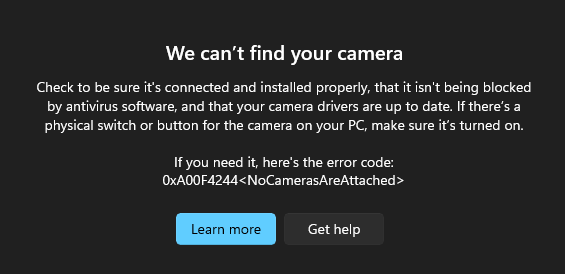
Screenshot 2026-08-13 172842

Update as of 5:30 PM UTC-4 it started saying this after I did another roblox age verify face scan
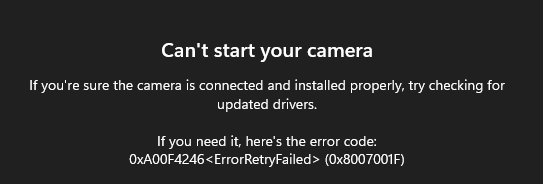

Screenshot 2026-08-13 173313

Windows for home | Windows 11 | Performance and system failures
0 comments No comments

Answer accepted by question author
Ferdinand Nanalig 32,370 Reputation points Independent Advisor
2026-08-13T22:39:20.8233333+00:00

Hi! Let me help you.

Have you tried a hard reset?

Turn off the laptop.

Unplug the charger.

Remove all USB devices.

If the battery is removable → remove the battery.

Press and hold the Power button for 30–60 seconds.

Reinsert the battery (if removed).

Plug in the charger.

Turn the laptop on.

Was this answer helpful?

1 person found this answer helpful.

1 additional answer

Sort by: Most helpful
  1. AI answer

    2026-08-13T21:38:26.44+00:00

    0xA00F4244 means Windows is not detecting the camera. Since this is a built-in laptop camera, and it was hidden in Device Manager after failing, the most useful path is:

    1. Check camera privacy settings
      • Go to Start > Settings > Privacy & security > Camera.
      • Make sure Camera access is On.
      • Make sure Let apps access your camera is On.
      • If the app is not from Microsoft Store, make sure Let desktop apps access your camera is On.
      • If Camera access is greyed out, an administrator must enable it.
    2. Check Device Manager
      • Open Start > Device Manager.
      • Expand Cameras.
      • If the camera appears, right-click it:
        • If Enable device appears, select it.
        • If Disable device appears, it is already enabled.
      • If it does not appear normally, use View > Show hidden devices and check again.
    3. Run the camera troubleshooter
      • Run the automated Camera troubleshooter in the Get Help app.
      • This is the recommended starting point for Windows camera problems and can automatically diagnose and fix many issues.
    4. Check for Windows and driver updates
      • Go to Start > Settings > Update & Security > Windows Update > Check for updates.
      • If View optional updates appears, check for camera-related driver updates.
      • Install available updates and restart the PC.
    5. Update the camera driver in Device Manager
      • In Device Manager, right-click the camera under Cameras.
      • Select Update driver > Search automatically for drivers.
      • Restart after the update completes.
    6. Test in the Windows Camera app
      • Open Start > Camera.
      • If it works there but fails in Roblox, the problem is with that app’s access or behavior.
      • If it still shows black screen or 0xA00F4244, continue with driver recovery.
    7. Install the latest camera driver from the laptop manufacturer
      • In Device Manager, right-click the camera > Properties.
      • On the General tab, check the Manufacturer.
      • Download the latest camera driver for the exact laptop model from the PC manufacturer’s support site, then install it and restart.
      • If the manufacturer shows as Microsoft, the device may be using a generic driver, so the laptop manufacturer’s driver package is still the better source.
    8. If the camera still does not appear after all of the above
      • For a built-in camera, this can indicate a hardware problem or internal connection issue.
      • If software steps, Windows Update, and the manufacturer driver do not restore detection, the device should be checked by the laptop manufacturer.

    The later 0xA00F4246 / 0x8007001F message also matches camera lock or failure conditions, so checking privacy settings, closing other apps using the camera, and updating the driver are the correct next steps.


    References:

    AI-generated content may be incorrect. Read our transparency notes for more information.

    Was this answer helpful?

Your answer

Answers can be marked as 'Accepted' by the question author and 'Recommended' by moderators, which helps users know the answer solved the author's problem.
