Your device is missing important security updates

StOrM 0 Reputation points
2026-08-22T19:07:51.7266667+00:00

Hi all,

I know this question was asked before (found a thread from 2014) but the suggestions weren't completely helpful and I didn't find any user reporting that it worked for them.

The issue is that, windows update is stuck at 21H2 and I am not receiving any further updates. Clicking on "Check for updates" does nothing, tried the Troubleshooter "System -> Troubleshoot -> Other Troubleshoot -> Windows Update (Run)" and it says that it detected an issue and fixed it, yet there's no difference. Additionally I did verify that the windows update service is running, also tried restarting it.

And finally after finding a previous post where one of the independent developer asked to try updating using Windows11 Installation Assistant which I did and I guess it did find something and is trying to install but I am getting the below error (Please do let me know if there any any issues with the uploaded image):
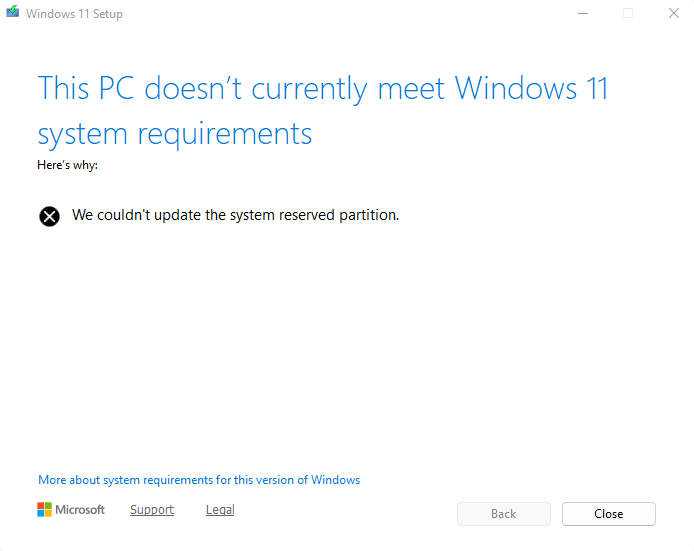
User's image

Here's a screenshot from the Disk Management. I am guessing it's the EFI System Partition that it's complaining about but I wanted to know if that is the case and if you would recommend increasing the space on this!! If yes, by how much?User's image

System Info:

Edition Windows 11 Pro

Version 21H2

Installed on ‎21-‎12-‎2021

OS build 22000.2538

Experience Windows Feature Experience Pack 1000.22001.1000.0

Please do let me know if any additional details are needed. Any help on this is appreciated, thank you :)

PS: FOR THOSE WHO ARE LOOKING AT A QUICK SUMMARY ON WHETHER THE SUGGESTION WORKED, IF YES, WHAT WERE THE STEPS FOLLOWED, i'M JUST SUMMARISING HERE:

Several steps/troubleshooting were done, none of which worked, so this is what I followed to fix the issue/update windows to the latest version:

  1. Download Windows 11 Installation Assistant from microsoft.com/software-download/windows11 (Additionally it might ask you to install PC Health Check app and the link will be provided within this app)
  2. Click on Accept and Install which will check and update the latest version based on the conditions met (Do note that this will take anywhere between 30 minutes to 1/2 hours, but you can use the PC for regular work until this step completes)
  3. Click on Restart when prompted and you're done (Automatic restart happens after 30 minutes if not initiated manually)

Just a side note: I got an error "We couldn't update the system reserved partition" which is due to space constraint in the EFI Partition drive and I had to run the provided command by Ramesh (it is available in the comments below) which will delete the *.ttf files from this drive which only affects the font styles/size in the boot menu, everywhere else remains untouched. Take a backup if needed. Enjoy :)

Windows for home | Windows 11 | Windows update
0 comments No comments

2 answers

Sort by: Most helpful
  1. Ramesh 180.1K Reputation points Volunteer Moderator
    2026-08-22T19:15:29.75+00:00

    The EFI partition needs to have sufficient free space for the upgrade to succeed. Disk Management says "100% free" for the EFI partition, but it's not true.

    Please open an admin Command Prompt window and run these commands one by one:

    cmd.exe
    
    mountvol Y: /s
    
    del  /q  Y:\EFI\Microsoft\Boot\Fonts\*.ttf
    
    powershell -command "GCI Y:\  -File -Recurse | Sort Length -descending | Select FullName, Length, Mode -first 10"
    
    dir Y:\
    

    Post the output here.


    Run the PC Health Check app to see if the system is compatible with Windows 11 Version 25H2:

    Download https://aka.ms/GetPCHealthCheckApp

    Run the PC Health Check app, and click "Check now."

    Click "See all results."

    Post a screenshot.

    Was this answer helpful?


  2. AI answer

    2026-08-22T19:08:16.96+00:00

    Yes — the error shown is consistent with the system reserved / EFI partition being the blocker.

    For Windows update failures with 0x800f0922, Microsoft documents that affected devices can have limited free space on the EFI System Partition (ESP), especially when the ESP has 10 MB or less free space available. On those devices, installation can fail and roll back.

    For the broader Windows Update issue, the supported steps are:

    1. Run Windows Update troubleshooter again
      • Start > Settings > System > Troubleshoot > Other troubleshooters
      • Find Windows Update and select Run
    2. Check for updates again
      • Start > Settings > Windows Update > Check for updates
    3. Make sure the OS drive has enough free space
      • Windows requires at least 16 GB free for a 32-bit OS or 20 GB for a 64-bit OS to upgrade.
    4. Repair system files
      • Open Command Prompt as administrator.
      • Run:
        • DISM.exe /Online /Cleanup-image /Restorehealth
        • sfc /scannow
      • Then try Windows Update again.
    5. Reset Windows Update components
      • Warning: these are admin command-line steps.
      • Open Command Prompt as administrator and run these one at a time:
        • net stop bits
        • net stop wuauserv
        • ren %systemroot%\softwaredistribution softwaredistribution.bak
        • ren %systemroot%\system32\catroot2 catroot2.bak
        • net start bits
        • net start wuauserv
      • Restart the PC.
    6. Check for third-party security software interference
      • If third-party antivirus/security software is installed, temporarily uninstall it, update Windows, then reinstall it.
      • Risk: protection is reduced while it is removed.

    About how much to increase the EFI partition: the provided material only confirms that failures can occur when the ESP has 10 MB or less free space. It does not provide a supported target size or a recommended amount to enlarge it by.

    Because of that, the supported conclusion is:

    • Yes, the EFI/System Reserved partition is a plausible cause of the error shown.
    • A specific resize amount is not provided in the available documentation.

    AI-generated content may be incorrect. Read our transparency notes for more information.

    Was this answer helpful?

Your answer

Answers can be marked as 'Accepted' by the question author and 'Recommended' by moderators, which helps users know the answer solved the author's problem.
