MS Planner custom default workday?

Tara O'Loughlin 0 Reputation points
2026-08-28T18:28:19.73+00:00

How do I make the workdays 10 or 12 hour days instead of 8? The custom default work template only allows for 7 days not long days. Note: I have project premium connected to Planner

Microsoft 365 and Office | Project | For business | Other
0 comments No comments

2 answers

Sort by: Most helpful
  1. Ivory 985 Reputation points Independent Advisor
    2026-08-28T20:23:55.3666667+00:00

    Hi Tara,

    The "custom default work template" you're seeing in the Planner Premium UI only lets you toggle which days are working days. You will have to set up a resource's calendar to work with your planner.

    Project for the web is built on the Microsoft Power Platform. Because of this, some aspects of calendar set up needs to be done in Power Apps.

    Note: Accessing Resources and Calendar Templates there requires System Administrator or Project Manager security role within the Dataverse Environment where Planner data is stored. Please follow the guidance in this thread just in case if you encounter "insufficient permissions" error.

    To set up a resource's calendar:

    1. Go into https://web.powerapps.com
    2. On the Power Apps page, select Apps.
    3. On the Apps page, in the Org Apps tab, select Project.
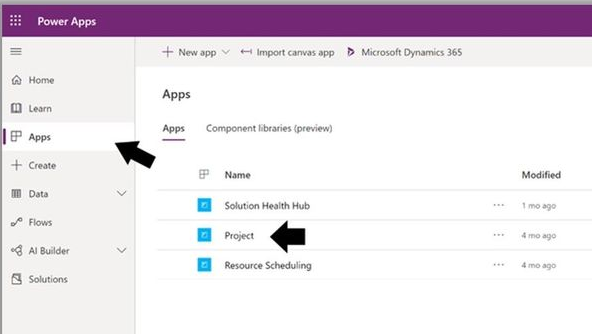
    User's image

    Once you’ve opened this, you’ll need to go into the Resources tab to see all the available resources.
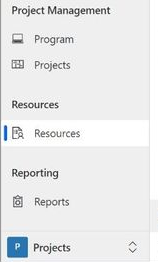
    User's image

    From here, select the resource whose calendar you need to edit.

    Once you’ve selected the resource, you will see the General & Work Hours tabs. By selecting the Work Hours tab, you will see the current set work hours on that resource.

    User's image

     From here, there are a few options to change the resource’s working hours:

    • Use the New button to create a new set of rules for your resource’s calendar
    • Edit the existing rules on your resource’s calendar.

    You should use Working hours rules when creating your resource’s calendars as it defines hours during which your resource will be working

    You can edit an existing rule by clicking on the rule on your resource’s calendar.

    Once you select the rule you wish to edit, a side panel will open with options to edit the hours.
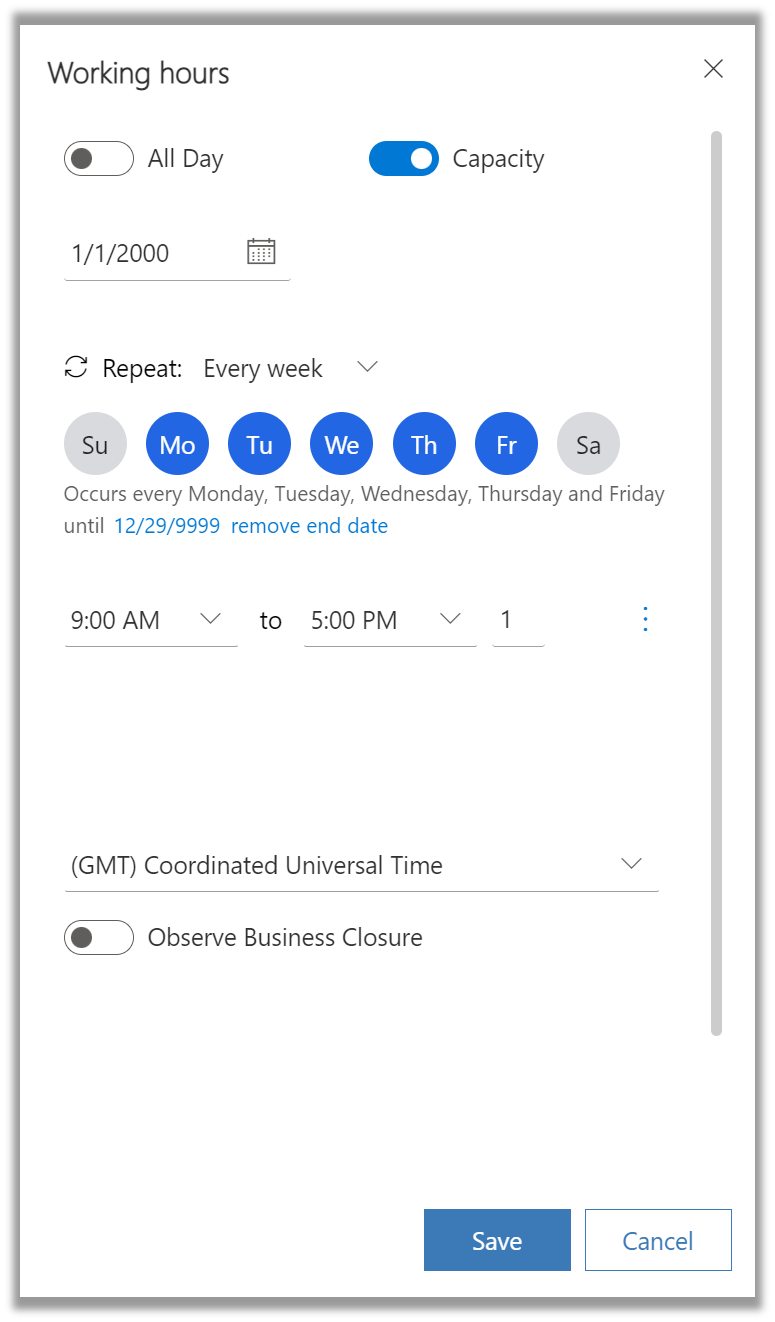
    User's image

    You can edit your calendar rules in this pane. Once you are done editing the rule, click ‘Save’.

    Once you have finished setting your resource’s calendar, click ‘Save’ to ensure the calendar is saved.

    For more information, you can consult the following documents:

    If you have any further in-depth questions about Power Apps, you can also raise them at Microsoft Power Platform Community Forum Thread, you’ll find the more qualified group of respondents towards this subject.

    Was this answer helpful?

    0 comments No comments

  2. Allan Solomon Mejia 6,880 Reputation points
    2026-08-28T19:17:47.3366667+00:00

    Hi @Tara O'Loughlin

    Two different settings are being mixed here: the number of working days per week and the number of working hours per day.

    Planner Premium’s Custom Calendar UI lets you select which days belong to the workweek. Microsoft confirms that custom calendars define the working days Planner’s scheduling engine uses.

    For a 10- or 12-hour workday, the working hours must come from the underlying work-hours/resource calendar, not from simply changing the 7-day selection in Planner. Microsoft’s Project/Planner scheduling documentation describes the process as Resource with required working hours → Work Hours Template → Apply template to the project.

    For example, you could configure the resource calendar as:

    Monday–Friday: 07:00–17:00 = 10 hours/day or Monday–Friday: 06:00–18:00 = 12 hours/day.

    Then save that resource calendar as a Work Hours Template and apply it to the Premium plan/project. Microsoft states that these templates include work hours per day, days off, and business closures, so they aren't limited to defining which days are worked.

    Microsoft Learn – Create and apply a work calendar

    One caveat: this configuration comes from the Project/Power Platform scheduling backend and may require the appropriate Power Platform/Dynamics permissions. Also, Project Desktop's “Hours per day” setting isn't the same as Planner Premium, so don't apply Project Desktop instructions for changing that value directly to Planner.

    Since you already have Project Premium connected to Planner, you can start with the resource/work-hours template rather than the Custom Calendar day selector.
    Help make this community better for everyone: if this answer resolved your issue, please accept it or leave an upvote. If not, share more details in a comment so we can continue the discussion and find the right solution.

    Was this answer helpful?

    0 comments No comments

Your answer

Answers can be marked as 'Accepted' by the question author and 'Recommended' by moderators, which helps users know the answer solved the author's problem.