Microsoft 365 and Office | Install, redeem, activate | For home | Windows
Processes in Microsoft 365 for setting up Office apps, redeeming product keys, and activating licenses.

This browser is no longer supported.
Upgrade to Microsoft Edge to take advantage of the latest features, security updates, and technical support.
' cx='32' cy='32' r='32' /%3E%3Ctext x='50%25' y='55%25' dominant-baseline='middle' text-anchor='middle' fill='%23FFF' %3EGT%3C/text%3E%3C/svg%3E)
I recently bought a computer along with MS 365. How do I install 365?
Processes in Microsoft 365 for setting up Office apps, redeeming product keys, and activating licenses.

Did you purchase a preinstalled Office product? In that case, the seller should be able to provide you with details on how to install and activate.
If you purchased Office separately, use your account at https://account.microsoft.com/services .
' cx='32' cy='32' r='32' /%3E%3Ctext x='50%25' y='55%25' dominant-baseline='middle' text-anchor='middle' fill='%23FFF' %3EMP%3C/text%3E%3C/svg%3E)
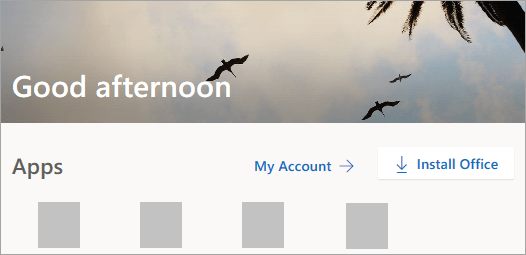
Go to m365.cloud.microsoft/apps. If you're not already signed in, select Sign in, and then select the Install apps drop-down.
Sign in with the account you associated with this version of Microsoft 365. This account can be a Microsoft account, or a work or school account.
After signing in, follow the steps that match the type of account you signed in with.
You signed in with a Microsoft account 
You signed in with a work or school account
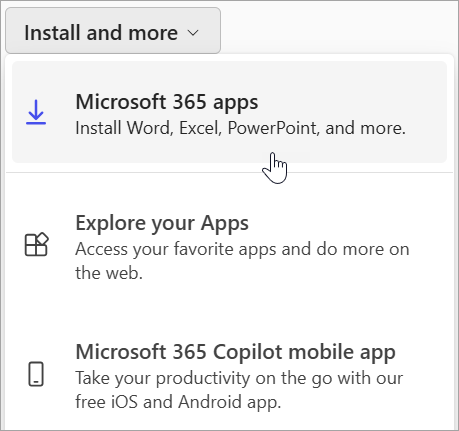
The 64-bit version is installed by default unless Microsoft 365 or Office detects you already have a 32-bit version of Microsoft 365 or Office (or a stand-alone app such as Project or Visio) installed. In this case, the 32-bit version of Microsoft 365 or Office will be installed instead. To change from a 32-bit version to a 64-bit version or vice versa, you need to uninstall Microsoft 365 first (including any stand-alone Microsoft 365 apps you have such as Project of Visio). Once the uninstall is complete, sign in again to m365.cloud.microsoft/apps and select Install apps. From the Install apps window select the language and version you want (64 or 32-bit), and then select Install. (See Install Visio or Install Project if you need to reinstall those stand-alone apps.)
This completes the download of Microsoft 365 to your device. To complete the installation and activation steps, follow the prompts in the following install and activation sections.
Tip
Don't see an install option after signing in? There could be an issue with your account. Select the Need help? tab from above and review the solutions under Account questions.
Tip
For help with Microsoft 365 or Office installation issues on a PC, please go to Microsoft 365 troubleshooters and select the Microsoft 365 setup troubleshooter option.
If you're having an installation issue such as Microsoft 365 taking long to install, select the Need help? tab for a list of common issues.
To open an app, select the Start button (lower-left corner of your screen) and type the name of an app, like Word.
To open the app, select its icon in the search results.
When the app opens, accept the license agreement. Microsoft 365 or Office is activated and ready to use.
Note
The Activation Wizard appears if Microsoft 365 or Office has trouble activating. Complete the steps in the wizard to finish activation.
Tip
If you're a small business owner looking for more information on how to get Microsoft 365 set up, visit Small business help & learning.
If the above response helps answer your question, remember to "Accept Answer" so that others in the community facing similar issues can easily find the solution. Your contribution is highly appreciated.
hth
Marcin
AI answer
If Microsoft 365 came preinstalled with the new computer, open Word and sign in to claim it; if you received a product key, redeem that key first and then install the apps.
For an included digital purchase, the license is transmitted to the computer, so a printed product key may not be provided. Signing in adds the product to your Microsoft account for future installation and subscription management.^1^
Keep track of the account used here—you will use it to install, activate, or reinstall Microsoft 365. If the site says the key has already been used, do not enter it again; sign in using the Microsoft account with which it was originally redeemed.^2^
After claiming the preinstalled purchase or redeeming the key:
Finally, open Word from the Start menu and sign in with the same Microsoft account if prompted. If an Activation Wizard appears, complete its prompts.^1^
References