Microsoft 365 and Office | SharePoint | For business | Windows
A group of Microsoft Products and technologies used for sharing and managing content, knowledge, and applications.

This browser is no longer supported.
Upgrade to Microsoft Edge to take advantage of the latest features, security updates, and technical support.
' cx='32' cy='32' r='32' /%3E%3Ctext x='50%25' y='55%25' dominant-baseline='middle' text-anchor='middle' fill='%23FFF' %3EJ%3C/text%3E%3C/svg%3E)
Hi there,
How can authors edit comments afterwards (in the case of typing errors)?
Thank you

Hi @jaWa ,
Nice to meet you again.
Comments follow the permission settings inherent in SharePoint Online and Microsoft Lists.
According to my research, SharePoint Online does not currently support editing comments, it is by design. You can refer to the following workaround:
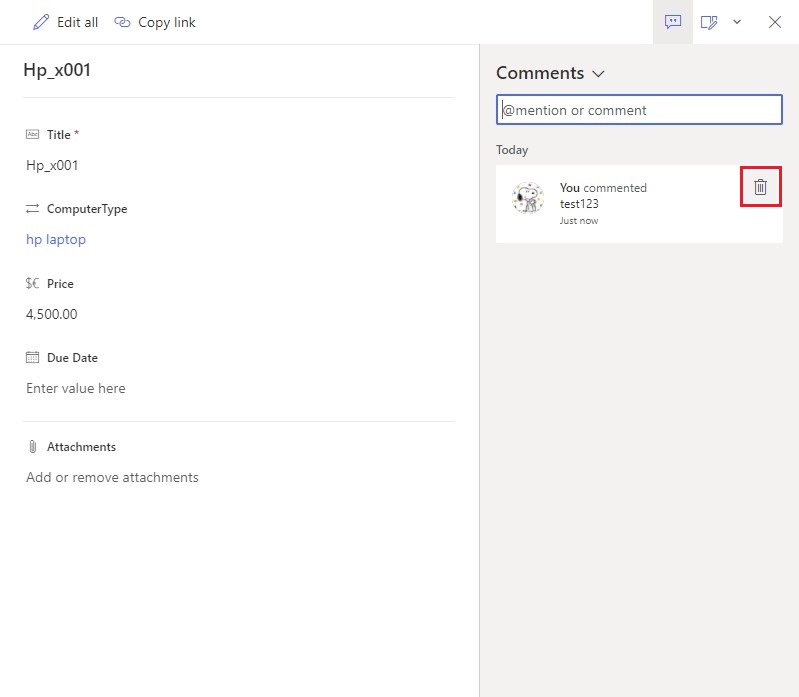
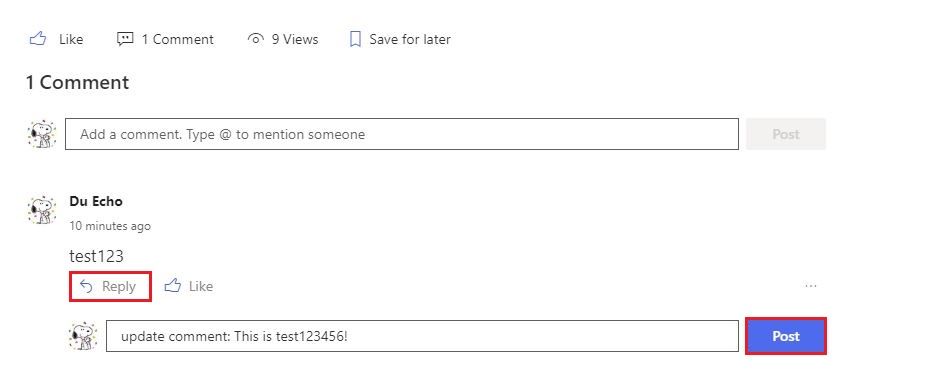
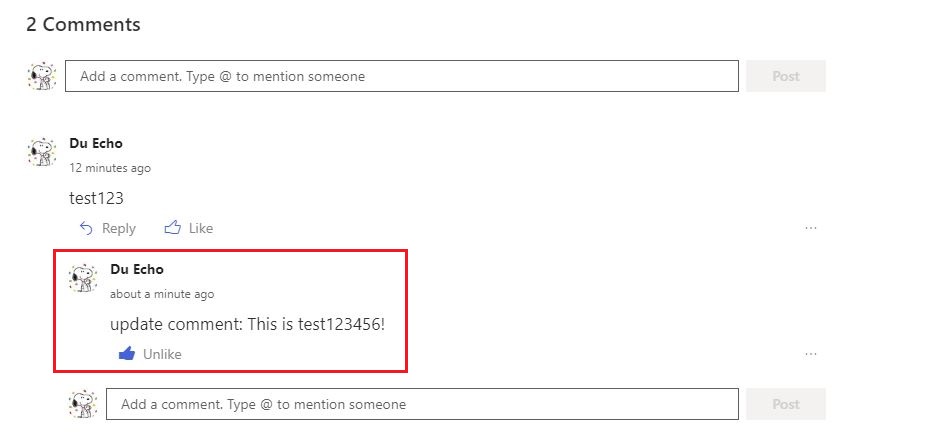
For more information, please see the "SharePoint Online: All you need to know about Commenting in Lists" Blog.
Thanks,
Echo Du
==============================
Updated Answer ==============================
Hi @jaWa ,
We can use REST API to retrieve comments, and manage comments.
To get all comments from a modern page, make a Get request to:
#A page which has the id "xxx"
#/_api/web/lists/GetByTitle('Site Pages')/GetItemById("xxx")/Comments

#For example:
/_api/web/lists/GetByTitle('Site Pages')/GetItemById(22)/Comments
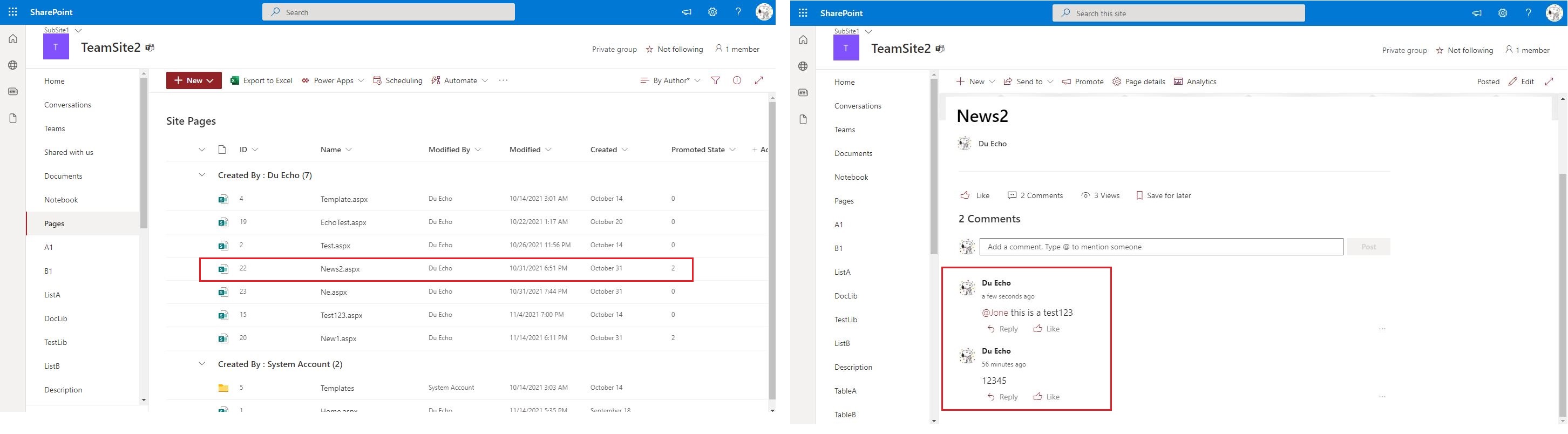
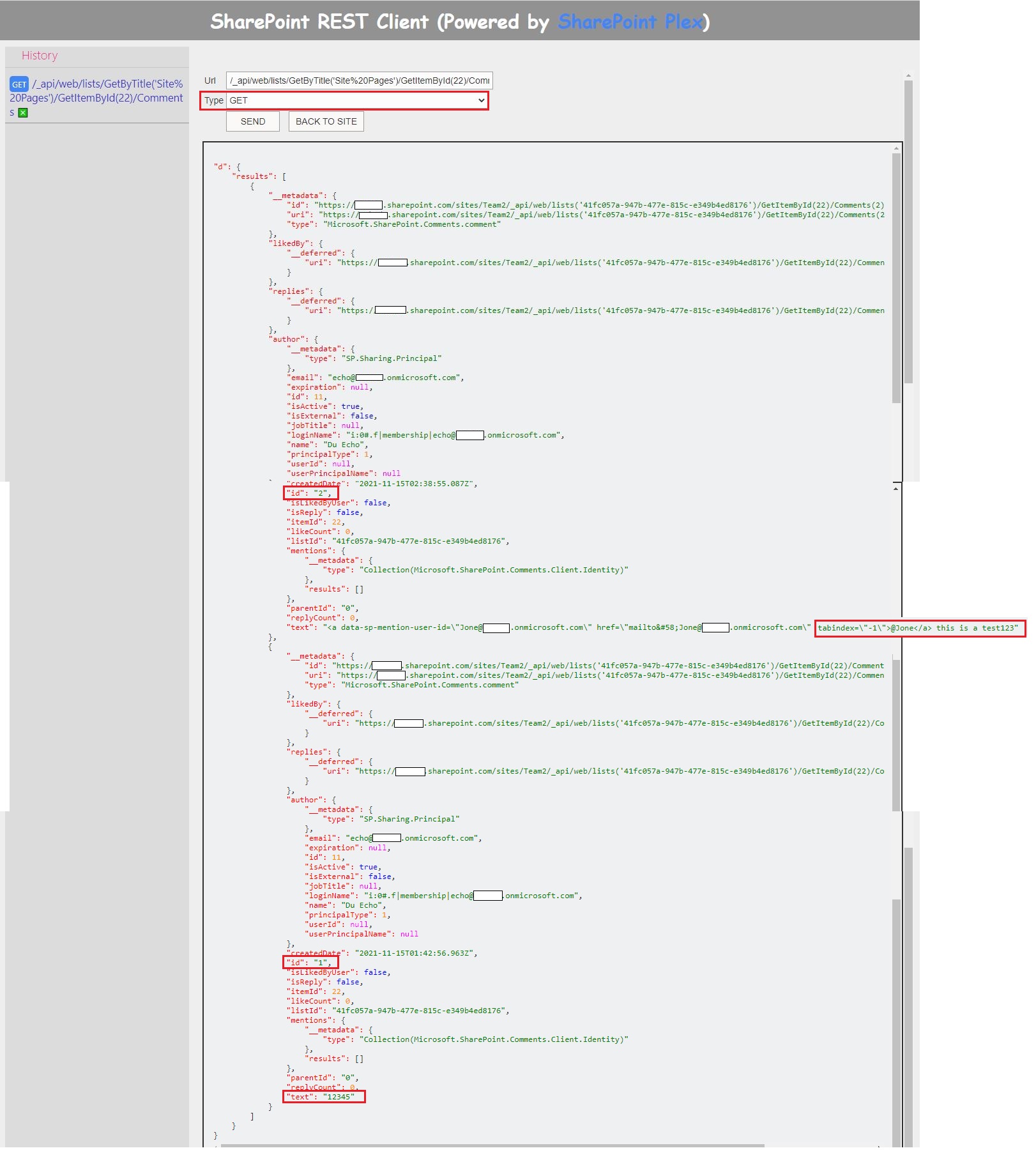
To get a specific comment from a modern page, make a Get request to:
#Where yyy is the id of the comment.
/_api/web/lists/GetByTitle('Site Pages')/GetItemById("xxx")/Comments("yyy")

#For example:
/_api/web/lists/GetByTitle('Site Pages')/GetItemById(22)/Comments(1)
Since each comment or reply gets a unique id, the method is same for deleting both.
To delete a specific comment from a modern page, make a Delete request to:
#Where yyy is the id of the comment.
/_api/web/lists/GetByTitle('Site Pages')/GetItemById("xxx")/Comments("yyy")

#For example:
/_api/web/lists/GetByTitle('Site Pages')/GetItemById(22)/Comments(1)
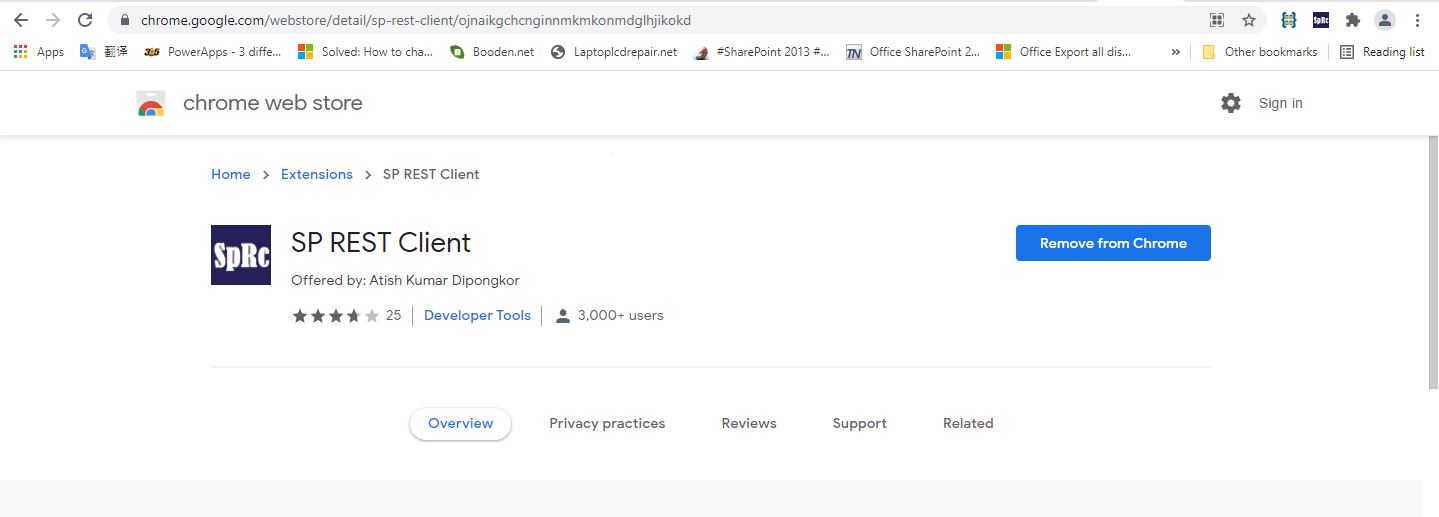
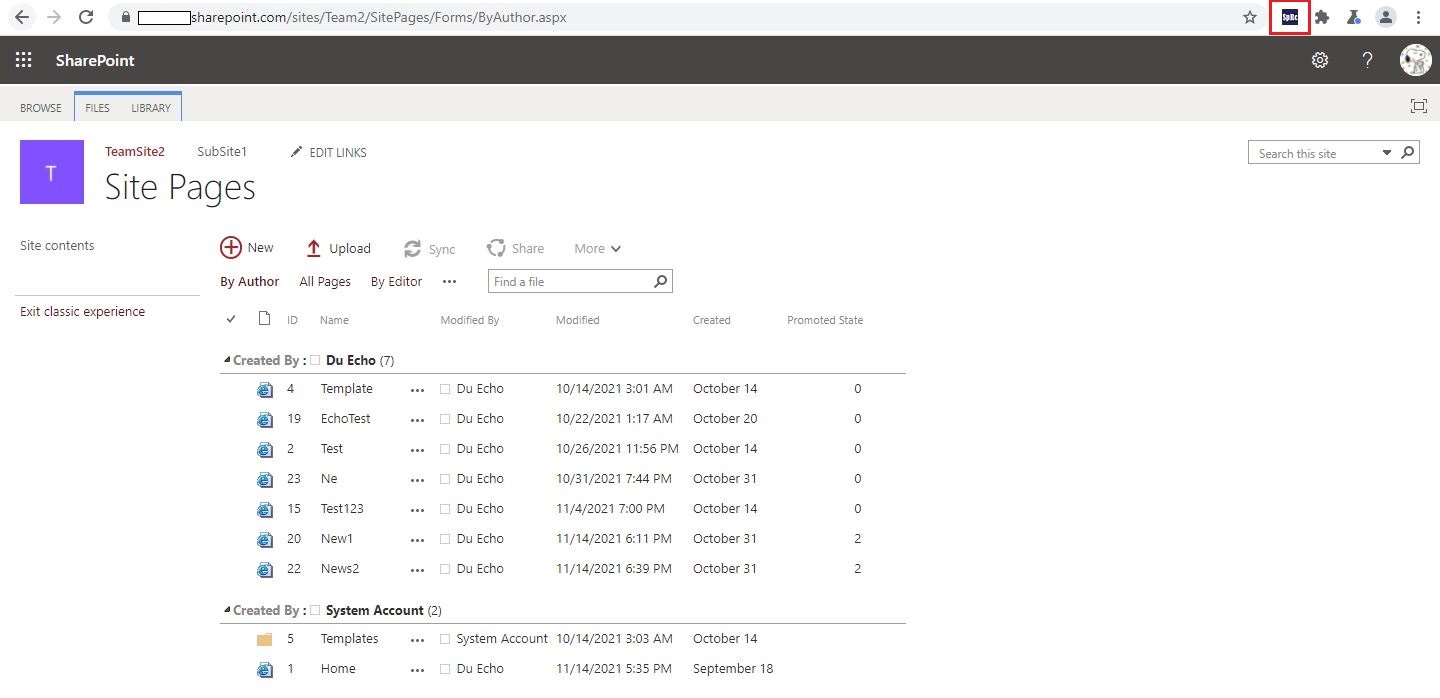
1.Use Chrome browser and install the "SP REST Client" extension
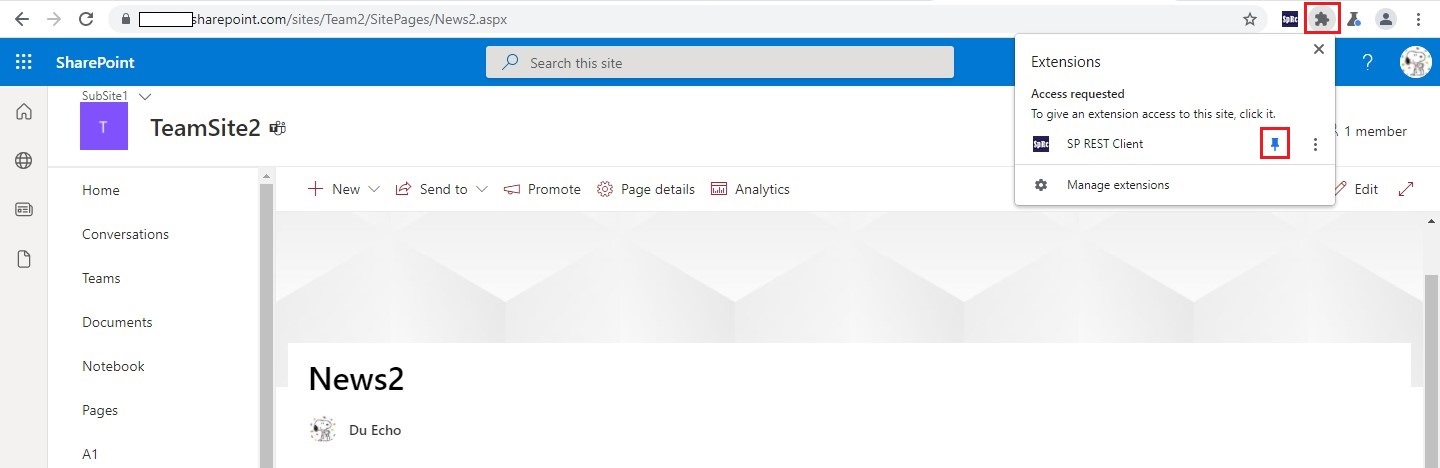
2.Pin the "SP REST Client" extension
3.Go to the Site Pages library page and switch to classic mode.
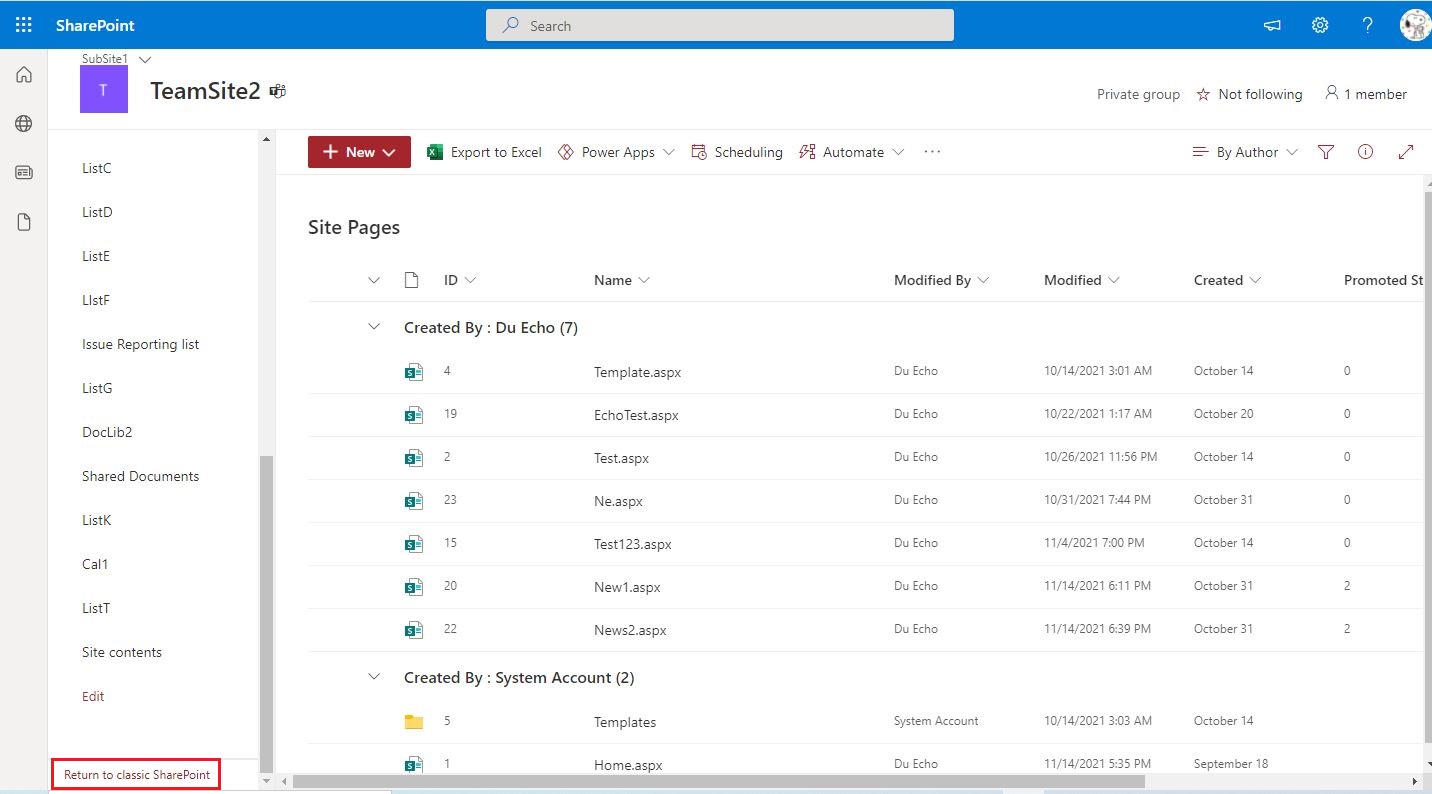
4.Then click the "SP REST Client" extension.
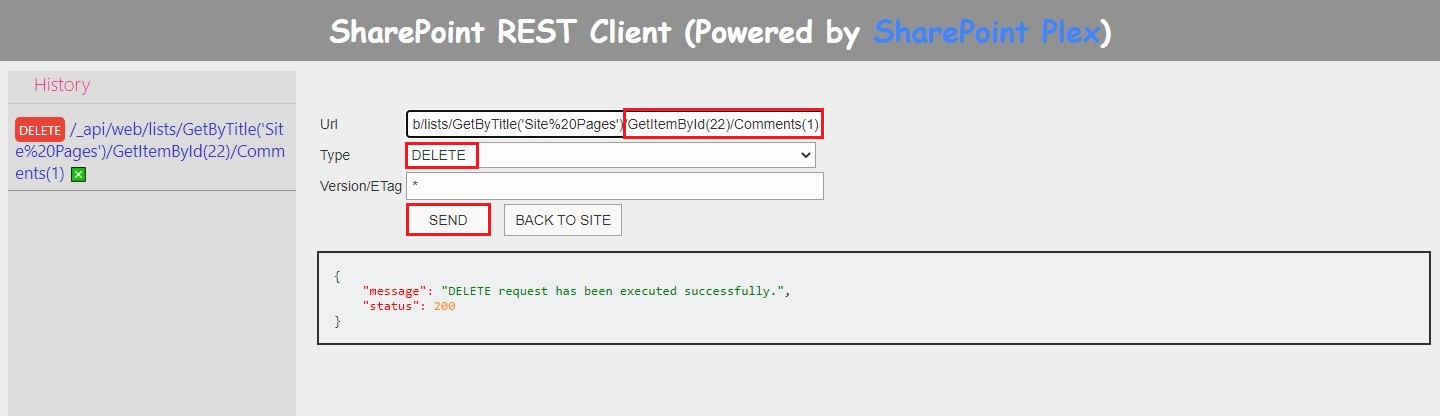
5.On the SharePoint REST Client page, entry the below REST API to the Url field:
#Where yyy is the id of the comment.
/_api/web/lists/GetByTitle('Site Pages')/GetItemById("xxx")/Comments("yyy")
6.Click SEND button
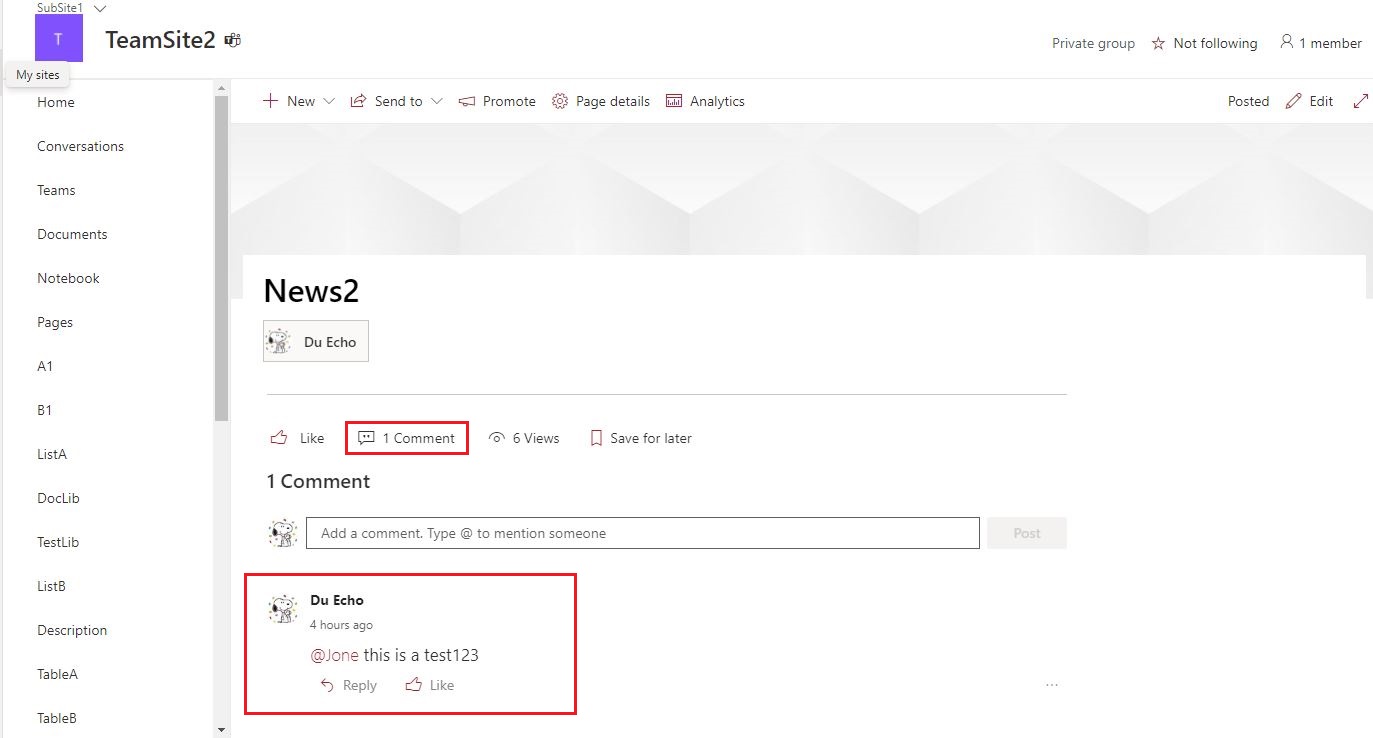
7.Go to the corresponding modern page and you will find that the comment has been deleted.
For more information, please see "Working with the Page Comments REST API in SharePoint Communication sites" article.
Thanks,
Echo Du
==============================================
If the answer is helpful, please click "Accept Answer" and kindly upvote it. If you have extra questions about this answer, please click "Comment".
Note: Please follow the steps in our documentation to enable e-mail notifications if you want to receive the related email notification for this thread.
..thank you again for your answer :)
It is a pity that this is not supported! :( Unfortunately I am not able to delete comments either. (except by switching off the function for the entire post). so .. I can not find the comments feature (your screenshot) in the news post?
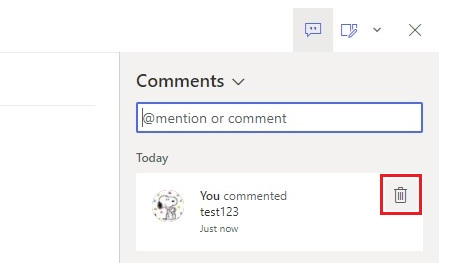
Hi @jaWa ,
Thanks for your reply.
I have updated answer under initial My Answer. Hope this can help you to solve issue. Have a nice day!
Thanks,
Echo Du