Microsoft Security | Active Directory Federation Services
Federated identity management using Active Directory Federation Services

This browser is no longer supported.
Upgrade to Microsoft Edge to take advantage of the latest features, security updates, and technical support.
' cx='32' cy='32' r='32' /%3E%3Ctext x='50%25' y='55%25' dominant-baseline='middle' text-anchor='middle' fill='%23FFF' %3EMR%3C/text%3E%3C/svg%3E)
I am testing ADFS in a lab environment on some Windows Server 2022 servers.
I can't locate up-to-date documentation about "Access Control Policies".
Let me ask for some clarifications:
Where can I locate detailed documentation about ADFS in Windows Server 2022?
Regards

The Access Control Policy feature has not changed since its creation. The ADFS on Windows Server 2016 documentation is still accurate on this topic.
The policy can be assigned from the Relying Party Trust section.
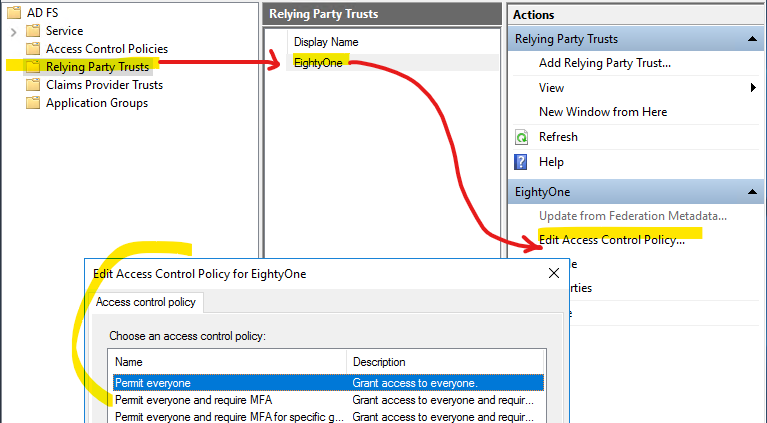
If your environment was upgraded from Windows Server 2012 R2 to higher (either to 2016/2019 or directly to 2022) and the Relying Party was created prior this upgrade, it might not display the Access Control Policy window when you click there but this instead:
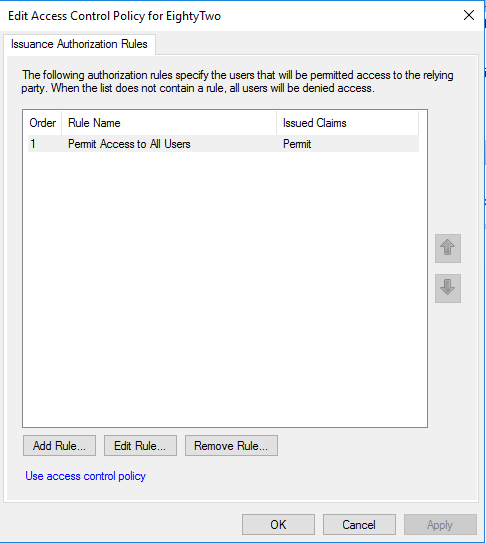
In that case you can just delete the rules you see there and then apply an Access Control Policy like aforementionned.
You can also backup the current rules in case you want to go back:
Get-AdfsRelyingPartyTrust -Identifier "<your RP id>" | Select-Object -ExpandProperty IssuanceAuthorizationRules | Out-File IssuanceAuthorizationRules.bk
Get-AdfsRelyingPartyTrust -Identifier "<your RP id>" | Select-Object -ExpandProperty AdditionalAuthenticationRules | Out-File AdditionalAuthenticationRules.bk
And you can restore them this way:
Set-AdfsRelyingPartyTrust -TargetIdentifier "<your RD id>" -IssuanceAuthorizationRulesFile IssuanceAuthorizationRules.bk
Set-AdfsRelyingPartyTrust -TargetIdentifier "<your RD id>" -AdditionalAuthenticationRulesFile AdditionalAuthenticationRules.bk
