Microsoft 365 and Office | Access | Development
The creation and customization of database applications using Microsoft Access

This browser is no longer supported.
Upgrade to Microsoft Edge to take advantage of the latest features, security updates, and technical support.
' cx='32' cy='32' r='32' /%3E%3Ctext x='50%25' y='55%25' dominant-baseline='middle' text-anchor='middle' fill='%23FFF' %3EEM%3C/text%3E%3C/svg%3E)
I have MS Access database, and I want to run this module from a C++ application to export attachments .
If I open Access DB and go to VB and run the module it works as expected. ... cool!
Now I want to run that module externally to do the same thing.
Below has been tested and it works good.
HOW to run this from a C++/MFC side Dll ... Dll is what I'm working with so this is the preferred. I have tried to get it to work with DAO but I was not successful .. I assume that is phased out (DAO) and am left with ODBC or direct SQL calls but I do not know how to get images exported from Direct sql calls using (Function attached). But I have not been able to get it to work.
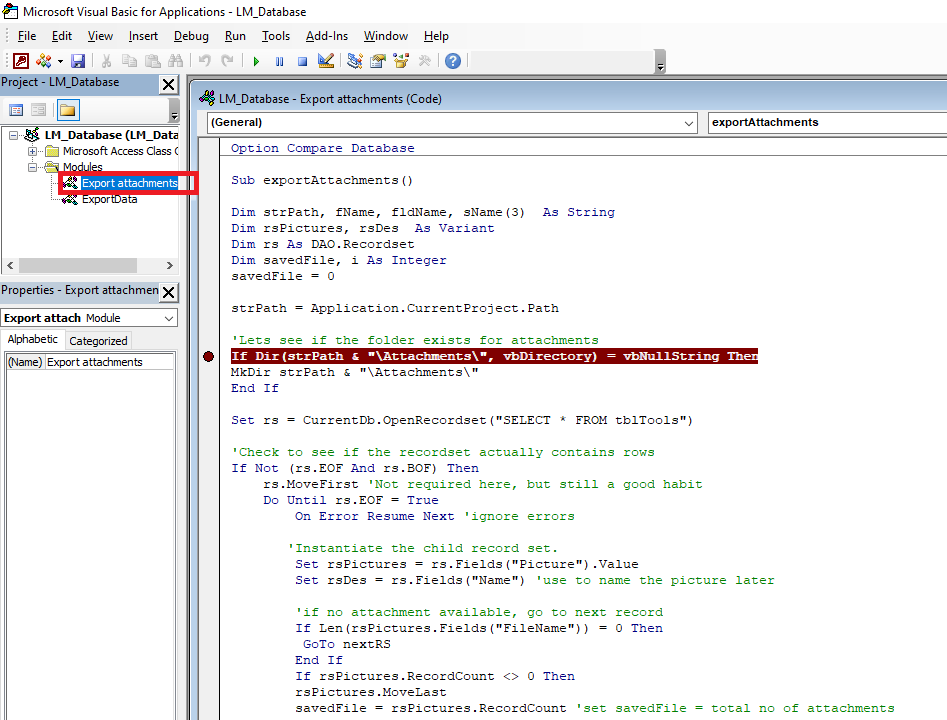
( This can do direct call but how to do a direct call to export images ")
executeSQL((SQLWCHAR*)"SELECT Attachments FROM tblTools WHERE ID=1", NULL, pRst.m_pDatabase->m_hdbc);
bool executeDirectSQL(SQLWCHAR *SQL, SQLHANDLE hDbConn)
{
	SQLRETURN sr;                           //Return code for your ODBC calls
	SQLHSTMT hstmt;
	bool m_bSuccess = 1;
	// Allocate new Statement Handle based on previous connection
	sr = SQLAllocHandle(SQL_HANDLE_STMT, hDbConn, &hstmt);
	if (sr != SQL_SUCCESS && sr != SQL_SUCCESS_WITH_INFO) {

		m_bSuccess = 0;
	}


	sr = SQLExecDirectW(hstmt, SQL, SQL_NTS);
	if (sr != SQL_SUCCESS && sr != SQL_SUCCESS_WITH_INFO) {
		m_bSuccess = 0;
	}
	SQLFreeHandle(SQL_HANDLE_STMT, hstmt);

	return m_bSuccess;
}
' cx='32' cy='32' r='32' /%3E%3Ctext x='50%25' y='55%25' dominant-baseline='middle' text-anchor='middle' fill='%23FFF' %3EMY%3C/text%3E%3C/svg%3E)
For your reference: use Field2.SaveToFile method to save attachment to disk ,then load the picture. Call VB from C++.
That varible is not available nor works.

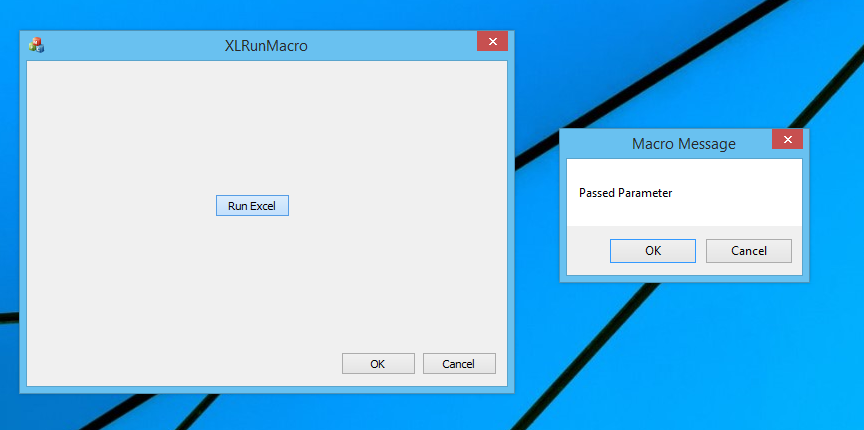
As I said earlier I'm not an Access user. However, in the hope that this will be helpful I put together a brief example that automates Excel from an MFC dialog application. The example starts Excel, opens a macro enabled workbook and runs the macro and displays the result.
Since you mentioned that your code would run from a DLL you must ensure that the application has initialized COM for use in a Single Threaded Apartment. Typically, an MFC application (.exe.) would call AfxOleInit. A non-MFC application might call OleInitialize() or CoInitialize(Ex). The example was put together with the 64-bit version of Office 2013. Obviously you would need to adapt the example to your particular circumstances (i.e., Office version and Access instead of Excel). I hope you can use this as a guide.
In a header file -
// Imports Excel type library
#import "C:\Program Files\Microsoft Office\Office15\Excel.exe" auto_search auto_rename
In a .cpp file to do the work -
try
    {
        Excel::_ApplicationPtr pApp;
        Excel::WorkbooksPtr pBooks;
        Excel::_WorkbookPtr pBook;
        CString clicked;

        // Start Excel Application and get Application Object
        _com_util::CheckError(pApp.CreateInstance(L"Excel.Application", NULL, CLSCTX_LOCAL_SERVER));

        // Get Workbooks collection
        pBooks = pApp->Workbooks;

        // Open the workbook containing the macro
        pBook = pBooks->Open(_bstr_t(L"C:\\Users\\RLWA32\\Documents\\Testbook2.xlsm"));

        // Run the VBA function named SayHello and pass it a string
        _variant_t result = pApp->Run(_variant_t("SayHello"), _variant_t("Passed Parameter"));

        // Get return values from SayHello Function
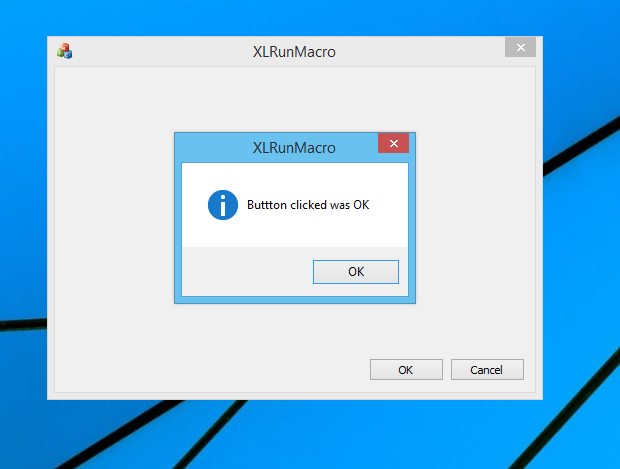
        clicked.Format(_T("Buttton clicked was %s"), V_I4(&result) == IDOK ? _T("OK") : _T("Cancel"));

        // Close the workbook without saving
        pBook->Close(_variant_t(false));

        // Quit Excel
        pApp->Quit();

        // Dispaly SayHello return values
        AfxMessageBox(clicked, MB_ICONINFORMATION);
    }
    catch (_com_error& ce)
    {
        AfxMessageBox(ce.ErrorMessage(), MB_ICONERROR);
    }
Excel VBA macro -

Running the macro from MFC -
Display the result -
Dumb question...how to fix this???
Imports are loaded on execution

Dumb question...how to fix this???
Imports are loaded on execution
Dumb question...how to fix this???
Imports are loaded on execution
Imports are loaded on execution
What do you mean by the above?
How to fix what? There is no error stated in your comments.
Error It cannot open source file C:\......./msaccess.tlh
The exe is at that location of the path but it does not see a tlh file, when I try Excel.
If I switch it to Excel.exe it sees it.
Error It cannot open source file C:......./msaccess.tlh
The header files (.tlh and .tli) created by the VC++ COM Compiler Support are created when the #import statement is processed during compilation. So they won't exist until the first build of your code. Are you sure you are providing the correct path to the Access type library in the #import statement?
Does your code build successfully but you are seeing IntelliSense errors (red squiggles)?
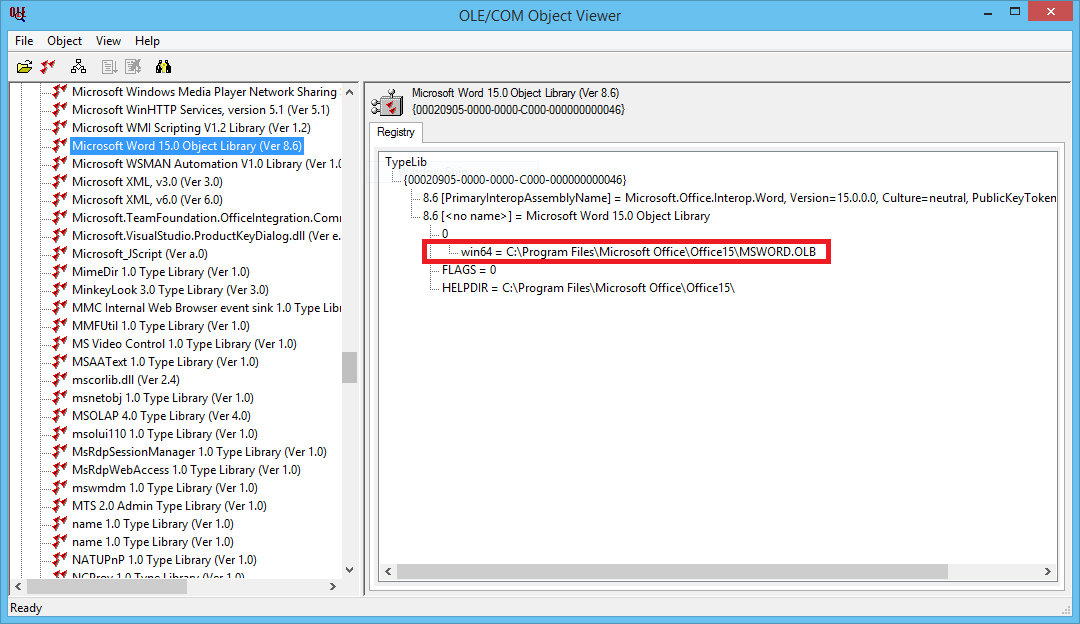
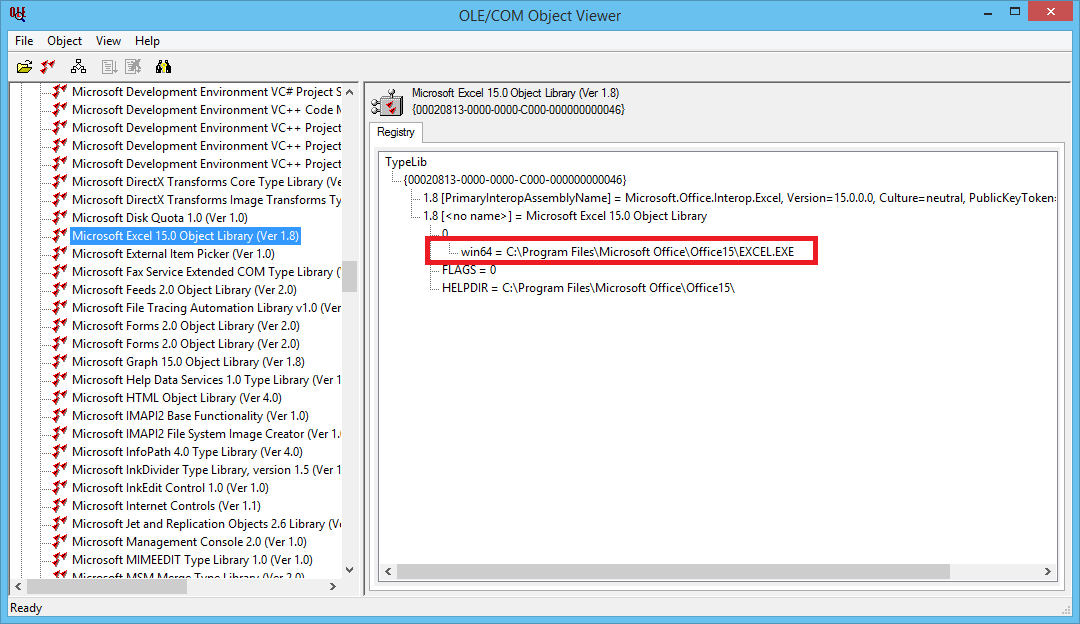
Remember, my example was for the 64-bit version of Office 2013. The location of type libraries depends on the Office version and its bitness (e.g., 32-bit or 64-bit). Also, you need to verify if the Access type library is embedded in the Access .exe file or is a separate .tlb or .olb. Since I'm not an Access user I can't give you more detailed guidance about the specifics.
The Access type library is probably a separate .tlb or .olb file.
The Windows SDK utility OleView.exe can be helpful. For example, the following images show the location of the Office 2013 Excel and Word type libraries. Note that the Word type library is in an .olb file.
Did you find the access type library?