Microsoft Security | Intune | Configuration
Setting up and managing device configurations using Intune

This browser is no longer supported.
Upgrade to Microsoft Edge to take advantage of the latest features, security updates, and technical support.
' cx='32' cy='32' r='32' /%3E%3Ctext x='50%25' y='55%25' dominant-baseline='middle' text-anchor='middle' fill='%23FFF' %3ELW%3C/text%3E%3C/svg%3E)
Hi,
TLDR, can we run Multi-App Kiosk on Win10 without the AppLocker?
When you create a Multi-App Kiosk profile for Win10, the AppLocker automatically turns on and you will need to whitelist all the apps.
We have configured Zoom Rooms with such settings. The problem is, that AppLocker keeps popping up from time to time. It seems like different rooms with different peripherals will trigger different executables due to software/driver.
So apart from allowing the main Zoom Rooms executable, we are keeping adding dozens of executables, god knows what they are. We just grab them from the AppLocker logs.
The problem is it keeps happening, especially after Zoom Rooms app update, Windows Update (which might update peripherals drivers).
Is there a different way of configuring a Zoom Rooms kiosk?
Would it be better to configure it as a Single App kiosk and not to worry about any other software (for Mic, cameras, etc).
I do understand the limitation that when you configure a Zoom Rooms PC, it requires you to have an account with Local Admin.
When I deploy this via Intune, I am using the log-on type "Auto Log-on", not Local Account or AAD Account.
The "Auto Log-on" creates a default local user called KioskUser0 (not an admin).
It came from the Windows Assigned Access era and PC just logs on without any password.
This is also kind of related to an old thread by another user.
But this thread is looking for ways of configuring rules for AppLocker.
I am looking for ways to get rid off AppLocker.
Thanks.

@Leo Wang Thanks for posting in our Q&A.
For this issue, it seems a default behavior. If you want to avoid AppLocker popping up, it is suggested to try to find the background processes that need to be called for the foreground app and then add the background process path to the list allowed by the kiosk profile.
Step 1: Find the background processes that need to be called for all foreground apps. (Take Adobe for example)
Install process monitor in kiosk mode, open each foreground app, collect procmon log, and check the corresponding "Access Denied" records in the log. Then add the corresponding paths to the kiosk profile as the Win32 apps. In this way, the blocked processes can be located more accurately.

Step 2: Add allow lists to the kiosk profile.
We can use the default UI, for example, Adobe needs to call a background process: C:\Program Files\Adobe\Acrobat DC\Acrobat\acrobat_sl.exe. So, we need to add this path to the allow list as a win32 app.
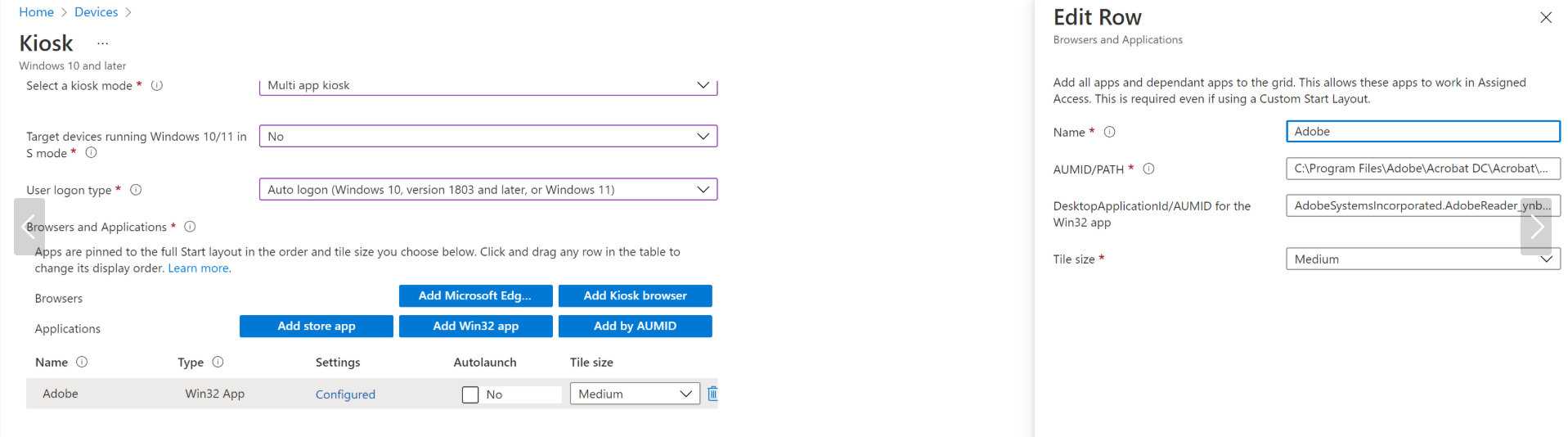
Honestly, I'm not sure if single app kiosk will get rid off AppLocker. It is suggested to try and check if it works differently with Multi App Kiosk.
Thanks for your understanding.
If the answer is the right solution, please click "Accept Answer" and kindly upvote it. If you have extra questions about this answer, please click "Comment".
Note: Please follow the steps in our documentation to enable e-mail notifications if you want to receive the related email notification for this thread.
@Leo Wang I am checking this thread, if you have a chance to review this thread, please check if my reply is helpful. Thanks.
Thanks, @Lu Dai-MSFT for the detailed reply.
What you suggested is exactly what we did initially.
But after a while, the AppLocker will just pop up randomly. As we keep discovering new processes and adding to the allow list, it becomes unsustainable. For some of these processes, we don't know what they are and can't find them from any references. We just saw them being called and got denied.
We run quite a large fleet and just can't have the pop-up randomly appear.
The challenge for Zoom Rooms setup is that there is only one foreground app, which is the Zoom Rooms executable. That's the only one we need to run in the kiosk mode. But different rooms have different audio hardware and drivers, and they seem to call different processes. Also this happens after a Windows update or app update.
For now, we turned the KioskUser0 to Local Admin account. It's not ideal but as per Zoom's setup guide, they do require a local admin account to run the Zoom Rooms. They also couldn't provide a list of all related processes.
Cheers,
@Leo Wang Thanks for your update. It seems needed Windows and intune to analyze this issue together. There is no helpful information I can share with you. Given this situation, it is suggested to create an online support ticket to find if there is any possible method to avoid AppLocker popping up randomly. Here is the support link:
https://learn.microsoft.com/en-us/mem/get-support
Thanks for your understanding and hope everything goes well with you.
' cx='32' cy='32' r='32' /%3E%3Ctext x='50%25' y='55%25' dominant-baseline='middle' text-anchor='middle' fill='%23FFF' %3EA%3C/text%3E%3C/svg%3E)
Hi @Lu Dai-MSFT
How to install process monitor on Kiosk?