windows print driver

Smitha Challa 31 Reputation points
2022-05-24T03:14:00.53+00:00

I am not having any luck with my inf file.
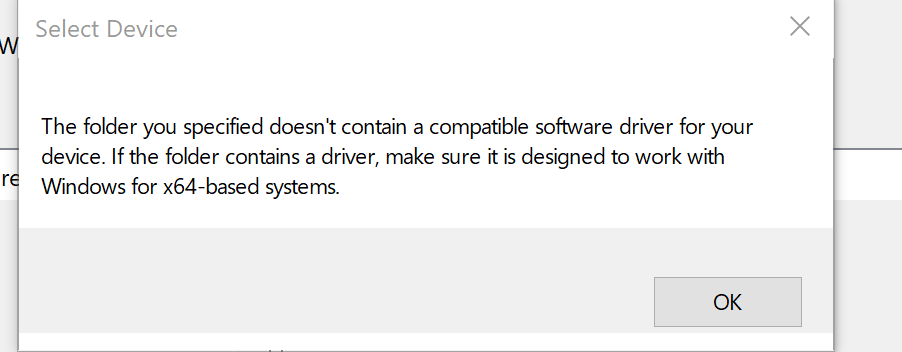
Sometimes I also get this
No installation INF found in the root path of the driver. For the driver to be digitally signed, and for it to install properly the installation inf must be in the root of each driver path you have provided. If you have separate folders with different driver packages for different languages, operating systems or device categories then specify each driver set as a separate driver. Each driver package must be selected separately and must contain an installation INF.

204798-203852-image.png

 ; INFO-PRINT.INF  
 ;  
 ; INF file for INFO-PRINT Driver  
 ; - for Windows XP (SP2), NT2003 (R2), Vista, Win7, NT2008 (x86 and x64)  
 ;  
 ;  
      
 [Version]  
 Signature="$Windows NT$"  
 LayoutFile=ntprint.inf  
 ClassGUID={4D36E979-E325-11CE-BFC1-08002BE10318}  
 Class=Printer  
 Provider=%PF%  
 DriverVer = 05/13/2022,9.30.28.734  
 catalogfile = INFOPRINT.cat  
      
 ; Manufacturer Section  
 ;  
 ;This section lists all of the manufacturers   
 ; that we will display in the Dialog box  
 ;[Manufacturer]  
 ;"TRUPRO" = TRUPRO, NTx86, NTamd64, NTia64, NTarm64  
      
      
 ;  
 ; Model sections.   
 ;   
 ; Each section here corresponds with an entry listed in the  
 ; [Manufacturer] section, above. The models will be displayed in the order  
 ; that they appear in the INF file.  
 ;  
      
 [TRUPRO]  
 "INFO-PRINT" = DRV_INSTALL  
      
 [TRUPRO.NTx86]  
 "INFO-PRINT" = DRV_INSTALL  
      
 [TRUPRO.NTamd64]  
 "INFO-PRINT" = DRV_INSTALL  
      
 [TRUPRO.NTia64]  
 "INFO-PRINT" = DRV_INSTALL  


 ;  
 ; Installer Sections  
 ;  
 ; These sections control file installation, and reference all files that  
 ; need to be copied. The section name will be assumed to be the driver  
 ; file, unless there is an explicit DriverFile section listed.  
 ;  
      
 [DefaultInstall.NTamd64]  
 CopyFiles=@PFIP.GPD  
 CopyFiles=@PFIP.INI  
 CopyFiles=PFPRINTPATh  
 DataFile=PFIP.GPD  
 DataSection=UNIDRV_DATA  


 [DefaultInstall.NTx86]  
 CopyFiles=@PFIP.GPD  
 CopyFiles=@PFIP.INI  
 CopyFiles=PFPRINTPATh  
 DataFile=PFIP.GPD  
 DataSection=UNIDRV_DATA  


 ; Copy Sections  
 ;  
 ; Lists of files that are actually copied. These sections are referenced  
 ; from the installer sections, above. Only create a section if it contains  
 ; two or more files (if we only copy a single file, identify it in the  
 ; installer section, using the @filename notation) or if it's a color  
 ; profile (since the DestinationDirs can only handle sections, and not  
 ; individual files).  
 ;  
      
 [PFPRINTPATh]  
 PFPRINT.DLL  
      
      
 ;  
 ; Data Sections  
 ;  
      
 ; These sections contain data that is shared between devices.  
 ;  


 ;  
 ;  Location of source files not in Layout.inf.  
 ;  
      
 [SourceDisksNames]  
1 = "%CWIN%"  
  
   
[SourceDisksFiles.x86]  
PFPRINT.dll    = 1,,x86  
  
[SourceDisksFiles.amd64]  
PFPRINT.dll    = 1,,x64  


 [SourceDisksFiles]  
 PFIP.INI = 1  
 pfip.GPD = 1  
      
 ;  
 ; Call SetupSetDirectoryId with 66000 to set the target directory at runtime  
 ; (depending on which environment drivers are getting installed)  
 ;  
      
 [DestinationDirs]  
 DefaultDestDir=66000  
      
 ;  
 ; Localizable Strings  
 ;  
 [Strings]  
 PF = "TRUPRO"  
 CWIN = "C:\SOurce\PFPrintPackage\"  
Windows for business | Windows Server | User experience | Other
0 comments No comments
{count} votes

1 answer

Sort by: Most helpful
  1. Limitless Technology 45,126 Reputation points
    2022-05-26T07:40:56.133+00:00

    Hello,

    One option is to try removing the [DefaultInstall] section from the .inf file. Make sure your driver and inf tile is stored in a file inside the CAB. Not at the root of the CAB.

    Make sure that the chkinf tool is up to date.

    INF Version Section
    https://learn.microsoft.com/en-us/windows-hardware/drivers/install/inf-version-section

    As a best-practice, I strongly recommend that you try to get the original printer driver from the vendor. Nowadays, these should be WHQL signed. If this is not possible, the following workarounds are available to you:

    Disable integrity checks (bcdedit.exe)
    Sign the catalog file (selfcert.exe, signtool.exe)
    Disable integrity checks (bcdedit.exe)

    One workaround for installing unsigned drivers is to play around with the boot configuration data settings (BCD), but this method goes against various security guidelines from Microsoft and becomes more and more difficult with newer operating systems. The goal of this method is to disable integrity checks and enable the test-signing mode using the bcdedit.exe.

    Disable integrity checks by executing the following command:
    bcdedit.exe /set loadoptions DISABLE_INTEGRITY_CHECKS
    Enable test-signing by executing the following command:
    bcdedit.exe /set testsigning ON
    Please be aware that when Secure Boot is enabled, the above two commands have no affect.

    To undo the above settings, execute the following commands:

    bcdedit.exe /deletevalue loadoptions
    bcdedit.exe /set testsigning OFF

    -------------------------------------------------------------------------------------------------------------------------------------------------------------

    --If the reply is helpful, please Upvote and Accept as answer--

    0 comments No comments

Your answer

Answers can be marked as 'Accepted' by the question author and 'Recommended' by moderators, which helps users know the answer solved the author's problem.