Microsoft 365 and Office | SharePoint | For business | Windows
A group of Microsoft Products and technologies used for sharing and managing content, knowledge, and applications.

This browser is no longer supported.
Upgrade to Microsoft Edge to take advantage of the latest features, security updates, and technical support.
' cx='32' cy='32' r='32' /%3E%3Ctext x='50%25' y='55%25' dominant-baseline='middle' text-anchor='middle' fill='%23FFF' %3EKS%3C/text%3E%3C/svg%3E)
Hi,
Recently, my organisation added custom domain and user upn also changed according to it. Now, CSOM code is giving error as "The Application ID (AppID) For Which The Service Ticket Is Requested Does Not Exist On The System".
SCRIPT BELOW
Add-Type -Path "D:\CSOM Code Test\Microsoft.SharePoint.Client.dll"
Add-Type -Path "D:\CSOM Code Test\Microsoft.SharePoint.Client.Runtime.dll"
$siteURL = https://XXXX.sharepoint.com/sites/MF
$userId = SVC_SPO.Mig_Acc1@X****
$pwd = Read-Host -Prompt "Enter Password" -AsSecureString
$creds = New-Object Microsoft.SharePoint.Client.SharePointOnlineCredentials($userId, $pwd)
$ctx = New-Object Microsoft.SharePoint.Client.ClientContext($siteURL)
$ctx.credentials = $creds
try{
$lists = $ctx.web.Lists

$list = $lists.GetByTitle("VMs")

$listItems = $list.GetItems([Microsoft.SharePoint.Client.CamlQuery]::CreateAllItemsQuery())

$ctx.load($listItems)


$ctx.executeQuery()

foreach($listItem in $listItems)

{

    Write-Host "ID - " $listItem["ID"] "Title - " $listItem["Title"]

}
}
catch{
write-host "$($_.Exception.Message)" -foregroundcolor red
}
Error screenshot:

A group of Microsoft Products and technologies used for sharing and managing content, knowledge, and applications.
' cx='32' cy='32' r='32' /%3E%3Ctext x='50%25' y='55%25' dominant-baseline='middle' text-anchor='middle' fill='%23FFF' %3ETZ%3C/text%3E%3C/svg%3E)
I am currently doing some research on this issue, will let you know as soon as possible.
According to my research and testing ,please try to do a troubleshooting, please check if you have Full Control on Tenant .
You can refer to this document: The Application ID (AppID) For Which The Service Ticket Is Requested Does Not Exist On The System
As a workaround , I suggest you can use the following code to connect to the SharePoint Online :
Add-Type -Path "C:\Program Files\Common Files\microsoft shared\Web Server Extensions\16\ISAPI\Microsoft.SharePoint.Client.dll"
Add-Type -Path "C:\Program Files\Common Files\microsoft shared\Web Server Extensions\16\ISAPI\Microsoft.SharePoint.Client.Runtime.dll"

$SiteUrl = "https://xxxx.sharepoint.com/sites/xxx"

#Get Credentials to connect to SharePoint Online site
$Cred = Get-Credential

#Set up the context
$Ctx = New-Object Microsoft.SharePoint.Client.ClientContext($SiteUrl)
$Ctx.Credentials = New-Object Microsoft.SharePoint.Client.SharePointOnlineCredentials($Cred.Username, $Cred.Password)


try{

 $lists = $ctx.web.Lists
 $list = $lists.GetByTitle("test")
 $listItems = $list.GetItems([Microsoft.SharePoint.Client.CamlQuery]::CreateAllItemsQuery())
 $ctx.load($listItems)

 $ctx.executeQuery()
 foreach($listItem in $listItems)
 {
     Write-Host "ID - " $listItem["ID"] "Title - " $listItem["Title"]
 }

}

catch{

 write-host "$($_.Exception.Message)" -foregroundcolor red

}
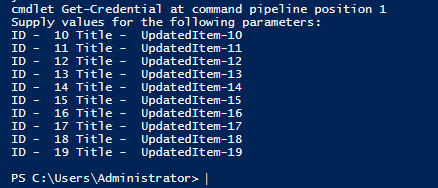
My test result:
Note: Microsoft is providing this information as a convenience to you. The sites are not controlled by Microsoft. Microsoft cannot make any representations regarding the quality, safety, or suitability of any software or information found there. Please make sure that you completely understand the risk before retrieving any suggestions from the above link.
If the answer is helpful, please click "Accept Answer" and kindly upvote it. If you have extra questions about this answer, please click "Comment".
Note: Please follow the steps in our documentation to enable e-mail notifications if you want to receive the related email notification for this thread.
Hi,
Thanks for the response.
Account which was used for execution is having Sharepoint administrator & Site Collection Administrator
I have tried the above code but still facing the same error message.
Can you please help to resolve this issue.
According to my research and testing ,the cause of this problem is most possibly used custom domain to connect .Please try to do a troubleshooting, when use $cred = Get-Credential , supply account with @onmicrosoft.com and no @domain.com
Similar issue for reference: https://social.msdn.microsoft.com/Forums/office/en-US/a5bc08e8-e76d-44e5-8314-ab60f623c0f9/connectsposervice-the-application-id-appid-for-which-the-service-ticket-is-requested-does-not?forum=sharepointdevelopment
Note: Microsoft is providing this information as a convenience to you. The sites are not controlled by Microsoft. Microsoft cannot make any representations regarding the quality, safety, or suitability of any software or information found there. Please make sure that you completely understand the risk before retrieving any suggestions from the above link.
Do you have any further questions about this thread? If you have any questions or progress, you can contact me in time.