Microsoft 365 and Office | SharePoint | For business | Windows
A group of Microsoft Products and technologies used for sharing and managing content, knowledge, and applications.

This browser is no longer supported.
Upgrade to Microsoft Edge to take advantage of the latest features, security updates, and technical support.
' cx='32' cy='32' r='32' /%3E%3Ctext x='50%25' y='55%25' dominant-baseline='middle' text-anchor='middle' fill='%23FFF' %3EM%3C/text%3E%3C/svg%3E)
Hi All,
I hope you're all keeping well and safe.
I have recently moved my organization's files to SharePoint Online and need some assistance.
I have a SharePoint site for the HR Team. Permission to the site are managed through a Microsoft 365 Groups. Members of the HR M365 group also have access to the SP site.
I want to prevent ONE HR member to access a single folder on SharePoint. He should have access to everything else, but this folder.
What is the cleanest way of restricting access to a single folder/document without affecting other existing and future members of the HR M365 group?
I also noticed that some SharePoint sites have the below object as a member and don't know where it came from
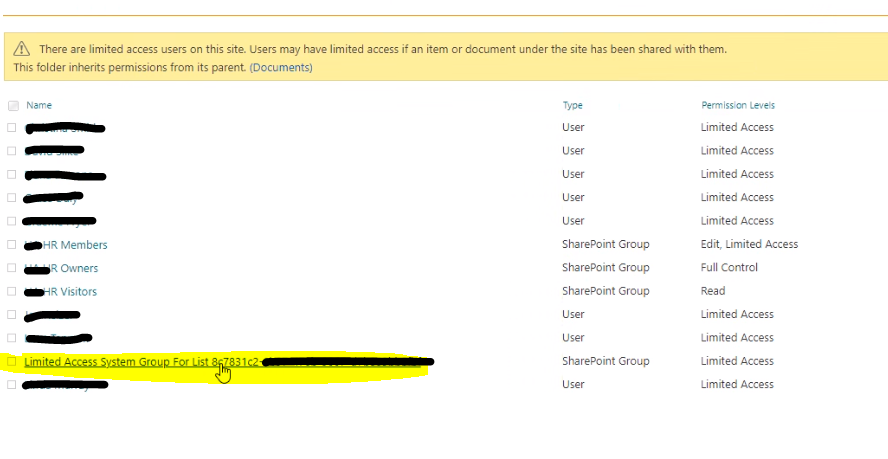
Can someone advise what this 'Limited Access System Group For List' means and where it comes from?
Thanks in advance.
All the best.

Hi @Maz1k3n
1) I want to prevent ONE HR member to access a single folder on SharePoint. He should have access to everything else, but this folder. What is the cleanest way of restricting access to a single folder/document without affecting other existing and future members of the HR M365 group?
You can break inheritance permissions on that folder and set up permissions specifically for the folder. You can do this by:
a) Select the folder > a menu will pop up > hit Manage access

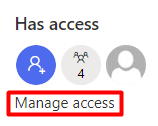
b) Go to Advanced in the bottom right corner.
c) Press Stop Inheriting Permissions
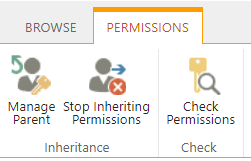
d) Create a group/add people who want to have access to the folder by hitting Grant Permissions
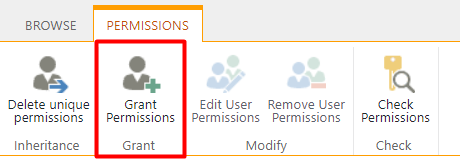
You should now have a folder with specific permissions (minus the person who you don't want to see the information).
2) Can someone advise what this 'Limited Access System Group For List' means and where it comes from?
Limited Access System Groups are generated by SharePoint automatically when you assign a permission to a user or group (when they do not have permission to open or edit anything else on the SharePoint site).
This level is automatically assigned by SharePoint when you provide access to one specific item. You cannot assign Limited Access permissions directly to a user or group yourself. Instead, when you assign edit or open permissions to the single item, SharePoint automatically assigns Limited Access to other required locations, such as the site or library in which the single item is located.
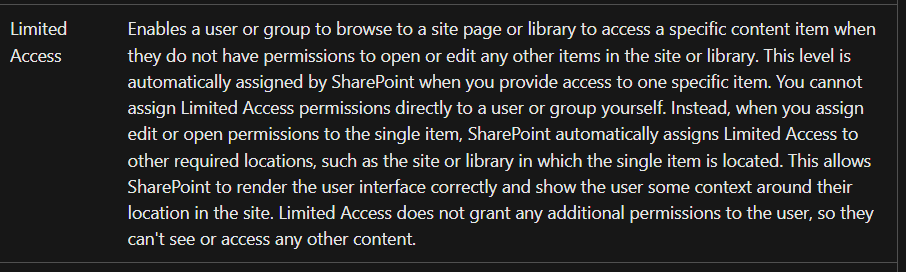
Default Permission Levels (on SharePoint)
--------------------------------
If this is helpful please mark as correct answer.
Hi @Maz1k3n
If you select the stop inheriting this means that it will have a set of its own permissions (instead of inheriting its parent folder permissions). If you change it's parent permissions it will no longer affect the folder you have changed this on.
You can create a specific group that has HR people (minus this one person) and add them with permissions to the folder.
--------------------------
If this is helpful please remember to mark as correct answer.
Thank you for your reply.
For answer number 1, if I select 'stop inheriting permissions' That means permissions will no longer be managed by the Microsoft 365 group, correct? So, every new member who joins the HR M365 group will need to be grant permission to the restricted folder manually?

Dear @Maz1k3n ,
Thanks for your detailed explanation, I am more than willing to help you out.
However, currently there is no permission settings in SharePoint Online to forbid single group member access to a folder. Here is a workaround to try to meet your needs, you could check it. The way is to create a new group(without him) and give unique permission to this folder.
You could export selected users to a csv file in Azure AD. And then create a new group, add members by importing this csv.
The following article shows the steps to copy users from one group to a new one.
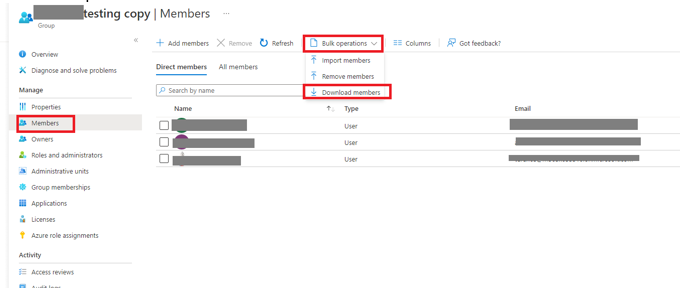
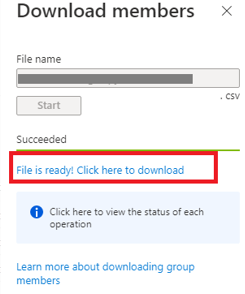
version:v1.0
Member object ID or user principal name [memberObjectIdOrUpn] Required
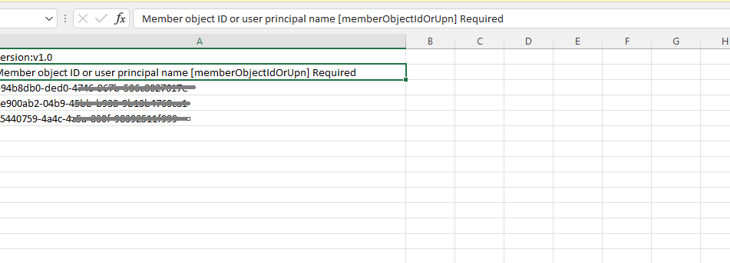
6. Save this csv as the new group member list.
7. Create a new group, add member to this group by importing the csv.
Members -> Bulk operations -> Import members.

8. Upload your csv file.
More information on bulk add group members in Azure Active Directory.
Now you could set unique permission to this new group in that folder.
Should you have any questions or concerns, please do feel free to contact me.
Yours sincerely,
Renjie Sun
If the answer is helpful, please click "Accept Answer" and kindly upvote it. If you have extra questions about this answer, please click "Comment".
Note: Please follow the steps in our documentation to enable e-mail notifications if you want to receive the related email notification for this thread.
Hi @Maz1k3n ,
Do you have any further questions about this thread? If you have any questions or progress, you can contact me in time.
Hi @Maz1k3n ,
I’m checking how the things are going on about this issue. Whether the answer helps you?
If there is any problem with this issue, feel free to let me know.
The issue has been sorted. Thanks you for the assistance.
If the answer is helpful, please click "Accept Answer" and kindly upvote it so that it could be found easily by other people who meet the similar issue.
Thank you for understanding.