Microsoft 365 and Office | SharePoint | For business | Windows
A group of Microsoft Products and technologies used for sharing and managing content, knowledge, and applications.

This browser is no longer supported.
Upgrade to Microsoft Edge to take advantage of the latest features, security updates, and technical support.
' cx='32' cy='32' r='32' /%3E%3Ctext x='50%25' y='55%25' dominant-baseline='middle' text-anchor='middle' fill='%23FFF' %3EGV%3C/text%3E%3C/svg%3E)
Hello all,
I would like to add a "Yes/No" column in a sharepoint list, but it will only show up as an option after a list request is saved for the first time.
Background to this: Creating a list item entails an automated execution in the form of an approval request.
If a request should be rejected because further documents are missing, I would like to create a button, which should be available to the user only after the list entry (and thus a change request) has been created for the first time. With this "Yes/No" button a new approval flow should be triggered without giving up the whole change request again.
This should result in the following progression:
Does anyone know if this would be possible?
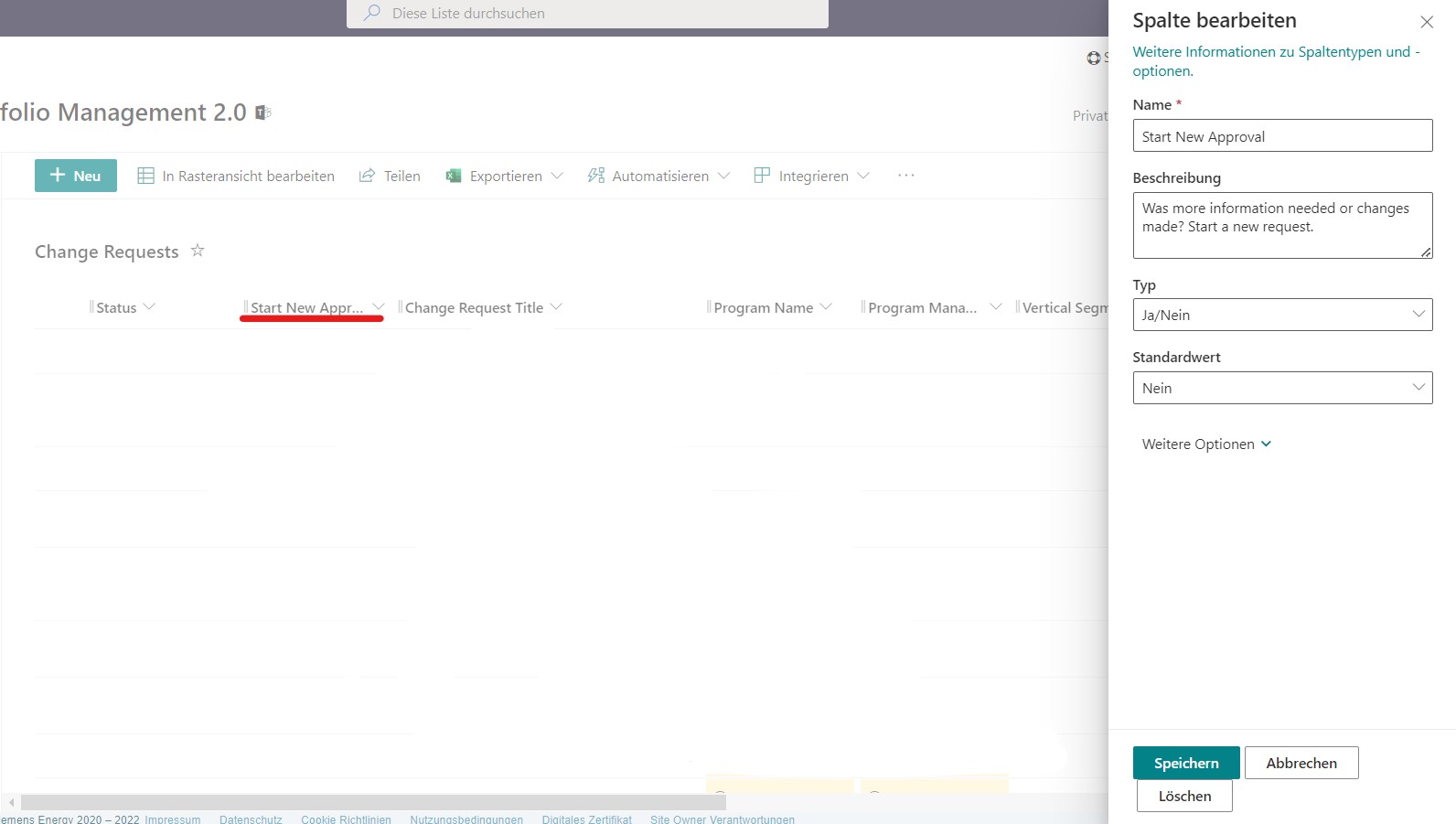
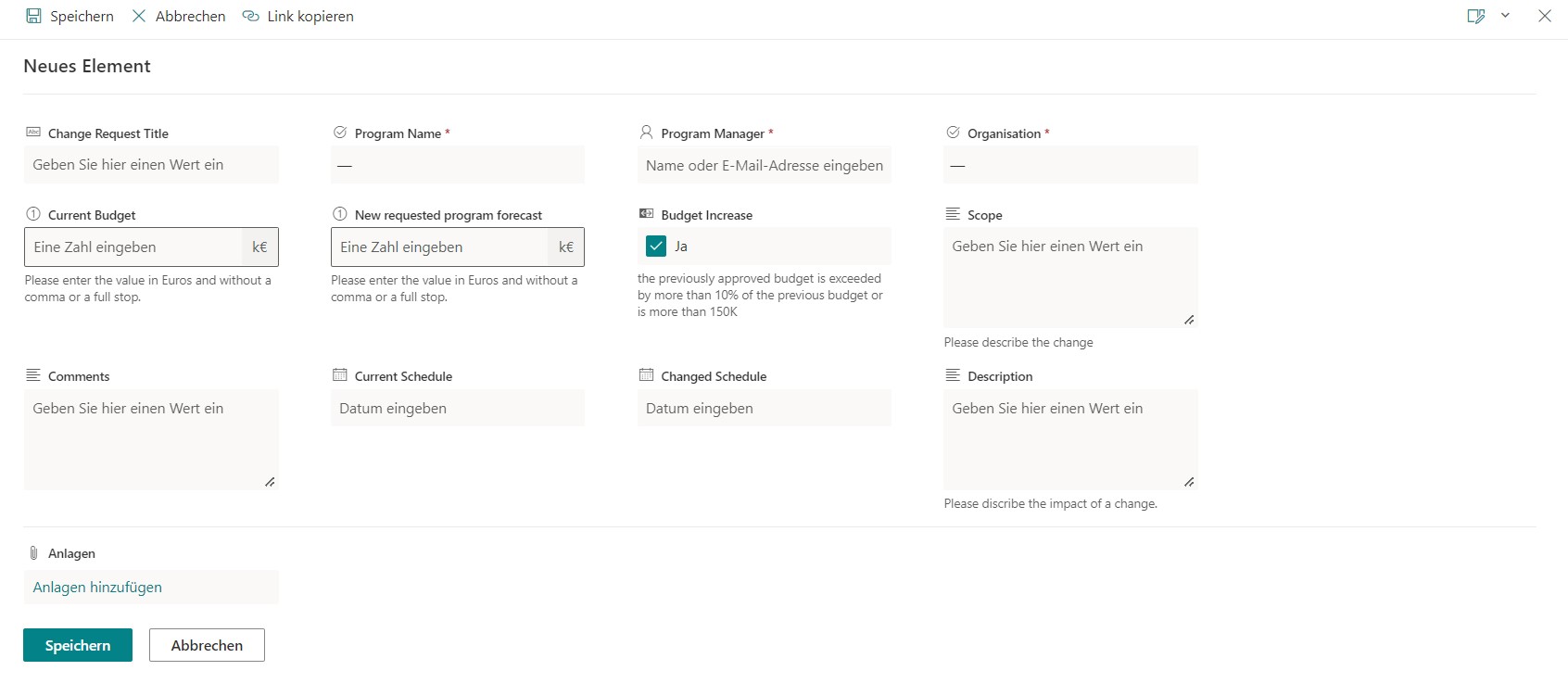
This is the list entry, which must be filled in beforehand during the initial creation for the change request that follows.
Here, however, the selection function "Start a new approval" is not yet to be displayed. This should only be visible afterwards as a selection option.
Thank you very much.

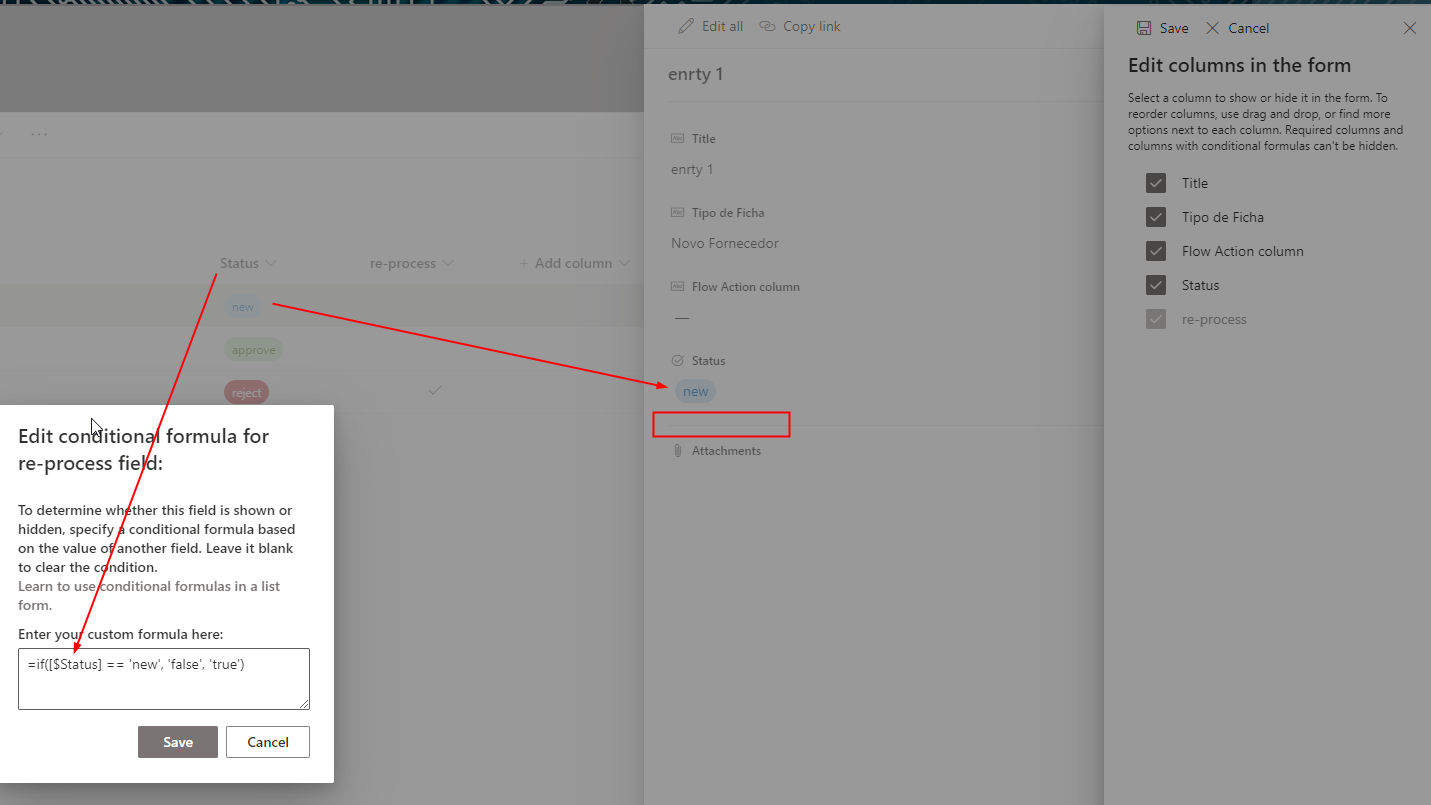
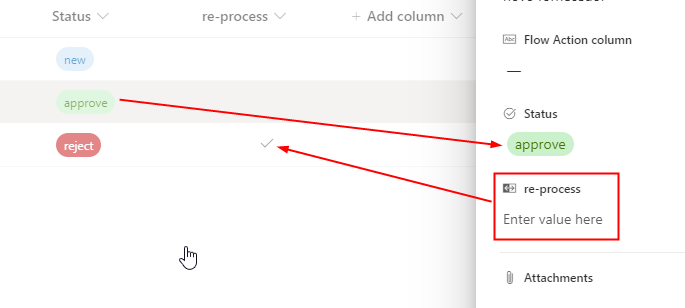
In general you could define the visibility of a column related to your status column.
Anyhow, a user might still make edits within the grid view ore manually change the status column whilst providing data.
example screenshots:
' cx='32' cy='32' r='32' /%3E%3Ctext x='50%25' y='55%25' dominant-baseline='middle' text-anchor='middle' fill='%23FFF' %3EXX%3C/text%3E%3C/svg%3E)
Hi @Gollnast, Viktoria ,
I want to confirm with you, do you want the user to fill in the complete information before passing the user request? If yes, I think there is an easy way, you can set “require that the information column contains information", and if the required field is not filled in, the request cannot be submitted.
Here are steps:
If the answer is helpful, please click "Accept Answer" and kindly upvote it. If you have extra questions about this answer, please click "Comment".
Note: Please follow the steps in our documentation to enable e-mail notifications if you want to receive the related email notification for this thread.