Azure Databricks
An Apache Spark-based analytics platform optimized for Azure.
This browser is no longer supported.
Upgrade to Microsoft Edge to take advantage of the latest features, security updates, and technical support.

Hi,
I have multiple create table statement txt/json files in databricks dfbs location. I want to loop through each file and create tables in databricks database, how can I achieve this through ADF?
' cx='32' cy='32' r='32' /%3E%3Ctext x='50%25' y='55%25' dominant-baseline='middle' text-anchor='middle' fill='%23FFF' %3EMM%3C/text%3E%3C/svg%3E)
Hello @Vinodh247 and welcome to Microsoft Q&A.
So you have in databricks DBFS you have a bunch of files containing create table statements like,
DBFS/tables/people_table.txt
DBFS/tables/places_table.txt
DBFS/tables/products_table.txt
DBFS/tables/pancakes_table.txt
and you want to run the contents of the files which are like
Create table Pancakes(
    orderId int.
    quantity int,
    batter string,
    topping string
)
or something similar.
This can be done without Data Factory, I'm sure. The files are already in DBFS. Either way, in order to loop through them, we need a list of the files. We also need something to execute the statements.
I don't think ADF can use GetMetadata on DBFS. This means Data Factnory can't make the list on its own. We would need some code in Databricks to do this and return the list to Data Factory. At this point all Data Factory would be doing, is iterating. Iterating is something we can do in Databricks. At this point we might as well skip the Data Factory and do everything in Databricks instead. Is there some reason you want to use Data Factory?
The solution team has databricks code but the client wants only to run everything in azure, hence the databricks part has been called from ADF to complete the activity.
Hello @Vinodh247 ,
We haven’t heard from you on the last response and was just checking back to see if you have a resolution yet. Did my solution meet your needs? In case if you have any resolution please do share that same with the community as it can be helpful to others . Otherwise, will respond back with the more details and we will try to help .
Thanks
Martin
Calling the Databricks from ADF does not change where the code is executed/run. If the Databricks is hosted in Azure (Azure Databricks), then it will run in Azure.
So, to do this, the notebook for reading the file and creating the table, must take a parameter. This parameter is how we will pass in the filepath. How we get the filepath depends on where it is stored. Below I explain the two possibilities. Only do one of them, not both.
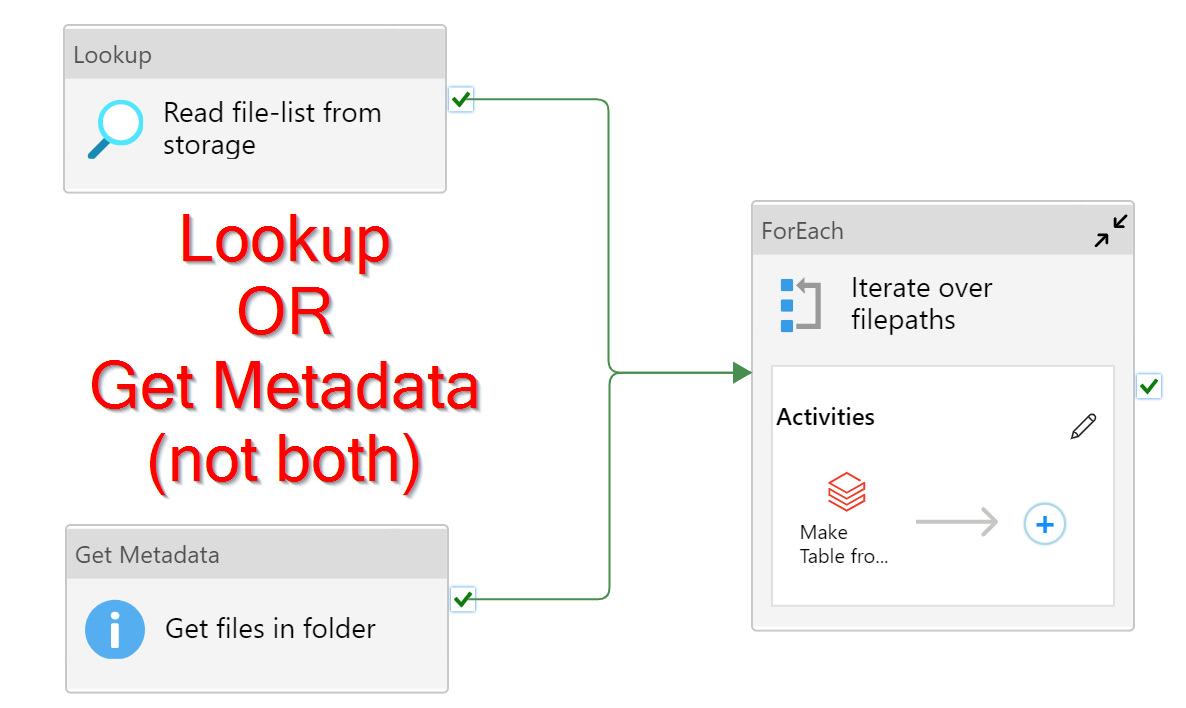
Be aware, both Get Metadata and Lookup will return at most 4MB. If your list of files/tables is more than 5000 records or more than 4 MB, then neither method will work. Let me know if this is the case.
For option #1, create a linked service for that storage service. Create a dataset for that linked service. I recommend a binary dataset type, as we only care about the name, not contents. The dataset should point to the folder containing the table-files.
The Get Metadata activity's Field List should be Child items **.
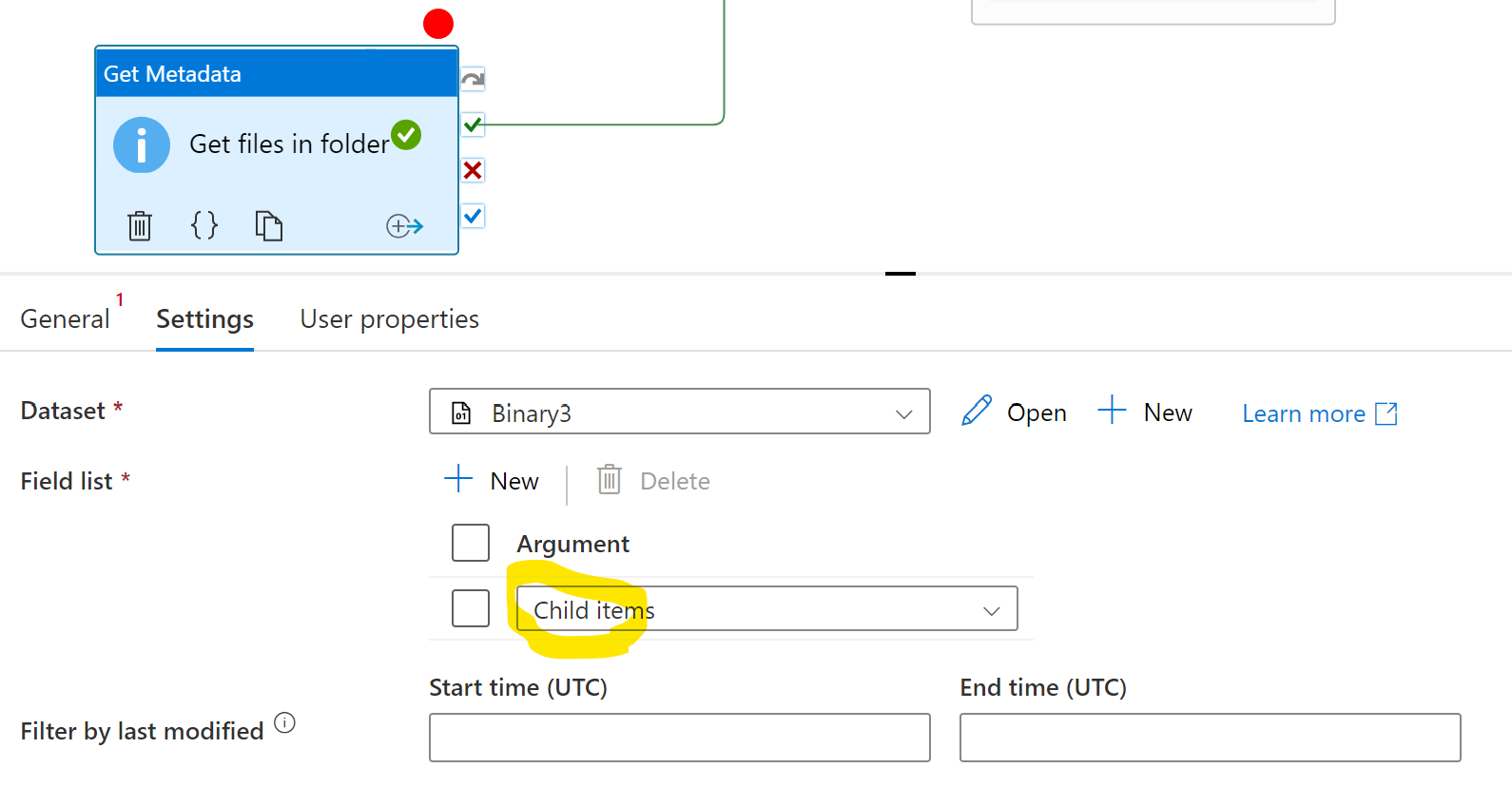
** this operation gets both files and folders. If you have sub-folders, add Item type to the Get Metadata activity's Field list. We can use a Filter activity to screen out the subfolders.
Do a debug run to test whether all is well so far.
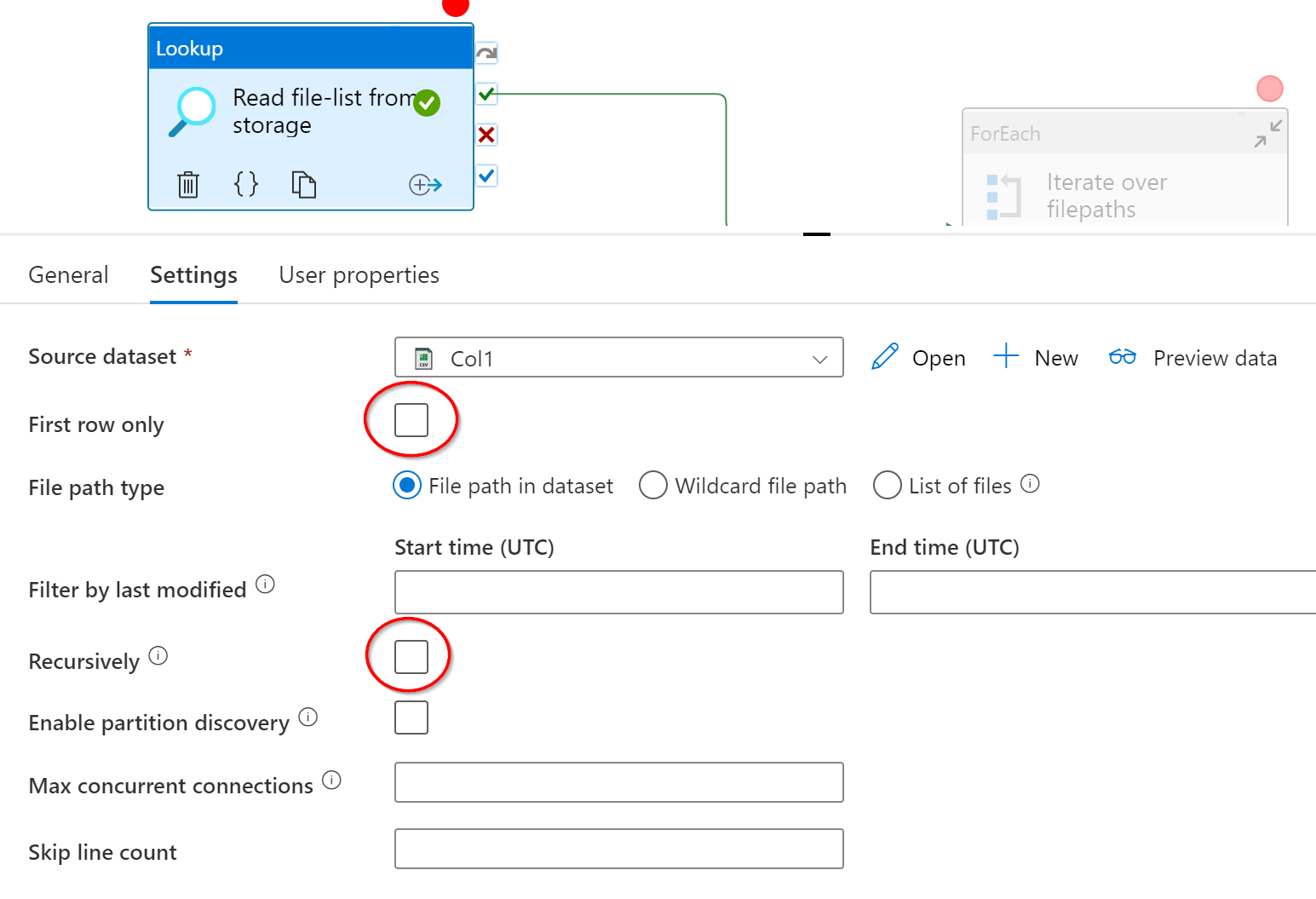
For option #2, create a linked service for where you stored the list-file. Create a delimited text dataset for that linked service. Point directly to that list-file. If you gave the file a header, check the dataset's First row as header options, otherwise uncheck it. Given we have only 1 column, the rest of the dataset options should be fine as-is, unless you put commas in filenames.
The Lookup activity should use our new dataset. Make sure the First row only and Recursively are turned OFF. Do a "preview data" to check all is working properly.
If option #1 AND you have subfolders, I'm sure you don't want to give subfolder name to the databricks. Add a filter activity between the Get Metadata and ForEach. The Filter's items would be @activity('Get files in folder').output.childItems The condition would be @equals(item().type , 'File')
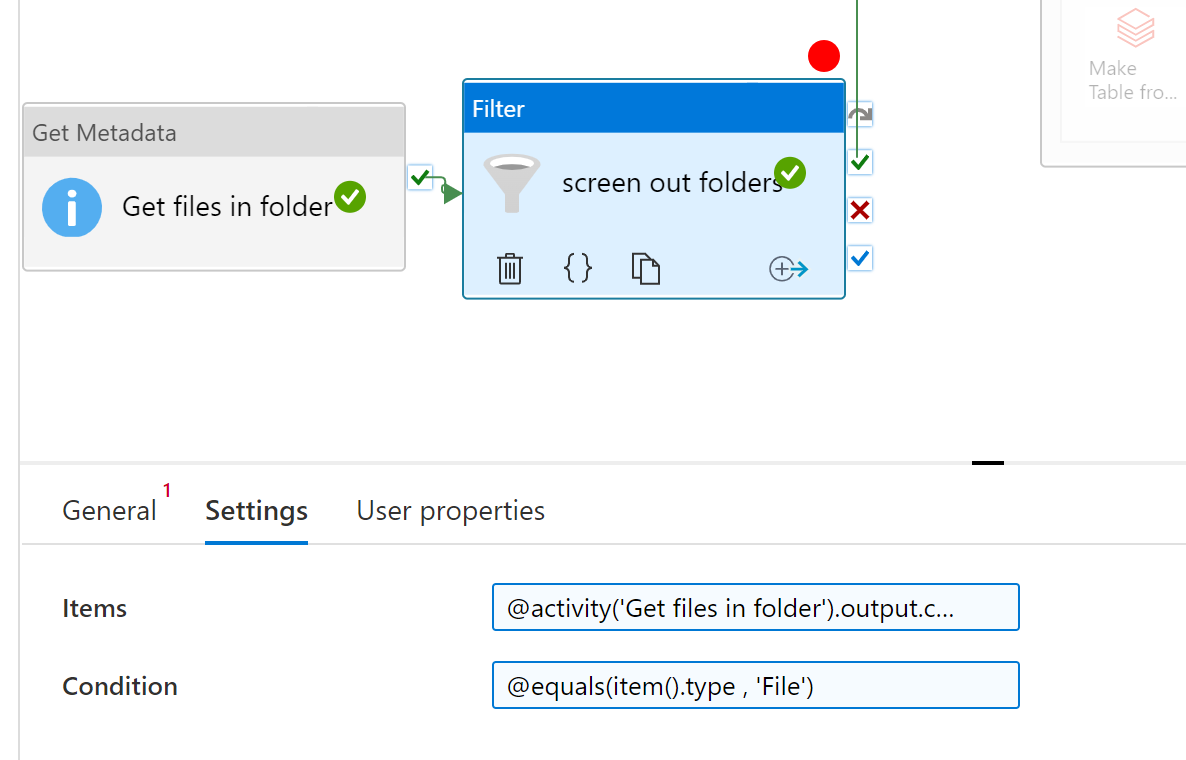
Click the red circle above the filter activity to turn on a breakpoint. This allows you to do a debug run and only run everythign before and including this activity, skipping everything after. Do a debug run to test.
If option #1, then the ForEach 's items should be @activity('Get files in folder').output.childItems
If option #1 AND you have subfolders, then the ForEach 's items should be @activity('screen out folders').output.Value
If option #2, then the ForEach 's items should be @activity('Read file-list from storage').output.value
Now go inside the ForEach and add an Azure Databricks activity (Notebook / python / jar). If you do not already have a Databricks linked service, make one.
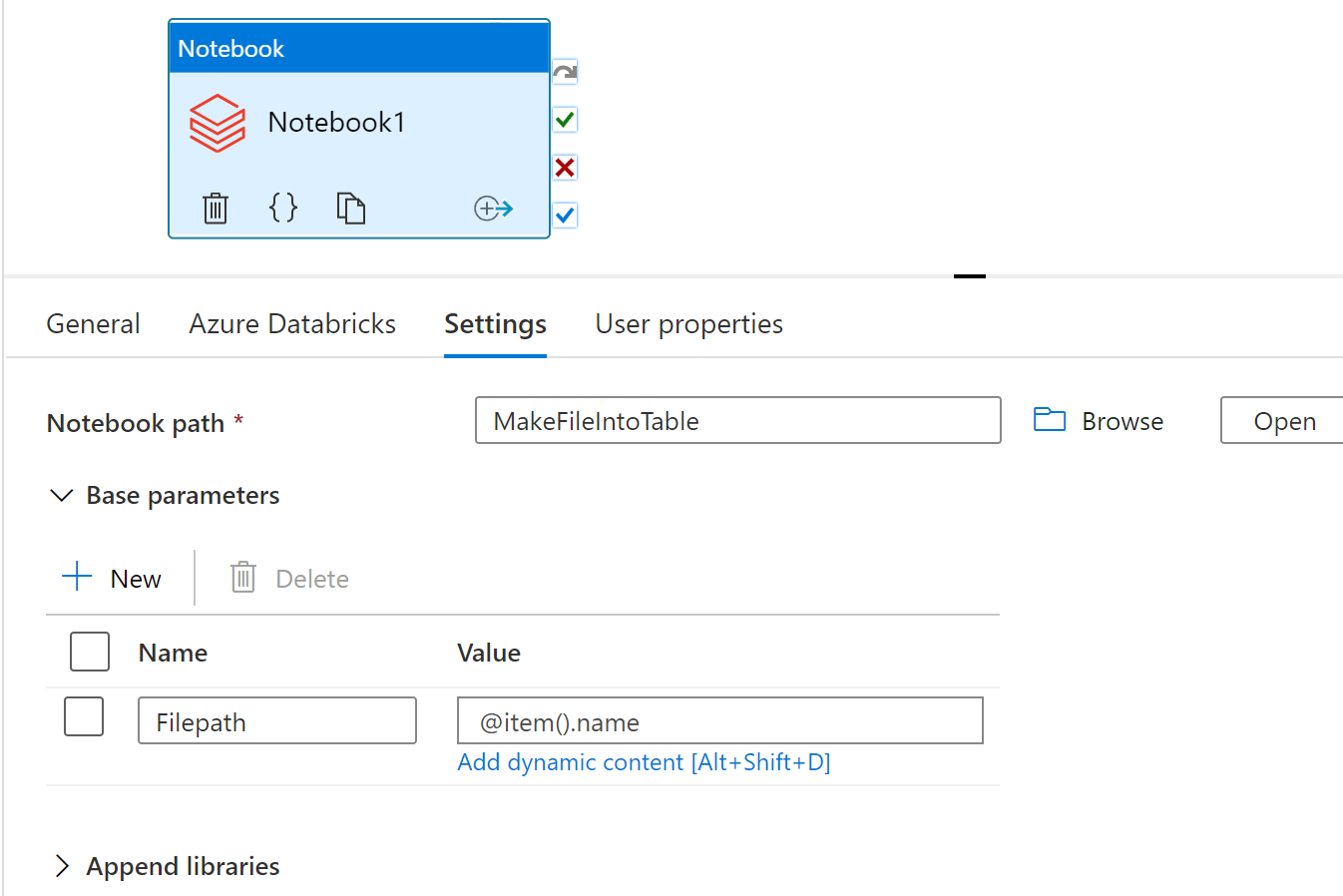
If option #1, the parameter value should be @item().name
If option #2 WITHOUT header, the value should be @item().prop_0
If option #2 WITH header, the value should be @item().myColumnNameGoesHere
Have I missed anything @Vinodh247 ?
Thanks for your detailed write up martin, I am going to implement and test this.