Microsoft 365 and Office | SharePoint Server | Development
The process of building custom solutions for SharePoint Server.

This browser is no longer supported.
Upgrade to Microsoft Edge to take advantage of the latest features, security updates, and technical support.
' cx='32' cy='32' r='32' /%3E%3Ctext x='50%25' y='55%25' dominant-baseline='middle' text-anchor='middle' fill='%23FFF' %3EH%3C/text%3E%3C/svg%3E)
How can i copy a modern sharepoint page into a classic sharepoint site ?
' cx='32' cy='32' r='32' /%3E%3Ctext x='50%25' y='55%25' dominant-baseline='middle' text-anchor='middle' fill='%23FFF' %3ETZ%3C/text%3E%3C/svg%3E)
Hi @help ,
We are currently doing some research on this issue, will let you know as soon as possible.
@Tong Zhang_MSFT
Hi is there any alternative to this because i need to download pnp for this and i don't have admin access
Hi @help ,
I have updated my answer, please check.
but we cannot see a modern page in a classic site
Hi @help ,
To help you better, can you share screenshots on this issue?
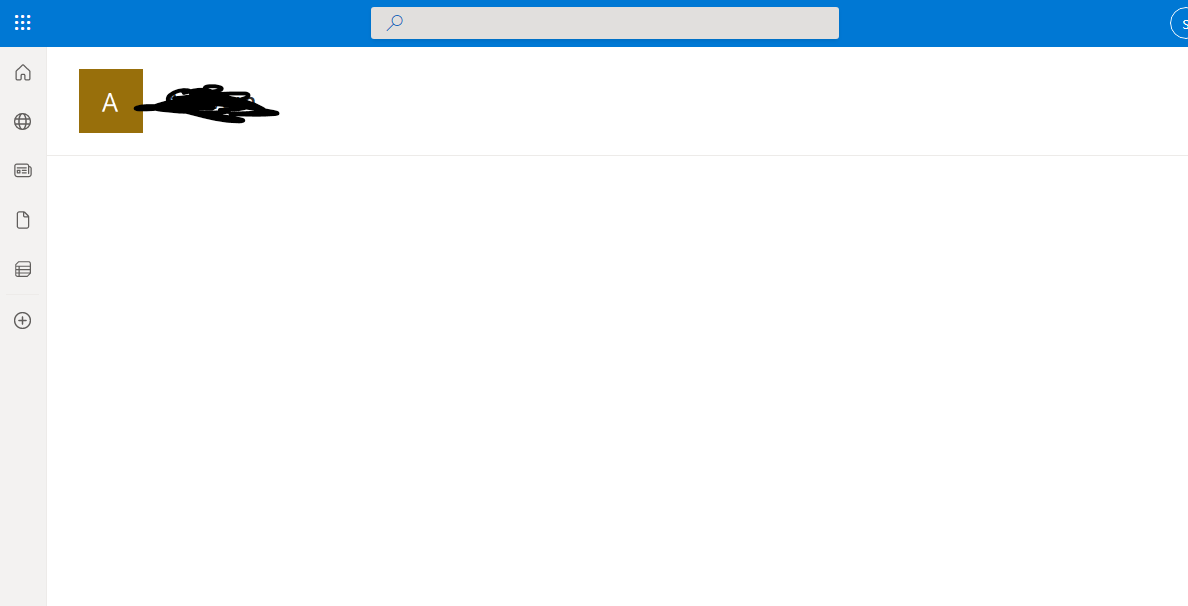
This is after running the flow where a modern page is copied from /sitepages of one sharepoint site to /pages of another Classic sharepoint site. And after copying the page is blank it shows nothing.
can you help me with this?
Hi @help ,
In my tests, it worked well, please check if there are any missing parts.
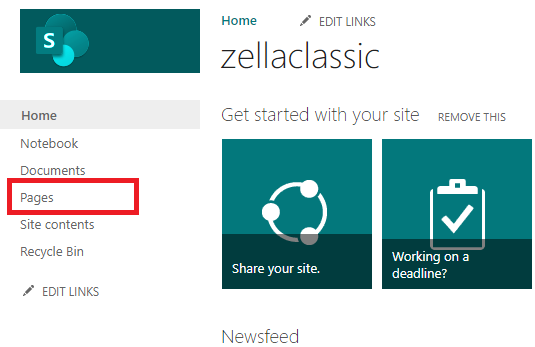
the destination folder where i need to copy is /Pages not /sitepages
yeah that's the query whether we can view a modern page in a classic sharepoint site without activating the sitepage feature
Any update on this?
Hi @help ,
According to my research and testing ,you can use PowerShell script to download the modern page to your local machine, and then upload it to classic SharePoint site. Please follow these steps:
1.Download the modern page;
Connect-PnPOnline -Url https://xxxx.sharepoint.com/sites/zellatest
Get-PnPFile -Url '/sites/zellatest/SitePages/xxxx.aspx'  -Path 'C:\'  -Filename 'xxxx.aspx' -AsFile
2.Upload to classic SharePoint site:
Connect-PnPOnline -Url https://xxxx.sharepoint.com/sites/zellaclassic
Add-PnPFile  -Path 'C:\xxxx.aspx'  -Folder "SitePages"
As a workaround, you can create a Power Automate, please follow these steps:
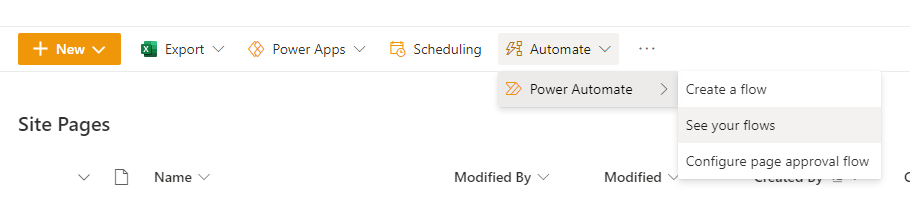
1.Click Automate ->> Power Automate ->> See your flow
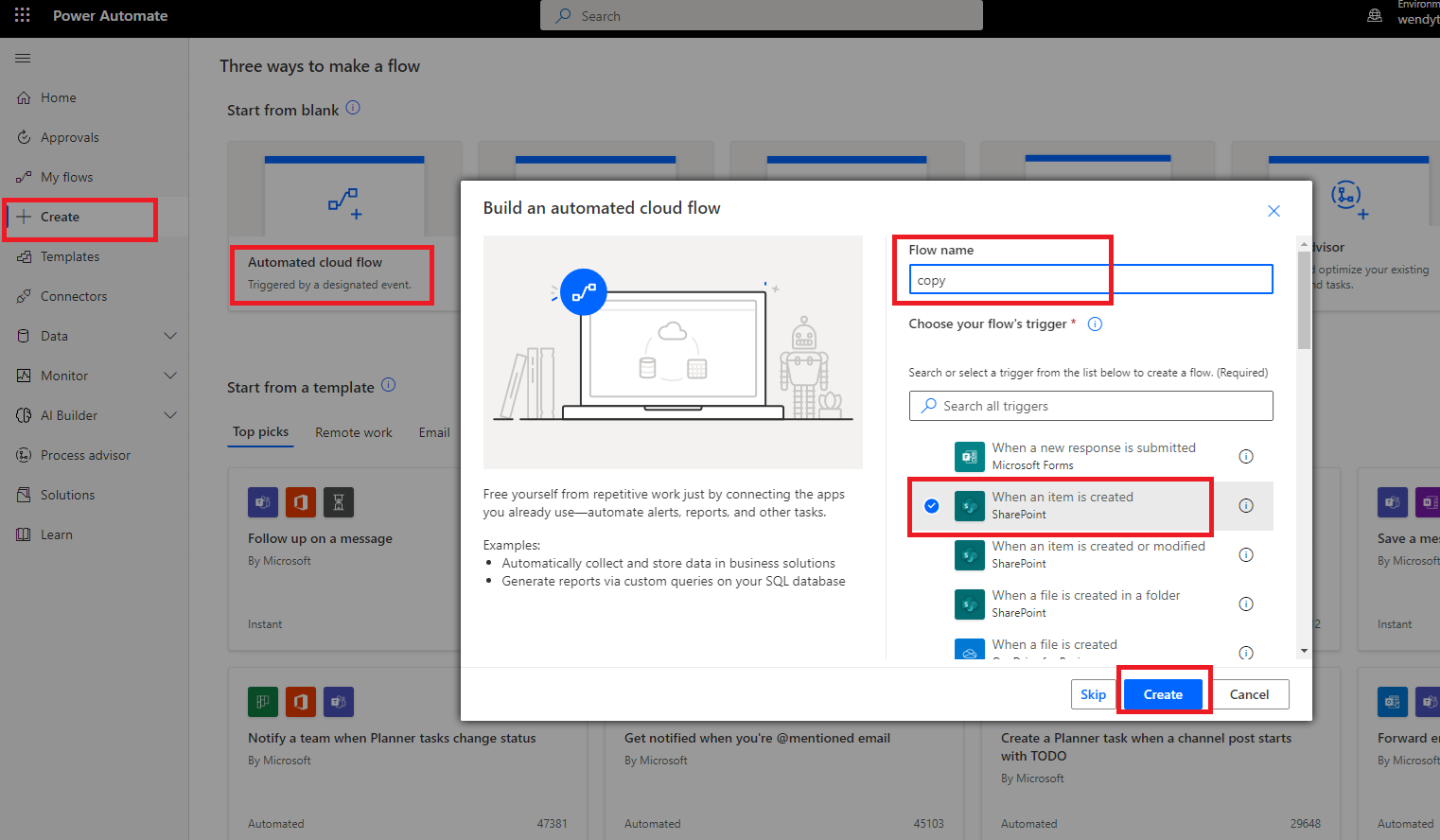
2.Click Create ->> Automated cloud flow ->> Input "Name" ->> "When an item is created" ->> Create
3. Input contents and click "save"
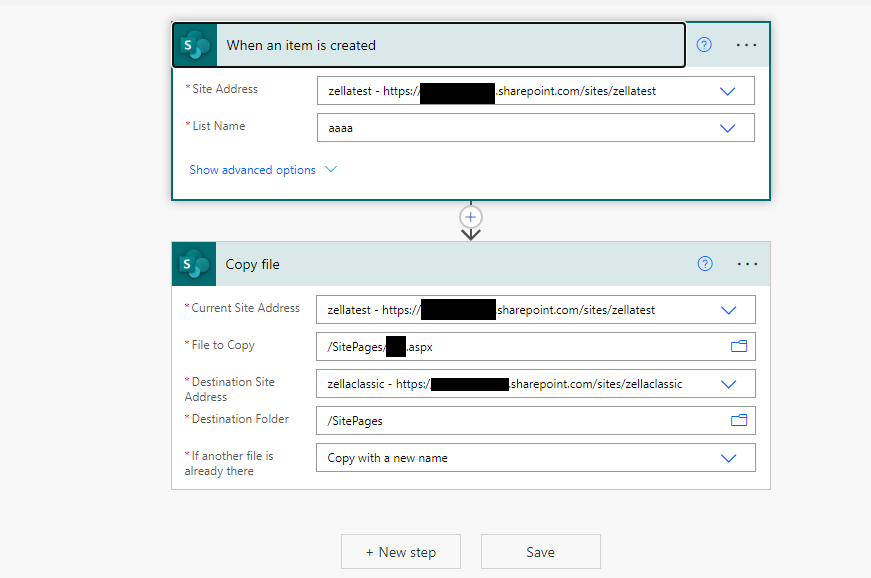
4.Create an item in the library (In my test, I create an item in the "aaaa" library). Then, click Test ->>Manually .
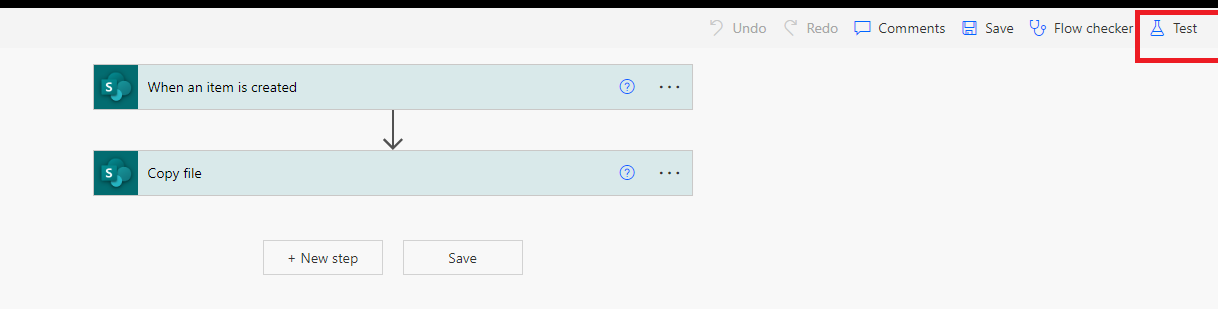
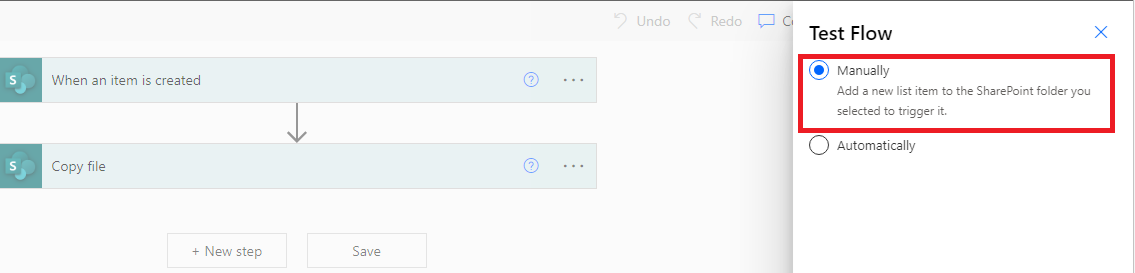
5.Wait a minute and go to the classic site to check if the copy was successful.
6.You can delete the new item you just created.
If the answer is helpful, please click "Accept Answer" and kindly upvote it. If you have extra questions about this answer, please click "Comment".
Note: Please follow the steps in our documentation to enable e-mail notifications if you want to receive the related email notification for this thread.