Note
Access to this page requires authorization. You can try signing in or changing directories.
Access to this page requires authorization. You can try changing directories.
Since I support Azure App Services and there is a influx of customers who want to use the Azure App on Linux stack, I felt it prudent to get my feet wet with Ubuntu. Learning some #Bash too while I’m at it. #Linux
The instructions on how to do this already exist here, so I will mostly show pictures and share any experience I have while doing this which took me off course or if I found something extra cool.
Here are the steps I followed:
- Add the Microsoft Product feed
- Register the Microsoft Product feed
- Install Procdump
Add the Microsoft Product feed
I executed these commands, as seen in Figure 1. Just in case you do not have CURL installed, I wrote how I did that here.
curl https://packages.microsoft.com/keys/microsoft.asc | gpg --dearmor > microsoft.gpg
sudo mv microsoft.gpg /etc/apt/trusted.gpg.d/microsoft.gpg
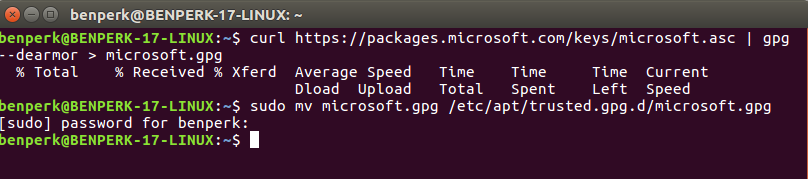
Figure 1, how to install Procdump on Linux
Register the Microsoft Product feed
Execute the following bash command, as seen in Figure 2.
sudo sh -c 'echo "deb [arch=amd64] https://packages.microsoft.com/repos/microsoft-ubuntu-xenial-prod xenial main" > etc/apt/sources.list.d/microsoft.list'

Figure 2, how to install Procdump on Linux
I had to create the microsoft.list file by using this command, Figure 3. (Or there was a typo on the GitHub where there was no / before /etc…)
cd /etc/apt/sources.list.d; sudo -i
sudo touch /etc/apt/sources.list.d/microsoft.list
Install Procdump
I ran these commands to install Procdump on Linux, Figure 3 and Figure 4.
sudo apt-get update
sudo apt-get install procdump
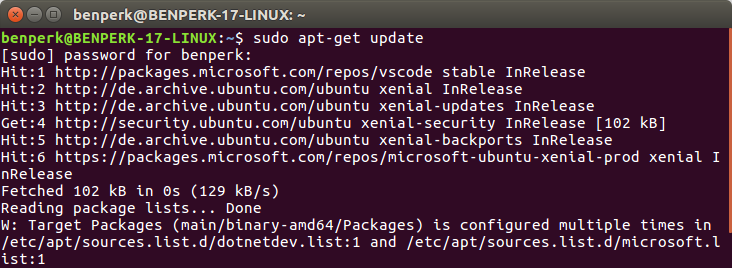
Figure 3, how to install Procdump on Linux 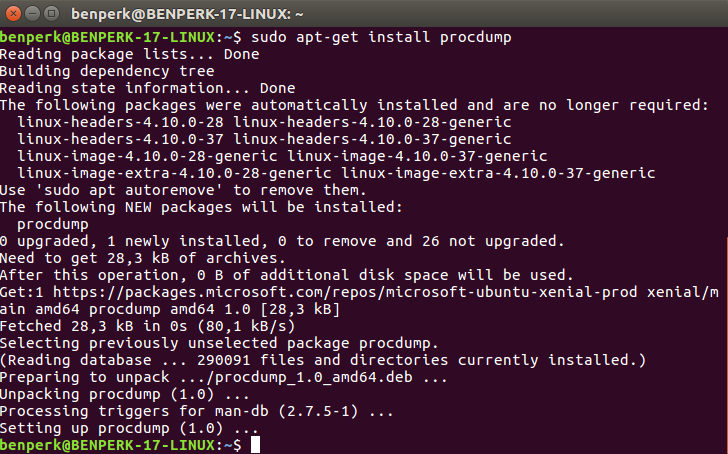
Figure 4, how to install Procdump on Linux
Then to execute Procdump to make sure it was installed and functional, I executed this command, Figure 5.
sudo procdump
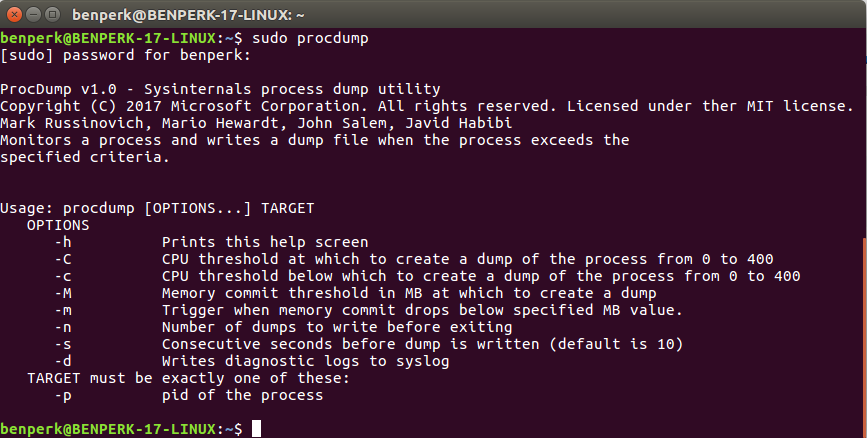
Figure 5, how to install Procdump on Linux