Note
Access to this page requires authorization. You can try signing in or changing directories.
Access to this page requires authorization. You can try changing directories.
Sometimes you need to identify if something is running inside a virtual machine before you take action. This sample VBScript uses the same logic found in the Microsoft Deployment Toolkit to show if a deployment is running in a VM.
If IsVM Then
WScript.Quit 1
Else
WScript.Quit 0
End IfFunction IsVM
' Check the WMI information against known values
bIsVM = false
sVMPlatform = ""sMake = GetWmiPropertyValue("root\cimv2", "Win32_ComputerSystem", "Manufacturer")
sModel = GetWmiPropertyValue("root\cimv2", "Win32_ComputerSystem", "Model")
sBIOSVersion = GetWmiPropertyValue("root\cimv2", "Win32_BIOS", "Version")WScript.Echo "Manufacturer=" & sMake
WScript.Echo "Model=" & sModel
WScript.Echo "BIOSVersion=" & sBIOSVersionIf sModel = "Virtual Machine" then
' Microsoft virtualization technology detected, assign defaults
sVMPlatform = "Hyper-V"
bIsVM = true' Try to determine more specific values
Select Case sBIOSVersion
Case "VRTUAL - 1000831"
bIsVM = true
sVMPlatform = "Hyper-V 2008 Beta or RC0"
Case "VRTUAL - 5000805", "BIOS Date: 05/05/08 20:35:56 Ver: 08.00.02"
bIsVM = true
sVMPlatform = "Hyper-V 2008 RTM"
Case "VRTUAL - 3000919"
bIsVM = true
sVMPlatform = "Hyper-V 2008 R2"
Case "A M I - 2000622"
bIsVM = true
sVMPlatform = "VS2005R2SP1 or VPC2007"
Case "A M I - 9000520"
bIsVM = true
sVMPlatform = "VS2005R2"
Case "A M I - 9000816", "A M I - 6000901"
bIsVM = true
sVMPlatform = "Windows Virtual PC"
Case "A M I - 8000314"
bIsVM = true
sVMPlatform = "VS2005 or VPC2004"
End SelectElseIf sModel = "VMware Virtual Platform" then
' VMware detected
sVMPlatform = "VMware"
bIsVM = trueElseIf sModel = "VirtualBox" then
' VirtualBox detected
bIsVM = true
sVMPlatform = "VirtualBox"Else
' This computer does not appear to be a virtual machine.
End if' Set the return value
If bIsVM Then
WScript.Echo "IsVirtualMachine=True"
WScript.Echo "VirtualMachinePlatform=" & sVMPlatform
Else
WScript.Echo "IsVirtualMachine=False"
End IfIsVM = bIsVM
End Function
Function GetWmiPropertyValue(strNameSpace, strClassName, strPropertyName)
On Error Resume Next
strPropertyValue = ""
set oWmiClass = getobject("winmgmts:" & strNameSpace).get(strClassName,&h20000) 'amended
set oWmiProperties = oWmiClass.Properties_Set objWMIService = GetObject("winmgmts:\\" & "." & "\" & strNameSpace)
Set colItems = objWMIService.ExecQuery("Select * from " & strClassName,,48)For Each objItem in colItems
For Each objProperty in oWmiProperties
sLine = ""
'WScript.Echo "- " & objProperty.name & ": " & strPropertyNameIf objProperty.Name = strPropertyName Then
If objProperty.IsArray = True Then
sLine = "str" & objProperty.Name & " = Join(objItem." & objProperty.Name & ", " & Chr(34) & "," & Chr(34) & ")" & vbCrLf
sLine = sLine & "strPropertyValue = str" & objProperty.Name
'ElseIf objProperty.CIMTYPE = 101 Then
' bHasDates = True
' sLine = "strPropertyValue = WMIDateStringToDate(objItem." & objProperty.Name & ")"
Else
sLine = "strPropertyValue = objItem." & objProperty.Name
End If'WScript.Echo sLine
Execute sLine
End IfNext
NextGetWmiPropertyValue = strPropertyValue
End Function
John Kelbley’s book Windows Server 2008 Hyper-V : Insiders Guide to Microsoft's Hypervisor, shares how you can use the root\CIM2 namespace and access the Baseboard class (full of interesting BIOS information) to get a description of the "physical" system. This class often includes information about the motherboard and chassis - manufacture, model, serial number, other. You can run the following VBS to get this info.
On Error Resume Next
Const wbemFlagReturnImmediately = &h10
Const wbemFlagForwardOnly = &h20arrComputers = Array(".")
For Each strComputer In arrComputers
WScript.Echo
WScript.Echo "=========================================="
WScript.Echo "Computer: " & strComputer
WScript.Echo "=========================================="Set objWMIService = GetObject("winmgmts:\\" & strComputer & "\root\CIMV2")
Set colItems = objWMIService.ExecQuery("SELECT * FROM Win32_BaseBoard", "WQL", _
wbemFlagReturnImmediately + wbemFlagForwardOnly)For Each objItem In colItems
WScript.Echo "Caption: " & objItem.Caption
strConfigOptions = Join(objItem.ConfigOptions, ",")
WScript.Echo "ConfigOptions: " & strConfigOptions
WScript.Echo " CreationClassName: " & objItem.CreationClassName
WScript.Echo " Description: " & objItem.Description
WScript.Echo " HostingBoard: " & objItem.HostingBoard
WScript.Echo " InstallDate: " & WMIDateStringToDate(objItem.InstallDate)
WScript.Echo " Manufacturer: " & objItem.Manufacturer
WScript.Echo " Model: " & objItem.Model
WScript.Echo " Name: " & objItem.Name
WScript.Echo "OtherIdentifyingInfo: " & objItem.OtherIdentifyingInfo
WScript.Echo " PartNumber: " & objItem.PartNumber
WScript.Echo " Product: " & objItem.Product
WScript.Echo " SerialNumber: " & objItem.SerialNumber
WScript.Echo " SKU: " & objItem.SKU
WScript.Echo " Status: " & objItem.Status
WScript.Echo " Tag: " & objItem.Tag
WScript.Echo " Version: " & objItem.Version
WScript.Echo
Next
NextFunction WMIDateStringToDate(dtmDate)
WScript.Echo dtm:
WMIDateStringToDate = CDate(Mid(dtmDate, 5, 2) & "/" & _
Mid(dtmDate, 7, 2) & "/" & Left(dtmDate, 4) _
& " " & Mid (dtmDate, 9, 2) & ":" & Mid(dtmDate, 11, 2) & ":" & Mid(dtmDate,13, 2))
End Function
Here is a screen capture of the script results for a physical system running Windows Server 2008.
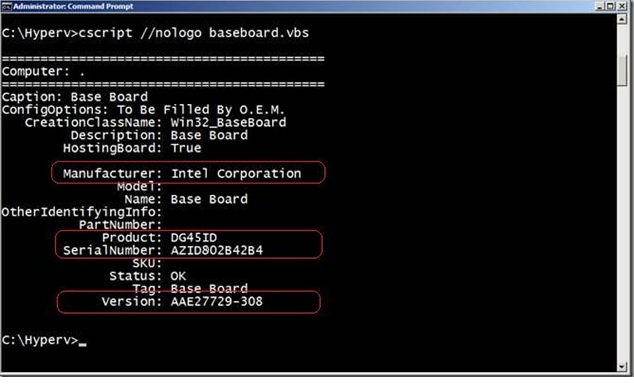
NOTE the motherboard was manufactured by Intel (model DG45ID).
Running the same script in a virtual machine returns similar information:
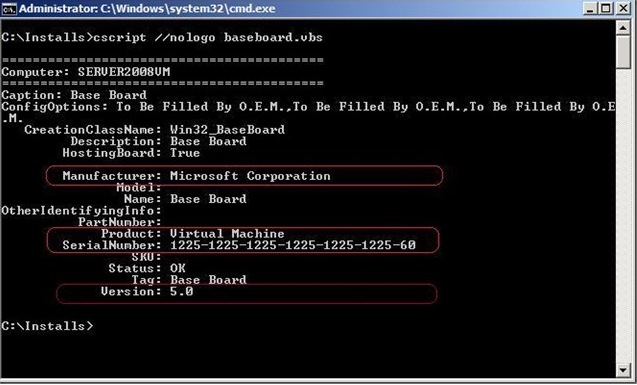
NOTE On the virtual machine, the "motherboard" appears to be made by Microsoft (we don't make motherboards!) and is of a virtual type.
The version number shown reflects the version of Hyper-V (Server 2008 RTM), and the Serial Number matches that found in the VM configuration file (XML file on the physical host).
The Perl script version for this is:
use strict;
use Win32::OLE('in');use constant wbemFlagReturnImmediately => 0x10;
use constant wbemFlagForwardOnly => 0x20;my @computers = (".");
foreach my $computer (@computers) {
print "\n";
print "==========================================\n";
print "Computer: $computer\n";
print "==========================================\n";my $objWMIService = Win32::OLE->GetObject("winmgmts:\\\\$computer\\root\\CIMV2") or die "WMI connection failed.\n";
my $colItems = $objWMIService->ExecQuery("SELECT * FROM Win32_BaseBoard", "WQL",
wbemFlagReturnImmediately | wbemFlagForwardOnly);foreach my $objItem (in $colItems) {
print " Caption: $objItem->{Caption}\n";
print " ConfigOptions: " . join(",", (in $objItem->{ConfigOptions})) . "\n";
print " CreationClassName: $objItem->{CreationClassName}\n";
print " Description: $objItem->{Description}\n";
print " HostingBoard: $objItem->{HostingBoard}\n";
print " InstallDate: $objItem->{InstallDate}\n";
print " Manufacturer: $objItem->{Manufacturer}\n";
print " Model: $objItem->{Model}\n";
print " Name: $objItem->{Name}\n";
print "OtherIdentifyingInfo: $objItem->{OtherIdentifyingInfo}\n";
print " Product: $objItem->{Product}\n";
print " SerialNumber: $objItem->{SerialNumber}\n";
print " SKU: $objItem->{SKU}\n";
print " Status: $objItem->{Status}\n";
print " Tag: $objItem->{Tag}\n";
print " Version: $objItem->{Version}\n";
print "\n";
}
}sub WMIDateStringToDate(strDate)
{
return "blah";
}
On the Windows command line you can access the same information (in Windows XP or newer) by typing the following:
wmic baseboard get manufacturer, product, Serialnumber, version

For info on how to use Hyper-V PS cmdlets see: https://www.microsoft.com/technet/scriptcenter/topics/msh/cmdlets/index.mspx
See also James O’Neil’s New and improved PowerShell Library for Hyper-V.
For 35 sample Hyper-V PS1 scripts in a zipfile, go to: Hyper-V%20PowerShell%20Example%20Scripts.zip-download
Have more scripts to do this? Or some better way? Add it to the wiki topic: https://social.technet.microsoft.com/wiki/contents/articles/hyper-v-how-to-detect-if-a-vm-using-script.aspx