.NET GUI Bliss
Streamline Your Code and Simplify Localization Using an XML-Based GUI Language Parser
Paul DiLascia
Code download available at:NETGUIBliss.exe(119 KB)
Level of Difficulty123
SUMMARY
While Windows Forms in .NET has lots of cool features, if you're used to MFC, there are a couple of things you'll find missing, like doc/view, command routing, and UI update. The .NET answer to this is a code generator that writes new code for every single element. But there's a better way. In this article, Paul DiLascia shows how to develop an XML-based GUI language parser for .NET that lets you code resources, menus, toolbars, and status bars in XML instead of with procedural code. He also shows how a user interface based on XML can easily be localized using standard .NET techniques, and introduces his very own library, MotLib.NET, with lots of GUI goodies for your programming pleasure.
Contents
MGL and Monde
Timeout in Praise of Reflection
Inside MGL
Mot Does Resources: FileRes
Extending MGLMaster
Conclusion
I have to confess I'm becoming enamored of .NET. There's just so much to like: the common language runtime (CLR), reflection, Interop, version control...it's like a breath of fresh air to have a system that takes so much pain out of programming. You can write in multiple languages without fretting over compatibility, then pop down to unmanaged C++ for some low-level grungies. The Web stuff is awesome. The Microsoft® .NET Framework even has Regex and Split, my favorites from Perl. Most important of all, it's fun!
If .NET is, in the main, a Herculean leap forward, it's not without its difficulties. Two issues spring to mind: speed and GUI support. Response slows at program startup as a zillion code lines are ingested from disk, then again whenever the garbage collector decides to collect. Not to worry, the Redmondtonians can always make it faster. Perhaps scientists in blue bunnysuits are at this moment running microcode Microsoft Intermediate Language (MSIL) on a CLR chip. Performance can always be boosted. For most purposes, .NET is mighty quick.
But when it comes to GUI, .NET has a weak spot. Windows Forms has all the essentials, and many welcome improvements like anchor points, docking, and automatic recreation when you change window styles. Not to mention easy colors and backgrounds—everyone can finally say goodbye and good riddance to WM_CTLCOLOR. But if you've come over from MFC, some aspects of Windows Forms may feel a bit retro. Where are all the nice GUI goodies like doc/view, command routing, and user interface update? Is it really necessary to manually construct each menu item and toolbar?
Figure 1 shows a typical section of code generated with Visual Studio® .NET: menuItem1, menuItem2... all the way up to only the .NET code generator knows how many menuItems. What will you do when you want to go global—create a resource string for every item? And what about forms, where every last Button, ListBox, Label, and link must be created procedurally at hardwired locations? No human programmer would code this way, so why accept it from a mechanical one? As a matter of principle, code generators are dumb. A code generator is fundamentally a workaround for something that's missing. You can call it a wizard, but the wizard has no brain. If the code is so predictable, write a class, not a program that writes programs. Moreover, GUI resources like menus and forms belong in files that are easily translated, not embedded in procedural code instructions. To be fair, Visual Studio .NET does provide a way to localize forms, and there is also a winres.exe that serves the same purpose, but the two methods are incompatible and both have drawbacks. In short, while .NET excels in many areas, it falls shy of GUI perfection. Hey, nobody's perfect.
In the pages that follow, I'll show you how to build a system that closes the GUI gap in Windows Forms. I'll show you how to have your Windows Forms and favorite MFC goodies, too. You'll learn to localize with ease and flair by coding your GUI in XML. This article covers resources, commands, menus and toolbars; a future article will deal with forms.
MGL and Monde
When I first pondered how to eliminate the code in Figure 1, I knew I wanted something like RC files that would let me express menu and other UI definitions in a separate and therefore more easily translatable file, using some kind of special language. What better language to use than XML? In fact, such a language already exists: XUL ("zool"), the XML User-interface Language. XUL is a dialect of XML for describing user interfaces. XUL was developed by the Java language folks for Mozilla (the Netscape engine). XUL is quite extensive, with commands for menus, toolbars, buttons, edit controls, and all sorts of widgets, well beyond the scope of this article. But it's not hard to write a mini-XUL that supports only the widgets you need. XUL—or something like it—is just the ticket to GUI greatness!
Figure 1 Visual Studio .NET-generated Menu
using System; ••• /// <summary> /// Summary description for Monde. /// </summary> public class Monde : System.Windows.Forms.Form { private bool disposed; private Image img; private String text; private System.Windows.Forms.MainMenu mainMenu1; private System.Windows.Forms.MenuItem menuItem1; private System.Windows.Forms.MenuItem menuItem2; private System.Windows.Forms.MenuItem menuItem3; private System.Windows.Forms.MenuItem menuItem4; private System.Windows.Forms.MenuItem menuItem5; private System.Windows.Forms.MenuItem menuItem6; private System.Windows.Forms.MenuItem menuItem7; private System.Windows.Forms.MenuItem menuItem8; /// <summary> /// Required designer variable. /// </summary> private System.ComponentModel.Container components = null; ••• #region Windows Form Designer generated code /// <summary> /// Required method for Designer support - do not modify /// the contents of this method with the code editor. /// </summary> private void InitializeComponent() { this.mainMenu1 = new System.Windows.Forms.MainMenu(); this.menuItem1 = new System.Windows.Forms.MenuItem(); this.menuItem2 = new System.Windows.Forms.MenuItem(); this.menuItem3 = new System.Windows.Forms.MenuItem(); this.menuItem4 = new System.Windows.Forms.MenuItem(); this.menuItem5 = new System.Windows.Forms.MenuItem(); this.menuItem6 = new System.Windows.Forms.MenuItem(); this.menuItem7 = new System.Windows.Forms.MenuItem(); this.menuItem8 = new System.Windows.Forms.MenuItem(); // // mainMenu1 // this.mainMenu1.MenuItems.AddRange(new System.Windows.Forms.MenuItem[] { this.menuItem1, this.menuItem3}); // // menuItem1 // this.menuItem1.Index = 0; this.menuItem1.MenuItems.AddRange(new System.Windows.Forms.MenuItem[] { this.menuItem2}); this.menuItem1.Text = "&File"; // // menuItem2 // this.menuItem2.Index = 0; this.menuItem2.Text = "E&xit"; this.menuItem2.Click += new System.EventHandler(this.OnFileExit); // // menuItem3 // this.menuItem3.Index = 1; this.menuItem3.MenuItems.AddRange(new System.Windows.Forms.MenuItem[] { this.menuItem4, this.menuItem5, this.menuItem6, this.menuItem7}); this.menuItem3.Text = "&View"; // // menuItem4 // this.menuItem4.Index = 0; this.menuItem4.Text = "&United States [en-US]"; this.menuItem4.Click += new System.EventHandler(this.OnViewLocale); // // menuItem5 // this.menuItem5.Index = 1; this.menuItem5.Text = "Great &Britain [en-GB]"; this.menuItem5.Click += new System.EventHandler(this.OnViewLocale); // // menuItem6 // this.menuItem6.Index = 2; this.menuItem6.Text = "&Spain [es-ES]"; this.menuItem6.Click += new System.EventHandler(this.OnViewLocale); // // menuItem7 // this.menuItem7.Index = 3; this.menuItem7.Text = "&Italy [it]"; this.menuItem7.Click += new System.EventHandler(this.OnViewLocale); // // menuItem8 // this.menuItem8.Index = 4; this.menuItem8.Text = "&Russia [ru]"; this.menuItem8.Click += new System.EventHandler(this.OnViewLocale); // // Monde // this.AutoScaleBaseSize = new System.Drawing.Size(5, 13); this.ClientSize = new System.Drawing.Size(292, 273); this.Menu = this.mainMenu1; this.Name = "Monde"; this.Text = "Monde"; } #endregion /// <summary> /// The main entry point for the application. /// </summary> [STAThread] static void Main(String[] args) { Application.Run(new Monde()); } }
In the end, I wrote a new library, MotLib.NET, with classes to parse GUI definitions in my own invented XML dialect, MGL (pronounced "miggle"). MGL stands for Mot's GUI Language. Having already named my earlier MFC class library PixieLib to emphasize its smallness, I decided to continue the tradition of cutesy pet names to underline my emphasis on small, tight code: Mot (Figure 2) is a stuffed pet toy only three inches tall, and mot is a French word that means "a witty or incisive remark; an epigram." If pet names make you want to gag, feel free to imagine that MGL stands for My GUI Language (mine, not yours), Mom's GUI Language, or Modest GUI Language—because currently MGL supports only menus, toolbars, and status bars.
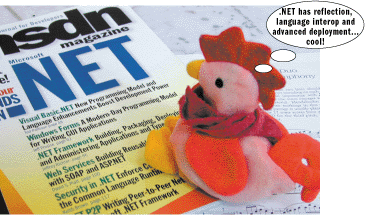
Figure 2** Mot, the Toy **
Every system needs a testbed, and MGL's is Monde. Monde is a world-ready hello app that displays a national flag and small greeting, as shown in Figure 3. Between you and me, Monde is in no danger of winning any culture prizes. Its name is Gallic, but it can't speak French. When you select a new language, the menus change for the most part, but not the prompts. Clearly Monde's author is no linguist. All I can say is mea culpa and call upon polyglots for help: If you e-mail me your translated MGL—does anyone speak Urdu?—I'll post it on motlib.net, with your name in the credits.
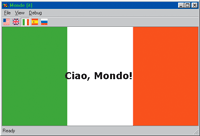
Figure 3** Monde, a World-ready Hello App **
If Monde is dopey, at least it shows how to circumvent the code generator and achieve GUI bliss by MGL-izing your app. Figure 4 shows the source for Monde. The first thing you might wonder is: where's all the code? Figure 5 provides the answer. The entire UI—commands, menus, toolbar, and prompts—is coded in XML. All Monde does to create its menus, toolbar, and status bar is create a MGLMaster and call LoadUI.
// in main form mgl = new MGLMaster(this); mgl.LoadUI("Monde", "ui.xml");
Figure 5 UI in MGL
<motlib.mgl> <command id="ViewUnitedStates" tag="en-US" oncommand="OnViewLocale" onupdate="OnUpdateViewLocale" /> <command id="ViewGreatBritain" tag="en-GB" oncommand="OnViewLocale" onupdate="OnUpdateViewLocale" /> <command id="ViewItaly" tag="it" oncommand="OnViewLocale" onupdate="OnUpdateViewLocale" /> <command id="ViewSpain" tag="es-ES" oncommand="OnViewLocale" onupdate="OnUpdateViewLocale" /> <command id="ViewRussia" tag="ru" oncommand="OnViewLocale" onupdate="OnUpdateViewLocale" /> <mainmenu id="MondeMainMenu"> <menuitem text="_File"> <menuitem text="E_xit"/> </menuitem> <menuitem text="_View"> <menuitem text="_United States [en-US]" key="CtrlU" /> <menuitem text="Great _Britain [en-GB]" key="CtrlB" /> <menuitem text="_Italy [it]" key="CtrlI" /> <menuitem text="_Spain [es-ES]" key="CtrlS" /> <menuitem text="_Russia [ru]" key="CtrlR" /> <menuitem text="-" /> <menuitem text="_ToolBar" /> <menuitem text="Status Bar" /> </menuitem> <menuitem text="_Debug"> <menuitem text="Dump"/> </menuitem> <menuitem text="_Help"> <menuitem text="_About"/> </menuitem> </mainmenu> <contextmenu id="MondeContextMenu"> <menuitem command="ViewUnitedStates" text="_United States [en-US]"/> <menuitem command="ViewGreatBritain" text="Great _Britain [en-GB]"/> <menuitem command="ViewItaly" text="_Italy [it]"/> <menuitem command="ViewSpain" text="_Spain [es-ES]"/> <menuitem command="ViewRussia" text="_Russia [es-ES]"/> </contextmenu> <toolbar id="MondeToolBar" appearance="Flat" bitmap="toolbar.bmp" > <Button command="ViewUnitedStates" /> <Button command="ViewGreatBritain" /> <Button command="ViewItaly" /> <Button command="ViewSpain" /> <Button command="ViewRussia" /> </toolbar> <statusbar id="MondeStatusBar"> <panel autosize="Spring"/> <panel command="NumLock" width="35" borderstyle="Sunken" /> </statusbar> <strings> hellomsg = Hello, world! FileExit = Exit program ViewUnitedStates = Display United States flag and user interface|US English ViewGreatBritain = Display British flag and user interface|British English ViewItaly = Display Italian flag and user interface|Italian ViewSpain = Display Spanish flag and user interface|Spanish ViewRussia = Display Russian flag and user interface|Russian ViewToolBar = Hide or show the toolbar ViewStatusBar = Hide or show the status bar DebugDump = Dump internal structures to trace window ReadyMsg = Ready NumLock = Num Lock key|Num Lock </strings> </motlib.mgl>
Figure 4 Monde
//////////////////////////////////////////////////////////////// // MotLib.NET 2002 Paul DiLascia // If this code works, it was written by Paul DiLascia. // If not, I don't know who wrote it. // Compiles with Visual C++ 7.0 on Windows XP. Tab size = 3. // using System; ••• public class Monde : Form { String currentLocale; // current culture; e.g, "en-US" MGLMaster mgl; // MGLMaster controls the UI bool disposed; // am i disposed? ToolBar toolbar; // toolbar StatusBar statusbar; // status bar FlagWin flagwin; // flag public Monde(String locale) { // Trace to TraceWin Debug.Listeners.Add(new TraceWinTracer()); Trace.IndentSize=1; // Drawing stuff this.AutoScaleBaseSize = new Size(5, 13); this.ClientSize = new Size(500, 300); this.Name = "Monde"; this.mgl = new MGLMaster(this); // create MGL SuspendLayout(); flagwin = new FlagWin(); // create flag window Controls.Add(flagwin); // ... SetLocale(locale); // initial locale ResumeLayout(); } // Do layout: adjust flag window based on control bars. protected override void OnLayout(LayoutEventArgs e) { base.OnLayout(e); if (flagwin!=null) { Rectangle rc = this.ClientRectangle; Int32 y = 0; Int32 h = rc.Height; if (statusbar.Visible) h -= statusbar.Size.Height; if (toolbar.Visible) { h -= toolbar.Size.Height; y = toolbar.Size.Height; } flagwin.Location = new Point(0, y); flagwin.Size = new Size(rc.Width, h); flagwin.Invalidate(); } } // Main entry point. Initial locale can be specifed on command line. // STAThread is for Proces.Start in LinkLabels to work--important!! [STAThread] static void Main(String[] args) { Application.Run(new Monde(args.Length>0 ? args[0] : "en-US")); } // File | Exit: quit the application. This is called automatically // simply by virtue of having the right name. private void OnFileExit() { Application.Exit(); } // Normally, the system would call, e.g, OnUpdateViewItaly, but the // MGL definition specifies oncommand="OnViewLocale" so all the // View | <Language> commands come here. // OnViewLocale differentiates the commands by looking at cmd.Tag, // which holds the culture name. In general, a command handler can // take either no args or a single Command object as argument. // void OnViewLocale(Command cmd) { if (currentLocale!=cmd.Tag) SetLocale(cmd.Tag); } // Ditto, for UI update. Set a check if tag = current locale. private void OnUpdateViewLocale(UIObject uiobj) { uiobj.Checked = currentLocale==uiobj.Command.Tag; } // Change locale. Arg is culture name, e.g. "en-US". private void SetLocale(String locale) { SuspendLayout(); // set current culture Thread.CurrentThread.CurrentUICulture = new CultureInfo(locale); currentLocale = locale; // set window title this.Text = Mot.F("Monde [%o]", locale); // Load UI -- this is where everything happens mgl.LoadUI("Monde", "ui.xml"); // LoadUI recreates everything, so you need to reassign. toolbar = (ToolBar)Mot.GetChildWindow(this, typeof(ToolBar)); statusbar = (StatusBar)Mot.GetChildWindow(this, typeof(StatusBar)); // get flag window text from string table. flagwin.Text = Command.Strings["hellomsg"]; // get flag image flag.gif. FileRes makes your resource file look // like a file system, and the .NET ResourceManager automatically // reads the flag.gif for the current culture--amazing! // Stream fs = FileRes.Open("Monde", "flag.gif"); flagwin.Image = Image.FromStream(fs); fs.Close(); ResumeLayout(); } [DllImport("user32.dll")] private static extern short GetKeyState(int nVirtKey); void OnUpdateNumLock(UIObject u) { // VK_NUMLOCK = 0x14 = caps lock bool bNumlock = (GetKeyState(0x90) & 0x1)==1; u.Text = bNumlock ? "NUM" : ""; u.Checked = bNumlock; } // More command/update handlers. All you have to do is write the // functions. No events required! void OnViewStatusBar() { statusbar.Visible = !statusbar.Visible; } void OnViewToolBar() { toolbar.Visible = !toolbar.Visible; } void OnUpdateViewStatusBar(UIObject u) { u.Checked = statusbar.Visible; } void OnUpdateViewToolBar(UIObject u) { u.Checked = toolbar.Visible; } void OnDebugDump() { mgl.DebugDump(); } } ////////////////// // Child window displays flag and text. // The parent frame sets them through Image and Text properties. // public class FlagWin : Label { public FlagWin() { // set up flicker-free drawing SetStyle(ControlStyles.ResizeRedraw, true); SetStyle(ControlStyles.AllPaintingInWmPaint, true); SetStyle(ControlStyles.UserPaint, true); SetStyle(ControlStyles.DoubleBuffer, true); } // Paint the flag and text protected override void OnPaint(PaintEventArgs e) { Rectangle rc = this.ClientRectangle; e.Graphics.DrawImage(this.Image, rc); FontFamily fontFamily = new FontFamily("Verdana"); Font font = new Font(fontFamily,24, FontStyle.Bold,GraphicsUnit.Pixel); PointF pointF = new PointF(0,0); SolidBrush brush = new SolidBrush(Color.Black); StringFormat style = new StringFormat(); style.Alignment = StringAlignment.Center; style.LineAlignment = StringAlignment.Center; e.Graphics.DrawString(this.Text, font, brush, rc, style); } }
That's it; that's all there is. MGLMaster finds the file called ui.xml embedded in Monde.resources, parses it to build commands, menus, and toolbars, then hooks everything up. MGL's internal handlers take care of events. There's no need to type even +=. Just call your handler OnFileExit or OnViewMumble and MGL will find it. MGL automatically loads the MGL for the current culture. To swap languages, change the culture and reload.
Thread.CurrentThread.CurrentUICulture = new CultureInfo("ur-PK"); mgl.LoadUI("Monde", "ui.xml");
Since all of MotLib runs 1200 lines, there isn't enough space to print it here, but Figure 6 provides a roadmap. As always, you can download the source code from the link at the top of this article. Let's look now at some of MGL's features.
Figure 6 Roadmap of MotLib
.gif)
MGL is a dialect of XML and follows the usual XML semantics, with case-sensitive elements and attributes that are, by convention, lowercase. Commands are represented by Command objects, which have properties such as Id, Prompt, Tip, and Tag. Command IDs are strings, not integers (for example, FileExit or ViewItaly). By default, MGL creates a Command for each menu item. If you have an item "View | United States [en-US]", MGL generates a Command ViewUnitedStates. For a different name, use command=.
<menuitem command="ViewUnitedStates" text="Stati _Uniti [en-US]" />
Now the menu says "View | Stati Uniti [en-US]", but the command is still ViewUnitedStates. Note that MGL uses an underscore (_) instead of an ampersand (&) for mnemonics because the ampersand character is reserved in XML.
The Command class maintains a global list of objects that receive commands. Call Command.Targets.Add to add your object. When you create a new MGLMaster, you must supply a main window. MGLMaster adds this form to the target list. In other words, there's always at least one command target: the main window.
When the user clicks a menu item or toolbar button, MGL's internal event handler calls Command.Invoke, which searches the target list for objects that implement a method with the right name. In the example, MGL looks for a method called OnViewUnitedStates. Thanks to reflection, all you have to do is write the method—no event hookup is required.
By default, Command looks for a method OnViewMumble to handle the ViewMumble command. To make MGL invoke a different method, declare the command explicitly and use the oncommand attribute like so:
<command id="ViewUnitedStates" oncommand="OnViewLocale" />
Now when the user invokes Stati Uniti, MGL calls OnViewLocale instead of OnViewUnitedStates. In general, you need <command> only to override default handler names and/or use advanced features like tag (discussed next).
Sometimes you want several commands to use the same handler. In Monde, View | United States, View | Spanish, and the rest all use OnViewLocale. How does OnViewLocale know which command was invoked? By adding an argument. I said earlier, Command.Invoke searches for methods with the right name—actually, it looks for two:
void OnCommandName(); void OnCommandName(Command cmd);
MGL will find either handler, but only the second form lets you distinguish among commands, for example by inspecting Command.Id:
void OnViewMumble(Command cmd) { if (cmd.Id=="OnViewMumbleOne") ••• else if (cmd.Id=="OnViewMumbleTwo") ... // etc. }
Another way (the one Monde uses) is to give each command a different tag.
<command id="ViewSpain" tag="es-ES" ... />
The tag can be any text you like. Monde uses the four-character culture code. Whatever you choose shows up as Command.Tag. So here's the final View | <language> handler from Monde:
// same handler for all View | <language> commands void OnViewLocale(Command cmd) { if (currentLocale!=cmd.Tag) SetLocale(cmd.Tag); }
If you want to specify a shortcut, you can use the key attribute for menuitem:
<menuitem text="_Russia [ru]" key="CtrlR" />
One of my favorite functions in all of .NET is Enum.Parse. It converts the string representation of any enum type to its integer value. So the possible values for key= are the same as for a .NET shortcut: CtrlA, CtrlB, and so on. If the Redmondtonians should someday add a new key—CtrlShftAltBuckyZ, perhaps—you won't even have to recompile.
MGL updates UI objects through a class UIObject similar to MFC's CCmdUI. When an object needs updating, MGL creates the appropriate UIObject and routes it to the appropriate targets. To update a menu item, write a method OnUpdateBlahWhatever. For example:
private void OnUpdateViewLocale(UIObject uiobj) { uiobj.Checked = currentLocale==uiobj.Command.Tag; }
This puts a checkmark next to the menu item, or pushes the toolbar button, if and only if the command tag matches the current locale. What could be easier? Again, there's no need for events. Just write the method and have some tea. By default MGL looks for "onupdate" + Command.Id, but you can change the update handler like so:
<command id="ViewSomething" onupdate="OnUpdateViewSomethingElse" />
Throughout MGL I've tried to use intelligent naming conventions. If your form's class name is FooForm and your MGL has a <mainmenu> with id="FooFormMainMenu", MGL hooks it to your form. In general, whenever there's some class of object (main menu or context menu, for example) uniquely associated with the app or main window, MGL looks for an element with an ID of FormClassName + ObjectClassName. If your resources contain FooForm.ico, MGL will use it for your program's icon—anything to save a line of typing (good programmers are lazy).
MGL implements a global string table Command.Strings. MGL's <strings> element lets you add to it:
<strings> hellomsg = Hello, world! FileExit = Exit the program|Exit </strings>
MGL uses these strings for command prompts: if you have a command ViewWizmo, Command.Strings["ViewWizmo"] is its prompt. MGL expects a prompt in the form "sentence description of wizmo|tip", similar to MFC but with a pipe, not a newline, as the separator. Internally, MGL handles MenuItem.Select to automatically display prompts and tooltips. You can add your own strings as long as their names don't conflict with the prompts. Monde uses a string named hellomsg to hold its text. .NET already handles string resources, but it's convenient to have them in MGL too. That way, your whole UI can go in one file.
MGL elements generally mirror .NET classes. For example, whereas XUL has <popup> to create submenus, MGL uses <menuitem> the same way as .NET. To build a submenu, create menuitems within menuitems (see Figure 5).More Amazing MotLib
Going beyond GUI, MotLib.NET has some idiosyncratic but handy helper classes I thought I'd mention. One of my pet peeves is the goofy squiggle-parameters in .NET Format strings
Console.WriteLine("The type of {0} is {1} and there are {2} items.", x, x.GetType(), array.Count);
As a C/C++ programmer I'm resigned to typing squiggly brackets, but anything I can do to spare my carpal tunnels is worth a try. Nor does it thrill me to number my arguments. What's wrong with printf? Not to worry, Mot devised a formatting scheme that will restore the order of the universe.
Console.WriteLine(Mot.F("The type of %o is %o and there are %o items.", x, x.GetType(), array.Count));
No more numbers, no more squigglies. Just type %o and away you go. If you want to format a string, then you need squigglies.
Mot.F("You owe me %o{:4,C}", amt);
As you can see, Mot's big on shorthand. There's Mot.W for Console.Write, Mot.WL for Console.WriteLine, and Mot.T for tracing. For example
Mot.T("I'm dying, time=%o", DateTime.Now);
is equivalent to:
Trace.WriteLine( String.Format( "I'm dying, time={0}", DateTime.Now));
It's not rocket science, but it's easier on the fingers. And speaking of diagnostics, does anyone remember TraceWin? You know, the little program I wrote way back to display MFC TRACE diagnostics so you can see your trace without running the debugger? Wouldn't it be nice if .NET did TraceWin? Well, it's easy. TraceWin waits for WM_COPYDATA messages with a special ID, so all an app has to do to talk is send the magic message. Monde uses TraceWinListener to implement Debug | Dump (see Figure 9). Figure 10 shows Mot's TraceWin listener. I'm so glad Mot wrote TraceWinTracer because I still haven't opened the debugger. Trace is all I use for debugging. By the way, if you ever write your own listener, don't forget to use Trace.IndentLevel and Trace.IndentSize in your Write function, or indenting won't work.
public override void Write(String s) { if (Trace.IndentLevel>0) { s = s.Insert(0,new String(' ', Trace.IndentSize * Trace.IndentLevel)); } ••• }
Finally, since most Windows-based apps have command-line options, Mot wrote a class to parse them. Ever since C, programmers have been parsing argv and argc. In .NET, the args come as an array. CmdArgParser lets you sift the raw args into switches and non-switches. Say you have a mumble.exe with syntax like the following:
mumble.exe [/out:<filename>] [/verbose] <filename>
You can use CmdArgParser to parse your args like so:
CmdArgParser cp = new CmdArgParser(); if (cp.Parse(args)) { String fn = cp[0]; // filename = 1st non-switch String out= cp["out"]; // output filename if (cp["verbose"]) { // if verbose mode... ••• } }
If you tell CmdArgParser what the allowed syntax is, CmdArgParser will enforce it. For example, the fileresgen program described in the article has two command-line switches: /v for verbose and /out: to specify the output file name. FileResGen.cs implements an arg parser like so:
class MyArgParser : CmdArgParser { public MyArgParser() : base("v,out:",1) { } public override void OnUsage() { Mot.WL(@" FileResGen - Embed files as resources. 2002 Paul DiLascia for MSDN Magazine. FileResGen [/v /out:filename] file0 [file1 [ .. filen]] Options: /out:<file> output file name, (default=file1.resx)."); } }
The constructor initializes the base class with two arguments: a string that contains a comma-separated list of switches (with : for ones that take an argument) and the minimum number of command-line parameters required. In this case, fileresgen requires at least one file name. If the command line has a different switch, or not enough parameters, CmdArgParser.Parse calls the virtual OnUsage method and returns false. Check it out!
MGL does <toolbar> and <statusbar> too. For example:
<toolbar id="MondeToolBar" appearance="Flat" bitmap="toolbar.bmp" > <Button command="ViewUnitedStates" /> <Button command="ViewGreatBritain" /> <Button command="ViewItaly" /> <Button command="ViewSpain" /> <Button command="ViewRussia" /> </toolbar>
When it encounters this markup, MGL creates a ToolBar, ImageList, Bitmap, and ToolBarButtons, and hooks them all up. If you do this by hand (the IDE way), you'll have to write a dozen or more lines and localizing is tough. With MGL, life is sweet. You can even code a <statusbar> with multiple <panel>s. See Figure 5 for details. MGL even has UI update for status bar panels—just like MFC. Last but not least: MGL is extensible! You can invent your own MGL markup and subsystem to parse it.
If MGL seems like the greatest thing since Plasma TV, there is one little drawback: once you make the plunge into MGL, it's goodbye IDE. Until someone builds a menu editor that reads and writes MGL (and it won't be me), you'll have to edit your menus by hand. In the grand scheme of things, it seems a small price to pay.
Timeout in Praise of Reflection
Although I wrote MGL to fix some .NET flaws, it's a tribute to .NET that MGL was so easy to build. In particular, I can't stress enough how powerful reflection is. Reflection lets you write programs that are self-aware. For example, Command.Invoke can ask each target in turn: "Excuse me, but do you have a method called OnViewLocale that takes a Command object?" And if the answer is, "yes, of course," call it. Reflection makes it possible to parse enum codes for Shortcut and ToolBarAppearance; in C++, you'd have to build and maintain a table. Reflection lets MGL probe the class names of objects in order to provide intelligent defaults. So everybody lift both hands high and shout five times out loud, "Reflection really rocks!"
Inside MGL
Once Mot gave me the idea for MGL, the design and implementation were relatively straightforward. One issue does warrant discussion, however. It's what I call the exoskeleton approach to class design. To understand it, consider for a moment how you might implement <menuitem> for MGL. You parsed some stuff, you created a MenuItem and a Command to go with it, but wait, now you need to stash the Command for later retrieval. What to do? One obvious approach that many object-oriented programmers would reach for without thinking is to derive a new class MGLMenuItem, with a property to store the Command. But this solution turns stale quickly when you consider that you'll need MGLToolBar, MGLStatusBar, and MGLToolBarButton as well. Eventually you'll have your own little mirror of Windows Forms. Yuk!
Instead of deriving a new class every time you want to add a pointer or link, another often better way is to store the association in a hash table like this:
class Command { static private Hashtable objmap = new Hashtable(); static public void MapObject(Object o, Command c) { objmap[o] = c; } static public Command FromObject(Object o) { return (Command)objmap[o]; } }
Command.objmap maintains the association between objects and Commands. Now MGL stores each MenuItem's Command object like so:
Command.MapObject(menuitem, cmd);
When MGL needs the Command later, it calls Command.FromObject. Here's how MGL's internal handler handles a menu click:
protected void OnClickMenuItem(Object sender, EventArgs e) { Command cmd = Command.FromObject(sender); if (cmd!=null) cmd.Invoke(); }
When the code is this simple, it just feels right. Mot says, "In a perfect universe, every function would be one line. Two lines is next best, and three are better than four." In other words: keep it simple, stupid. I call this Hash table thing the exoskeleton approach because the pointers live outside the hierarchy instead of within. It's slower because you have to perform lookups, but cleaner and less intrusive because you don't touch the class hierarchy. Performance isn't really an issue because it still goes faster than humans can see. What's a few milliseconds among friends?
As any Perl programmer will tell you, hash tables are good. Use them liberally.
Mot Does Resources: FileRes
So far I've been talking about MGL and the mechanics of parsing and building the structures. But what do you do when it's all tested and working? Where should you store the physical file containing the MGL markup? Not on disk for anyone to see and edit. The most obvious place is in your resources. But how? .NET has only two kinds of resources: strings and objects. Strings are easy. Just create a strings.txt with name=value pairs, run resgen, and link. For everything else, you have to write a program that serializes your object to resx. The .NET way is infinitely flexible, but strange to anyone programming for Windows® and tedious for small tasks. Do you really have to write a program just to add a new Image or Icon?
Of course not! All you need are Mot's FileRes class and a little program called fileresgen that he wrote one day while listening to Mozart's G-major flute concerto. Figure 7 and Figure 8 show the source. Say you have a GIF or JPG you want to embed as resources. Here's how to do it with fileresgen:
fileresgen /out:myfiles.resx foo.gif bar.jpg resgen myfiles.resx csc myapp.cs /res:myfiles.resources
Figure 8 FileResGen
//////////////////////////////////////////////////////////////// // MotLib.NET 2002 Paul DiLascia // If this code works, it was written by Paul DiLascia. // If not, I don't know who wrote it. // Compiles with Visual C++ 7.0 on Windows XP. Tab size = 3. // using System; ••• class FileResGenApp { ////////////////// // argument parser class for this app // class MyArgParser : CmdArgParser { public MyArgParser() : base("v,out:",1) { } public override void OnUsage() { Mot.WL(@" FileResGen - Embed files as resources. 2002 Paul DiLascia for MSDN Magazine. FileResGen [/v /out:filename] file0 [file1 [ .. filen]] Options: /out:<file> output file name, (default=file0.resx)."); } } // Main entry point public static void Main(String[] args) { MyArgParser cmdline = new MyArgParser(); if (!cmdline.Parse(args)) return; try { String resfn = (cmdline["out"]!=null) ? cmdline["out"] : Path.ChangeExtension(Path.GetFileName(cmdline[0]),"resx"); // Add each file to resources ResXResourceWriter rsxw = new ResXResourceWriter(resfn); foreach (String fn in cmdline.Args) { FileRes.AddFile(rsxw, fn); } rsxw.Close(); } catch(FileNotFoundException e) { Console.Error.WriteLine("Can't find file {0}", e.FileName); } } };
Figure 7 FileRes
//////////////////////////////////////////////////////////////// // MotLib.NET 2002 Paul DiLascia // If this code works, it was written by Paul DiLascia. // If not, I don't know who wrote it. // Compiles with Visual C++ 7.0 on Windows XP. Tab size = 3. // using System; using System.IO; using System.Reflection; using System.Resources; namespace MotLib.NET { ////////////////// // FileRes lets you embed any file as a resource, then read it back from // your program. The FileResGen program generates .resx files you can // compile into your assembly; it calls FileRes::AddFile to add the // file. // // To compile files into your assembly: // // fileresgen /out:myfiles.resx mypic.jpg myhelp.txt mysong.mp3 etc. // resgen myfiles.resx // csc mtapp.cs /res:myfiles.resources // // To read the files, write: // // Stream fs = FileRes.Open("myfiles", "mypic.jpg"); // // --then feed the stream to any class/method that reads from streams. // For examples see the FileRes sample app and Monde. // public class FileRes { public static void AddFile(ResXResourceWriter rsxw, String fn) { FileStream fs = File.OpenRead(fn); BinaryReader r = new BinaryReader(fs); int len = (int)r.BaseStream.Length; byte[] bytes = r.ReadBytes(len); rsxw.AddResource(fn,bytes); } // default assembly = entry assembly public static MemoryStream Open(String basename, String filename) { return Open(Assembly.GetEntryAssembly(), basename, filename); } // explicit asssembly public static MemoryStream Open(Assembly assy, String basename, String filename) { ResourceManager rm = new ResourceManager(basename, assy); Byte[] bytes = (Byte[])rm.GetObject(filename); return bytes==null ? null : new MemoryStream(bytes); } } }
Fileresgen creates a .resx (XML resource) file called myfiles.resx, with foo.gif and bar.jpg embedded as binary base-64 bytes. Run resgen and the compiler, and presto! Your bytes are embedded. How do you read them from inside your program? FileRes has an Open method that does the trick.
Stream s = FileRes.Open("MyFiles", "foo.gif"); Image img = Image.FromStream(s); s.Close();
FileRes.Open reads the bytes into memory and returns a MemoryStream to access them. Since almost every class in the known universe that reads disk data has a function to read from Stream, FileRes is tremendously versatile. It lets you embed any file in your resources and read it easily in native format. FileRes and fileresgen were so easy I can't figure why the Redmondtonians left them out.
Once you have fileresgen to embed your MGL, you can take advantage of the amazing localization tricks in .NET. .NET copes with diversity by using satellite assemblies to hold localized resources. Here's the setup for Monde:
Monde.exe ui.xml flag.gif /en-GB ui.xml flag.gif Monde.resources.dll /it ui.xml flag.gif Monde.resources.dll /es ...
There's a subfolder for each supported culture, with translated versions of ui.xml and flag.gif. Makefiles build the .exe and .dll files, which are all you need to run. When your Monde requests a resource, the .NET ResourceManager grabs it from the right satellite resource assembly (DLL) based on the current culture. If .NET can't find the one you want, it falls gracefully back to the neutral or default culture. All this is standard .NET stuff; for the full scoop, see "Resources and Localization Using the .NET Framework SDK" and the WorldCalc program in the .NET Framework Tutorials. Or better yet, download Monde from the link at the top of this article.
Extending MGLMaster
As I said earlier, MGL is extensible. In fact, MGL itself actually comprises a main MGLMaster and two subsystems: MenuMaster and BarMaster. As you might guess, the former does menus; the latter handles toolbars and status bars. Both classes implement a special interface: IMGLMaster.
public interface IMGLMaster { void Clear(); bool Parse(MGLReader tr); void OnDoneLoading(); void OnIdleUpdate(); void DebugDump(); };
When the main app creates a new MGLMaster, the constructor adds the subsystems:
// in MGLMaster ctor AddSubsystem(new MenuMaster(this)); AddSubsystem(new BarMaster(this));
Let's say you've developed a new kind of GUI widget called Fooble and now you want to add Fooble widgets to MGL. Where do you start? First, derive a FoobleMaster from IMGLMaster and call MGLMaster.AddSubsystem before LoadUI.
MGLMaster mgl = new MGLMaster(); mgl.AddSubsystem(new FoobleMaster(mgl)); mgl.LoadUI(...);
MGLMaster.LoadUI is the biggie, the function with the capability to set the world spinning.
public void LoadUI(Stream s) { Clear(); using (MGLReader gr = new MGLReader(s)) { Parse(gr); } OnDoneLoading(); }
LoadUI first calls Clear, which in turn calls Clear for each subsystem. This is your big chance to destroy stuff. BarMaster.Clear removes all its toolbars and status bars from your main form. Remember, the whole UI is about to be created from scratch, so it's important to start clean. You don't want leftover toolbars floating around. Next, LoadUI creates a MGLReader, which is an XmlTextReader with some extra goodies thrown in. For example, there's ReadElement to read the next <element>, skipping white space and comments and other unimportant stuff. MGLReader also pre-loads attributes for convenience. With MGLReader in hand, LoadUI can call Parse.
public bool Parse(MGLReader gr) { while (gr.ReadElement()) { if (/* <command> or <strings> */) { // deal with it } else { foreach (IMGLMaster mm in subsystems) { if (mm.Parse(gr)) break; } } } }
MGLMaster handles <command> and <strings> by itself; for anything else, it calls each subsystem, hoping to get lucky. Each subsystem's Parse method parses the elements it recognizes. For example, MenuMaster parses <mainmenu>, <contextmenu>, and <menuitem>. BarMaster parses <toolbar>, <button>, <statusbar>, and <panel>. In short, IMGLMaster.Parse is where you get your hands on the markup. It should look something like this:
public bool Parse(MGLReader gr) { if (gr.IsElement("fooble")) ParseFooble(gr); // <fooble> else if (gr.IsElement("foobleitem")) ParseFoobleItem(gr); // <foobleitem> else return false; }
ParseFooble reads the attributes and whatever else, creates the Fooble widget, and adds it to your app. ParseFoobleItem does the same for FoobleItems (assuming you have them). For examples, see MenuMaster.Parse and BarMaster.Parse in the code download. Each subsystem returns true if it parsed the element; otherwise, it returns false. If you parse a <fooble>, it's your duty to parse all of its contents, up to and including the ending </fooble>.
When the reader is finished parsing (when it reaches end-of-file), LoadUI calls each subsystem's OnDoneLoading. This is the time to perform any post-parsing hookup because sometimes you have to wait till the end to do it. For example, BarMaster can't set each ToolBarButton's tip until all <strings> have been loaded. When the <toolbar> first appears, the strings may not be born yet.
Clear, Parse, and OnDoneLoading are used during parsing, but IMGLMaster has two other methods you have to implement: OnIdleUpdate and DebugDump. When the app goes idle (Application.Idle event), MGLMaster calls each subsystem's OnIdleUpdate method. If your Fooble widgets require idle updating, this is the most handy place to do it. MenuMaster.OnIdleUpdate does nothing, because MenuMaster updates menu items when the user invokes a menu (Form.MenuStart or ContextMenu.Popup event), not when the app goes idle. But BarMaster.OnIdleUpdate creates a UIObjectToolBarButton for each toolbar button and calls Command.UpdateUI to route it through the system. You can do the same for FoobleItems: derive UIObjectFoobleItem from UIObject and mimic the code in BarMaster.OnIdleUpdate. Don't forget to add your FoobleItems to the command map as you create them (Command.MapObject).
Last, but not least, DebugDump is a diagnostic method useful for debugging MGL. If you call MGLMaster.DebugDump, MGLMaster spits out a bunch of trace diagnostics and then calls each subsystem's DebugDump method—each subsystem can dump its own diagnostics to the trace stream. Monde has a command Debug | Dump that calls MGLMaster.DebugDump. Figure 9 shows sample output in TraceWin; Figure 10 shows the Trace listener that produces this output (see the sidebar "More Amazing MotLib").
Figure 10 Tracer
//////////////////////////////////////////////////////////////// // MotLib.NET 2002 Paul DiLascia // If this code works, it was written by Paul DiLascia. // If not, I don't know who wrote it. // Compiles with Visual C++ 7.0 on Windows XP. Tab size = 3. // using System; using System.Runtime.InteropServices; using System.Diagnostics; namespace MotLib.NET { ////////////////// // Handy trace listener writes to TraceWin. Neat! // public class TraceWinTracer : TraceListener { [StructLayout(LayoutKind.Sequential)] private struct COPYDATASTRUCT { public Int32 dwData; public Int32 cbData; [MarshalAs(UnmanagedType.LPStr)] // TraceWin expects ANSI public String lpData; } [DllImport("user32.dll")] private static extern long SendMessage(Int32 hwnd, Int32 msg, Int32 hwndFrom, ref COPYDATASTRUCT cd); [DllImport("user32.dll")] private static extern Int32 FindWindow(String classname, String text); public override void Write(String s) { // Don't forget to use IndentLevel and IndentSize! if (Trace.IndentLevel>0) { s = s.Insert(0,new String(' ', Trace.IndentSize * Trace.IndentLevel)); } // Send WM_COPYDATA message to trace window Int32 hTraceWnd = FindWindow("MfxTraceWindow",null); if (hTraceWnd!=0) { Int32 id = 0x6e697774; // magic number for // TraceWin="twin" Int32 WM_COPYDATA = 0x004A; // Win32 API message id COPYDATASTRUCT cd = new COPYDATASTRUCT(); cd.dwData = id; cd.cbData = s.Length; cd.lpData = s; SendMessage(hTraceWnd, WM_COPYDATA, 0, ref cd); } } public override void WriteLine(String s) { Write(s); Write("\n"); } } } // namespace
Figure 9 TraceWin Sample Output
.gif)
Conclusion
Well, that's enough .NET for one day. I hope if nothing else to drum two lessons into your noggin. First, software is more manageable, maintainable, and elegant any time you can replace code with data. (An important corollary is that code generators are bad.) Second, if you don't like the way something works, change it! Don't think that just because you're mortal you can't compete. Mot's philosophy is: small is beautiful. A lightweight homebrew system often surpasses the one in shrinkwrap because you designed it to meet your needs. Software is all about managing complexity. The only way to do it is to build a layered system with carefully designed classes to encapsulate common behavior—the code the generator generates. Such systems don't have to be big, they just have to perform well.
And speaking of Mot... He's dreaming up more classes even as we speak. So stay tuned. Next time, Mot does dialogs. Until then, happy programming!
For background information see:
Visual C++ 6.0 Brings Home a Full Bag of Tricks and Treats for MFC Developers
PixieLib
About Windows Forms
Windows Forms: A Modern-Day Programming Model for Writing GUI Applications
Paul DiLasciais a freelance writer, consultant, and Web/UI designer-at-large. He is the author of Windows++: Writing Reusable Windows Code in C++ (Addison-Wesley, 1992). Paul can be reached at askpd@pobox.com or https://www.dilascia.com.