Note
Access to this page requires authorization. You can try signing in or changing directories.
Access to this page requires authorization. You can try changing directories.
In this quickstart, you create an agentic mode document analyzer in Azure Content Understanding, analyze one document, and review structured results. Choose Content Understanding Studio for a browser-based walkthrough or the REST API for a code-based workflow.
Agentic mode connects information across a document, performs calculations, and returns fields that match your schema. Use it when an answer requires reasoning over evidence instead of extraction from a single location. Agentic mode requires API version 2026-06-01-preview.
For more information, see the Agentic mode overview.
Important
API version 2026-06-01-preview is in public preview. Previews are provided without a service-level agreement and aren't recommended for production workloads. For more information, see Supplemental Terms of Use for Microsoft Azure Previews and the Microsoft Products and Services Data Protection Addendum ("DPA").
Prerequisites
- An active Azure subscription. If you don't have an Azure subscription, create a free account.
- A Microsoft Foundry resource in a supported region. To create the resource, you need the Contributor role or higher on the target subscription or resource group.
- A supported Foundry chat completion model deployment configured as the default completion model for your Content Understanding resource. Configure at least 400,000 tokens per minute (TPM) capacity for the deployment to help avoid 429 rate-limit errors during an agentic analysis job. For setup instructions, see Connect your Content Understanding resource with Foundry models.
- A storage account and blob container for your Studio project.
Connect your Foundry resource to Content Understanding Studio before you create the project:
Go to the Content Understanding settings page.
Select the + Add resource button in the upper left.
Select the Foundry resource that you want to use and select Next > Save.
Ensure that the Enable autodeployment for required models if no defaults are available checkbox is selected. This selection allows Content Understanding Studio to deploy a standard model, a mini model, and an embeddings model for your resource. Different analyzers require different models. For the current list, see Supported generative models.
By taking these steps, you set up a connection between Content Understanding and Foundry models in your Foundry resource.
Create an agentic analyzer
Create an agentic project, and then define the fields you want to return. This example summarizes the parties, dates, renewal terms, and obligations in a contract.
Create a project
Open Content Understanding Studio and sign in with your Azure account.
Select Build, open Project list, and select Create.
In Create a new project, enter
agentic-contractsfor Project name.For API version, select 2026-06-01 (Preview).
Under Workflow kind, select Agentic Extraction.
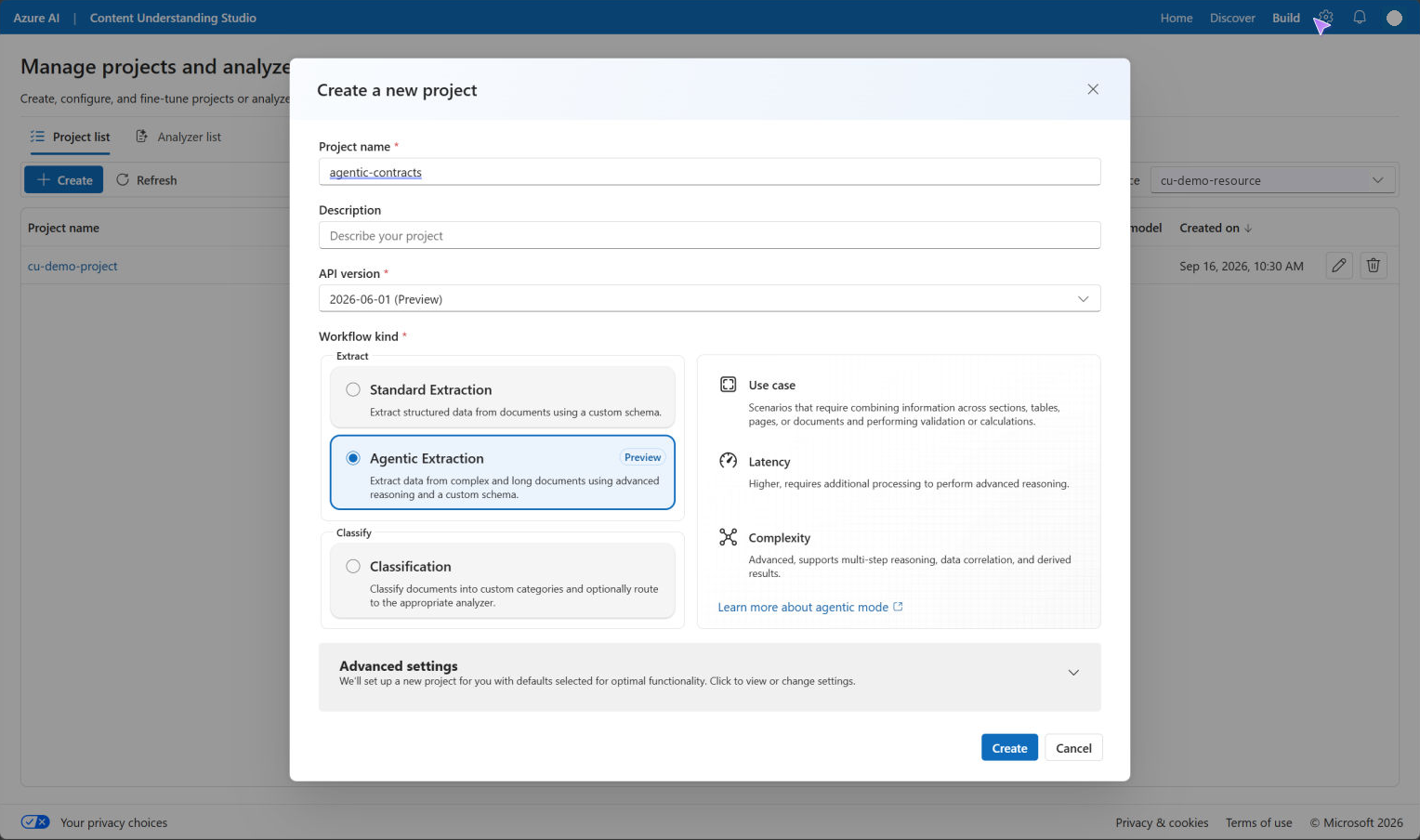
Select Create.
Define the contract schema
The schema describes the answers you want, including instructions for combining clauses and handling missing information. Use Generate for each field in this example. The agentic preview doesn't support Extract fields yet.
Download the sample web hosting agreement (
contract.png) from GitHub, or use your own contract document.In Studio, select Browse for files and upload the contract.
Download the contract field schema from GitHub and save it as agentic-contracts-schema.json.
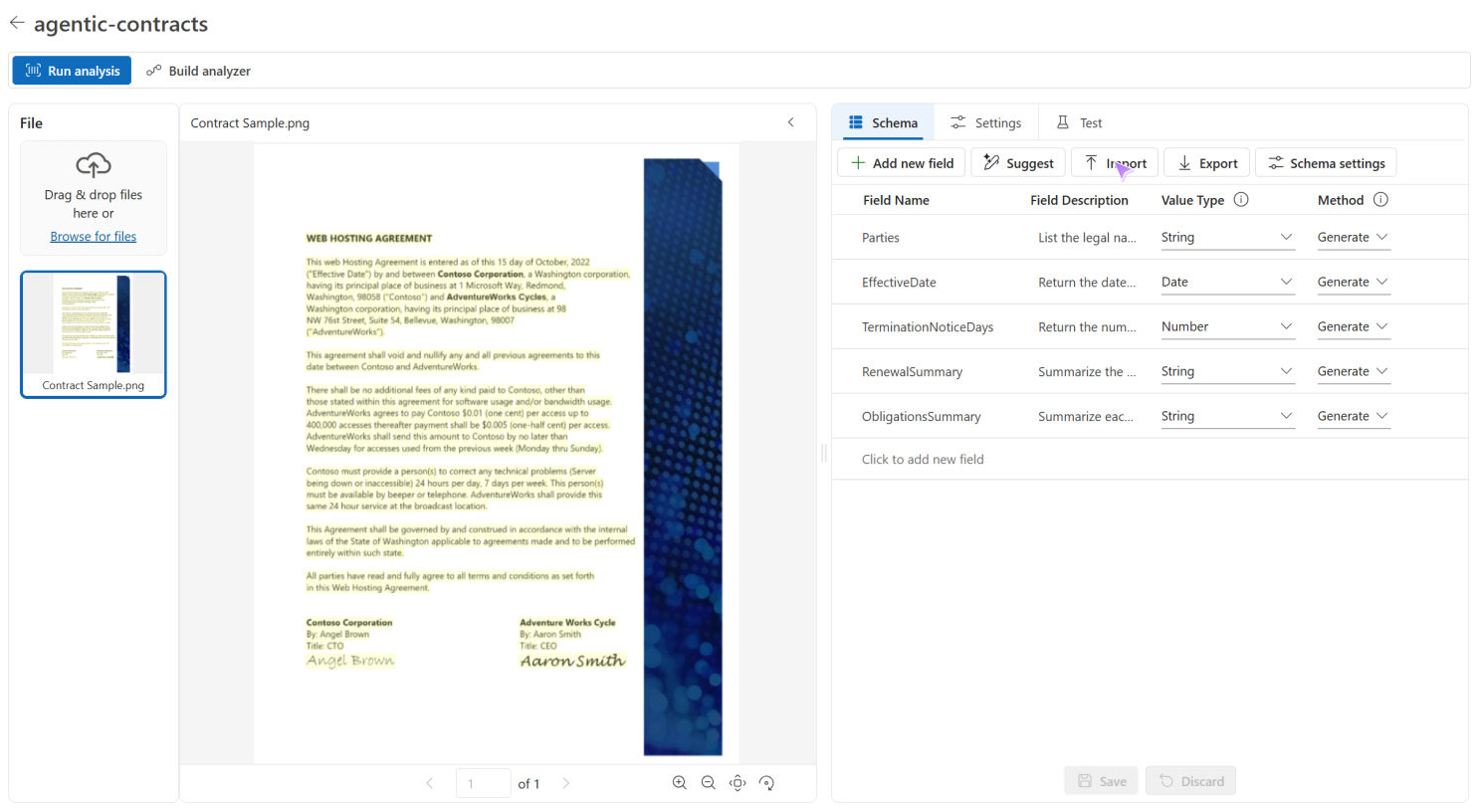
On the Schema tab, select Import, choose the downloaded JSON file, and open it.
Review the imported imported Field definitions
Field name Value type Method Field description PartiesString Generate List the legal names of the contracting parties and their roles. Use only information in the contract. EffectiveDateDate Generate Return the date the contract takes effect. Distinguish it from signature dates. Return null if the effective date can't be determined from the contract. TerminationNoticeDaysNumber Generate Return the number of calendar days of notice required for termination without cause. Return null if the contract doesn't specify one unambiguous calendar-day notice period. RenewalSummaryString Generate Summarize the renewal terms, including whether renewal is automatic, the renewal period, and any notice deadline. If renewal terms aren't stated, say so. ObligationsSummaryString Generate Summarize each party's main obligations, combining relevant clauses across the contract. Include stated deadlines and conditions. Don't infer obligations that aren't stated. Select Save to save the imported schema. You can edit the field descriptions to adapt the schema to your contract.
Analyze a document
Run the schema against your contract and check the generated answers against the document.
Select the uploaded contract, select the Test tab, and then select Run analysis. Agentic analysis can take a few minutes.
When analysis finishes, open Test > Fields. Check the parties and effective date against the contract. Compare the renewal and obligation summaries with the relevant clauses.
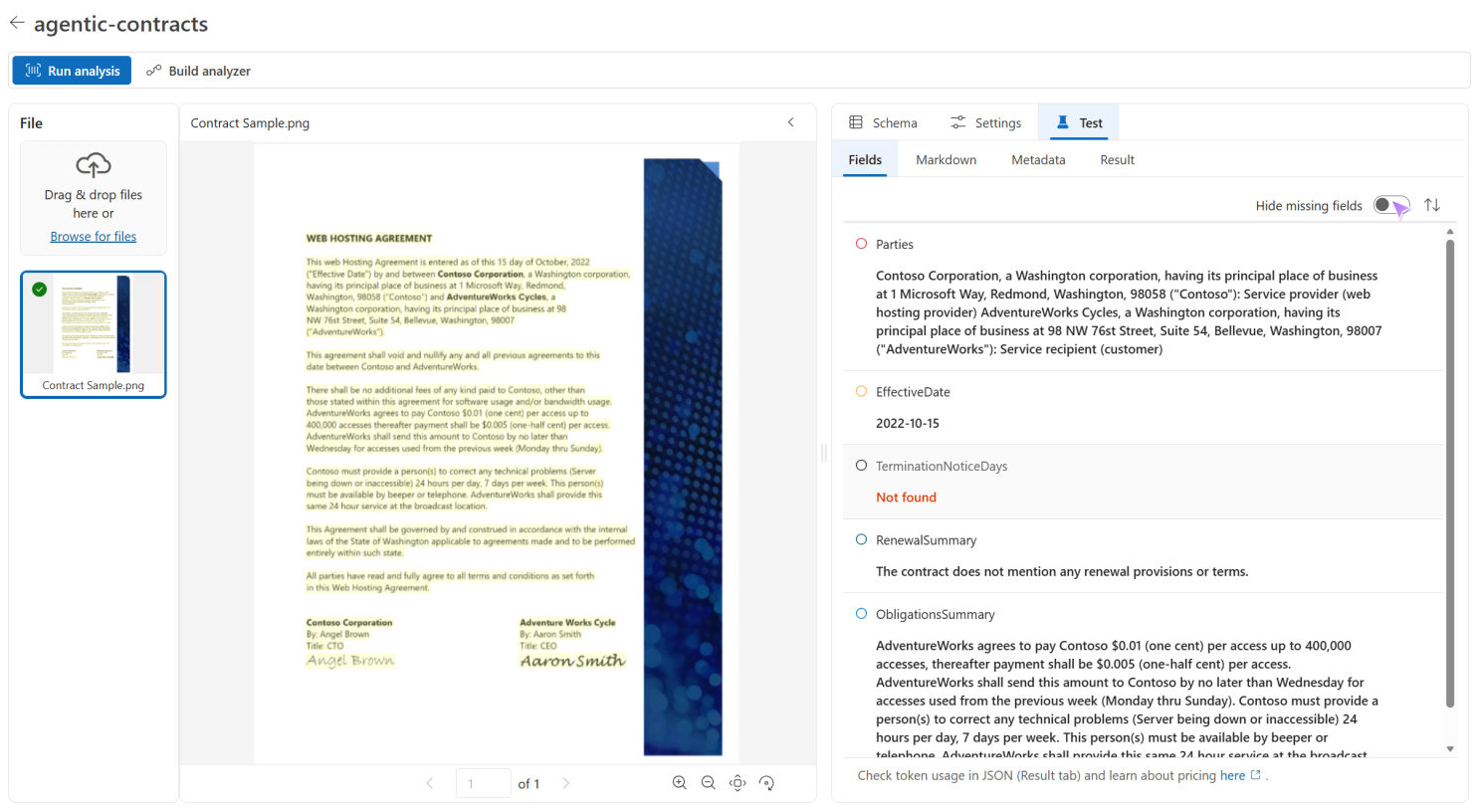
Select Result to inspect the JSON response and token usage.
If a field is incorrect or incomplete, refine its description on the Schema tab, select Save, and run analysis again.

Each analysis run incurs Content Understanding and model usage charges. For details, see Content Understanding pricing.
To use the analyzer in an application, select Build analyzer after reviewing the results. For the remaining build and integration steps, see Create and improve your custom analyzer in Content Understanding Studio.
Review agentic results before you use them in high-impact workflows. Agentic mode isn't a replacement for human review.
Preview limitations
The initial preview has these limitations:
- Each analysis request supports one input file.
- Agentic mode supports document analyzers only.
- Fields that use the
extractmethod aren't supported. - Using labeled samples to improve the analyzer isn't supported.
For other input limits, see Service quotas and limits.