Note
Access to this page requires authorization. You can try signing in or changing directories.
Access to this page requires authorization. You can try changing directories.
You can use a custom Data Collection Rule (DCR) to control which Windows Security events are sent to Log Analytics for Defender for Servers. This approach can help reduce ingestion volume by filtering out events you don't need.
With a custom DCR, you can:
- Filter high-volume security events
- Collect a specific subset of Windows Security events
- Apply transformations before ingestion
Prerequisites
Before you create a custom DCR, ensure that you have:
Azure Monitor Agent (AMA) installed on the machines that send data to Log Analytics.
A Log Analytics workspace in the same region as the DCR.
Create a DCR
To create a custom DCR in the Azure portal, follow these steps:
Sign in to the Azure portal.
Go to Monitor > Settings > Data Collection Rules, and then select + Create.
Enter a name and a subscription.
Choose or create a resource group.
Select the region. The region must match the region of the Log Analytics workspaces you send to.
Under Platform type, select Windows to collect Windows Security events for the
SecurityEventingestion benefit.Choose Linux or All if you also need those logs.
Under Data Collection Endpoint, leave <none> unless you're using a Data Collection Endpoint for Private Link or another advanced network setup.
Select Next : Resources >.
Select + Add resources and choose the relevant resources.
If your environment requires a Data Collection Endpoint, for example, when using Private Link, select + Create endpoint. Create the endpoint in the same region as the DCR.
Select Next : Collect and deliver >.
Select + Add data source.
For Data source type, select Windows Event Logs and choose Basic or Custom:
Basic:
- Under Security, select Audit success or Audit failure to send Windows Security events to the
SecurityEventtable. - If needed, select Application or System event logs to collect more events. These events go to the
Eventtable and are billed as regular ingestion. The Defender for Servers ingestion benefit doesn't cover them.
- Under Security, select Audit success or Audit failure to send Windows Security events to the
Custom:
- Under Use XPath queries to filter event logs and limit data collection, enter an XPath query. For example,
Security!*[System[(EventID=4624 or EventID=4625 or EventID=4688)]]
- Under Use XPath queries to filter event logs and limit data collection, enter an XPath query. For example,
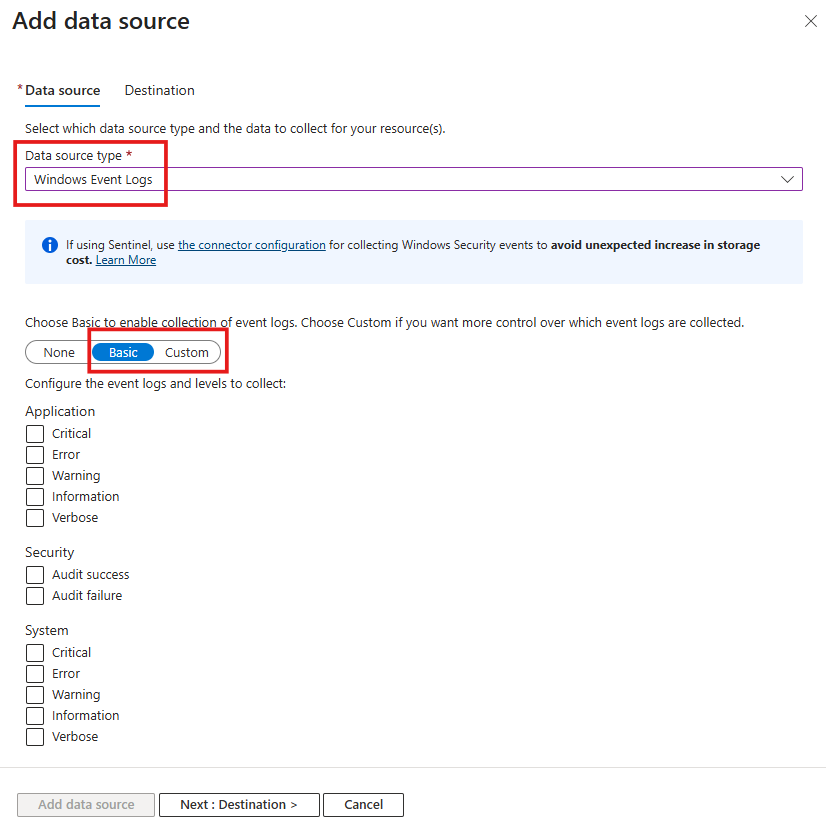
Select Add.
Select Next : Destination >.
Select + Add destination.
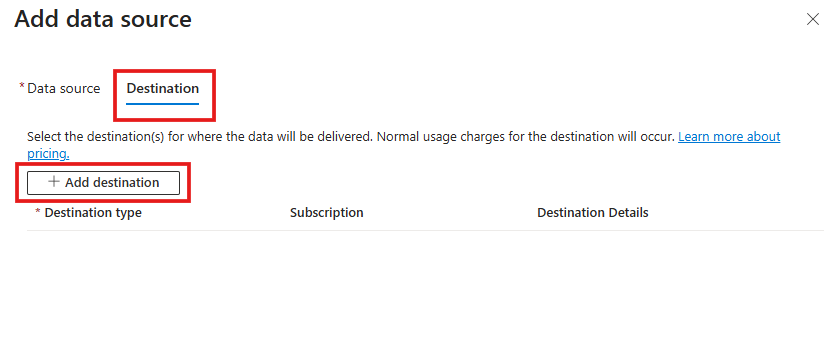
For Destination type, choose Azure Monitor Logs.
Select at least one Log Analytics workspace in the same region as the DCR.
Select Save.
Select Next : Tags > and add any tags you need for resource organization or cost management.
Select Next : Review + create >.
Select Create to deploy the DCR.
Verify data ingestion
After you deploy the DCR, wait a few minutes for data to start flowing.
Run the following KQL query in the Log Analytics workspace:
SecurityEvent
| take 10
Sample JSON fragment
The following example shows a DCR configuration that collects selected Windows Security events:
{
  "dataSources": {
    "windowsEventLogs": [
      {
        "name": "SecurityEvents",
        "streams": ["Microsoft-SecurityEvent"],
        "xPathQueries": [
          "Security!*[System[(EventID=4624 or EventID=4625 or EventID=4688)]]"
        ]
      }
    ]
  },
  "destinations": {
    "logAnalytics": [
      { "workspaceId": "<workspace-id>" }
    ]
  }
}
Deploy using Azure Policy
If you manage many subscriptions, use Azure Policy to create and assign DCRs at scale. The Deploy AMA DCR for Security Events collection policy initiative applies security event collection rules for your environment.