Note
Access to this page requires authorization. You can try signing in or changing directories.
Access to this page requires authorization. You can try changing directories.
Currently viewing:  Foundry (classic) portal version - Switch to version for the new Foundry portal
Note
Links in this article might open content in the new Microsoft Foundry documentation instead of the Foundry (classic) documentation you're viewing now.
Foundry Agent Service offers a Standard Setup with private networking environment. This setup creates an isolated network environment that enables secure access to data while maintaining full control over your network infrastructure.
By default, the Standard Setup with private networking ensures:
- No public egress: Foundational infrastructure provides the right authentication and security for your agents and tools, without requiring trusted service bypass.
- Subnet integration: You provide a delegated subnet from your virtual network. The platform connects agent compute to this subnet, enabling local communication with your Azure resources within the same virtual network.
- Private resource access: If your resources are marked as private and nondiscoverable from the internet, the platform network can still access them when the necessary credentials and authorization are in place.
If you don't have an existing virtual network, the Standard Setup with private networking flow can provision the necessary network infrastructure for you.
Prerequisites
An Azure subscription - Create one for free.
The permissions described in Permissions. Provisioning and runtime use two different identities, and each needs its own roles.
Register providers. The following providers must be registered:
Microsoft.KeyVaultMicrosoft.CognitiveServicesMicrosoft.StorageMicrosoft.MachineLearningServicesMicrosoft.SearchMicrosoft.NetworkMicrosoft.AppMicrosoft.ContainerService- To use Bing Search tool:
Microsoft.Bing
   az provider register --namespace 'Microsoft.KeyVault'
   az provider register --namespace 'Microsoft.CognitiveServices'
   az provider register --namespace 'Microsoft.Storage'
   az provider register --namespace 'Microsoft.MachineLearningServices'
   az provider register --namespace 'Microsoft.Search'
   az provider register --namespace 'Microsoft.Network'
   az provider register --namespace 'Microsoft.App'
   az provider register --namespace 'Microsoft.ContainerService'
   # only to use Grounding with Bing Search tool
   az provider register --namespace 'Microsoft.Bing'
Important
Standard setups require you to Bring Your Own (BYO) resources so that all agent data stays in your Azure tenant.
BYO resources include: Azure Storage, Azure AI Search, and Azure Cosmos DB.
All data processed by Foundry Agent Service is automatically stored at rest in these resources, helping you meet compliance requirements and enterprise security standards.
Permissions
The provisioning identity depends on the deployment path. Capability settings that you submit through ARM REST or Bicep use the caller identity. Portal deployments and calls to the legacy capability host REST API continue to use the project managed identity for provisioning.
Caller permissions for provisioning
For a deployment that uses capability settings with API version 2026-07-15-preview, the caller can be an interactive user, a CI/CD service principal, or a workload identity. In addition to the permissions needed to deploy the account and network resources, capability settings require only the following roles. Azure AI Search doesn't require a caller role.
| Role | Scope | Why the caller needs it |
|---|---|---|
| Storage Blob Data Contributor | Each Azure Storage account you bring | Provision the required blob containers and storage setup |
| Cosmos DB Operator | Each Azure Cosmos DB account you bring | Provision the required Cosmos DB resources |
A caller that can create the Foundry account but lacks Storage Blob Data Contributor or Cosmos DB Operator fails capability settings provisioning.
Runtime access after deployment
The project managed identity is what running agents use to reach Azure Cosmos DB, Azure AI Search, and Azure Storage. Grant it data-plane roles on each resource before agents run. The caller roles in the previous table enable capability settings provisioning only. They don't replace the roles the project managed identity needs at runtime. For portal and legacy capability host REST API deployments, the project managed identity also performs provisioning. For the per-resource role list, see Standard agent setup.
After the environment is configured, assign each team member who creates or edits agents the built-in Foundry User RBAC role on the project. The minimum permissions are agents/*/read, agents/*/action, and agents/*/delete.
Configure a network-secured environment
You can create this setup in the Azure portal or deploy it by using Bicep or Terraform.
Note
Portal deployments use the backward-compatible capability host flow and the project managed identity for provisioning.
At a high level, the deployment involves these steps:
- Choose the target Azure region for your Foundry resources.
- Decide whether to bring your own VNet and subnet, or use auto-provisioned networking.
- If you bring your own VNet, gather your VNet and subnet resource IDs.
- Create the setup in the Azure portal, or deploy it by using Bicep or Terraform.
- Verify the deployment (see Verify the deployment).
The setup provisions the following resources (unless you bring your own):
- A Foundry account and Foundry project.
- A gpt-4o model deployment.
- Azure Storage, Azure Cosmos DB, and Azure AI Search for storing files, threads, and vector data.
- These resources are connected to your project.
- Microsoft-managed encryption keys for Storage Account and Cognitive Account (Foundry) are used by default.
Select your preferred deployment method by using the following tabs:
- From the Azure portal, search for Foundry and select Create a resource.
- After configuring the Basics tab, select the Storage tab and then select Select resources under Agent service.
- Select or create a Storage account, Azure AI Search resource, and Azure Cosmos DB resource. If you're using virtual network injection, you must bring your own Storage, Azure AI Search, and Azure Cosmos DB resources to create a Standard Agent with end-to-end virtual network isolation.
- After configuring the Storage tab, select the Network tab and then select the Disabled option for public access.
- In the Private endpoint section, select + Add private endpoint.
- When you go through the forms to create a private endpoint, be sure to:
- From Basics, select the same Region as your virtual network.
- From the Virtual Network form, select the virtual network and subnet that you want to connect to.
Note
In the portal UI, the target to which you create the private endpoint should be labeled as an "account". Select your Foundry resource when prompted.
- After setting your inbound private endpoint, a new dropdown appears for setting Virtual network injection. Select your virtual network in the first dropdown, then select your subnet that is delegated to Microsoft.App/environments with a subnet size of /27 or larger. This delegation and subnet size are required for the injection.
- Continue through the forms to create the project. When you reach the Review + create tab, review your settings and select Create to create the project.
- Continue with the checks in Verify the deployment.
Note
Private endpoints to Azure AI Search, Azure Storage, and Azure Cosmos DB are NOT auto-created when you deploy your Foundry resource. Please ensure to create private endpoints to these resources separately in their resource pages in the Azure portal.
Verify the deployment
After deployment finishes, verify that all resources are configured correctly:
- Confirm subnet delegation: In the Azure portal, navigate to your VNet > Subnets and verify the agent subnet shows delegation to
Microsoft.App/environments. - Check public network access: Open each resource (Foundry, Azure AI Search, Azure Storage, Azure Cosmos DB) and confirm Public network access is set to Disabled.
- Validate private endpoint DNS resolution: From a machine connected to the VNet, run
nslookupagainst each endpoint listed in the DNS zone configurations summary. - Test agent connectivity: Access your Foundry project from within the VNet (see Access your secured agents) and confirm you can create and run an agent.
- Configure Role assignments: Run the following commands to assign the required roles. The first grants Managed Identity Operator on the user-assigned managed identity, and the second grants Network Contributor on the remote VNet for cross-tenant access.
az role assignment create \
   --assignee <your-principal-id> \
   --role "Managed Identity Operator" \
   --scope "/subscriptions/<subscription-id>/resourceGroups/<resource-group>/providers/Microsoft.ManagedIdentity/userAssignedIdentities/<id>"
 az role assignment create \
   --assignee <service-principal-object-id-in-remote-tenant> \
   --role "Network Contributor" \
   --scope "/subscriptions/<remote-subscription-id>/resourceGroups/<resource-group>/providers/Microsoft.Network/virtualNetworks/<vnet-name>"
Limitations
- VNet and subnet IP address limitations:
- Your Agent Service delegated subnet must use one of these address spaces:
- RFC 1918:
10.0.0.0/8,172.16.0.0/12, or192.168.0.0/16. - RFC 6598 (CGNAT): addresses within
100.64.0.0/10, excluding100.100.0.0/17,100.100.192.0/19, and100.100.224.0/19.
- RFC 1918:
- Every region where Agent Service is available supports private Class A address space (
10.0.0.0/8). For the current list, see Supported regions. - You can't use public IP ranges, such as
44.x.x.x, for the Agent Service delegated subnet. - Ensure that none of the address spaces in your VNet or any peered VNet overlap with existing networks in your Azure environment or these reserved ranges:
169.254.0.0/16,172.30.0.0/16,172.31.0.0/16,192.0.2.0/24,0.0.0.0/8,127.0.0.0/8,100.100.0.0/17,100.100.192.0/19, and100.100.224.0/19.
- Your Agent Service delegated subnet must use one of these address spaces:
- Agent subnet exclusivity: The agent subnet can't be shared by multiple Foundry resources. Each Foundry resource must use a dedicated agent subnet.
- Agent subnet size: The recommended size of the delegated Agent subnet is /24 (256 addresses) due to the delegation of the subnet to
Microsoft.App/environments. For more on subnet sizing, see Configuring virtual networks for Azure Container Apps. - Agent subnet name length: For Azure Container Apps-backed deployments, the delegated agent subnet name must not exceed 63 UTF-8 bytes. This limit applies to the subnet name, not the virtual network name or the full subnet resource ID.
- Agent subnet egress firewall allow list: If you integrate an Azure Firewall with your private network secured standard agent, add
control-{region}.identity.azure.net,{region}.login.microsoft.com, andlogin.microsoftonline.comto the firewall allow list. Replace{region}with the Azure region where you deploy the agent. Also add the Fully Qualified Domain Names (FQDNs) listed under Managed Identity in the Integrate with Azure Firewall article, or add the AzureActiveDirectory service tag. If you apply Network Security Groups (NSGs) to the delegated agent subnet or related subnets, configure matching outbound allow rules for required dependencies, including the AzureActiveDirectory service tag for Microsoft Entra ID authentication. If either firewall or NSG rules block required dependencies, agent provisioning and runtime operations can fail.- Verify that no TLS inspection happens in the firewall that could add a self-signed certificate. During failures, inspect whether any traffic reaches the firewall and what traffic is blocked.
- For source-code agent deployments, also allow the deployment endpoints listed in Firewall requirements for private virtual networks.
- The Foundry resource must be deployed in the same region as the virtual network (VNet). Other Azure resources, such as Azure Cosmos DB, Azure AI Search, and Azure Storage, can be deployed in different regions. Consider the cost implications of cross-region deployments.
- Region availability:
- For supported regions for model deployments, see: Azure OpenAI model region support.
- Azure Blob Storage: Using Azure Blob Storage files with the File Search tool isn't supported.
- Code Interpreter file limitations: In a private network (BYO) configuration, Code Interpreter only works in scenarios that don't involve file uploads or downloads. The tool can't retrieve files from the storage account in this setup. If you need to use files with Code Interpreter, you must use the SDK to create a container explicitly with the required files and then pass the
container_idto Code Interpreter. This workaround is only available through the SDK; the Foundry portal UI doesn't support it. - Grounding with Bing Search: Only the following regions are supported: West Europe, Canada East, Switzerland North, Spain Central, UAE North, Korea Central, Poland Central, Southeast Asia, West US, West US 2, West US 3, East US, East US 2, Central US, South India, Japan East, UK South, France Central, Norway East, Australia East, Canada Central, Sweden Central, South Africa North, Italy North, Brazil South
- Delete network injection: If you want to delete your Foundry resource and Standard Agent with secured network setup, delete your Foundry resource and virtual network last. Before deleting the virtual network, delete and purge your Foundry resource.
- Hosted agent virtual network injection: For Hosted agents, the virtual network configuration (network injection) must be included when you first create the Foundry account. Adding network injection to an existing Foundry account after creation isn't supported for Hosted agents.
- Hosted agent container registry behind a private network: For Hosted agents, support for an Azure Container Registry (ACR) behind a private network (private endpoint with public network access disabled) depends on when the Foundry project was created. Projects created after June 25, 2026 support a private ACR. Projects created before that date require the ACR to be reachable over its public endpoint so the platform can pull the image. Existing projects aren't affected and continue to use public network access.
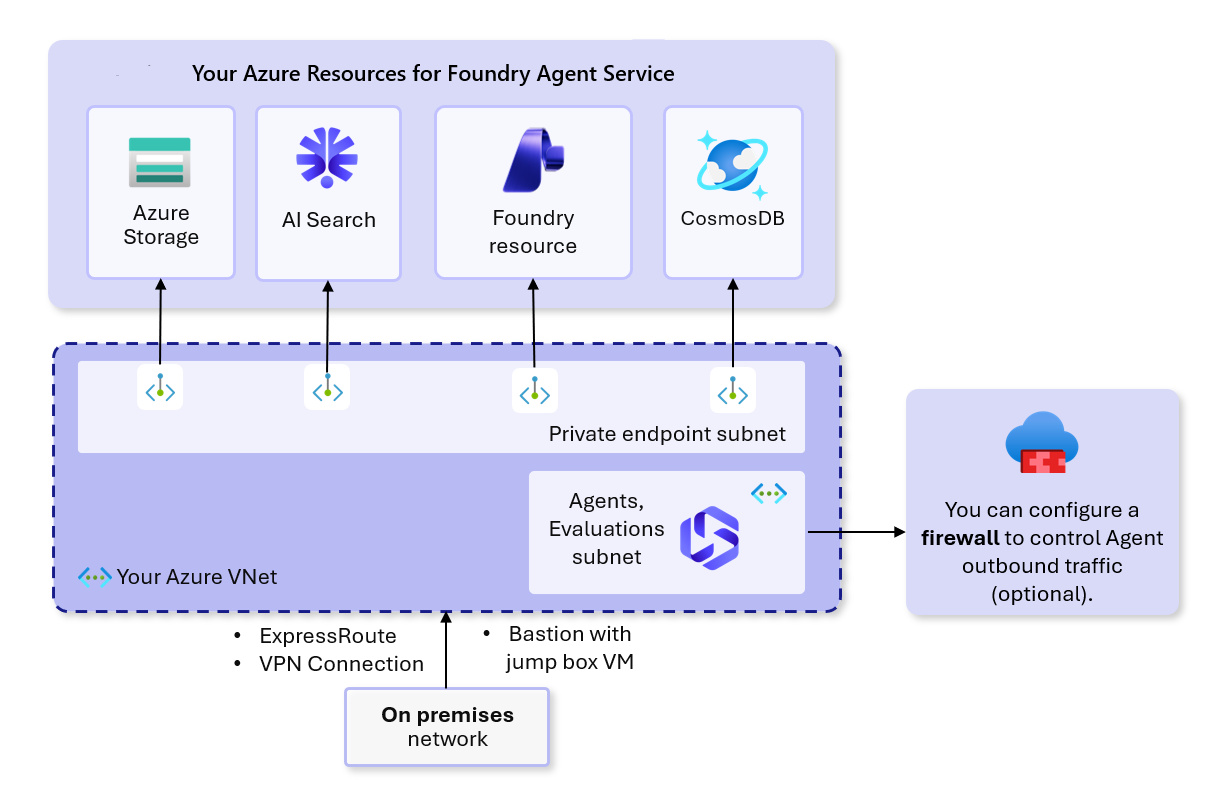
Architecture diagram
Review the provisioned networking resources
The following resources are automatically provisioned when you use Standard Setup with private networking, unless you bring your own:
Network infrastructure
- A virtual network (192.168.0.0/16)
- Agent Subnet (192.168.0.0/24): Hosts Agent client
- Private endpoint Subnet (192.168.1.0/24): Hosts private endpoints
Virtual network capabilities
Your virtual network controls which endpoints can make API calls to your resources. The Azure service automatically rejects API calls from devices outside your defined network.
Network rules
All accounts and their corresponding projects are protected by default with the Public network access Disabled flag, requiring explicit configuration to allow access through private endpoints. These rules apply to all protocols, including REST and WebSocket.
DNS zone configurations summary
| Private Link Resource Type | Sub Resource | Private DNS Zone Name | Public DNS Zone Forwarders |
|---|---|---|---|
| Foundry | account | privatelink.cognitiveservices.azure.comprivatelink.openai.azure.comprivatelink.services.ai.azure.com |
cognitiveservices.azure.comopenai.azure.comservices.ai.azure.com |
| Azure AI Search | searchService | privatelink.search.windows.net |
search.windows.net |
| Azure Cosmos DB | Sql | privatelink.documents.azure.com |
documents.azure.com |
| Azure Storage | blob | privatelink.blob.core.windows.net |
blob.core.windows.net |
To create a conditional forwarder in the DNS Server to the Azure DNS Virtual Server, use the list of zones mentioned in the above table. The Azure DNS Virtual Server IP address is 168.63.129.16.
Access your secured agents
Once deployment is complete, you can access your Foundry project behind a virtual network using one of the following methods:
- Azure VPN Gateway: Connects on-premises networks to the virtual network over a private connection. Connection is made over the public internet. There are two types of VPN gateways that you might use:
- Point-to-site: Each client computer uses a VPN client to connect to the virtual network.
- Site-to-site: A VPN device connects the virtual network to your on-premises network.
- ExpressRoute: Connects on-premises networks into the cloud over a private connection. Connection is made using a connectivity provider.
- Azure Bastion: In this scenario, you create an Azure Virtual Machine (sometimes called a jump box) inside the virtual network. You then connect to the VM using Azure Bastion. Bastion allows you to connect to the VM using either an RDP or SSH session from your local web browser. You then use the jump box as your development environment. Since it's inside the virtual network, it can directly access the workspace.
FAQ
What address range should I use for the overall virtual network?
The virtual network address range can be any private IP range that leaves enough address space for both the delegated agent subnet and the private endpoint subnet.
Can I use peered virtual networks or place resources in different virtual networks?
Peered virtual networks are supported, but data transfer costs can increase.
Can multiple Foundry resources reuse the same virtual network and subnet?
Yes, the same VNET, but not the same subnet. Multiple Foundry resources can reuse the same virtual network. However, each Foundry resource requires its own dedicated agent runtime subnet. The agent subnet can't be shared across multiple Foundry resources.
Does the virtual network need to be in the same resource group as the Foundry resource?
No. The virtual network and Foundry resource don't need to be in the same resource group, but they must be in the same region.
Troubleshooting guide
Refer to this guide to resolve errors during or after a Standard Agent deployment, whether you used the Azure portal, Bicep, or Terraform.
Deployment errors
"CreateCapabilityHostRequestDto is invalid: Agents CapabilityHost supports a single, non empty value for vectorStoreConnections property."
"Agents CapabilityHost supports a single, non empty value for storageConnections property."
"Agents CapabilityHost supports a single, non empty value for threadStorageConnections property."
Solution: Your deployment didn't supply all three bring-your-own (BYO) resources. A secured standard setup requires an Azure Cosmos DB account, an Azure Storage account, and an Azure AI Search service. Set all three on the account or project through capability settings before you create the project. If the project already exists, delete and recreate it with the required settings because capability settings updates aren't supported.
"Provided subnet must be of the proper address space. Please provide a subnet which has address space in the range of 172 or 192."
Solution: You're not using a proper IP range for your delegated agent subnet. Verify that you're using a valid private IP address space. Valid RFC1918 ranges include 10.0.0.0/8, 172.16-31.0.0/12, and 192.168.0.0/16. More details are in limitations above.
"Subscripton is not registered with the required resource providers, please register with the resource providers Microsoft.App and Microsoft.ContainerService."
Solution: You're missing the correct resource registration. Ensure the required resources are registered in your tenant.
"Failed to create Aml RP virtual workspace due to System.Exception: Failed async operation." or "The resource operation completed with terminal provisioning state 'Failed'. Capability host operation failed."
Solution: This error message can indicate many problems. For an ARM REST or Bicep capability settings deployment, confirm the caller has every role listed in Caller permissions for provisioning. For a portal or legacy capability host REST API deployment, confirm the project managed identity has the required provisioning and runtime roles. If the deploying identity has all required roles, create a support ticket to investigate your setup.
"Subnet requires any of the following delegation(s) [Microsoft.App/environments] to reference service association link /subscriptions/11111-aaaaa-2222-bbbb-333333333/resourceGroups/agentRANGEChange/providers/Microsoft.Network/virtualNetworks/my-agent-vnet/subnets/agent-subnet/serviceAssociationLinks/legionservicelink."
Solution: This error appears when you try to delete your secured standard template setup in Azure and didn't correctly delete all resources. One solution is to navigate to your Foundry resource page in the Azure portal and select Manage deleted resources. From there, purge the resource that the agent was associated with for this virtual network. The other option is to run the deleteCaphost.sh script in the secured standard template.
"Timeout of 60000ms exceeded" error when loading the Agent pages in the Foundry project
Solution: The Foundry project has issues communicating with Azure Cosmos DB to create Agents. Verify connectivity to Azure Cosmos DB (Private Endpoint and DNS).
Private endpoint DNS resolution fails
Solution: If resources aren't reachable through private endpoints, verify that each private DNS zone is linked to your virtual network. Confirm conditional forwarders point to the Azure DNS virtual server IP address 168.63.129.16. From a machine connected to the VNet, run nslookup <resource-fqdn> and verify that each name resolves to a private IP address.
Next steps
You've now successfully configured a network-secure account and project. Use the quickstart to create your first agent.
For more on network isolation configuration and options, see Configure network isolation.