Note
Access to this page requires authorization. You can try signing in or changing directories.
Access to this page requires authorization. You can try changing directories.
A routine is a named automation rule that triggers an agent on a schedule, at a specific time, or in response to an external event. You define what fires the routine (the trigger) and what agent to invoke (the action). Microsoft Foundry queues the invocation, runs the agent, and stores a run record you can inspect later.
This article shows you how to create, manage, and monitor routines by using the Foundry portal, the REST API, the Python SDK, .NET SDK, JavaScript SDK, or the Azure Developer CLI.
Note
All routine operations are on the data plane under your project endpoint.
Prerequisites
An active Microsoft Foundry project with at least one agent deployed.
Foundry User role or higher on the project scope.
Important
The Foundry RBAC roles were recently renamed. Foundry User, Foundry Owner, Foundry Account Owner, and Foundry Project Manager were previously named Azure AI User, Azure AI Owner, Azure AI Account Owner, and Azure AI Project Manager. You might still see the previous names in some places while the rename rolls out. The role IDs and core permissions are unchanged by the rename.
A prompt agent or hosted agent. Workflow agents aren't supported. By default, a routine invokes the agent by using the agent identity. If the agent has tools that require delegated user access, explicitly select the routine creator's identity when you create the routine.
Note
Routines are available in all Foundry regions except the following. Confirm that your Foundry project isn't provisioned in one of these regions before you create a routine:
- UK West
- Switzerland West
- Japan West
- UAE North
- Norway East
Note
Routines work with projects secured by a virtual network. Because a routine uses the project's existing agent invocation path, it inherits the project's network configuration and doesn't require extra networking setup. For more information, see Set up private networking for Foundry Agent Service.
Routines don't support customer-managed key (CMK) encryption. Don't use routines for workloads that require CMK protection.
Install the
azure-ai-projectsSDK, version 2.4.0 or later:pip install "azure-ai-projects>=2.4.0"Install
azure-identityfor authentication:pip install azure-identity
Install the coherent routines preview package set and Azure Identity. Stable 2.0.1 packages don't include routines:
dotnet add package Azure.AI.Projects --version 2.1.0-beta.4
dotnet add package Azure.AI.Projects.Agents --version 2.1.0-beta.4
dotnet add package Azure.AI.Extensions.OpenAI --version 2.1.0-beta.4
dotnet add package Azure.Identity
Install the
@azure/ai-projectsnpm package:npm install @azure/ai-projects @azure/identityUse Node.js 22 or later.
Install the Azure Developer CLI (
azd1.23.13 or later).Install the routines extension:
azd extension install azure.ai.routinesSign in and set your project endpoint:
azd auth login
export FOUNDRY_PROJECT_ENDPOINT="https://<account>.services.ai.azure.com/api/projects/<project>"
Create and test a scheduled routine
For the fastest path to a working routine, use the scheduled routine example and verify the complete lifecycle:
- Create a recurring scheduled routine that invokes your agent.
- Dispatch the routine manually instead of waiting for its schedule.
- Inspect the run history and confirm that the run completes.
- Delete the routine after you finish testing.
Choose a trigger or task
After the scheduled routine succeeds, choose the trigger or management task that fits your scenario.
| Goal | Use this section |
|---|---|
| Run once at a future time | Timer trigger |
| Respond to an opened or closed issue | GitHub issue trigger |
| Respond to a new channel message | Teams message trigger |
| Pause, resume, inspect, update, or remove routines | Enable and disable a routine and List and retrieve routines |
| Check action and trigger request fields | Action fields and Trigger fields |
| Diagnose a routine that doesn't create, fire, or complete | Troubleshooting |
Supported trigger types
Routines support the following trigger types:
| Trigger type | Description |
|---|---|
schedule |
Recurring trigger defined by a cron expression. Minimum interval is five minutes. |
timer |
One-shot trigger that fires at a specific future date/time or after a duration. |
github_issue |
Event-based trigger that fires when an issue is opened or closed in a watched GitHub repository. |
custom |
Event-based trigger from an external provider. The teams provider fires when a new message is posted to a watched Microsoft Teams channel. |
Supported action types
Each routine specifies exactly one action that runs when the routine fires. Two action types are supported:
| Action type | Description |
|---|---|
invoke_agent_responses_api |
Invokes an agent through the Responses API. Provide either the agent name or endpoint ID. |
invoke_agent_invocations_api |
Invokes an agent through the Invocations API. Provide either the agent name or endpoint ID. |
For required and optional fields of each action type, see Action fields.
Choose a dispatch identity
Every routine uses the agent identity by default. This default applies to schedule, timer, GitHub issue, and Teams event routines. The agent's permissions determine which resources its tools can access.
If the agent has tools that require delegated user access, explicitly opt in to creator identity when you create the routine. Creator identity means only the Microsoft Entra identity of the person or service principal that creates the routine. It isn't the identity of the agent creator, agent publisher, connection creator, a later routine editor, or another end user.
Set the top-level authorization.identity field to "creator" in a REST create request or JavaScript create options. In Python, pass RoutineAuthorization(identity="creator"). Omitting authorization, or setting the identity to "agent", uses the default agent identity.
The following examples create a disabled routine and retrieve it to confirm that authorization.identity is stored as "creator". Successful creation and retrieval confirm the saved configuration, not compatibility with every delegated tool. Check each tool's authentication requirements and the creator's permissions and consent separately.
The authorization setting is accepted only when you create a routine. An update ignores it. To switch an existing routine between agent and creator identity, delete and recreate the routine with the required authorization.identity value.
Creator identity has these constraints:
- The routine delegates only the routine creator's identity. You can't supply an arbitrary user identity at dispatch time.
- The creator must have access to every delegated resource the agent's tools use. If that access or consent is removed, those tool calls fail.
- Recreating the routine as a different principal changes the routine creator identity.
- Authentication for an event trigger's connector connection is separate from the identity used to dispatch the agent. The
authorizationobject doesn't change the connection identity.
This example uses azure-ai-projects==2.6.1, a verified version for typed creator-identity configuration, and azure-identity. Sign in with az login before using AzureCliCredential. Replace the endpoint and agent placeholders, and choose a routine name that doesn't already exist.
from azure.ai.projects import AIProjectClient
from azure.ai.projects.models import RoutineAuthorization
from azure.identity import AzureCliCredential

client = AIProjectClient(
    endpoint="https://<account>.services.ai.azure.com/api/projects/<project>",
    credential=AzureCliCredential(),
)

routine_name = "my-creator-routine"
routine = client.beta.routines.create_or_update(
    routine_name=routine_name,
    enabled=False,
    authorization=RoutineAuthorization(identity="creator"),
    triggers={
        "default": {
            "type": "schedule",
            "cron_expression": "0 9 * * *",
            "time_zone": "America/Los_Angeles",
        }
    },
    action={
        "type": "invoke_agent_responses_api",
        "agent_name": "<your-agent-name>",
        "input": "test",
    },
)

saved_routine = client.beta.routines.get(routine_name)
print(saved_routine.authorization.identity)  # Expected: creator
Reference: RoutineAuthorization.
The public API in Azure.AI.Projects version 3.0.0-beta.3 exposes experimental routines operations through client.Routines, but doesn't expose a creator-identity authorization option. RoutineAuthorization and RoutineDispatchIdentity are internal types, and the public ProjectsRoutineOptions has no authorization property. Stable version 2.0.1 has no routines API.
To select creator identity from a C# application, use the REST create request.
This example uses @azure/ai-projects version 2.8.0 and @azure/identity. The same package includes TypeScript types. Access routines through client.beta.routines.
Sign in with az login before using AzureCliCredential. Replace the endpoint and agent placeholders, and choose a routine name that doesn't already exist.
import { AIProjectClient } from "@azure/ai-projects";
import { AzureCliCredential } from "@azure/identity";

const client = new AIProjectClient(
  "https://<account>.services.ai.azure.com/api/projects/<project>",
  new AzureCliCredential(),
);

await client.beta.routines.createOrUpdate("my-creator-routine", {
  enabled: false,
  authorization: { identity: "creator" },
  triggers: {
    default: {
      type: "schedule",
      cron_expression: "0 9 * * *",
      time_zone: "America/Los_Angeles",
    },
  },
  action: {
    type: "invoke_agent_responses_api",
    agent_name: "<your-agent-name>",
    input: "test",
  },
});
Reference: RoutineAuthorization.
In version 2.8.0, the SDK's deserialized routine object omits authorization, even when the service stores it. Use a raw REST GET to verify the saved setting:
PROJECT_ENDPOINT="https://<account>.services.ai.azure.com/api/projects/<project>"
ROUTINE_NAME="my-creator-routine"
TOKEN=$(az account get-access-token \
  --resource https://ai.azure.com \
  --query accessToken -o tsv)

curl -sS "$PROJECT_ENDPOINT/routines/$ROUTINE_NAME?api-version=v1" \
  -H "Authorization: Bearer $TOKEN"
In the GET response, confirm that authorization.identity is "creator" and enabled is false.
Include api-version=v1 in routine requests. Replace the endpoint and agent placeholders, and choose a routine name that doesn't already exist.
PROJECT_ENDPOINT="https://<account>.services.ai.azure.com/api/projects/<project>"
AGENT_NAME="<your-agent-name>"
ROUTINE_NAME="my-creator-routine"

TOKEN=$(az account get-access-token \
  --resource https://ai.azure.com \
  --query accessToken -o tsv)

curl -sS -X PUT \
  "$PROJECT_ENDPOINT/routines/$ROUTINE_NAME?api-version=v1" \
  -H "Authorization: Bearer $TOKEN" \
  -H "Content-Type: application/json" \
  -d '{
    "enabled": false,
    "authorization": {
      "identity": "creator"
    },
    "triggers": {
      "default": {
        "type": "schedule",
        "cron_expression": "0 9 * * *",
        "time_zone": "America/Los_Angeles"
      }
    },
    "action": {
      "type": "invoke_agent_responses_api",
      "agent_name": "'"$AGENT_NAME"'",
      "input": "test"
    }
  }'

curl -sS "$PROJECT_ENDPOINT/routines/$ROUTINE_NAME?api-version=v1" \
  -H "Authorization: Bearer $TOKEN"
In the GET response, confirm that authorization.identity is "creator" and enabled is false.
Create a routine
A routine definition specifies a trigger (when to fire) and an action (which agent to run and through which API). A routine supports exactly one trigger entry.
Schedule trigger
A schedule trigger fires repeatedly on a cron expression. The service enforces a minimum interval of five minutes.
In Microsoft Foundry, open your project.
In the left navigation, select Routines.
Select + New routine.
Enter a Name for the routine, such as
daily-summary.Select an Agent from the dropdown.
Enter a Prompt for the agent to run on each invocation.
Under Trigger, set Type to Recurring schedule, and then choose a Frequency (Daily or Weekly) and a Time.
Select Create & start.
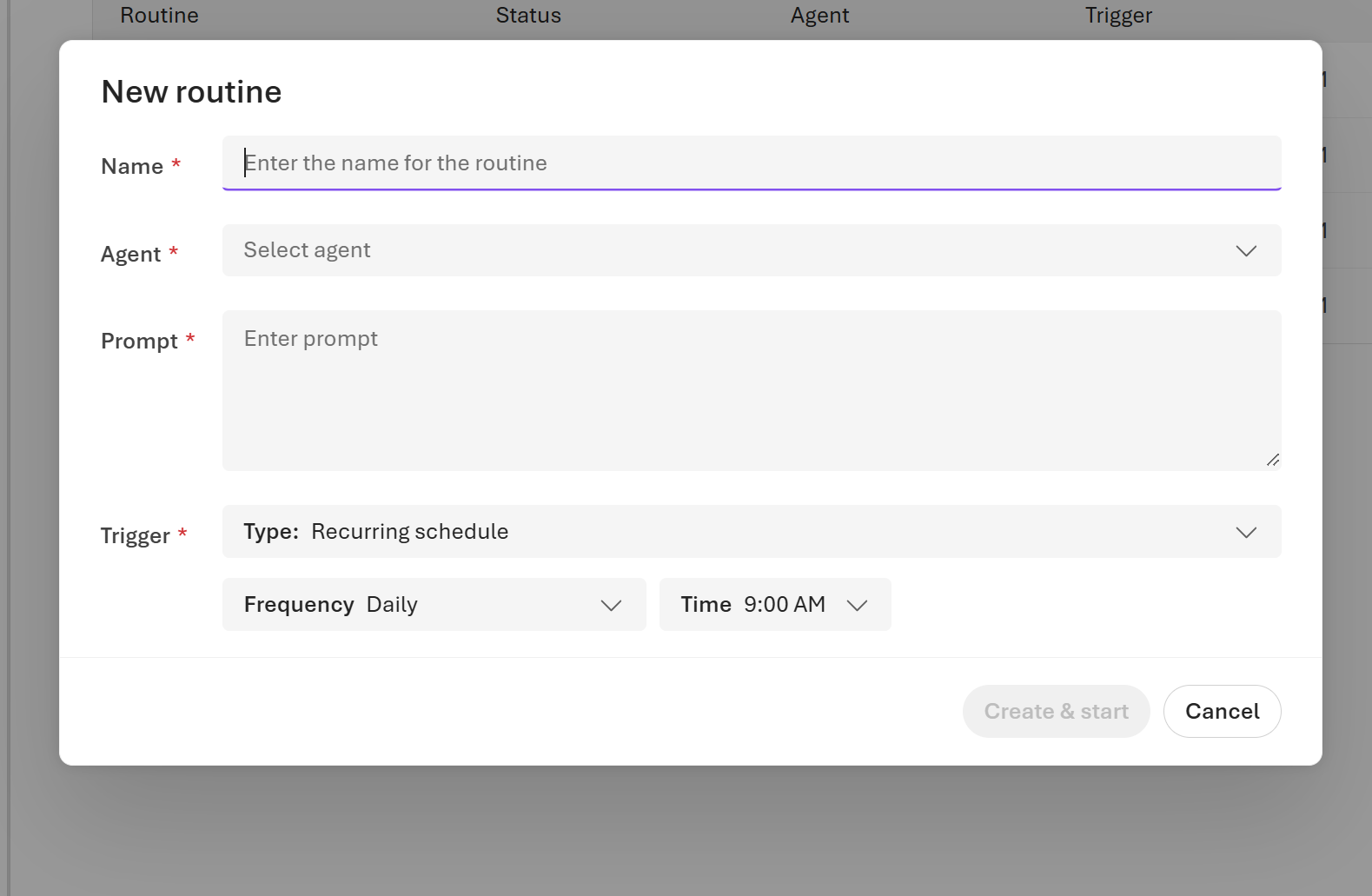
The portal interprets the Time in your browser's local time zone. To pin a routine to a specific time zone independently of the browser, create it through the REST API or an SDK and supply the time_zone field.
Note
If Routines isn't visible in the navigation, the feature isn't enabled for your region or subscription. Contact your account team to request access.
Replace the placeholder values, and then run the command:
PROJECT_ENDPOINT=<your-project-endpoint>   # e.g. https://<account>.services.ai.azure.com/api/projects/<project>
AGENT_NAME=<your-agent-name>

TOKEN=$(az account get-access-token \
  --resource https://ai.azure.com \
  --query accessToken -o tsv)

# Using Responses API action
curl -sS -X PUT "$PROJECT_ENDPOINT/routines/daily-summary?api-version=v1" \
  -H "Authorization: Bearer $TOKEN" \
  -H "Content-Type: application/json" \
  -d '{
    "description": "Runs a daily summary agent on weekday mornings.",
    "enabled": true,
    "triggers": {
      "weekday-morning": {
        "type": "schedule",
        "cron_expression": "0 7 * * 1-5",
        "time_zone": "UTC"
      }
    },
    "action": {
      "type": "invoke_agent_responses_api",
      "agent_name": "'"$AGENT_NAME"'",
      "input": "Summarize activity from the last 24 hours."
    }
  }'
To use the Invocations API action instead, replace the action object with the following. agent_name is required; session_id is optional.
# Using Invocations API action
curl -sS -X PUT "$PROJECT_ENDPOINT/routines/daily-summary?api-version=v1" \
  -H "Authorization: Bearer $TOKEN" \
  -H "Content-Type: application/json" \
  -d '{
    "description": "Runs a daily summary agent on weekday mornings.",
    "enabled": true,
    "triggers": {
      "weekday-morning": {
        "type": "schedule",
        "cron_expression": "0 7 * * 1-5",
        "time_zone": "UTC"
      }
    },
    "action": {
      "type": "invoke_agent_invocations_api",
      "agent_name": "'"$AGENT_NAME"'",
      "input": "Summarize activity from the last 24 hours."
    }
  }'
A successful response returns HTTP 200 or 201 with the routine object, including created_at and updated_at timestamps.
import os
from azure.identity import DefaultAzureCredential
from azure.ai.projects import AIProjectClient

endpoint = os.environ["PROJECT_ENDPOINT"]
agent_name = os.environ["AGENT_NAME"]

client = AIProjectClient(endpoint=endpoint, credential=DefaultAzureCredential())

# Using Responses API action
from datetime import datetime, timezone

routine = client.beta.routines.create_or_update(
    routine_name="daily-summary",
    description="Runs a daily summary agent on weekday mornings.",
    enabled=True,
    triggers={
        "weekday-morning": {
            "type": "schedule",
            "cron_expression": "0 7 * * 1-5",  # required
            "time_zone": "UTC",                 # required
        }
    },
    action={
        "type": "invoke_agent_responses_api",
        "agent_name": agent_name,  # required
        "input": "Summarize activity from the last 24 hours.",  # optional
        # "conversation": "...",  # optional
    },
)

print(f"Routine created: {routine.name}, enabled={routine.enabled}")

# To use the Invocations API action instead:
# action={
#     "type": "invoke_agent_invocations_api",
#     "agent_name": agent_name,  # required
#     # "session_id": "...",      # optional
# }
using Azure.Identity;
using Azure.AI.Projects;

var projectEndpoint = Environment.GetEnvironmentVariable("PROJECT_ENDPOINT");
var agentName = Environment.GetEnvironmentVariable("AGENT_NAME");

var projectClient = new AIProjectClient(new Uri(projectEndpoint), new DefaultAzureCredential());
var routinesClient = projectClient.Routines;

// Using Responses API action
var action = new AgentResponsesApiRoutineAction
{
    AgentName = agentName,
    Input = BinaryData.FromObjectAsJson("Summarize activity from the last 24 hours."),
};

var routineOptions = new ProjectsRoutineOptions(
    action: action,
    description: "Runs a daily summary agent on weekday mornings.",
    enabled: true);

routineOptions.Triggers.Add("weekday-morning", new ScheduleRoutineTrigger(
    cronExpression: "0 7 * * 1-5",  // required
    timeZone: "UTC"                  // required
));

ProjectsRoutine routine = await routinesClient.CreateOrUpdateAsync(
    name: "daily-summary",
    options: routineOptions);

Console.WriteLine($"Routine created: {routine.Name}, enabled={routine.IsEnabled}");

// To use the Invocations API action instead:
// var action = new AgentInvocationsApiRoutineAction
// {
//     AgentName = agentName,
//     // SessionId = "...",
// };
const { AIProjectClient } = require("@azure/ai-projects");
const { DefaultAzureCredential } = require("@azure/identity");

const endpoint = process.env.PROJECT_ENDPOINT;
const agentName = process.env.AGENT_NAME;

const project = new AIProjectClient(endpoint, new DefaultAzureCredential());

// Using Responses API action
const routine = await project.beta.routines.createOrUpdate("daily-summary", {
  description: "Runs a daily summary agent on weekday mornings.",
  enabled: true,
  triggers: {
    "weekday-morning": {
      type: "schedule",
      cron_expression: "0 7 * * 1-5",  // required
      time_zone: "UTC",                 // required
    },
  },
  action: {
    type: "invoke_agent_responses_api",
    agent_name: agentName,  // required
    input: "Summarize activity from the last 24 hours.",  // optional
    // conversation: "...",  // optional
  },
});

console.log(`Routine created: ${routine.name}, enabled=${routine.enabled}`);

// To use the Invocations API action instead:
// action: {
//   type: "invoke_agent_invocations_api",
//   agent_name: agentName,  // required
//   // session_id: "...",    // optional
// }
Inline azd ai routine create --trigger schedule isn't currently supported. Create the routine from a YAML manifest instead:
# routine.yaml
name: daily-summary
description: Runs a daily summary agent on weekday mornings.
enabled: true
triggers:
  weekday-morning:
    type: schedule
    cron: "0 7 * * 1-5"
    time_zone: UTC
action:
  type: invoke_agent_responses_api
  agent_name: <your-agent-name>
  input: Summarize activity from the last 24 hours.
azd ai routine create --file routine.yaml
Set time_zone to any IANA zone (for example, America/Los_Angeles); omit it to interpret cron in UTC.
Timer trigger
A timer trigger fires once at a specific future date and time, or after a duration from now.
Follow steps 1 through 6 in the previous procedure to open the New routine dialog and fill in Name, Agent, and Prompt. Use a name such as
once-on-release-day.Under Trigger, set Type to One-time schedule.
Under Run at, pick the date and time when the routine should fire.
Select Create & start.
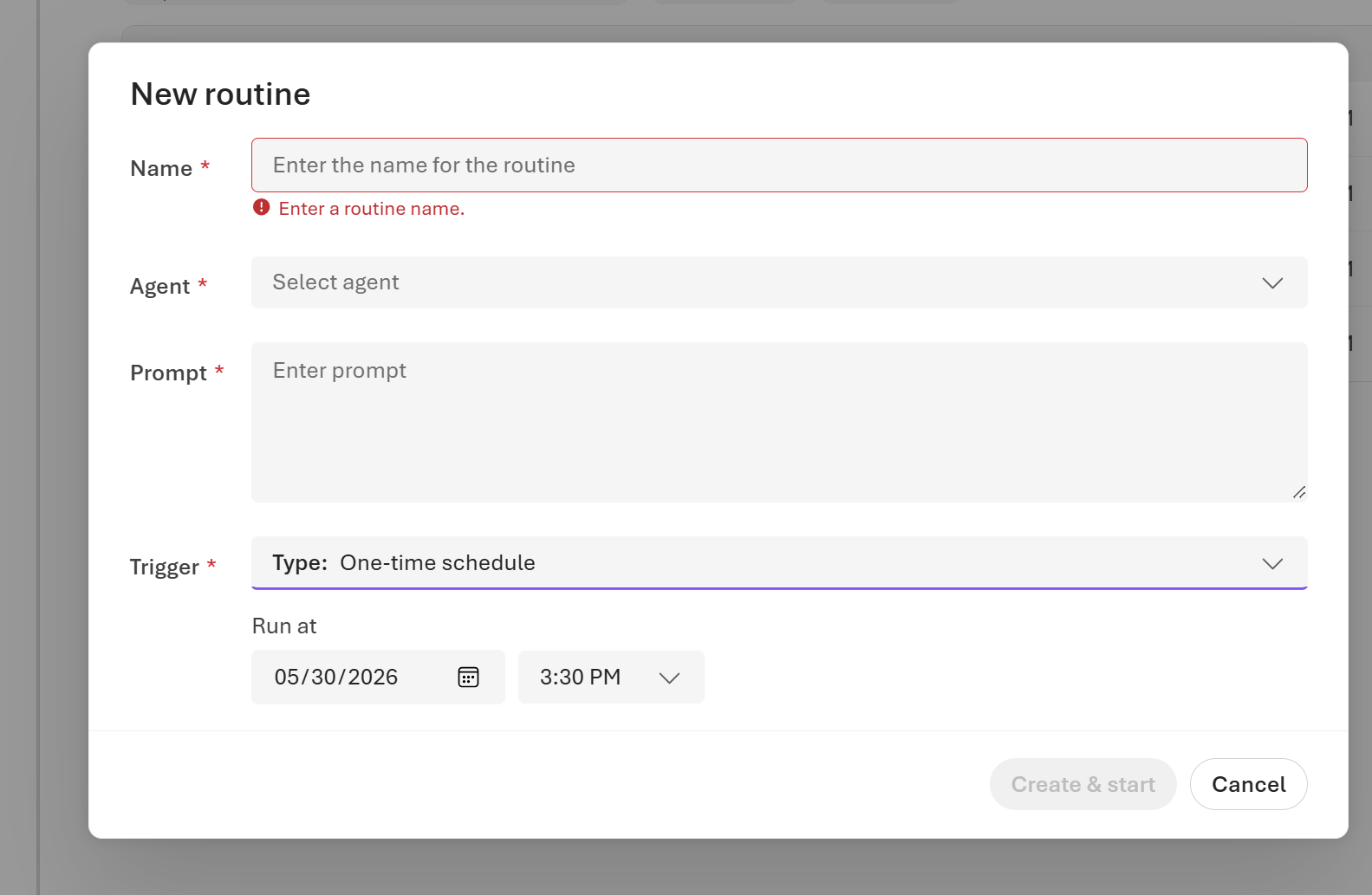
The Run at value is interpreted in your browser's local time zone. A one-time schedule fires exactly once, at the time you pick.
# Using Responses API action
curl -sS -X PUT "$PROJECT_ENDPOINT/routines/once-on-release-day?api-version=v1" \
  -H "Authorization: Bearer $TOKEN" \
  -H "Content-Type: application/json" \
  -d '{
    "description": "Runs the agent once on release day.",
    "enabled": true,
    "triggers": {
      "release-day": {
        "type": "timer",
        "at": "2030-09-01T09:00:00Z"
      }
    },
    "action": {
      "type": "invoke_agent_responses_api",
      "agent_name": "'"$AGENT_NAME"'",
      "input": "Run the release-day tasks."
    }
  }'
Set at to an ISO 8601 timestamp with an explicit UTC offset, for example, "2030-09-01T09:00:00Z".
routine = client.beta.routines.create_or_update(
    routine_name="once-on-release-day",
    description="Runs the agent once on release day.",
    enabled=True,
    triggers={
        "release-day": {
            "type": "timer",
            "at": datetime(2026, 9, 1, 9, 0, tzinfo=timezone.utc),
        }
    },
    action={
        "type": "invoke_agent_responses_api",
        "agent_name": agent_name,
        "input": "Run the release-day tasks.",  # optional
    },
)
var action = new AgentResponsesApiRoutineAction
{
    AgentName = agentName,
    Input = BinaryData.FromObjectAsJson("Run the release-day tasks."),
};

var routineOptions = new ProjectsRoutineOptions(
    action: action,
    description: "Runs the agent once on release day.",
    enabled: true);

routineOptions.Triggers.Add("release-day", new TimerRoutineTrigger(
    at: DateTimeOffset.Parse("2030-09-01T09:00:00Z")
));

ProjectsRoutine routine = await routinesClient.CreateOrUpdateAsync(
    name: "once-on-release-day",
    options: routineOptions);
const routine = await project.beta.routines.createOrUpdate("once-on-release-day", {
  description: "Runs the agent once on release day.",
  enabled: true,
  triggers: {
    "release-day": {
      type: "timer",
      at: new Date("2030-09-01T09:00:00Z"),
    },
  },
  action: {
    type: "invoke_agent_responses_api",
    agent_name: agentName,
    input: "Run the release-day tasks.",  // optional
  },
});
Create a one-shot timer routine inline:
azd ai routine create once-on-release-day \
  --trigger timer \
  --at 2030-09-01T09:00:00Z \
  --action agent-response \
  --agent-name <your-agent-name>
Or create from a YAML manifest:
# routine.yaml
name: once-on-release-day
description: Runs the agent once on release day.
enabled: true
triggers:
  release-day:
    type: timer
    time_zone: UTC
    at: 2030-09-01T09:00:00Z
action:
  type: invoke_agent_responses_api
  agent_name: <your-agent-name>
  input: Run the release-day tasks.
azd ai routine create --file routine.yaml
Event-based triggers
An event-based trigger runs an agent when an external event occurs, such as a GitHub issue being opened or a message being posted to a Microsoft Teams channel. Event-based triggers rely on a connector connection that Foundry provisions in your account's connector namespace and uses to authenticate to the external system. The trigger references this connection by ID. For more about connector connections, see Add managed MCP servers powered by connector namespaces.
The connector connection authenticates with the external system independently of the routine's dispatch identity. If the connection owner loses access to the connected resource, the trigger stops firing. Selecting creator identity for dispatch doesn't change the connector connection identity.
Routines support two event-based triggers: the github_issue trigger and the custom trigger with the teams provider.
Important
Non-Microsoft tools including third-party MCP servers available in the Foundry Tools Catalog ("Third-Party Tools") are Non-Microsoft Products under your agreement governing use of Azure. When you connect to a Third-Party Tool, you do so at your own risk. You're responsible for any terms and charges for Third-Party Tools. Microsoft has no responsibility to you or others in relation to your use of Third-Party Tools. Carefully review and track the Third-Party Tools you add to your MCP client.
Some of your information and data (such as authentication keys and prompt content) might be passed to the Third-Party Tool, or your MCP client might receive data from the Third-Party Tool. Review all data shared with Third-Party Tools and stay aware of third-party practices for data retention and location. You're responsible for managing whether your data flows outside your organization's Azure compliance and geographic boundaries.
MCP implementations are vulnerable to attacks, cascading failures, and loss of human oversight. To mitigate these risks, vet MCP servers for security and reliability, follow Microsoft's recommendations and industry best practices, and implement approval mechanisms to monitor cascading behaviors.
GitHub issue trigger
A github_issue trigger fires when an issue is opened or closed in a watched GitHub repository. When the trigger fires, Foundry forwards the GitHub issue payload to the agent as its input, so the agent can triage or act on the issue.
The trigger relies on a GitHub connector connection. Foundry provisions the connection to GitHub in your account's connector namespace and authenticates to GitHub through it. The connection_id you set on the trigger references this connection. Each tab shows how to create the connection and the routine that uses it. For more about connector connections, see Add managed MCP servers powered by connector namespaces.
The issue_event field accepts opened or closed only.
When an issue event fires, the GitHub issue payload replaces action.input. The configured input applies only to manual test dispatches.
To connect GitHub in the portal, follow the portal steps in Add managed MCP servers powered by connector namespaces. After the connection exists, create the routine that references it through the REST API, an SDK, or the Azure Developer CLI, as shown in the other tabs.
First create the GitHub connector connection, then reference it by name in the trigger's connection_id field.
Step 1: Acquire tokens. You need a catalog token to discover the connector and an Azure Resource Manager token to create the connection.
CATALOG_TOKEN=$(az account get-access-token --resource https://ai.azure.com --query accessToken -o tsv)
ARM_TOKEN=$(az account get-access-token --resource https://management.azure.com --query accessToken -o tsv)
Step 2: Discover the GitHub connector to get its entityId. The catalog is served from eastus regardless of your project's region.
RESPONSE=$(curl -sS -X POST "https://eastus.api.azureml.ms/asset-gallery/v1.0/tools" \
  -H "Authorization: Bearer $CATALOG_TOKEN" \
  -H "Content-Type: application/json" \
  -d '{
    "filters": [
      { "field": "type",             "operator": "eq", "values": ["tools"] },
      { "field": "annotations/name", "operator": "eq", "values": ["github"] }
    ],
    "pageSize": 1
  }')
ENTITY_ID=$(echo "$RESPONSE" | jq -r '.value[0].entityId')
Step 3: Create the project connection. Set target to the literal https://placeholder; the platform rewrites it after consent.
SUBSCRIPTION_ID=<your-subscription-id>
RESOURCE_GROUP=<your-resource-group>
ACCOUNT_NAME=<your-foundry-account-name>
PROJECT_NAME=<your-project-name>
CONNECTION_NAME=github-conn

CONNECTION_URL="https://management.azure.com/subscriptions/$SUBSCRIPTION_ID/resourceGroups/$RESOURCE_GROUP/providers/Microsoft.CognitiveServices/accounts/$ACCOUNT_NAME/projects/$PROJECT_NAME/connections/$CONNECTION_NAME?api-version=2025-04-01-preview"

curl -sS -X PUT "$CONNECTION_URL" \
  -H "Authorization: Bearer $ARM_TOKEN" \
  -H "Content-Type: application/json" \
  -d '{
    "properties": {
      "authType": "OAuth2",
      "category": "RemoteTool",
      "connectorName": "github",
      "target": "https://placeholder",
      "metadata": {
        "type": "gateway_connector",
        "toolEntityId": "'"$ENTITY_ID"'"
      }
    }
  }'
Step 4: Authorize GitHub. Get a one-time OAuth consent link, then open it in a browser and sign in to GitHub.
CALLER_OID=$(az ad signed-in-user show --query id -o tsv)
CALLER_TID=$(az account show --query tenantId -o tsv)

curl -sS -X POST "$CONNECTION_URL&action=listConsentLinks" \
  -H "Authorization: Bearer $ARM_TOKEN" \
  -H "Content-Type: application/json" \
  -d '{
    "parameters": [{
      "objectId":      "'"$CALLER_OID"'",
      "parameterName": "token",
      "redirectUrl":   "https://ai.azure.com/nextgen/authConsentPopup",
      "tenantId":      "'"$CALLER_TID"'"
    }]
  }' | jq -r '.value[0].link'
For the complete connector reference, see Add managed MCP servers powered by connector namespaces.
Step 5: Create the routine that references the connection by name.
curl -sS -X PUT "$PROJECT_ENDPOINT/routines/on-issue-opened?api-version=v1" \
  -H "Authorization: Bearer $TOKEN" \
  -H "Content-Type: application/json" \
  -d '{
    "description": "Triages a GitHub issue when it is opened in the watched repository.",
    "enabled": true,
    "triggers": {
      "on-issue": {
        "type": "github_issue",
        "connection_id": "github-conn",
        "owner": "your-org",
        "repository": "your-repo",
        "issue_event": "opened"
      }
    },
    "action": {
      "type": "invoke_agent_responses_api",
      "agent_name": "'"$AGENT_NAME"'",
      "input": "Triage this GitHub issue."
    }
  }'
Note
For a github_issue trigger, the GitHub issue payload overwrites action.input. When an issue event fires the routine, Foundry replaces the input value with the issue payload. The input you set applies only to manual test dispatches.
The Python SDK creates the routine but not the GitHub connector connection. Create the connection first in the Foundry portal, with the REST API, or with the Azure Developer CLI, then reference it by name in the trigger's connection_id field.
routine = client.beta.routines.create_or_update(
    routine_name="on-issue-opened",
    description="Triages a GitHub issue when it is opened in the watched repository.",
    enabled=True,
    triggers={
        "on-issue": {
            "type": "github_issue",
            "connection_id": "github-conn",  # required: project connection to GitHub
            "owner": "your-org",              # required
            "repository": "your-repo",        # required
            "issue_event": "opened",          # required: "opened" or "closed"
        }
    },
    action={
        "type": "invoke_agent_responses_api",
        "agent_name": agent_name,
        "input": "Triage this GitHub issue.",  # optional; omitted when the issue payload is present
    },
)
Note
For a github_issue trigger, the GitHub issue payload overwrites action.input. When an issue event fires the routine, Foundry replaces the input value with the issue payload. The input you set applies only to manual test dispatches.
The C# SDK creates the routine but not the GitHub connector connection. Create the connection first in the Foundry portal, with the REST API, or with the Azure Developer CLI. Then reference it by name in the trigger's ConnectionId property.
var action = new AgentResponsesApiRoutineAction
{
    AgentName = agentName,
    Input = BinaryData.FromObjectAsJson("Triage this GitHub issue."),  // optional; omitted when the issue payload is present
};

var routineOptions = new ProjectsRoutineOptions(
    action: action,
    description: "Triages a GitHub issue when it is opened in the watched repository.",
    enabled: true);

routineOptions.Triggers.Add("on-issue", new GitHubIssueRoutineTrigger(
    connectionId: "github-conn",      // required: project connection to GitHub
    owner: "your-org",                 // required
    repository: "your-repo",           // required
    issueEvent: GitHubIssueEvent.Opened  // required: Opened or Closed
));

ProjectsRoutine routine = await routinesClient.CreateOrUpdateAsync(
    name: "on-issue-opened",
    options: routineOptions);
Note
For a github_issue trigger, the GitHub issue payload overwrites action.Input. When an issue event fires the routine, Foundry replaces the Input value with the issue payload. The Input you set applies only to manual test dispatches.
The JavaScript SDK creates the routine but not the GitHub connector connection. Create the connection first in the Foundry portal, with the REST API, or with the Azure Developer CLI, then reference it by name in the trigger's connection_id field.
const routine = await project.beta.routines.createOrUpdate("on-issue-opened", {
  description: "Triages a GitHub issue when it is opened in the watched repository.",
  enabled: true,
  triggers: {
    "on-issue": {
      type: "github_issue",
      connection_id: "github-conn",  // required: project connection to GitHub
      owner: "your-org",             // required
      repository: "your-repo",       // required
      issue_event: "opened",         // required: "opened" or "closed"
    },
  },
  action: {
    type: "invoke_agent_responses_api",
    agent_name: agentName,
    input: "Triage this GitHub issue.",  // optional; omitted when the issue payload is present
  },
});
Note
For a github_issue trigger, the GitHub issue payload overwrites action.input. When an issue event fires the routine, Foundry replaces the input value with the issue payload. The input you set applies only to manual test dispatches.
Create the GitHub OAuth2 connection
Before you can create a GitHub issue routine, register the GitHub connector as a project connection. Use azd ai connection create with --connector-name github:
azd ai connection create github-conn \
  --connector-name github
Complete OAuth consent
The connection is created in an Unauthenticated state. Retrieve the consent URL and open it in a browser:
azd ai connection show github-conn
Sign in to GitHub once and authorize the application. After consent is recorded, overallStatus transitions to Connected.
Create the routine
Reference the connection by name in the routine's connection_id. Create the routine inline:
azd ai routine create on-issue-opened \
  --trigger github-issue \
  --owner your-org \
  --repository your-repo \
  --issue-event opened \
  --connection-id github-conn \
  --agent-name <your-agent-name>
Or create it from a YAML manifest:
# routine.yaml
name: on-issue-opened
description: Triages a GitHub issue when it is opened in the watched repository.
enabled: true
triggers:
  on-issue:
    type: github_issue
    connection_id: github-conn
    owner: your-org
    repository: your-repo
    issue_event: opened
action:
  type: invoke_agent_responses_api
  agent_name: <your-agent-name>
azd ai routine create on-issue-opened --file routine.yaml
Note
The agent referenced by agent_name must be a prompt agent or hosted agent. Workflow agents aren't supported.
Teams message trigger
A custom trigger fires on an event from an external provider. The teams provider supports the on_new_channel_message event, which fires when a new message is posted to a watched Microsoft Teams channel. When the trigger fires, Foundry forwards the Teams message payload to the agent as its input, so the agent can respond to the message.
The trigger requires a Microsoft Teams connector connection. Foundry provisions the connection in your account's connector namespace and uses it to authenticate to Teams. The connection_id in the trigger's parameters references this connection. For more about connector connections, see Add managed MCP servers powered by connector namespaces.
The parameters object scopes the trigger to a single Teams channel. Set thread_type to channel, group_id to the ID of the Teams team that contains the channel, and channel_id to the ID of the channel to watch. You can obtain the team and channel IDs from Microsoft Teams or Microsoft Graph. The authenticated Teams connection must have access to the specified team and channel.
To connect Teams in the portal, follow the portal steps in Add managed MCP servers powered by connector namespaces. After the connection exists, create the routine that references it through the REST API, an SDK, or the Azure Developer CLI, as shown in the other tabs.
First create the Teams connector connection, then reference it by name in the trigger's connection_id parameter.
Step 1: Acquire tokens. You need a catalog token to discover the connector and an Azure Resource Manager token to create the connection.
CATALOG_TOKEN=$(az account get-access-token --resource https://ai.azure.com --query accessToken -o tsv)
ARM_TOKEN=$(az account get-access-token --resource https://management.azure.com --query accessToken -o tsv)
Step 2: Discover the Teams connector to get its entityId. The catalog is served from eastus regardless of your project's region.
RESPONSE=$(curl -sS -X POST "https://eastus.api.azureml.ms/asset-gallery/v1.0/tools" \
  -H "Authorization: Bearer $CATALOG_TOKEN" \
  -H "Content-Type: application/json" \
  -d '{
    "filters": [
      { "field": "type",             "operator": "eq", "values": ["tools"] },
      { "field": "annotations/name", "operator": "eq", "values": ["teams"] }
    ],
    "pageSize": 1
  }')
ENTITY_ID=$(echo "$RESPONSE" | jq -r '.value[0].entityId')
Step 3: Create the project connection. Set target to the literal https://placeholder; the platform rewrites it after consent.
SUBSCRIPTION_ID=<your-subscription-id>
RESOURCE_GROUP=<your-resource-group>
ACCOUNT_NAME=<your-foundry-account-name>
PROJECT_NAME=<your-project-name>
CONNECTION_NAME=teams-conn

CONNECTION_URL="https://management.azure.com/subscriptions/$SUBSCRIPTION_ID/resourceGroups/$RESOURCE_GROUP/providers/Microsoft.CognitiveServices/accounts/$ACCOUNT_NAME/projects/$PROJECT_NAME/connections/$CONNECTION_NAME?api-version=2025-04-01-preview"

curl -sS -X PUT "$CONNECTION_URL" \
  -H "Authorization: Bearer $ARM_TOKEN" \
  -H "Content-Type: application/json" \
  -d '{
    "properties": {
      "authType": "OAuth2",
      "category": "RemoteTool",
      "connectorName": "teams",
      "target": "https://placeholder",
      "metadata": {
        "type": "gateway_connector",
        "toolEntityId": "'"$ENTITY_ID"'"
      }
    }
  }'
Step 4: Authorize Teams. Get a one-time OAuth consent link, then open it in a browser and sign in with your Microsoft account.
CALLER_OID=$(az ad signed-in-user show --query id -o tsv)
CALLER_TID=$(az account show --query tenantId -o tsv)

curl -sS -X POST "$CONNECTION_URL&action=listConsentLinks" \
  -H "Authorization: Bearer $ARM_TOKEN" \
  -H "Content-Type: application/json" \
  -d '{
    "parameters": [{
      "objectId":      "'"$CALLER_OID"'",
      "parameterName": "token",
      "redirectUrl":   "https://ai.azure.com/nextgen/authConsentPopup",
      "tenantId":      "'"$CALLER_TID"'"
    }]
  }' | jq -r '.value[0].link'
For the complete connector reference, see Add managed MCP servers powered by connector namespaces.
Step 5: Create the routine that references the connection by name.
curl -sS -X PUT "$PROJECT_ENDPOINT/routines/teams-new-message?api-version=v1" \
  -H "Authorization: Bearer $TOKEN" \
  -H "Content-Type: application/json" \
  -d '{
    "description": "Invokes an agent when a new message is posted to a Teams channel.",
    "enabled": true,
    "triggers": {
      "incoming": {
        "type": "custom",
        "provider": "teams",
        "event_name": "on_new_channel_message",
        "parameters": {
          "connection_id": "teams-conn",
          "thread_type": "channel",
          "group_id": "<your-team-group-id>",
          "channel_id": "<your-channel-id>"
        }
      }
    },
    "action": {
      "type": "invoke_agent_responses_api",
      "agent_name": "'"$AGENT_NAME"'"
    }
  }'
Note
For a custom Teams trigger, the incoming Teams message payload becomes the agent input when an event fires. Any input you set on the action applies only to manual test dispatches.
The Python SDK creates the routine but not the Teams connector connection. Create the connection first in the Foundry portal, with the REST API, or with the Azure Developer CLI, then reference it by name in the trigger's connection_id parameter.
routine = client.beta.routines.create_or_update(
    routine_name="teams-new-message",
    description="Invokes an agent when a new message is posted to a Teams channel.",
    enabled=True,
    triggers={
        "incoming": {
            "type": "custom",
            "provider": "teams",
            "event_name": "on_new_channel_message",
            "parameters": {
                "connection_id": "teams-conn",   # required: project connection to Teams
                "thread_type": "channel",
                "group_id": "<your-team-group-id>",
                "channel_id": "<your-channel-id>",
            },
        }
    },
    action={
        "type": "invoke_agent_responses_api",
        "agent_name": agent_name,
    },
)
Note
For a custom Teams trigger, the incoming Teams message payload becomes the agent input when an event fires. Any input you set on the action applies only to manual test dispatches.
The JavaScript SDK creates the routine but not the Teams connector connection. Create the connection first in the Foundry portal, with the REST API, or with the Azure Developer CLI, then reference it by name in the trigger's connection_id parameter.
const routine = await project.beta.routines.createOrUpdate("teams-new-message", {
  description: "Invokes an agent when a new message is posted to a Teams channel.",
  enabled: true,
  triggers: {
    incoming: {
      type: "custom",
      provider: "teams",
      event_name: "on_new_channel_message",
      parameters: {
        connection_id: "teams-conn",   // required: project connection to Teams
        thread_type: "channel",
        group_id: "<your-team-group-id>",
        channel_id: "<your-channel-id>",
      },
    },
  },
  action: {
    type: "invoke_agent_responses_api",
    agent_name: agentName,
  },
});
Note
For a custom Teams trigger, the incoming Teams message payload becomes the agent input when an event fires. Any input you set on the action applies only to manual test dispatches.
Create the Teams connector connection first by following the azd steps in Add managed MCP servers powered by connector namespaces. After the connection exists, reference it by name in the trigger's connection_id parameter.
Because the custom trigger takes a nested parameters object, create the routine from a YAML manifest:
# routine.yaml
name: teams-new-message
description: Invokes an agent when a new message is posted to a Teams channel.
enabled: true
triggers:
  incoming:
    type: custom
    provider: teams
    event_name: on_new_channel_message
    parameters:
      connection_id: teams-conn
      thread_type: channel
      group_id: <your-team-group-id>
      channel_id: <your-channel-id>
action:
  type: invoke_agent_responses_api
  agent_name: <your-agent-name>
azd ai routine create teams-new-message --file routine.yaml
Note
The agent referenced by agent_name must be a prompt agent or hosted agent. Workflow agents aren't supported.
Action fields
Each routine specifies exactly one action. The two supported action types have different required and optional fields.
Responses API action (invoke_agent_responses_api)
Invokes the agent through the Responses API.
| Field | Type | Required | Description |
|---|---|---|---|
type |
string | Yes | Must be "invoke_agent_responses_api". |
agent_name |
string | Conditional | The project-scoped agent name. Specify exactly one of agent_name or agent_endpoint_id. Maximum 256 characters. |
agent_endpoint_id |
string | Conditional | The legacy hosted-agent endpoint ID. Specify exactly one of agent_name or agent_endpoint_id. |
input |
JSON value | No | The input passed to the agent. For github_issue and custom Teams triggers, the event payload overwrites this value when an event fires, so it applies only to manual test dispatches. |
conversation |
string | No | An existing conversation to continue during the dispatch. Maximum 256 characters. |
Invocations API action (invoke_agent_invocations_api)
Invokes the agent through the Invocations API.
| Field | Type | Required | Description |
|---|---|---|---|
type |
string | Yes | Must be "invoke_agent_invocations_api". |
agent_name |
string | Conditional | The project-scoped agent name. Specify exactly one of agent_name or agent_endpoint_id. Maximum 256 characters. |
agent_endpoint_id |
string | Conditional | The legacy hosted-agent endpoint ID. Specify exactly one of agent_name or agent_endpoint_id. |
input |
JSON value | No | The input passed to the agent. For github_issue and custom Teams triggers, the event payload overwrites this value when an event fires, so it applies only to manual test dispatches. |
session_id |
string | No | An existing hosted-agent session to continue during the dispatch. Maximum 256 characters. |
Dispatch authorization
Dispatch authorization is a top-level routine creation field, not an action field.
| Field | Type | Required | Description |
|---|---|---|---|
authorization.identity |
string | No | The identity used to invoke the agent. The default is "agent". Set it to "creator" only when the agent's tools require delegated access from the routine creator. This field is ignored when you update an existing routine. |
Enable and disable a routine
Routines start enabled if you set "enabled": true at creation. You can pause a routine without deleting it.
- In Microsoft Foundry, open your project.
- Select Routines in the left navigation.
- Find the routine and select it.
- Select Pause in the top right to pause the routine, or select Resume to re-enable a paused routine.
From the same page, you can also:
- Select Test run (either the button on the right or the entry in the overflow menu) to fire the routine immediately with its current prompt and agent, without waiting for the next scheduled trigger.
- Review past runs in the table below the routine details. Each row shows the response ID, when the run was triggered, its duration, and its state. Use the Last day, 7D, 1M, or Custom filters to scope the time range. Select a response ID to open the full run.
Disable a routine:
curl -sS -X POST "$PROJECT_ENDPOINT/routines/daily-summary:disable?api-version=v1" \
  -H "Authorization: Bearer $TOKEN"
Enable a routine:
curl -sS -X POST "$PROJECT_ENDPOINT/routines/daily-summary:enable?api-version=v1" \
  -H "Authorization: Bearer $TOKEN"
Both operations return the updated routine object.
# Disable
disabled_routine = client.beta.routines.disable("daily-summary")
print(f"Enabled: {disabled_routine.enabled}")   # False

# Enable
enabled_routine = client.beta.routines.enable("daily-summary")
print(f"Enabled: {enabled_routine.enabled}")    # True
// Disable
ProjectsRoutine disabled = await routinesClient.DisableAsync("daily-summary");
Console.WriteLine($"Enabled: {disabled.IsEnabled}");   // false

// Enable
ProjectsRoutine enabled = await routinesClient.EnableAsync("daily-summary");
Console.WriteLine($"Enabled: {enabled.IsEnabled}");    // true
// Disable
const disabled = await project.beta.routines.disable("daily-summary");
console.log(`Enabled: ${disabled.enabled}`);   // false

// Enable
const enabled = await project.beta.routines.enable("daily-summary");
console.log(`Enabled: ${enabled.enabled}`);    // true
# Disable
azd ai routine disable once-on-release-day

# Enable
azd ai routine enable once-on-release-day
Test a routine manually
Queue a one-off run without waiting for the trigger to fire. This step lets you verify that the routine reaches your agent correctly.
- Open the routine in Microsoft Foundry.
- Select Test run (either the button on the right or the entry in the overflow menu next to Pause).
Foundry queues the run immediately with the routine's current agent and prompt. The new run appears in the past-runs table below the routine details and progresses from Queued to Completed or Failed.
Use the dispatch_async operation to queue the run. You can omit payload to run the routine with its configured action input. If you include payload, its type must match the routine's action type: use invoke_agent_responses_api for Responses API routines and invoke_agent_invocations_api for Invocations API routines.
| Payload field | Type | Required | Description |
|---|---|---|---|
type |
string | Yes when payload is present |
Must match the routine's action type: "invoke_agent_responses_api" or "invoke_agent_invocations_api". |
input |
JSON value | Yes when payload is present |
Override input sent to the downstream target for testing. |
Responses API routine with an input override:
curl -sS -X POST "$PROJECT_ENDPOINT/routines/daily-summary:dispatch_async?api-version=v1" \
  -H "Authorization: Bearer $TOKEN" \
  -H "Content-Type: application/json" \
  -d '{
    "payload": {
      "type": "invoke_agent_responses_api",
      "input": "Run the daily summary for testing."
    }
  }'
Invocations API routine with an input override:
curl -sS -X POST "$PROJECT_ENDPOINT/routines/my-invocations-routine:dispatch_async?api-version=v1" \
  -H "Authorization: Bearer $TOKEN" \
  -H "Content-Type: application/json" \
  -d '{
    "payload": {
      "type": "invoke_agent_invocations_api",
      "input": "Run the agent for testing."
    }
  }'
Response:
{
  "dispatch_id": "disp-abc123",
  "action_correlation_id": "resp-xyz456",
  "task_id": "task-def789"
}
Use the dispatch_id to find the run in the run history.
Without an input override:
curl -sS -X POST "$PROJECT_ENDPOINT/routines/daily-summary:dispatch_async?api-version=v1" \
  -H "Authorization: Bearer $TOKEN" \
  -H "Content-Type: application/json" \
  -d '{}'
# Responses API routine
result = client.beta.routines.dispatch(
    routine_name="daily-summary",
    payload={
        "type": "invoke_agent_responses_api",
        "input": "Run the daily summary for testing.",  # optional
    },
)
print(f"dispatch_id: {result.dispatch_id}")
print(f"task_id:     {result.task_id}")

# Invocations API routine
result2 = client.beta.routines.dispatch(
    routine_name="my-invocations-routine",
    payload={
        "type": "invoke_agent_invocations_api",
        "input": "Run the agent for testing.",  # optional
    },
)
// Responses API routine
var payload = new AgentResponsesApiRoutineDispatch
{
    Input = BinaryData.FromObjectAsJson("Run the daily summary for testing."),  // optional
};

RoutineDispatchResult result = await routinesClient.DispatchAsync(
    name: "daily-summary",
    payload: payload);

Console.WriteLine($"dispatch_id: {result.DispatchId}");
Console.WriteLine($"task_id:     {result.TaskId}");

// Invocations API routine
var payload2 = new AgentInvocationsApiRoutineDispatch
{
    Input = BinaryData.FromObjectAsJson("Run the agent for testing."),  // optional
};

RoutineDispatchResult result2 = await routinesClient.DispatchAsync(
    name: "my-invocations-routine",
    payload: payload2);
// Responses API routine
const result = await project.beta.routines.dispatch("daily-summary", {
  payload: {
    type: "invoke_agent_responses_api",
    input: "Run the daily summary for testing.",  // optional
  },
});
console.log(`dispatch_id: ${result.dispatch_id}`);

// Invocations API routine
const result2 = await project.beta.routines.dispatch("my-invocations-routine", {
  payload: {
    type: "invoke_agent_invocations_api",
    input: "Run the agent for testing.",  // optional
  },
});
Queue a manual run for a Responses API routine:
azd ai routine dispatch once-on-release-day \
  --input "Run the routine for testing."
The command prints the dispatch_id and task_id. Use the dispatch_id to find the run in the run history.
View run history
Run history records every time a routine fires and the outcome of each attempt.
- Open the routine in Microsoft Foundry.
- The table on the routine detail page lists past runs. Each row shows the response ID, when the run triggered, its duration, and its state (for example Completed or Failed).
- Use the Last day, 7D, 1M, or Custom range controls above the table to filter the time window.
- Select a response ID to open the full run, including the response and any error details.
List all runs for a routine:
curl -sS "$PROJECT_ENDPOINT/routines/daily-summary/runs?api-version=v1" \
  -H "Authorization: Bearer $TOKEN"
The list is paginated. The response returns a data array and, when more results exist, a next_link URL. Follow next_link to fetch the next page. You can also set the following query parameters:
| Query parameter | Description |
|---|---|
limit |
Maximum number of items to return per page. Ranges from 1 to 100. |
order |
Ordering direction. Supported values are asc and desc. |
after |
An opaque continuation token that identifies where to resume the list. Prefer following the next_link from the previous response, which embeds this value. |
Example response:
{
  "data": [
    {
      "id": "run-abc123",
      "status": "FINISHED",
      "phase": "completed",
      "trigger_type": "schedule",
      "attempt_source": "schedule_delivery",
      "started_at": "2026-06-02T07:00:05Z",
      "ended_at": "2026-06-02T07:00:42Z",
      "dispatch_id": "disp-abc123",
      "response_id": "resp-xyz456"
    }
  ],
  "next_link": "https://<account>.services.ai.azure.com/api/projects/<project>/routines/daily-summary/runs?api-version=v1&after=run-abc123&limit=1"
}
runs = client.beta.routines.list_runs("daily-summary")

for run in runs:
    print(
        f"{run.id}  phase={run.phase}  "
        f"source={run.attempt_source}  "
        f"started={run.started_at}  ended={run.ended_at}"
    )
    if run.phase == "failed":
        print(f"  error: {run.error_type} - {run.error_message}")
await foreach (RoutineRun run in routinesClient.GetRoutineRunsAsync("daily-summary"))
{
    Console.WriteLine($"{run.Id}  phase={run.Phase}  source={run.AttemptSource}  started={run.StartedAt}");
    if (run.Phase == RoutineRunPhase.Failed)
    {
        Console.WriteLine($"  error: {run.ErrorType} — {run.ErrorMessage}");
    }
}
for await (const run of project.beta.routines.listRuns("daily-summary")) {
  console.log(`${run.id}  phase=${run.phase}  source=${run.attempt_source}`);
  if (run.phase === "failed") {
    console.log(`  error: ${run.error_type} - ${run.error_message}`);
  }
}
Listing run history through azd ai routine isn't currently supported. Use the Foundry portal, REST API, or an SDK to retrieve runs.
List and retrieve routines
The Routines page shows all routines in your project. Select any routine to see its configuration and run history.
List all routines in the project:
curl -sS "$PROJECT_ENDPOINT/routines?api-version=v1" \
  -H "Authorization: Bearer $TOKEN"
The list is paginated. The response returns a data array and, when more results exist, a next_link URL. Follow next_link to fetch the next page. You can also set the limit (1–100), order (asc or desc), and after (opaque continuation token) query parameters. Prefer following next_link, which embeds the after value for you.
Retrieve a specific routine:
curl -sS "$PROJECT_ENDPOINT/routines/daily-summary?api-version=v1" \
  -H "Authorization: Bearer $TOKEN"
# List all routines
for r in client.beta.routines.list():
    print(f"{r.name}  enabled={r.enabled}  triggers={list(r.triggers.keys())}")

# Get a single routine
routine = client.beta.routines.get("daily-summary")
print(routine)
// List all routines
await foreach (ProjectsRoutine r in routinesClient.GetRoutinesAsync())
{
    Console.WriteLine($"{r.Name}  enabled={r.IsEnabled}  triggers={string.Join(", ", r.Triggers.Keys)}");
}

// Get a single routine
ProjectsRoutine routine = await routinesClient.GetAsync("daily-summary");
Console.WriteLine(routine);
// List all routines
for await (const r of project.beta.routines.list()) {
  console.log(`${r.name}  enabled=${r.enabled}`);
}

// Get a single routine
const routine = await project.beta.routines.get("daily-summary");
console.log(routine);
Retrieve a single routine:
azd ai routine show once-on-release-day
Listing all routines through azd ai routine isn't currently supported. Use the Foundry portal, REST API, or an SDK.
Update a routine
To change a routine's trigger or action, send a new create-or-update request with the same name. This operation replaces the stored definition.
- Open the routine in Microsoft Foundry.
- Select Edit.
- Change the trigger or action settings.
- Select Save.
Reissue the PUT request with the updated body. Include all fields. Omitted fields reset to defaults.
curl -sS -X PUT "$PROJECT_ENDPOINT/routines/daily-summary?api-version=v1" \
  -H "Authorization: Bearer $TOKEN" \
  -H "Content-Type: application/json" \
  -d '{
    "description": "Updated: runs at 08:00 UTC on weekdays.",
    "enabled": true,
    "triggers": {
      "weekday-morning": {
        "type": "schedule",
        "cron_expression": "0 8 * * 1-5",
        "time_zone": "UTC"
      }
    },
    "action": {
      "type": "invoke_agent_responses_api",
      "agent_name": "'"$AGENT_NAME"'"
    }
  }'
updated = client.beta.routines.create_or_update(
    routine_name="daily-summary",
    description="Updated: runs at 08:00 UTC on weekdays.",
    enabled=True,
    triggers={
        "weekday-morning": {
            "type": "schedule",
            "cron_expression": "0 8 * * 1-5",
            "time_zone": "UTC",
        }
    },
    action={
        "type": "invoke_agent_responses_api",
        "agent_name": agent_name,
    },
)
print(f"Updated at: {updated.updated_at}")
var action = new AgentResponsesApiRoutineAction { AgentName = agentName };

var routineOptions = new ProjectsRoutineOptions(
    action: action,
    description: "Updated: runs at 08:00 UTC on weekdays.",
    enabled: true);

routineOptions.Triggers.Add("weekday-morning", new ScheduleRoutineTrigger(
    cronExpression: "0 8 * * 1-5",
    timeZone: "UTC"
));

ProjectsRoutine updated = await routinesClient.CreateOrUpdateAsync(
    name: "daily-summary",
    options: routineOptions);

Console.WriteLine($"Updated at: {updated.UpdatedAt}");
const updated = await project.beta.routines.createOrUpdate("daily-summary", {
  description: "Updated: runs at 08:00 UTC on weekdays.",
  enabled: true,
  triggers: {
    "weekday-morning": {
      type: "schedule",
      cron_expression: "0 8 * * 1-5",
      time_zone: "UTC",
    },
  },
  action: {
    type: "invoke_agent_responses_api",
    agent_name: agentName,
  },
});
console.log(`Updated at: ${updated.updated_at}`);
Apply changes from a YAML manifest:
azd ai routine update once-on-release-day --file routine.yaml
The --description flag isn't currently supported for timer routines. Edit the manifest and reapply it by using --file instead.
Delete a routine
When you delete a routine, you remove it and stop all future trigger deliveries. The process preserves existing run records.
- Open the routine in Microsoft Foundry.
- Select Delete, and then confirm.
curl -sS -X DELETE "$PROJECT_ENDPOINT/routines/daily-summary?api-version=v1" \
  -H "Authorization: Bearer $TOKEN"
A successful response returns HTTP 204 No Content.
client.beta.routines.delete("daily-summary")
print("Routine deleted.")
await routinesClient.DeleteAsync("daily-summary");
Console.WriteLine("Routine deleted.");
await project.beta.routines.delete("daily-summary");
console.log("Routine deleted.");
azd ai routine delete once-on-release-day
Trigger fields
Schedule trigger fields
| Field | Type | Required | Description |
|---|---|---|---|
type |
string | Yes | Must be "schedule". |
cron_expression |
string | Yes | A 5-field cron expression. The service enforces a minimum interval of five minutes. |
time_zone |
string | Yes | An IANA or Windows time zone identifier, for example "UTC" or "America/Los_Angeles". |
Timer trigger fields
| Field | Type | Required | Description |
|---|---|---|---|
type |
string | Yes | Must be "timer". |
at |
string | No | A future ISO 8601 timestamp with an explicit UTC offset, for example, "2030-09-01T09:00:00Z". SDKs use a timezone-aware date-time value. Set at explicitly for a usable one-time timer. |
GitHub issue trigger fields
| Field | Type | Required | Description |
|---|---|---|---|
type |
string | Yes | Must be "github_issue". |
connection_id |
string | Yes | The project connection that authenticates to GitHub. Maximum 256 characters. |
owner |
string | Yes | The GitHub owner or organization that scopes which issues can fire the trigger. Maximum 128 characters. |
repository |
string | Yes | The GitHub repository that scopes which issues can fire the trigger. Maximum 128 characters. |
issue_event |
string | Yes | The GitHub issue event that fires the routine. Supported values: opened, closed. |
Custom (Teams) trigger fields
| Field | Type | Required | Description |
|---|---|---|---|
type |
string | Yes | Must be "custom". |
provider |
string | Yes | The external provider that emits the event. Use "teams" for Microsoft Teams. |
event_name |
string | Yes | The provider event that fires the routine. For the teams provider, use "on_new_channel_message". |
parameters |
object | Yes | Provider-specific settings that scope the trigger. |
For the teams provider, parameters accepts the following fields:
| Parameter | Type | Required | Description |
|---|---|---|---|
connection_id |
string | Yes | The project connection that authenticates to Microsoft Teams. |
thread_type |
string | Yes | The Teams thread type. Use "channel" for a channel message. |
group_id |
string | Yes | The ID of the Teams team (group) that contains the channel. |
channel_id |
string | Yes | The ID of the Teams channel to watch. |
Dispatch behavior and retry policy
When a trigger fires or you call :dispatch_async manually, Foundry acknowledges that the run was enqueued. The acknowledgment doesn't mean the downstream agent call finished. Use the run state, telemetry, or the returned dispatch_id to confirm completion.
Downstream call outcomes
The delivery worker waits for the downstream invoke_agent_responses_api or invoke_agent_invocations_api HTTP call to finish before marking the run.
| Downstream HTTP result | Routine run behavior |
|---|---|
| 2xx | Run is marked completed and downstream dispatch identifiers are recorded. |
| 408, 429, or 5xx | Treated as retryable while attempts remain. |
| Other 4xx (for example, 400) | Treated as terminal and the run is marked failed. |
| Request timeout or transient service-invocation failure | Treated as retryable while attempts remain. |
If retries are exhausted, the run is marked failed with the last dispatch error.
A successful run means the downstream API accepted the dispatch request. It doesn't guarantee that asynchronous work started by the agent has completed.
Retry and timeout defaults
- The default delivery policy is five total attempts with exponential backoff starting at 5 seconds and capped at 60 seconds.
- The downstream HTTP request has a per-attempt timeout of 30 seconds. Queueing time, retry backoff, and worker concurrency limits aren't included in that per-request timeout.
- Responses API actions run in background mode. The 30-second timeout covers acceptance of the background request and creation of the response, not completion of the agent's work.
Troubleshooting
| Issue | Resolution |
|---|---|
| A tool call fails because it requires delegated user access. | Check the tool's authentication requirements, permissions, and consent. To opt in to creator identity, create a new routine with authorization.identity set to "creator" through REST, Python, or JavaScript. A saved creator-identity setting doesn't confirm that the tool supports delegated access through routines. |
| A routine REST request returns HTTP 400 without an API version. | Include api-version=v1 in the request URL. |
| An event trigger stops firing after an identity or permission change. | Confirm that the connector connection is still connected and that its owner can access the configured repository, team, or channel. Connector authentication is separate from routine dispatch identity. |
| The routine feature isn't available in the project. | Confirm that the project is in a supported region. If Routines doesn't appear in the Foundry portal, the feature isn't enabled for the region or subscription. |
| The scheduled routine is rejected or fires at an unexpected time. | Use a five-field cron expression with an interval of at least five minutes. Set time_zone to the intended IANA or Windows time zone identifier. |
| A GitHub or Teams event doesn't fire the routine. | Complete connector consent, confirm that the connection is connected, and verify that the authenticated identity can access the configured repository, team, and channel. |
| The downstream agent call times out. | Inspect the run history for the last dispatch error. Each attempt has a 30-second downstream timeout and follows the documented retry policy. |
| A manual dispatch fails. | Omit payload to use the configured action input. If you include payload, match its type to the routine action and provide input as a JSON value. Also confirm that the action specifies exactly one of agent_name or agent_endpoint_id. |
Let an agent schedule its own reminders
Routines let an external trigger start an agent. A hosted agent can also schedule itself to run again at a future time by calling the built-in reminder_preview toolbox tool. Use this pattern when the agent decides during a run that it needs to follow up later, such as to check back on a long-running task.
The reminder tool is available only for hosted agents. You can't use the reminder tool with prompt agents.
When the agent calls the reminder tool, it specifies a delay in minutes. After that delay, Foundry re-invokes the same agent on the same conversation. The agent can then continue its work or check on external systems.
For full setup instructions, usage examples, and how reminders differ from routines, see Reminder tool for self-scheduling agents.
Known issues and limitations
Routines have the following known issues and limitations:
- One trigger and one action per routine. Each routine supports exactly one entry in the
triggersmap and one action. To run multiple agents or multiple schedules, create separate routines. - Agent types. Routines support prompt agents and hosted agents. They don't support workflow agents. The agent-scheduled reminder tool is available only for hosted agents.
- Routine and trigger types. Routines can be one-shot (
timer), recurring (schedule), or event-based. Supported event triggers aregithub_issueandcustomwith theteamsprovider. Other routine and trigger types aren't supported. - Action types. The only action is invoking one Foundry agent. Use
invoke_agent_responses_apiwith a prompt agent or a hosted agent that exposes the Responses protocol. Useinvoke_agent_invocations_apiwith a hosted agent that exposes the Invocations protocol. - Dispatch identity. Every routine uses agent identity by default. Creator identity is an explicit create-time opt-in for agent tools that require delegated user access. It always represents the principal that creates the routine, not the agent creator or another user. You can't change the dispatch identity by updating the routine.
- Network and encryption. Routines support projects secured by a virtual network and inherit the project's network configuration. Routines don't support customer-managed key (CMK) encryption.
- Schedule minimum interval. A
scheduletrigger fires at most once every five minutes. Cron expressions that resolve to a shorter interval are rejected. - Regional availability. Routines aren't available in UK West, Switzerland West, Japan West, UAE North, or Norway East. If you don't see Routines in the Foundry portal navigation, the feature isn't enabled for your region or subscription.
- Use
:dispatch_asyncfor manual dispatch. Only thePOST .../routines/{routineName}:dispatch_async?api-version=v1route is part of the public contract. The legacy:dispatchroute isn't supported for customer use. - Acknowledgment isn't completion. A
:dispatch_asyncresponse acknowledges that the run was enqueued, not that the downstream agent call finished. Use the run state, telemetry, or the returneddispatch_idto observe final delivery. - Per-attempt timeout. The downstream HTTP request to the agent has a per-attempt timeout of 30 seconds. Queueing time, retry backoff, message-bus delivery time, and worker concurrency limits aren't included in that timeout. For Responses API actions, the timeout covers acceptance of the background request, not completion of the agent's work. Requests that exceed the per-attempt timeout are retried per the retry and timeout defaults. The routine run is marked failed if all attempts time out.
- Successful delivery doesn't guarantee end-to-end completion. A completed routine run means the downstream API returned success for the dispatch request. It doesn't guarantee that asynchronous work started by the agent has finished.