Note
Access to this page requires authorization. You can try signing in or changing directories.
Access to this page requires authorization. You can try changing directories.
This article covers trace-based dataset generation. For all dataset preparation options and the standard field names, see Evaluation datasets in Microsoft Foundry and Evaluation dataset schema.
Production traces are the most representative source of how your agent behaves
with real users. This article shows you how to use data generation in Microsoft
Foundry to turn the traces your agent already emits into a curated, versioned
dataset you can evaluate against. Set max_samples to use intelligent sampling
to select a representative subset, omit it to process matching traces without
sampling, or provide specific trace IDs.
Converting traces into a dataset closes the agent improvement loop: the production behavior you capture through tracing becomes the test set you use to measure and improve quality.
Trace-based and synthetic generation are complementary: production traces reflect real user behavior, while synthetic generation covers prelaunch scenarios and edge cases. If your agent doesn't have production traces yet, or you want to extend coverage beyond what production traffic exercises, see Generate a synthetic evaluation dataset.
Intelligent sampling
When you set max_samples, the service doesn't just randomly sample from the
selected window. It autoselects a representative subset by using intelligent
sampling. You don't configure individual filter stages; the service handles
selection for you. Intelligent sampling does the following tasks:
- Filters out uninteresting traces such as single-character messages and other low-intent traffic that add no evaluation signal.
- Selects a diverse, representative sample by using MinHash so the result covers the range of your agent's scenarios rather than overindexing on frequent, near-identical prompts.
This process matters because evaluations are expensive and most raw traces add little signal. Recent research shows that careful selection can reach the same evaluation quality with a small fraction of the original traces. A representative set produces better signal at lower cost than evaluating everything. Intelligent sampling is the mechanism that makes trace selection practical at production scale, so you get evaluation-ready datasets without writing custom filtering or deduplication code.
Intelligent sampling uses the same trace-selection algorithm across three experiences in Foundry:
- Creating a dataset from traces - covered in this article.
- Creating a trace-based evaluation - evaluate against existing traces with a representative sample from the selected time range.
- Generating a rubric evaluator from production traces - the same sampling algorithm selects traces used as input.
Set max_samples from 1 through 1,000 to cap the generated dataset. Omit
max_samples to turn off sampling. To select specific traces, provide a
nonempty list of nonblank trace IDs in trace_ids on the trace source.
Private-content redaction is separate from sampling. By default, the service
redacts private content from traces. Set redact_private_content to false
only when your privacy, retention, and dataset-access requirements allow the
generated dataset to retain that content.
Prerequisites
- Python SDK version
2.8.0or later:pip install "azure-ai-projects>=2.8.0" azure-identity(SDK path only) - JavaScript SDK version
2.8.0or later:npm install "@azure/ai-projects@^2.8.0" @azure/identity - A Microsoft Foundry project endpoint URL in the format
https://<your-resource>.services.ai.azure.com/api/projects/<your-project> - Foundry User role or higher on the project.
- Set up tracing for a deployed agent that emits traces. Foundry agents emit traces automatically, and OpenTelemetry-instrumented third-party agents are also supported. For setup steps, see Set up tracing for your agent.
- The project's managed identity must have the Reader role on the connected Application Insights resource so the service can query trace data. If the tables that store your traces are protected, also assign the Privileged Monitoring Data Reader role.
- For all trace-based evaluation role requirements, see Set up permissions for evaluation workflows.
- A supported region. For the list, see Supported regions for data generation.
Generate an evaluation dataset from traces (portal)
You can create a dataset from traces directly in the portal without writing code. This method is the quickest way to turn recent production traffic into an evaluation dataset.
In the portal, open the Data Generation tab. Select Create dataset > From traces.
In the Create from traces dialog, configure the dataset:
- Agent: Select the deployed agent whose traces you want to use.
- Dataset: Select an existing dataset or create a dataset.
- Create dataset for: Set to Evaluation.
- Date range: Choose the window to pull traces from, such as the last day or last seven days.
- Sampling: Enable sampling to select a representative subset of matching traces.
- Maximum samples: When sampling is enabled, set a cap from 1 through 1,000 rows.
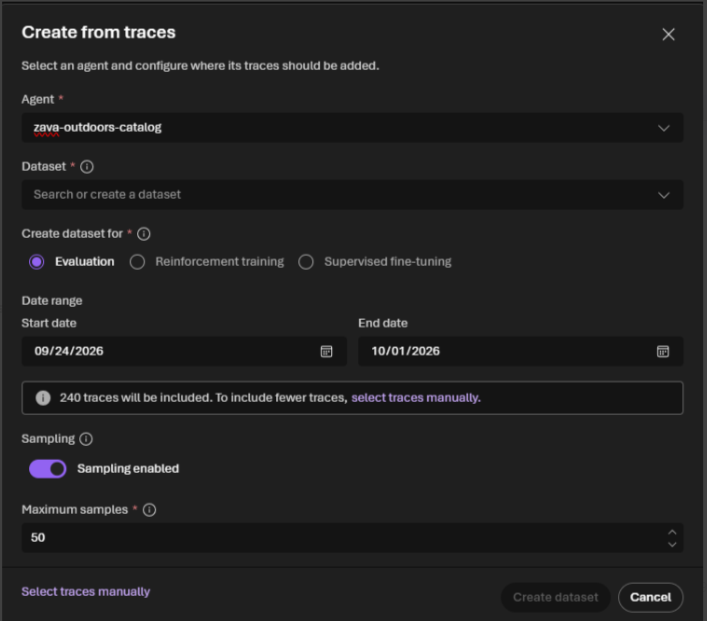
Select Create to submit the job. Dataset generation runs as a background job. You can track its status on the Data Generation tab.
When the job finishes, go to the Data tab and select the dataset to preview the generated rows, including the description, query, and response for each. From there you can download or delete the dataset.
Use the dataset. Finished evaluation data generation jobs link directly to starting an evaluation run.
Manually add traces to a dataset (portal)
To curate specific agent interactions, select traces from the traces table and add them to a new or existing dataset.
In the Foundry portal, open your project and agent, and then select Traces/Trace view.
In the traces table, use the available filters to narrow the trace list and select the traces that you want to add.
Select Add to dataset.
Choose whether to create a new dataset or add the traces to an existing dataset:
- For a new dataset, enter the required dataset details.
- For an existing dataset, select the dataset that you want to update.
Review and select Create to add the traces.
When the dataset is ready, a dataset creation notification appears. Select the dataset link in the notification to open the dataset and view the added rows.
Generate an evaluation dataset from traces (SDK)
Drive your deployed agent with realistic traffic, and then use those conversations to build an evaluation dataset. Define a time window or explicit trace IDs, point at your agent, configure sampling and private-content redaction, choose how to write the output dataset, and submit the job.
First, create an AIProjectClient by using your project endpoint and
DefaultAzureCredential. You can find all data generation operations under
project_client.datasets.
from azure.identity import DefaultAzureCredential
from azure.ai.projects import AIProjectClient

credential = DefaultAzureCredential()
project_client = AIProjectClient(
    endpoint="https://<your-resource>.services.ai.azure.com/api/projects/<your-project>",
    credential=credential,
)
Note
Application Insights takes 30–90 seconds to ingest spans. If you submit the job too quickly after capturing traffic, the job runs against an empty window and produces no samples.
import time
from datetime import datetime, timedelta, timezone

from azure.ai.projects.models import (
    DataGenerationJobOutputWriteMode,
    DatasetDataGenerationJobOutput,
    EvaluationDataGenerationJobInputs,
    EvaluationDataGenerationJobOutputTarget,
    TracesDataGenerationJobOptions,
    TracesDataGenerationJobSource,
)

AGENT_NAME = "retail-agent"
poll_interval_seconds = 10

# 1. Record the window around your traffic.
end_time = datetime.now(tz=timezone.utc)
start_time = end_time - timedelta(days=7)

# 2. Define an evaluation job. The class sets scenario="evaluation".
job = EvaluationDataGenerationJobInputs(
    name="retail-agent-eval-set",
    sources=[
        TracesDataGenerationJobSource(
            description=(
                "Application Insights conversation traces for the Foundry "
                "agent."
            ),
            agent_name=AGENT_NAME,
            start_time=start_time,
            end_time=end_time,
            # agent_version="3",  # Pin to a specific version.
            # trace_ids=["trace-id-1", "trace-id-2"],  # Select exact traces.
        ),
    ],
    generation_configuration=TracesDataGenerationJobOptions(
        # Omit max_samples to turn off intelligent sampling.
        max_samples=100,
        # Private content is redacted by default.
        redact_private_content=True,
    ),
    output_configuration=EvaluationDataGenerationJobOutputTarget(
        name="retail-agent-eval-set",
        description="Representative production traces for agent evaluation.",
        tags={"source": "production-traces"},
        write_mode=DataGenerationJobOutputWriteMode.OVERWRITE,
    ),
)

# 3. Submit and wait for completion.
poller = project_client.datasets.begin_create_generation_job(job=job)
while not poller.done():
    print(f"\tstatus=`{poller.status()}`")
    time.sleep(poll_interval_seconds)
result = poller.result()

# 4. Resolve the generated dataset.
output_name = ""
output_version = ""
for output in (result.outputs if result is not None else None) or []:
    if isinstance(output, DatasetDataGenerationJobOutput):
        output_name = output.name or ""
        output_version = output.version or ""
        break

dataset = project_client.datasets.get(name=output_name, version=output_version)
print(f"Generated dataset: {dataset.name} v{dataset.version} (id: {dataset.id})")
if result is not None and result.generated_samples is not None:
    print(f"Generated samples: {result.generated_samples}")
The job produces a versioned dataset registered in your project. When you set
max_samples, the number of rows is capped by that value but might be lower if
the window doesn't contain enough distinct, high-quality traces after
intelligent sampling.
The default write mode is DataGenerationJobOutputWriteMode.OVERWRITE, which
creates the next dataset version using only the newly generated rows. Set
write_mode to DataGenerationJobOutputWriteMode.MERGE to create the next
version by combining the new rows with the latest existing dataset version and
deduplicating trace rows. Neither mode modifies an existing dataset version in
place.
Whether you created the dataset from the portal or the SDK, you can preview it on the Data tab to inspect the generated rows before evaluating. You can also download or delete it from there.
Run an evaluation against the generated dataset
After the dataset exists, evaluate your agent against it. The generated dataset uses the standard query-response schema, so it works directly with the evaluation APIs. Pass the dataset's name and version (or its id) to your evaluation run.
For the full evaluation flow, including selecting evaluators and reviewing results, see Evaluate an agent target. For a complete runnable example that generates an evaluation dataset from traces, see sample_dataset_generation_job_traces_for_evaluation.py on GitHub.
Manage data generation jobs
Use project_client.datasets APIs to list, inspect, cancel, and delete data
generation jobs.
# List recent evaluation jobs.
for job in project_client.datasets.list_generation_jobs(
    limit=20,
    order="desc",
):
    if job.scenario == "evaluation":
        print(f"{job.id}  {job.status:<12}  {job.name}")

# Get a job.
job = project_client.datasets.get_generation_job(job_id="job_...")

# Cancel a running job.
project_client.datasets.cancel_generation_job(job_id="job_...")

# Delete a job record. Generated datasets remain available.
project_client.datasets.delete_generation_job(job_id="job_...")
Limitations
- The Application Insights resource connected to your Foundry project must allow public network access so the service can query Application Insights data. If Application Insights is behind an Azure Monitor Private Link Scope, make sure public network query access is enabled.
- If your Foundry project is connected to your own storage account, public network access must be enabled on that storage account for successful dataset creation.
Best practices
- Pin
agent_versionfor trace jobs. Without it, the job mixes spans from every active version, which can include stale behavior and weaken your evaluation signal. - Check
generated_samplesafter sampled jobs. When you setmax_samples, it is a ceiling, not a guarantee. Intelligent sampling removes duplicates and low-quality traces, so you can get fewer rows than the cap. - Use a representative time window. A seven-day window usually captures enough variety. Narrow windows around a known incident are useful for building targeted regression sets.
Related content
- Generate a synthetic evaluation dataset—bootstrap an evaluation dataset without production traces.
- Agent tracing in Microsoft Foundry
- Run cloud evaluations
- Trace-to-dataset generation sample (Python)
- Evaluate deployed conversations from traces (preview)