Note
Access to this page requires authorization. You can try signing in or changing directories.
Access to this page requires authorization. You can try changing directories.
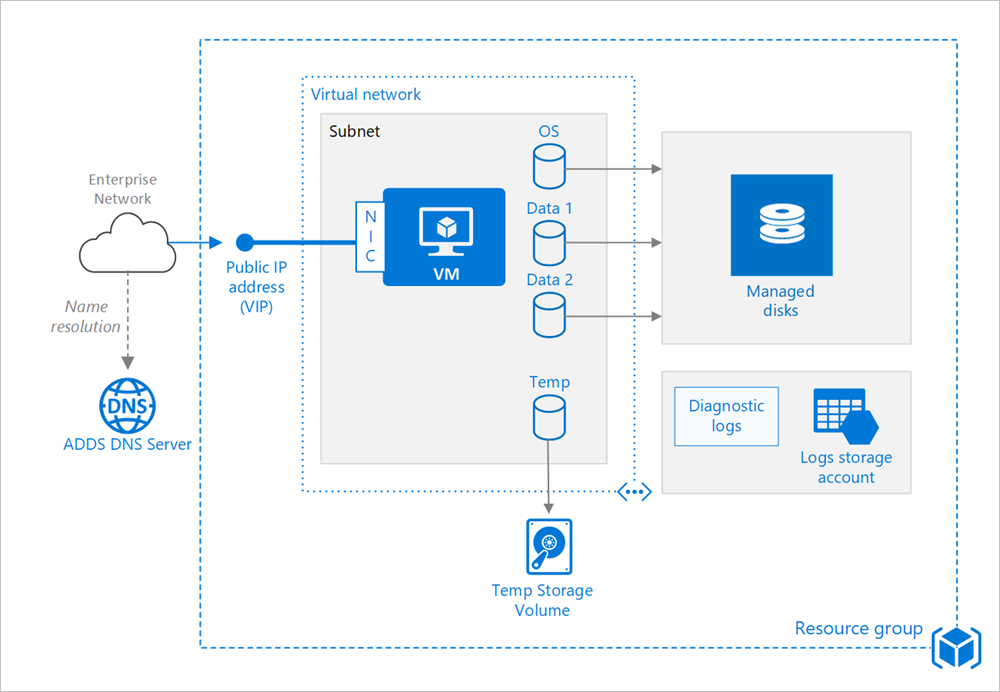
Provisioning a virtual machine (VM) in Azure Stack Hub, like Azure, requires some extra components besides the VM itself, including networking and storage resources. This article shows best practices for running a Linux VM on Azure Stack Hub.
Resource group
A resource group is a logical container that holds related Azure Stack Hub resources. In general, group resources based on their lifetime and who manages them.
Put closely associated resources that share the same lifecycle into the same resource group. Resource groups allow you to deploy and monitor resources as a group and track billing costs by resource group. You can also delete resources as a set, which is useful for test deployments. Assign meaningful resource names to simplify locating a specific resource and understanding its role. For more information, see Recommended Naming Conventions for Azure Resources.
Virtual machine
You can provision a VM from a list of published images, or from a custom-managed image or virtual hard disk (VHD) file uploaded to Azure Stack Hub Blob storage. Azure Stack Hub supports running various popular Linux distributions, including Debian, Red Hat Enterprise, Ubuntu, and SUSE. For more information, see Linux on Azure Stack Hub. You can also choose to syndicate one of the published Linux images that are available on the Azure Stack Hub Marketplace.
Azure Stack Hub offers different virtual machine sizes from Azure. For more information, see Sizes for virtual machines in Azure Stack Hub. If you're moving an existing workload to Azure Stack Hub, start with the VM size that's the closest match to your on-premises servers or Azure. Then measure the performance of your actual workload in terms of CPU, memory, and disk input/output operations per second (IOPS), and adjust the size as needed.
Disks
You pay based on the capacity of the provisioned disk. IOPS and throughput (that is, data transfer rate) depend on VM size. When you provision a disk, consider all three factors: capacity, IOPS, and throughput.
Disk IOPS (Input/Output Operations Per Second) on Azure Stack Hub is a function of VM size instead of the disk type. This function means that for a Standard_Fs series VM, regardless of whether you choose SSD or HDD for the disk type, the IOPS limit for a single extra data disk is 2,300 IOPS. The IOPS limit you set is a cap (maximum possible) to prevent noisy neighbors. It isn't an assurance of IOPS that you get on a specific VM size.
We also recommend using Managed Disks. Managed disks simplify disk management by handling the storage for you. Managed disks do not require a storage account. You simply specify the size and type of disk and it is deployed as a highly available resource.
The OS disk is a VHD stored in Azure Stack Hub Storage, so it persists even when the host machine is down. For Linux VMs, the OS disk is /dev/sda1. We also recommend creating one or more data disks, which are persistent VHDs used for application data.
When you create a VHD, it's unformatted. Log into the VM to format the disk. In the Linux shell, data disks appear as /dev/sdc, /dev/sdd, and so on. You can run lsblk to list the block devices, including the disks. To use a data disk, create a partition and file system, and mount the disk. For example:
# Create a partition.
sudo fdisk /dev/sdc \# Enter 'n' to partition, 'w' to write the change.

# Create a file system.
sudo mkfs -t ext3 /dev/sdc1

# Mount the drive.
sudo mkdir /data1
sudo mount /dev/sdc1 /data1
When you add a data disk, you assign a logical unit number (LUN) ID to the disk. Optionally, you can specify the LUN ID - for example, if you're replacing a disk and want to retain the same LUN ID, or you have an application that looks for a specific LUN ID. However, remember that LUN IDs must be unique for each disk.
You create the VM with a temporary disk. This disk is stored on a temporary volume on the Azure Stack Hub storage infrastructure. It might be deleted during reboots and other VM lifecycle events. Use this disk only for temporary data, such as page or swap files. For Linux VMs, the temporary disk is /dev/sdb1 and is mounted at /mnt/resource or /mnt.
Network
The networking components include the following resources:
Virtual network. Deploy every VM into a virtual network that you can segment into multiple subnets.
Network interface (NIC). The NIC enables the VM to communicate with the virtual network. If you need multiple NICs for your VM, be aware that each VM size defines a maximum number of NICs.
Public IP address/VIP. You need a public IP address to communicate with the VM - for example, via Remote Desktop Protocol (RDP). The public IP address can be dynamic or static. The default is dynamic. If you need multiple NICs for your VM, be aware that each VM size defines a maximum number of NICs.
You can also create a fully qualified domain name (FQDN) for the IP address. You can then register a CNAME record in DNS that points to the FQDN. For more information, see Create a fully qualified domain name in the Azure portal.
Network security group (NSG). Use NSGs to allow or deny network traffic to VMs. Associate NSGs either with subnets or with individual VM instances.
All NSGs contain a set of default rules, including a rule that blocks all inbound Internet traffic. You can't delete the default rules, but other rules can override them. To enable Internet traffic, create rules that allow inbound traffic to specific ports - for example, port 80 for HTTP. To enable SSH, add an NSG rule that allows inbound traffic to TCP port 22.
Operations
SSH. Before you create a Linux VM, generate a 2048-bit RSA public-private key pair. Use the public key file when you create the VM. For more information, see How to Use SSH with Linux on Azure.
Diagnostics. Enable monitoring and diagnostics, including basic health metrics, diagnostics infrastructure logs, and boot diagnostics. Boot diagnostics can help you diagnose boot failure if your VM gets into a non-bootable state. Create an Azure Storage account to store the logs. A standard locally redundant storage (LRS) account is sufficient for diagnostic logs. For more information, see Enable monitoring and diagnostics.
Availability. Planned maintenance as scheduled by the Azure Stack Hub operator might cause a reboot of your VM. For higher availability, deploy multiple VMs in an availability set.
Backups For recommendations on protecting your Azure Stack Hub IaaS VMs, see this article.
Stopping a VM. Azure makes a distinction between "stopped" and "deallocated" states. You're charged when the VM status is stopped, but not when the VM is deallocated. In the Azure Stack Hub portal, the Stop button deallocates the VM. If you shut down through the OS while logged in, the VM is stopped but not deallocated, so you still pay.
Deleting a VM. If you delete a VM, the VM disks aren't deleted. That means you can safely delete the VM without losing data. However, you still pay for storage. To delete the VM disk, delete the managed disk object. To prevent accidental deletion, use a resource lock to lock the entire resource group or lock individual resources, such as a VM.
Security considerations
Onboard your VMs to Azure Security Center to get a central view of the security state of your Azure resources. Windows Security Center monitors potential security issues and provides a comprehensive picture of the security health of your deployment. Configure Security Center per Azure subscription. Enable security data collection as described in Onboard your Azure subscription to Security Center Standard. When data collection is enabled, Security Center automatically scans any VMs created under that subscription.
Patch management. To configure patch management on your VM, see this article. If enabled, Security Center checks whether any security and critical updates are missing. Use Group Policy settings on the VM to enable automatic system updates.
Antimalware. If enabled, Security Center checks whether antimalware software is installed. You can also use Security Center to install antimalware software from inside the Azure portal.
Access control. Use role-based access control (RBAC) to control access to Azure resources. RBAC lets you assign authorization roles to members of your DevOps team. For example, the Reader role can view Azure resources but not create, manage, or delete them. Some permissions are specific to an Azure resource type. For example, the Virtual Machine Contributor role can restart or deallocate a VM, reset the administrator password, create a new VM, and so on. Other built-in RBAC roles that might be useful for this architecture include DevTest Labs User and Network Contributor.
Note
RBAC doesn't limit the actions that a user logged into a VM can perform. The account type on the guest operating system determines those permissions.
Audit logs. Use activity logs to see provisioning actions and other VM events.
Data encryption. Azure Stack Hub protects user and infrastructure data at the storage subsystem level by using encryption at rest. Azure Stack Hub's storage subsystem uses BitLocker with 128-bit AES encryption for encryption. For more information, see this article.
Next steps
- To learn more about Azure Stack Hub VMs, see Azure Stack Hub VM features.
- To learn more about Azure Cloud Patterns, see Cloud Design Patterns.