Note
Access to this page requires authorization. You can try signing in or changing directories.
Access to this page requires authorization. You can try changing directories.
This article describes troubleshooting steps you can take after you configure a site-to-site (S2S) VPN connection between an on-premises network and an Azure Stack Hub virtual network, and the connection suddenly stops working and can't be reconnected.
If your Azure Stack Hub issue isn't addressed in this article, you can visit the Azure Stack Hub Q&A forum.
You can also submit an Azure support request. For more information, see Azure Stack Hub support.
Note
You can create only one site-to-site VPN connection between two Azure Stack Hub deployments. This limitation exists because the platform only allows a single VPN connection to the same IP address. Because Azure Stack Hub leverages the multitenant gateway, which uses a single public IP for all VPN gateways in the Azure Stack Hub system, there can be only one VPN connection between two Azure Stack Hub systems. This limitation also applies to connecting more than one site-to-site VPN connection to any VPN gateway that uses a single IP address. Azure Stack Hub doesn't allow more than one local network gateway resource to be created using the same IP address. All VPN gateways from the same Azure Stack Hub deployment, regardless of virtual network or subscription, are assigned the same public IP.
Initial troubleshooting steps
The Azure Stack Hub default parameters for IPsec/IKEV2 have changed:
Important
When you use an S2S tunnel, packets are further encapsulated with additional headers. This encapsulation increases the overall size of the packet. In these scenarios, you must clamp TCP MSS at 1350. If your VPN devices don't support MSS clamping, you can set the MTU on the tunnel interface to 1400 bytes instead. For more information, see Virtual Network TCPIP performance tuning.
Confirm that the VPN configuration is route-based (IKEv2). Azure Stack Hub doesn't support policy-based (IKEv1) configurations.
Check whether you're using a validated VPN device and operating system version. If the device isn't a validated VPN device, you might have to contact the device manufacturer to see if there's a compatibility issue.
Verify that there are no overlapping IP ranges between Azure Stack Hub virtual network and on-premises network. This overlap can cause connectivity issues.
Verify the VPN peer IPs:
The IP definition in the Local Network Gateway object in Azure Stack Hub should match the on-premises device IP.
The Azure Stack Hub gateway IP definition that you set on the on-premises device should match the Azure Stack Hub gateway IP.
Status "Not Connected" - intermittent disconnects
Compare the shared key for the on-premises VPN device to the AzSH virtual network VPN to make sure that the keys match. To view the shared key for the AzSH VPN connection, use one of the following methods:
Azure Stack Hub tenant portal: Go to the Azure VPN Gateway site-to-site connection that you created. In the Settings section, select Shared key.
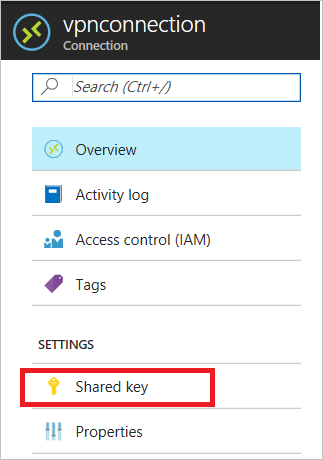
Azure PowerShell: Use the following PowerShell command:
Get-AzVirtualNetworkGatewayConnectionSharedKey -Name <Connection name> -ResourceGroupName <Resource group>
Status "Connected" - traffic not flowing
Check for, and remove, the user-defined routing (UDR) and network security groups (NSGs) on the gateway subnet, and then test the result. If the problem is resolved, validate the settings that UDR or NSG applied.
A user-defined route on the gateway subnet might restrict some traffic and allow other traffic. This restriction makes it appear that the VPN connection is unreliable for some traffic, and good for other traffic.
Check the on-premises VPN device external interface address.
If you include the internet-facing IP address of the VPN device in the Local network definition in Azure Stack Hub, you might experience sporadic disconnections.
The device's external interface must be directly on the internet. There should be no network address translation or firewall between the internet and the device.
To configure firewall clustering to have a virtual IP, you must break the cluster and expose the VPN appliance directly to a public interface with which the gateway can interface.
Verify that the subnets match exactly.
Verify that the virtual network address spaces match exactly between the Azure Stack Hub virtual network and on-premises definitions.
Verify that the subnets match exactly between the Local Network Gateway and on-premises definitions for the on-premises network.
Create a support ticket
If none of the preceding steps resolve your issue, create a support ticket and use the on demand log collection tool to provide logs.