Note
Access to this page requires authorization. You can try signing in or changing directories.
Access to this page requires authorization. You can try changing directories.
The Defender for Servers plan in Microsoft Defender for Cloud uses Microsoft Defender Vulnerability Management to continuously scan your virtual machines (VMs) and identify vulnerabilities.
Defender for Servers presents vulnerability findings as recommendations. Recommendations include remediation steps, related Common Vulnerabilities and Exposures (CVEs), and Common Vulnerability Scoring System (CVSS) scores. You can review findings across subscriptions or for one VM.
If your organization needs to ignore certain findings, create a disable rule. Disabled findings don't affect secure score and don't appear in the findings list.
You might disable findings for:
- Vulnerabilities with a severity less than medium
- Unpatchable vulnerabilities
- Vulnerabilities with CVSS score less than 6.5
- Findings with specific text in the security check or category (for example, “Red Hat”)
Prerequisites
- Vulnerability scanning must be enabled.
- To create a rule to ignore findings, you need permissions to edit a policy in Azure Policy.
- View vulnerability assessment findings before you start.
Disable specific findings
To disable specific vulnerability findings, follow these steps:
Sign in to the Azure portal.
Go to Defender for Cloud > Recommendations.
Find the recommendation Machines should have vulnerability findings resolved.
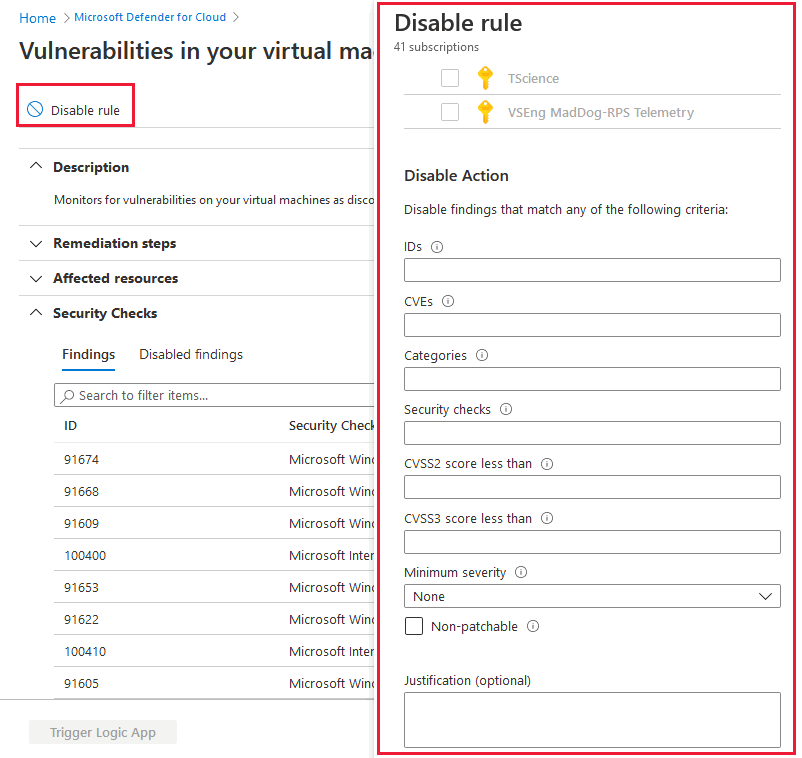
On the recommendation details page, select the Take action tab, and then select Disable rule.
In the Disable rule pane, specify the criteria for the findings you want to disable. You can specify:
- IDs – Enter one or more finding IDs (separate multiple IDs with semicolons).
- CVEs – Enter CVE identifiers for the findings you want to disable.
- Categories – Enter the categories of findings to disable.
- Security checks – Enter text from the security check name for findings to disable.
- CVSS2 and CVSS3 scores – To filter by score, enter a value between 1 and 10.
- Minimum severity – Select Medium or High to exclude findings with a lower severity.
- Patchable status – Select this option to exclude findings that can't be patched.
Optionally, add a justification, and then select Apply rule. The rule might take up to 24 hours to take effect.
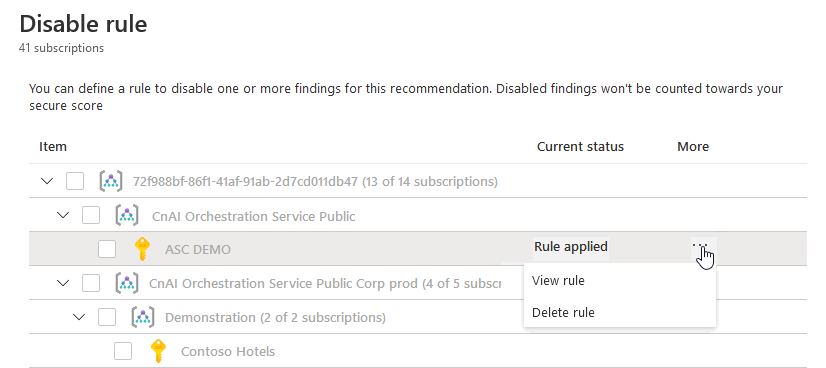
To view the rule status, open the Disable rule page. In the Scope list, subscriptions with active findings show the status Rule applied.