Note
Access to this page requires authorization. You can try signing in or changing directories.
Access to this page requires authorization. You can try changing directories.
Important
This feature is in Beta. To use it, a workspace admin must turn on Full page Genie Code from the Previews page. See Manage Azure Databricks previews.
Genie Code has a full page command center experience where the active chat is shown prominently, surfacing assets like notebooks and files alongside it as tabs when needed. You can start work directly from Genie Code, run multiple chats in parallel, switch between chats while they continue running in the background, and personalize how Genie Code works with skills, instructions, and MCP servers.
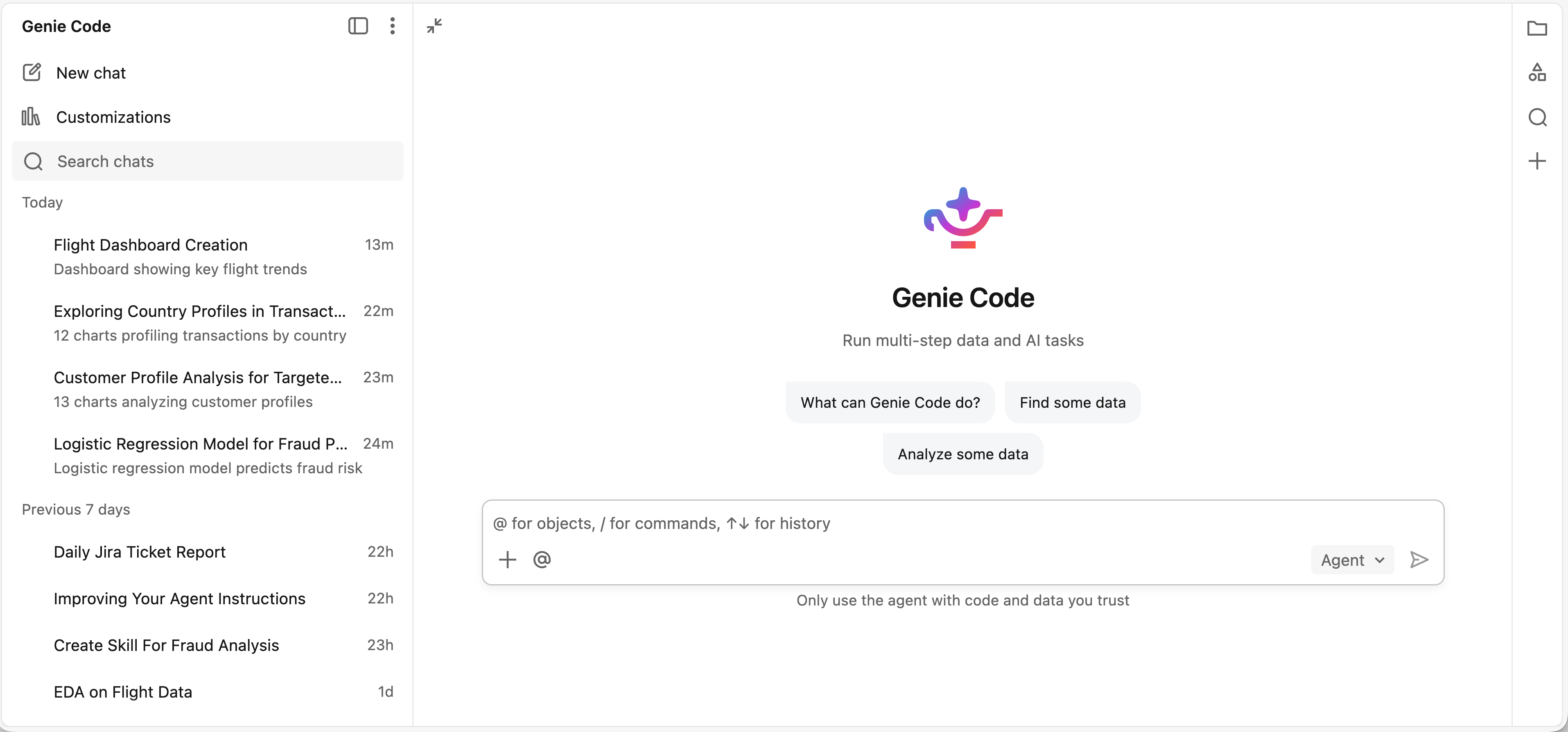
Full page Genie Code is the recommended experience for starting work from scratch or running multiple tasks in parallel. If you are primarily working with an existing asset, such as debugging a notebook, monitoring an endpoint, or exploring a table in Unity Catalog, the side pane is a convenient alternative.
Open full page Genie Code
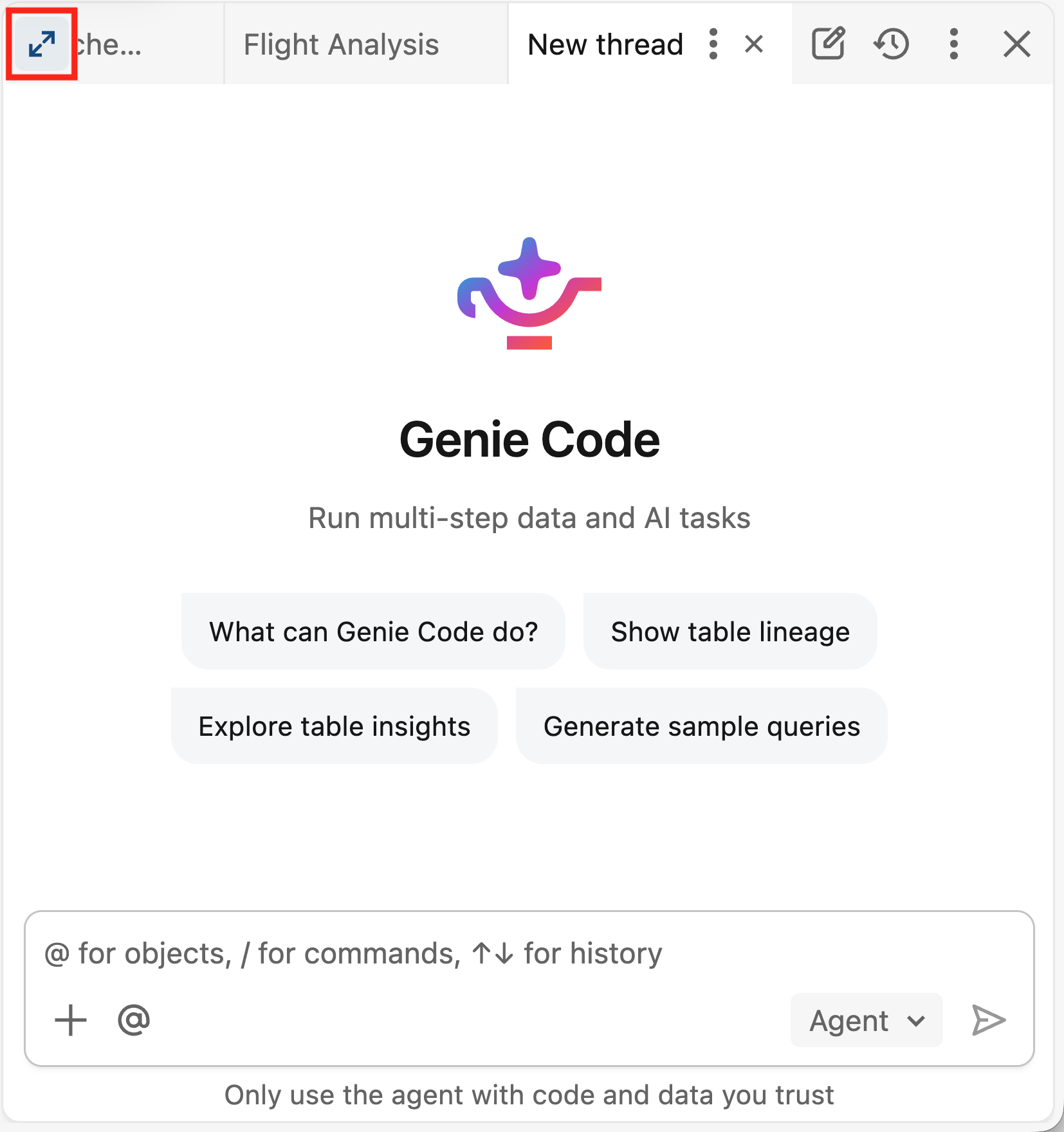
To open full page Genie Code, click the Maximize button in the Genie Code side pane, or enter a prompt for Genie Code from your workspace home page and select Code.
Start a new chat and describe what you want Genie Code to do. Genie Code works on the task directly in the chat, running analysis and making changes as it goes. When it needs to edit or run a specific asset such as a notebook or file, that asset opens as a tab alongside the chat so you can review it. For some assets, such as AI/BI dashboards, Genie Code might navigate to that page to make edits and keep the chat in the side pane.
Tour of full page Genie Code
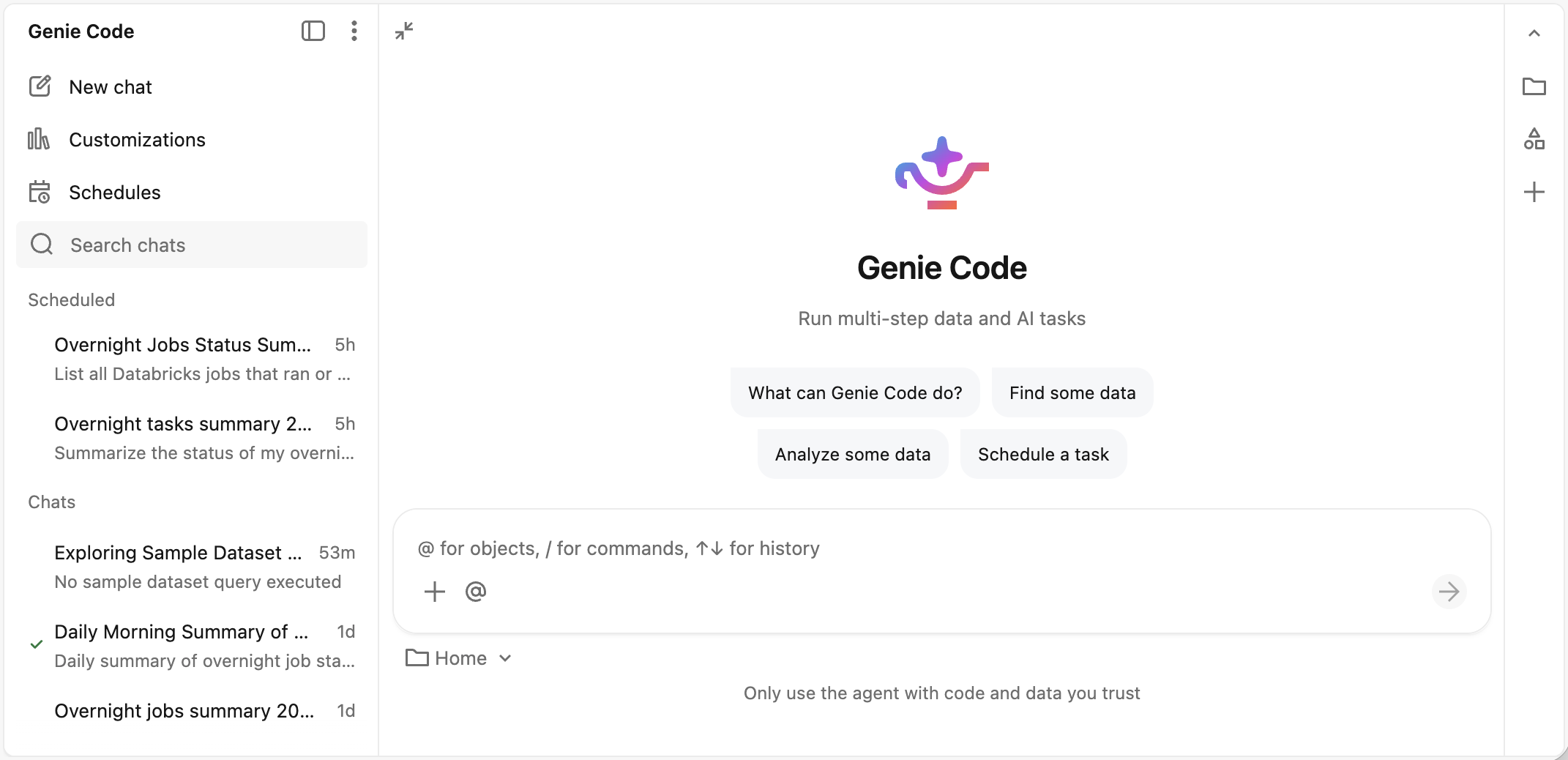
 Close chat bar: Collapse the full page Genie Code chat sidebar.
 More options: Access Genie Code settings, get help, and send feedback to Databricks.
 New chat: Start a new Genie Code chat.
 Customization: Manage skills, instructions, and MCP servers to personalize how Genie Code works.
 Schedules: Manage scheduled tasks.
 Search: Search your Genie Code chats to quickly find previous chats and continue work.
- Scheduled tasks list: Most recent run of each scheduled task is shown here.
- Chat list: Shows all your Genie Code chats. Each entry shows the chat title and when the last prompt was sent.
- To switch chats, click any entry. You can switch while Genie Code is still working, whether it is running in the chat or editing a notebook.
- To manage a chat, hover over it and click the kebab menu. You can share, make a copy, rename, or delete the chat.
- Chat view: The active chat, where Genie Code performs work. Assets Genie Code produces open as tabs alongside the chat, or redirect to the asset page.