Note
Access to this page requires authorization. You can try signing in or changing directories.
Access to this page requires authorization. You can try changing directories.
Azure DevOps Services | Azure DevOps Server | Azure DevOps Server 2022
Rollup automatically sums child work item values to display totals on parent items. Use it to track work estimates, effort, size, or story points across your backlog hierarchy. Learn how to add rollup columns to backlogs, sprint planning, and taskboards.
Important
- Rollup supports progress bars, work item counts, and numeric field sums for descendant work items within the same project.
- Rollup requires parent-child links in the backlog hierarchy; test case links aren't included in rollup calculations.
- In Delivery Plans, child items from other projects aren't included in rollup calculations.
- Support for specific numeric fields, such as Effort, Story Points, or Size, depends on the selected backlog level and process configuration.
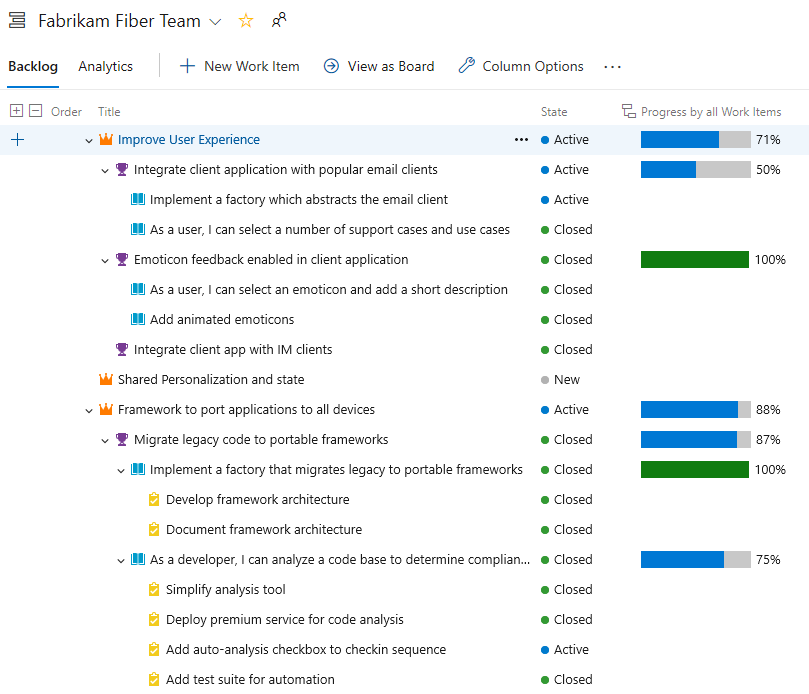
In the following example, Progress by Work Items shows progress bars based on the percentage of closed descendant items. For Epics, this includes all child Features and their descendants. For Features, this includes all child User Stories and their descendants.
Note
Rollup progress is available in Delivery Plans. For more information, see Review team Delivery Plans.
Prerequisites
| Category | Requirements |
|---|---|
| Required access | You can open the target backlog or Delivery Plan, edit column options for your view, and have Basic or Stakeholder access, based on your project configuration. |
| Hierarchy readiness | Parent and child work items are linked with parent-child relationships. |
| Field readiness | The numeric fields you want to roll up are present on child work item types. |
| Category | Requirements |
|---|---|
| Analytics service | Analytics must be enabled on Azure DevOps Server. For more information, see Install/uninstall or enable/disable the Analytics service. |
| Required access | You can open the target backlog and edit column options for your view. |
| Hierarchy readiness | Parent and child work items are linked with parent-child relationships. |
| Field readiness | The numeric fields you want to roll up are present on child work item types. |
Rollup and hierarchical work items
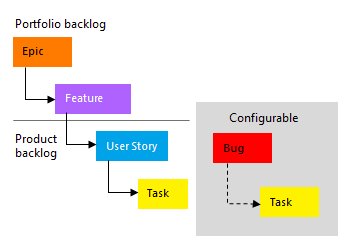
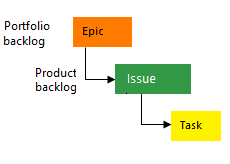
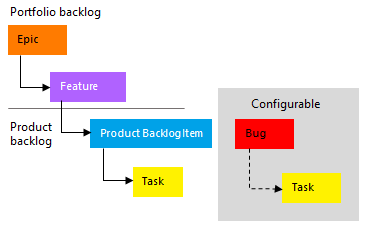
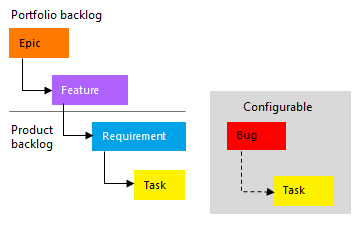
Backlog hierarchy differs by process, but the rollup setup pattern is the same:
- Use parent-child links to build the hierarchy.
- Map items in the backlog or add items directly under a parent.
- Confirm the hierarchy before adding rollup columns.
For setup details, see Organize your backlog, map child work items to parents and Board features and epics.
In the Agile process, teams can manage bugs at the same level as User Stories or Tasks by adjusting the Working with bugs setting.
Open a product or portfolio backlog
Column options are user-specific and persist for each backlog.
Open a product or portfolio backlog.
In View options, select Show parents to keep parent context visible.
For portfolio backlogs, select In Progress Items and Completed Child Items to compare each item's State with rollup values.
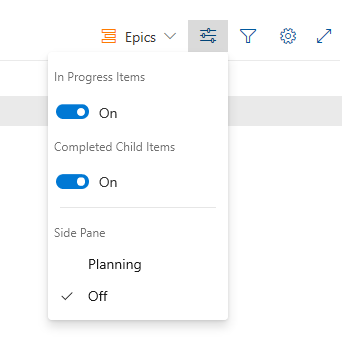
Select Column options. If Column options isn't visible, select the
 actions icon, and then select Column options.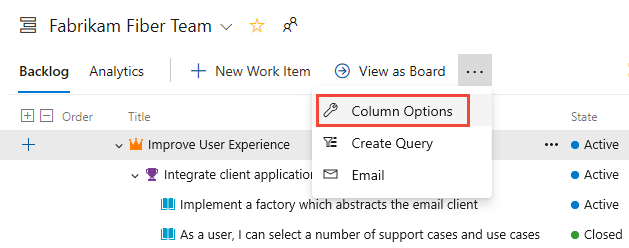
Tip
The column options you select apply to the chosen backlog level and persist across sessions until you change them.
Add a rollup column
Use From quick list to quickly add common rollup columns.
From your backlog, select Column options > Add a rollup column > From quick list.
Choose the rollup option you want.
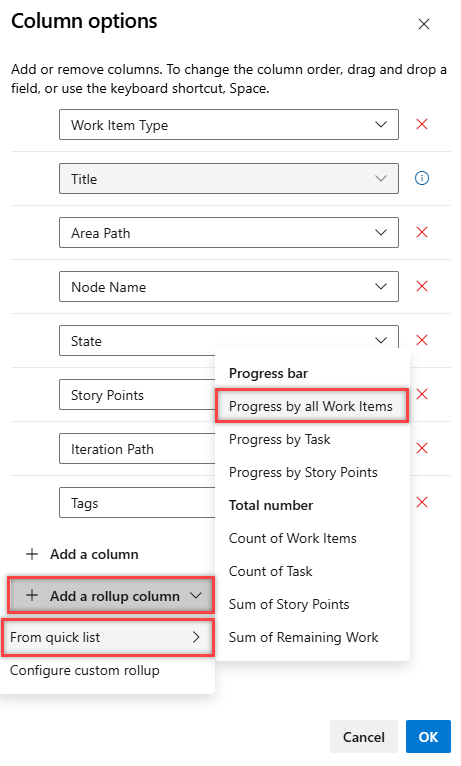
Available options vary by:
- Process type
- Backlog level
- Whether Show parents is enabled
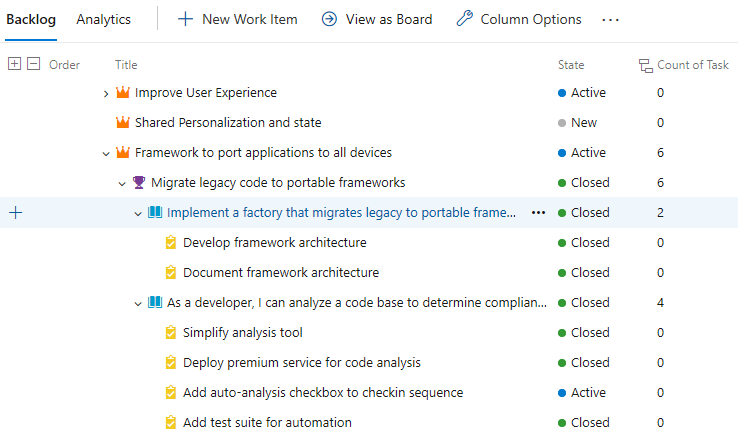
In this example, Count of Tasks is 2 and 4 for the parent user stories, and 6 for the parent Feature and Epic.
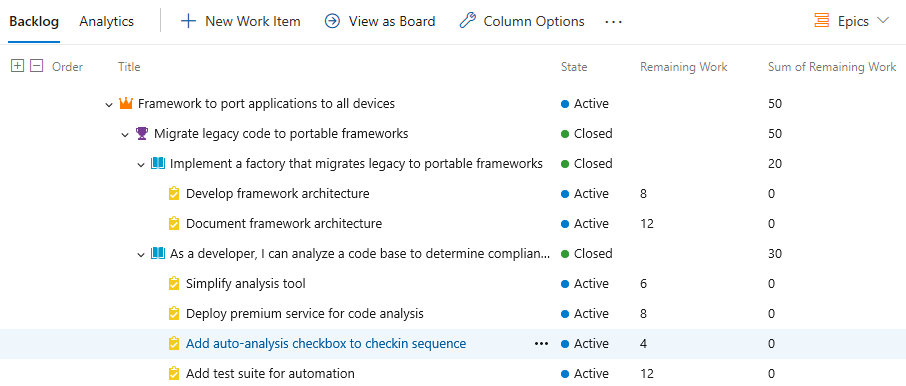
(Optional) Add Remaining Work of Tasks to show the sum of Remaining Work across linked child tasks.
Tip
When you close a task, the Remaining Work field automatically sets to zero.
Get rollup data
Pick the method that matches your goal:
| Scenario | Best method |
|---|---|
| Day-to-day backlog tracking | Use product or portfolio backlogs |
| Sprint execution tracking | Use sprint planning pane or taskboard |
| One-time analysis | Create a flat list query and export to Excel |
| Dashboard/reporting | Use Analytics Service with dashboards or Power BI |
| Additional visualization options | Use Azure DevOps Marketplace extensions such as Roll-up Board |
Use product and portfolio backlogs
Use this method for day-to-day backlog tracking.
Go to your product or portfolio backlog.
Ensure that the backlog view includes the fields you want to roll up.
Verify result: rollup values appear for parent items in the backlog.
Use the sprint planning pane
Use this method during sprint planning.
Open the sprint planning pane.
Add the fields you want to roll up to the view.
Verify result: rollup values appear for parent work items.
Use a sprint backlog and taskboard
Use this method during sprint execution.
Go to your sprint backlog or taskboard.
Ensure that the view includes the fields you want to roll up.
Verify result: rollup values appear for parent work items.
Analytics, latency, and error states
The Analytics service calculates rollup data.
What to expect:
- Large datasets can cause temporary display latency.
- You can check status by hovering over the
 rollup icon.
 - If data isn't ready, the
 info icon can appear and some rows might be empty.
After Analytics finishes processing recent changes, rollup columns refresh automatically.
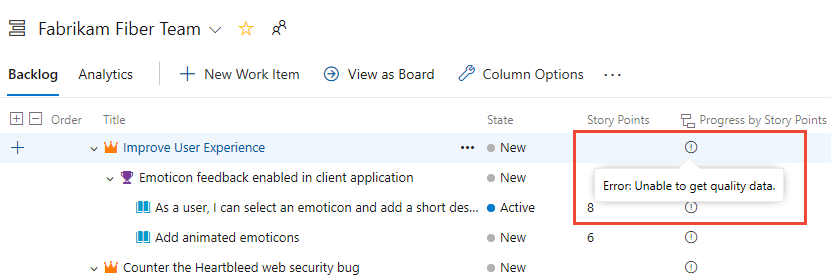
For more information, see What is Analytics?
Change rollup columns
Use these actions in Column options:
- To change the column order, drag a field to a new position.
- To resize a column, drag the divider to the right of the column name.
- To remove a column, select
 .
.
Rollup of custom work item types or custom fields
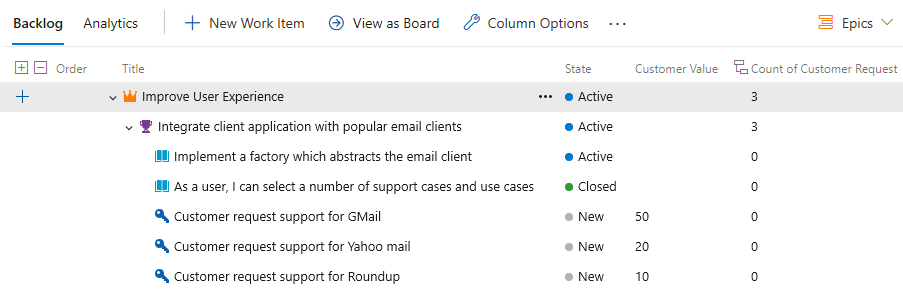
If you add a custom work item type or field to a backlog level, you can view rollup data based on those options. For example, if you add the Customer Request type to the Requirements category, the following image shows a Count of Customer Requests.
From the Column options dialog, select Add a rollup column > Configure custom rollup.
Choose the options you want from the Custom Rollup column dialog.
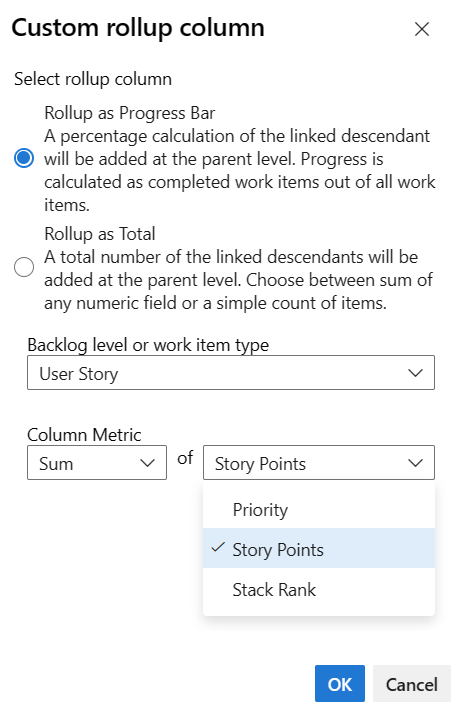
Select OK > OK to complete your operations.
Tip
After adding custom fields or custom work item types, refresh the backlog page to see your changes.
Troubleshoot rollup problems
Use this table when rollup results don't appear as expected.
| Symptom | Likely cause | Resolution |
|---|---|---|
| Add a rollup column option isn't available | Backlog level, permissions, or view context doesn't support the current action | Confirm you opened a supported backlog level and can edit Column options in your view. |
| Rollup column shows blank values | Parent-child links are missing or selected field isn't available on child work item types | Verify parent-child relationships and confirm target fields exist on child work item types. |
| Rollup values don't match expected totals | Links include unsupported scenarios (for example, test case links) or hierarchy is incomplete | Review linked descendants and ensure rollup inputs come from supported parent-child hierarchy only. |
| Rollup values appear stale | Analytics processing delay | Wait for Analytics processing to complete, then refresh the page. |
| Cross-project totals are missing in Delivery Plans | Delivery Plans rollup doesn't include child items from other projects | Use same-project hierarchy for Delivery Plans rollup calculations. |