Note
Access to this page requires authorization. You can try signing in or changing directories.
Access to this page requires authorization. You can try changing directories.
Azure DevOps Services | Azure DevOps Server | Azure DevOps Server 2022
Important
Public projects in Azure DevOps are retired. Starting in 2027, existing public projects convert to private. For more information, see Public projects retirement and Migrate from a public project to GitHub.
Stakeholders are users with free but limited access to Azure DevOps features and functions. This guide covers work item management with Stakeholder access in Azure Boards. You can add and modify work items, view dashboards, and check project status to provide direction, feedback, and business alignment to your team. For information on all Stakeholder capabilities, see the Stakeholder access quick reference.
Stakeholders are users with free but limited access to Azure DevOps features and functions. This guide covers work item management with Stakeholder access in Azure Boards. You can add and modify work items and view dashboards to check project status and provide direction, feedback, and business alignment to your team.
For more information, see the Stakeholder access quick reference and features available at each access level.
Important
If your Visual Studio subscription or GitHub Enterprise license expires, your Azure DevOps access might be limited to Stakeholder, restricting access to Azure Repos and Azure Pipelines.
Tip
You can use AI to help with this task later in this article, or see Enable AI assistance with Azure DevOps MCP Server to get started.
Prerequisites
| Category | Requirements |
|---|---|
| Private project: | |
| Access levels | Stakeholder access. To get access as a Stakeholder, ask your organization owner or Project Collection Administrator to add you to a project with Stakeholder access. For more information, see Add organization users and manage access. |
| Permissions | Member of the Contributors or Project Administrators group. You can view boards, open and modify work items, and add child tasks to a checklist. You can add existing tags to work items but can't create new tags. You can't reorder or reparent a backlog item by using the drag-and-drop method. You can't update a field on a card. |
| Public project: | |
| Access levels | Stakeholder access. |
| Permissions | Member of the Contributors or Project Administrators group for full access. You can add existing tags but can't create new tags. For more information, see Default permissions quick reference. |
| Category | Requirements |
|---|---|
| Private project: | |
| Access levels | Stakeholder access. To get access as a Stakeholder, ask your server administrator to add you to a security group that has Stakeholder access. For more information, see Change access levels. |
| Permissions | Member of the Contributors or Project Administrators group. You can view boards, open and modify work items, and add child tasks to a checklist. You can add existing tags to work items but can't create new tags. You can't reorder or reparent a backlog item by using the drag-and-drop method. You can't update a field on a card. |
| Public project: | |
| Access levels | Stakeholder access. |
| Permissions | Member of the Contributors or Project Administrators group for full access. You can add existing tags but can't create new tags. For more information, see Default permissions quick reference. |
Sign in to a project
Select the link provided in your email invitation or open a browser window and enter the URL for the web portal.
https://dev.azure.com/{OrganizationName}/{ProjectName}http://ServerName:8080/tfs/DefaultCollection/ProjectNameFor example, to connect to the server named FabrikamPrime and the project named Contoso, enter
http://FabrikamPrime:8080/tfs/DefaultCollection/Contoso.Enter your credentials. If you can't sign in, ask the organization owner or Project Administrator to add you as a member of the project with Stakeholder access.
Understand work items and types
Work items support planning and tracking work. Each work item is based on a work item type and is assigned a unique identifier within an organization or project collection.
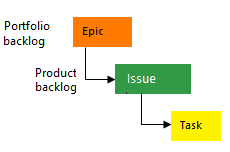
Different work items track different types of work. The work item types available are based on the process used when your project was created: Agile, Basic, Scrum, or Capability Maturity Model Integration (CMMI), as illustrated in the following images. For more information, see About work items and work item types.
To find which process your project uses, see Determine your project's process.
This diagram shows the Agile process backlog hierarchy:

- Use user stories and tasks to track work.
- Use bugs to track code defects.
- Use epics and features to group work under larger scenarios.
Each team can configure whether to manage bugs at the same level as user story or task work items. Use the Working with bugs setting. For more information about using these work item types, see Agile process.


Open your board
After you connect to a project, you can view work items.
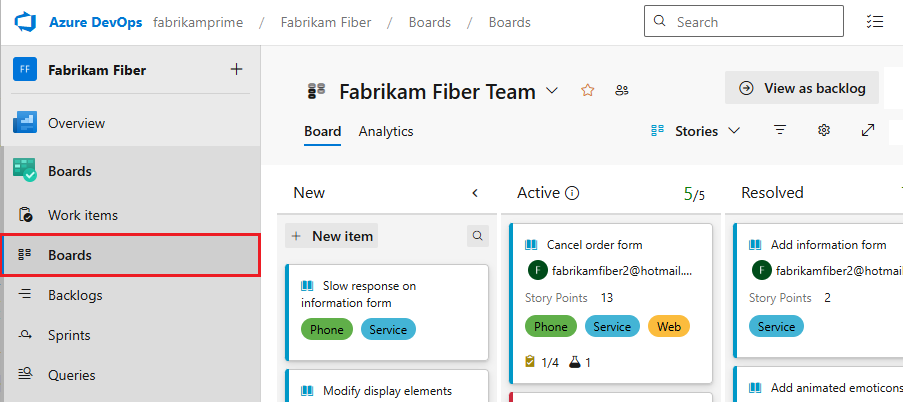
In your project, select Boards > Boards. From the dropdown menu, select a team board.
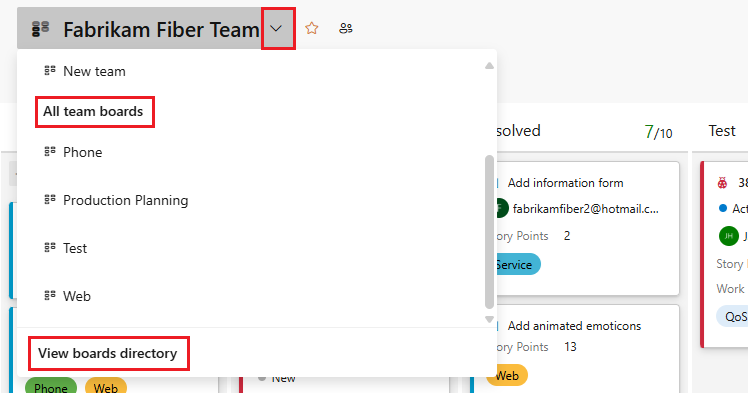
You can also enter a keyword in the search box or select View Board directory to see a list of available team boards.
Tip
Select the
 star icon to make a team board a favorite. Favorite boards appear at the top of the team selector list, helping you quickly access the boards you use most frequently.
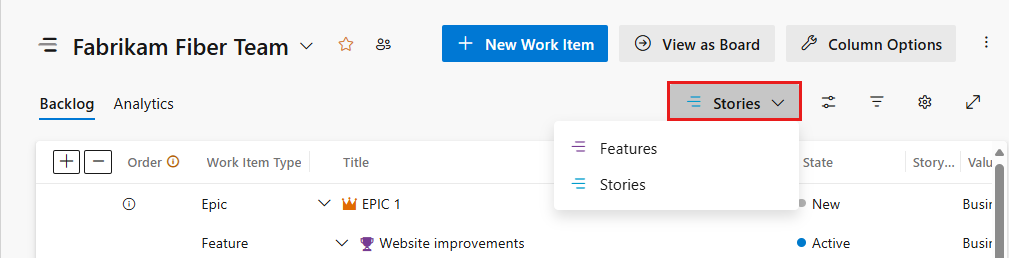
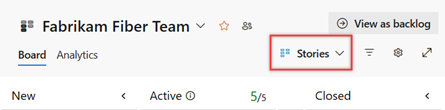
Ensure that for the backlog level, you select:
- Stories for Agile.
- Issues for Basic.
- Backlog items for Scrum.
- Requirements for CMMI.
In your project, select Boards > Boards. From the dropdown menu, select a team board.
To select another team's board, open the selector. Then select a different team, or select the
 Browse all team boards option. Or, you can enter a keyword in the search box to filter the list of team backlogs for the project.
Tip
Select the
star icon to make a team board a favorite. Favorite boards appear at the top of the team selector list, helping you quickly access the boards you use most frequently.Ensure that for the backlog level, you select:
- Stories for Agile.
- Issues for Basic.
- Backlog items for Scrum.
- Requirements for CMMI.
Add work items
With Stakeholder access, the steps to add work items depend on your Azure DevOps version:
- Azure DevOps Services (cloud): Add items directly from your board
- Azure DevOps Server (on-premises): Add items from the backlog view
Add items from your board (Azure DevOps Services)
From your board, select the  plus sign, enter a title, and then press Enter.

Add items from your backlog (Azure DevOps Server)
- From your project, select Boards > Backlog.
- In the backlog view, select the
plus sign to add a new item.
- Enter the work item title and press Enter.
Note
With Stakeholder access on on-premises, you can't add work items from the Kanban board. You must use the backlog view. Also, you can't update the status of a work item by using the drag-and-drop method to move to a different column or reorder cards within a column.
For more information, see View and add work items.
Update work items
Your work item forms might differ from the following images, but the functionality is the same.
Change status
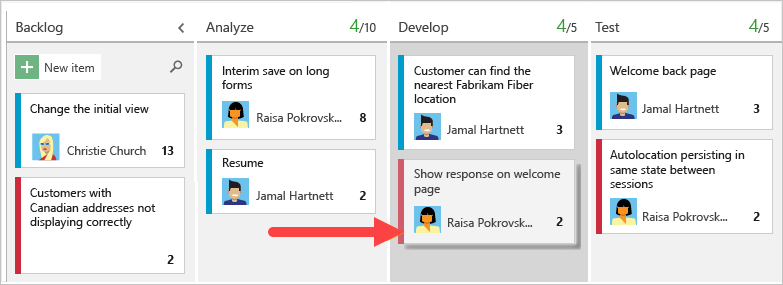
Drag a work item downstream as you finish work.
Add details
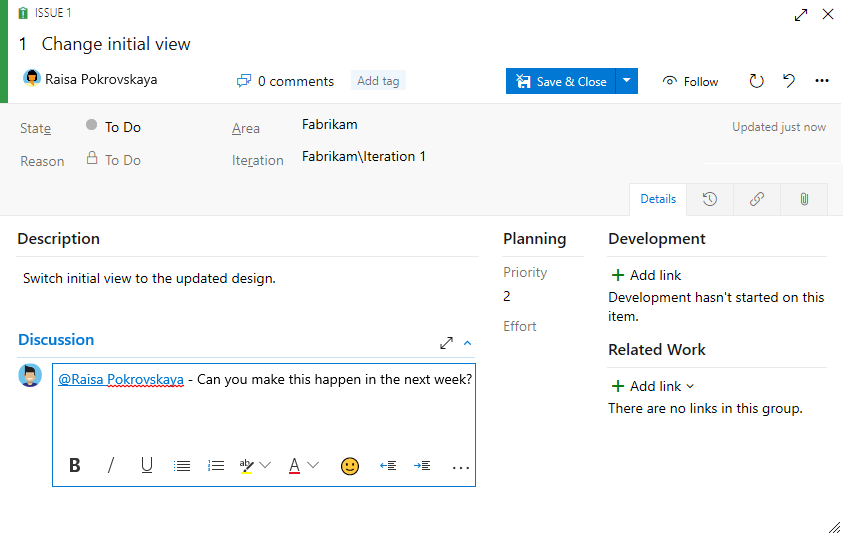
To open a work item, double-click the title or highlight it, and then select Enter. This example shows how to assign work. You can only assign work to a user who is added to the project.
This example assigns the story to Raisa Pokrovskaya and at-mentions Raisa in a discussion note. When you're finished, select Save & Close.

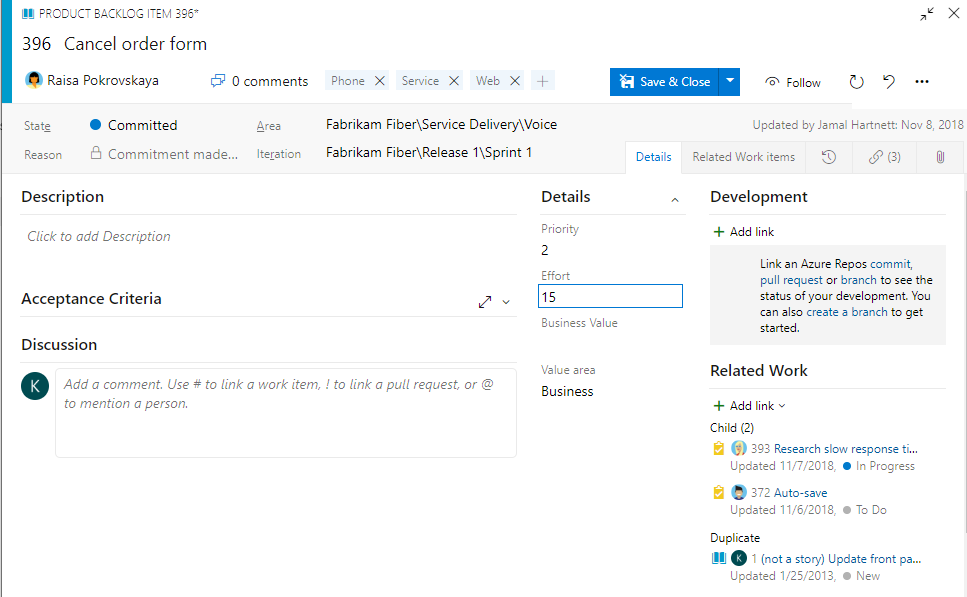
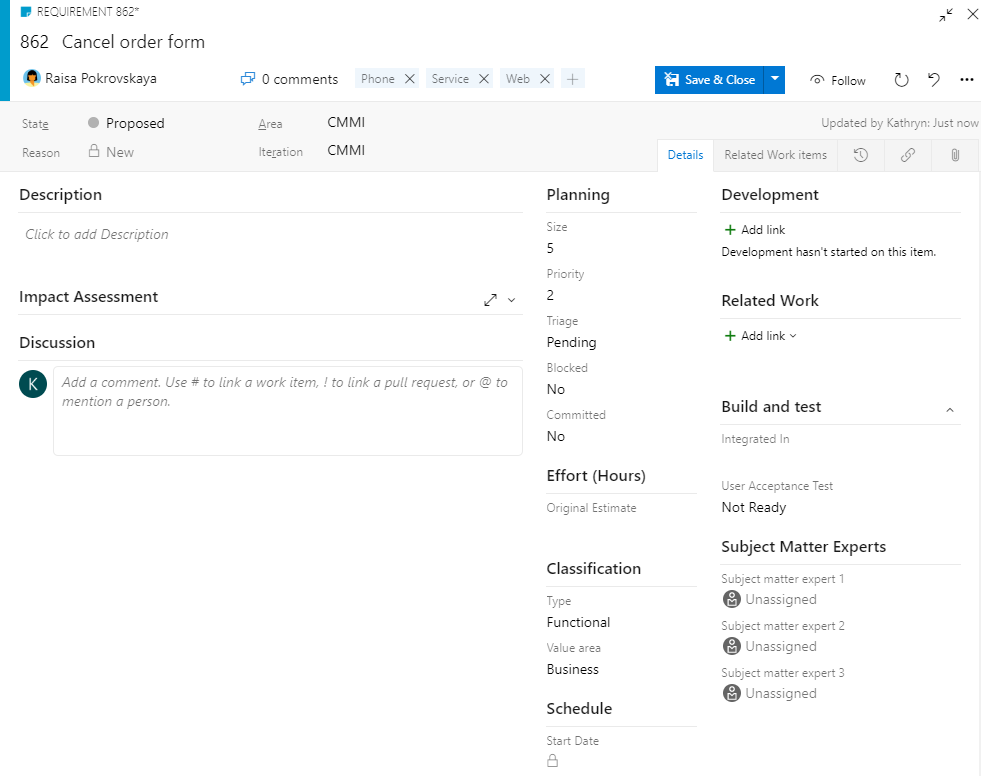
To add more details, change field values, add a description or tags, and add comments, see:
- Plan and track work in Azure Boards.
- Add tags to work items. As a Stakeholder, you can add existing tags to a work item, but you can't create new tags.
- Capture comments in the Discussion section.
View as backlog
Check the product backlog to see how the team prioritized their work. Backlog items appear in priority order. Work item types might include bugs, depending on the process used when your project was created. For more information, see About default processes and process templates.
From the board, select View as backlog.

From the board, select View as backlog.

The list of backlog items appears in priority order. You can add a backlog item, which goes to the bottom of the list. With Stakeholder access, you can't reprioritize work.
Find work items
Select Boards > Work Items. Then select an option from the dropdown menu. For example, select Assigned to me.
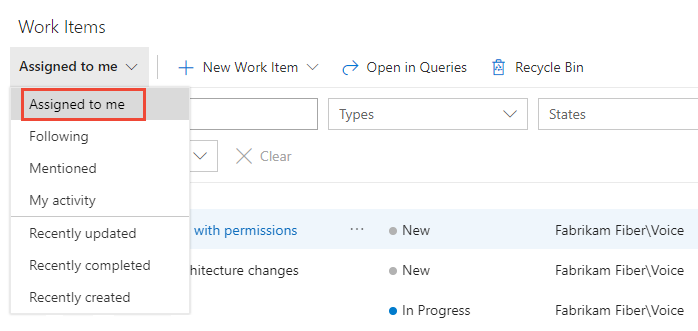
For more information, see:
Use AI to manage work items
You can use an AI assistant to help with work item management tasks. Treat AI as a productivity aid - not an authoritative source - and always review generated content before posting or using it.
Guidance and best practices
- Capabilities: Your AI assistant can help draft detailed work item descriptions, summarize long discussion threads, suggest tags and status updates, identify related work items based on content, and generate acceptance criteria or test scenarios.
- Validate: Always review AI-generated text for accuracy and tone before adding it to work items. Check that suggested tags match your team's tagging conventions and that status updates reflect current reality.
- Security: Never paste secrets, access tokens, connection strings, or sensitive customer information into your AI prompts. Redact any private data in examples you provide.
- Context: Provide enough context in your prompt so your AI assistant understands your project domain, process template, and team conventions. This context helps generate more relevant suggestions.
- Stakeholder constraints: Remember that AI suggestions respect your Stakeholder access level. You can't create new tags or modify permissions, but your AI assistant can help you identify the right existing tags to apply.
Example scenarios
| Scenario | What your AI assistant can help with |
|---|---|
| Draft descriptions | Prompt: "Write a clear work item description for a user story about implementing single sign-on authentication." Your AI assistant can generate structured descriptions with acceptance criteria. |
| Summarize discussions | Prompt: "Summarize the last 10 comments on this work item for a stakeholder update." Your AI assistant extracts key decisions and blockers from lengthy comment threads. |
| Suggest status updates | Prompt: "Write a brief status update comment: we've fixed the blocking issue and are ready for testing next week." Your AI assistant can polish your message for clarity and tone. |
| Identify related work | Prompt: "Based on this work item about payment processing, what other items might be related?" Your AI assistant suggests similar work items and related features to investigate. |
| Build test scenarios | Prompt: "Generate acceptance criteria for a feature that allows users to export reports as PDF." Your AI assistant creates concrete, testable criteria. |
Frequently asked questions
Q: Can I create work items?
A: Yes. With Stakeholder access in Azure DevOps Services (cloud), you can add work items directly from the board or backlog. On-premises, you must use the backlog view.
Q: Can I modify field values on work items?
A: Yes, but not directly on the Kanban card. Double-click a work item to open its form and update fields there. With Stakeholder access, you can modify most fields, but some custom fields might be restricted.
Q: Can I organize and reprioritize the backlog?
A: No. You can view the backlog and add items, but you can't reorder or reparent items (drag and drop). Ask a team member with higher access to prioritize work for you.
Q: What features can't I access with Stakeholder access?
A: Stakeholder access doesn't include direct access to Azure Repos, Azure Pipelines, or Azure Test Plans. You can view and comment on work items, but can't manage source code, build definitions, or test cases. For a complete list, see the Stakeholder access quick reference.
Q: How do I get higher access levels?
A: Contact your organization owner or Project Administrator. For more information, see Assign access levels.
Troubleshooting
Common access restrictions and workarounds
| Issue | Why it happens | Solution |
|---|---|---|
| Can't update field values directly on a card | Stakeholder access doesn't include inline card editing | Double-click the work item to open its form, then update fields there |
| Can't drag work items to reorder the backlog | Stakeholder access doesn't include reprioritization permission | Ask a team member with Project Contributor or Project Administrator permission to prioritize work items |
| Can't see the Azure Repos or Azure Pipelines tabs | Stakeholder access is limited to work tracking and dashboard features only | Contact your organization owner or Project Administrator about upgrading your access level. For more information, see Change access levels. |
| Can't create new tags | Stakeholders can only add existing tags to work items | Ask a team member to create tag categories; then you can apply them to your work items |
| Can't access the project (on-premises only) | Your user account might not be added to the project or you might lack Stakeholder permissions | Contact your server administrator or Project Administrator to verify your access level. For more information, see Look up project administrators. |
Permission errors
Error: "You don't have permission to perform this action"
- Cause: The action requires a higher access level (for example, creating work items in on-premises, editing custom fields, or managing pipelines)
- Solution: Ask your Project Administrator or organization owner to upgrade your access level to Basic or higher. For more information, see Assign access levels. Alternatively, ask them to perform the action for you.
Next step
Now that you understand how to use Stakeholder access to manage work items, create your product backlog to get started planning your project.