Note
Access to this page requires authorization. You can try signing in or changing directories.
Access to this page requires authorization. You can try changing directories.
Note
This document refers to the Microsoft Foundry (classic) portal.
🔄 Switch to the Microsoft Foundry (new) documentation if you're using the new portal.
Note
This document refers to the Microsoft Foundry (new) portal.
This article describes the SDKs and endpoints you can use with your Foundry resource. It shows you how to connect to your project, access models from different providers, and use Foundry Tools. The SDK offers a unified way to work with AI resources through client libraries in multiple programming languages.
The Microsoft Foundry SDK simplifies AI application development on Azure. It lets developers:
- Access models from various providers through one interface
- Combine models, data, and Foundry Tools to build AI-powered applications
- Evaluate, debug, and improve application quality and safety in development, testing, and production
The Microsoft Foundry SDK integrates with other client libraries and services that work together.
Foundry SDK
Developers working with Microsoft Foundry need flexibility to integrate multiple AI capabilities into unified workflows. These SDKs provide the building blocks for provisioning resources, orchestrating agents, and connecting to specialized Foundry Tools. By choosing the right library, you can streamline development, reduce complexity, and ensure your solutions scale across Foundry projects and external endpoints.
Note
This article applies to a Foundry project. The code shown here doesn't work for a hub-based project. For more information, see Types of projects.
Prerequisites
- An Azure account with an active subscription. If you don't have one, create a free Azure account, which includes a free trial subscription.
- Create a Foundry project if you don't have one already.
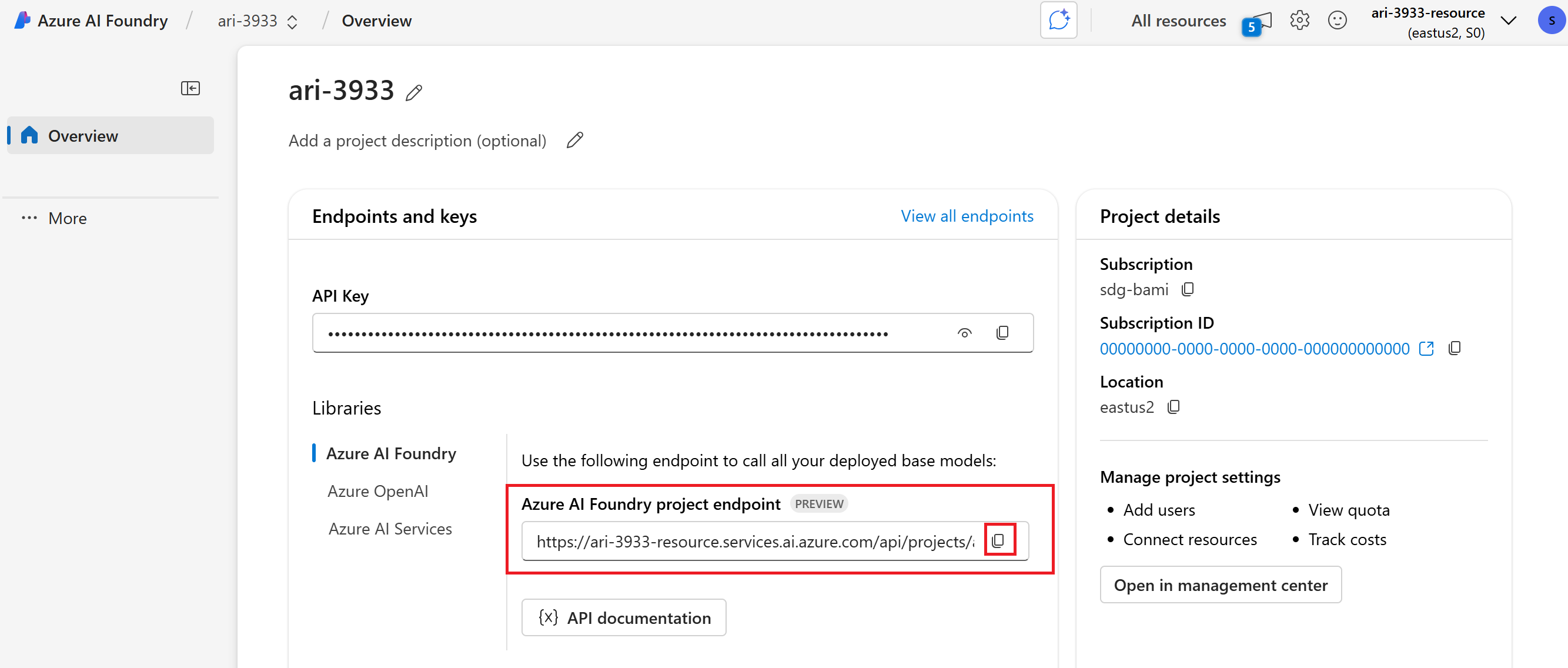
- Microsoft Foundry Models allows customers to consume the most powerful models from flagship model providers using a single endpoint and credentials. This means that you can switch between models and consume them from your application without changing a single line of code.Copy the Foundry project endpoint in the Overview section of your project. You'll use it in a moment.
Tip
If you don't see the Foundry project endpoint, you're using a hub-based project. (See Types of projects). Switch to a Foundry project, or use the preceding steps to create one.
- Select Home from the upper-right navigation.
- Select Keys and copy the Endpoint. You'll use it in a moment.
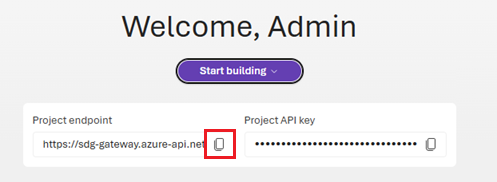
- Copy your endpoint from the welcome screen. You'll use it in the next step.
Sign in with the Azure CLI using the same account that you use to access your project:
az login
The following examples show how to authenticate and create a client for your project endpoint.
Tip
These code samples are starting points. Use these clients to interact with models, run evaluations, and more, as explained in the client libraries section.
The Azure AI Projects client library for Python is a unified library that enables you to use multiple client libraries together by connecting to a single project endpoint.
Install the project client library
pip install azure-ai-projects azure-identity openaipip install --pre azure-ai-projects pip install azure-identity openaiCreate a project client in code. Copy the Foundry project endpoint from the Overview page of the project and update the endpoint string value.
from azure.identity import DefaultAzureCredential
from azure.ai.projects import AIProjectClient

project = AIProjectClient(
  endpoint="your_project_endpoint",  # Replace with your endpoint
  credential=DefaultAzureCredential())
# The AIProjectClient lets you access models, data, and services in your project.
The Azure AI Projects client library for Java (preview) is a unified library that enables you to use multiple client libraries together by connecting to a single project endpoint.
Important
Items marked (preview) in this article are currently in public preview. This preview is provided without a service-level agreement, and we don't recommend it for production workloads. Certain features might not be supported or might have constrained capabilities. For more information, see Supplemental Terms of Use for Microsoft Azure Previews.
Add these packages to your installation:
com.azure.ai.projectscom.azure.core
Create a project client in code. Copy the Foundry project endpoint from the Overview page of the project and update the connections string value.
import com.azure.ai.projects.ProjectsClient;
import com.azure.ai.projects.ProjectsClientBuilder;
import com.azure.core.credential.AzureKeyCredential;

String endpoint ="your_project_endpoint"; // Replace with your endpoint

ProjectsClient projectClient = new ProjectsClientBuilder()
    .credential(new DefaultAzureCredential())
    .endpoint(endpoint)
    .buildClient();
// The ProjectsClient enables unified access to your project's resources.
The Azure AI Projects client library for JavaScript is a unified library that enables you to use multiple client libraries together by connecting to a single project endpoint.
Install dependencies (preview):
npm install @azure/ai-projects @azure/identitynpm install @azure/ai-projects@beta @azure/identityCreate a project client in code. Copy the Foundry project endpoint from the Overview page of the project and update the endpoint string value.
import { AIProjectClient } from '@azure/ai-projects';
import { DefaultAzureCredential } from '@azure/identity';

const endpoint = "your_project_endpoint"; // Replace with your actual endpoint

const project = new AIProjectClient(endpoint, new DefaultAzureCredential());
// The AIProjectClient lets you access models, data, and services in your project.
The Azure AI Projects client library for .NET is a unified library that enables you to use multiple client libraries together by connecting to a single project endpoint.
Install packages:
dotnet add package Azure.Identity
dotnet add package Azure.Core
dotnet add package OpenAI
Create a project client in code. Copy the Foundry project endpoint from the Overview page of the project and update the endpointUrl string value.
using Azure.Identity;
using Azure.Core;
using Azure.Core.Pipeline;
using Azure.AI.Projects;
using System;

string endpointUrl = "your_project_endpoint"; // Replace with your endpoint

DefaultAzureCredential credential = new();
BearerTokenPolicy tokenPolicy = new(credential, "https://cognitiveservices.azure.com/.default");

AIProjectClientOptions clientOptions = new AIProjectClientOptions();
// The PerRetry position ensures the authentication policy is applied to every retry attempt.
// This is important for robust authentication in distributed/cloud environments.
clientOptions.AddPolicy(tokenPolicy, HttpPipelinePosition.PerRetry);

AIProjectClient projectClient = new(new Uri(endpointUrl), new DefaultAzureCredential(), clientOptions);
// The AIProjectClient lets you access models, data, and services in your project.
OpenAI SDK
The OpenAI SDK lets you interact with the Azure OpenAI service. It offers a simple interface for making API calls and managing authentication. The OpenAI SDK directly calls the Azure OpenAI endpoint. The following code snippet shows how to create the OpenAI client from the Project client for proper scoping and context management.
Which endpoint should you use?
- Managing a Project or calling Agents v2? Use the Foundry Project endpoint with the Foundry SDK. Get your OpenAI client from the Project using Microsoft Entra ID for authentication.
- Calling a model directly? Use the Azure OpenAI endpoint with the OpenAI SDK with Microsoft Entra ID as the preferred authentication method. If using API keys, choose the v1 endpoint:
https://<YOUR-RESOURCE-NAME>.openai.azure.com/openai/v1/.
Create an OpenAI client from your project
# Use the AIProjectClient to create an OpenAI client for your project
openai_client = project.get_openai_client(api_version="api_version")
response = openai_client.responses.create(
    model="gpt-4.1-mini",
    input="What is the size of France in square miles?",
)
print(f"Response output: {response.output_text}")
The following code snippet demonstrates how to use the Azure OpenAI v1 endpoint with the OpenAI client for responses.
from openai import OpenAI
from azure.identity import DefaultAzureCredential, get_bearer_token_provider

token_provider = get_bearer_token_provider(
    DefaultAzureCredential(), "https://cognitiveservices.azure.com/.default"
)

client = OpenAI(
  base_url = "https://<YOUR-RESOURCE-NAME>.openai.azure.com/openai/v1/",
  api_key=token_provider,
)

response = client.responses.create(
    model="model_deployment_name",
    input= "What is the size of France in square miles?"
)

print(response.model_dump_json(indent=2))
For more information on using the OpenAI SDK, see Azure OpenAI supported programming languages.
# Use the AIProjectClient to create an OpenAI client for your project
openai_client = project.get_openai_client()
response = openai_client.responses.create(
    model="gpt-4.1-mini",
    input="What is the size of France in square miles?",
)
print(f"Response output: {response.output_text}")
The following code snippet demonstrates how to use the Azure OpenAI v1 endpoint with the OpenAI client for responses.
from openai import OpenAI
from azure.identity import DefaultAzureCredential, get_bearer_token_provider

token_provider = get_bearer_token_provider(
    DefaultAzureCredential(), "https://cognitiveservices.azure.com/.default"
)

client = OpenAI(
  base_url = "https://<YOUR-RESOURCE-NAME>.openai.azure.com/openai/v1/",
  api_key=token_provider,
)

response = client.responses.create(
    model="model_deployment_name",
    input= "What is the size of France in square miles?"
)

print(response.model_dump_json(indent=2))
For more information on using the OpenAI SDK, see Azure OpenAI supported programming languages
Important
Items marked (preview) in this article are currently in public preview. This preview is provided without a service-level agreement, and we don't recommend it for production workloads. Certain features might not be supported or might have constrained capabilities. For more information, see Supplemental Terms of Use for Microsoft Azure Previews.
//
OpenAIClient openAIClient = projectClient.getOpenAIClient();
For more information on using the OpenAI SDK, see Azure OpenAI supported programming languages.
For more information on using the OpenAI SDK, see Azure OpenAI supported programming languages
// Use the AIProjectClient to create an OpenAI client for your project
const openAIClient = await project.getOpenAIClient();
For more information on using the OpenAI SDK, see Azure OpenAI supported programming languages.
For more information on using the OpenAI SDK, see Azure OpenAI supported programming languages
Install the OpenAI package:
dotnet add package OpenAIThe following code snippet demonstrates how to create the OpenAI client directly using the Azure OpenAI v1 endpoint.
using Azure.Identity;
using Azure.Core;
using Azure.Core.Pipeline;
using OpenAI;
using System;
using System.ClientModel.Primitives;

endpointUrl = "https://<YOUR-RESOURCE-NAME>.openai.azure.com/openai/v1/"

DefaultAzureCredential credential = new();
BearerTokenPolicy tokenPolicy = new(credential, "https://cognitiveservices.azure.com/.default");

OpenAIClientOptions clientOptions = new()
{
    Endpoint = new Uri(endpointUrl)
};

// The PerRetry position ensures the authentication policy is applied to every retry attempt.
// This is important for robust authentication in distributed/cloud environments.
clientOptions.AddPolicy(tokenPolicy, HttpPipelinePosition.PerRetry);

var projectClient = new ResponseClient(
    endpointUrl,
    credential,
    clientOptions
);
// The ResponseClient lets you interact with models and services in your project.
For more information on using the OpenAI SDK, see Azure OpenAI supported programming languages.
For more information on using the OpenAI SDK, see Azure OpenAI supported programming languages
After you create a client, use it to access models, run evaluations, and connect to other Foundry Tools.
- Using the project endpoint, you can:
- Use Foundry Models, including Azure OpenAI
- Use Foundry Agent Service
- Run evaluations in the cloud
- Enable tracing for your app
- Fine tune a model
- Retrieve endpoints and keys for external resource connections, such as Foundry Tools, local orchestration, and more.
The next section lists the Foundry Tools client libraries and shows how to use them.
Foundry Tools SDKs
To use Foundry Tools, you can use the following SDKs with the endpoints listed.
Which endpoint should you use?
Choose an endpoint based on your needs:
Use the Azure AI Services endpoint to access Computer Vision, Content Safety, Document Intelligence, Language, Translation, and Token Foundry Tools.
Azure AI Services endpoint: https://<YOUR-RESOURCE-NAME>.services.ai.azure.com/
For Speech and Translation Foundry Tools, use the endpoints in the following tables. Replace placeholders with your resource information.
Speech Endpoints
| Foundry Tool | Endpoint |
|---|---|
| Speech to Text (Standard) | https://<YOUR-RESOURCE-REGION>.stt.speech.microsoft.com |
| Text to Speech (Neural) | https://<YOUR-RESOURCE-REGION>.tts.speech.microsoft.com |
| Custom Voice | https://<YOUR-RESOURCE-NAME>.cognitiveservices.azure.com/ |
Translation Endpoints
| Foundry Tool | Endpoint |
|---|---|
| Text Translation | https://api.cognitive.microsofttranslator.com/ |
| Document Translation | https://<YOUR-RESOURCE-NAME>.cognitiveservices.azure.com/ |
The following sections include quickstart links for the Foundry Tools SDKs and reference information.
C# supported Foundry Tools


Java supported Foundry Tools
JavaScript supported Foundry Tools
Python supported Foundry Tools
Using the Agent Framework for local orchestration
Microsoft Agent Framework is an open-source development kit for building AI agents and multi-agent workflows for .NET and Python. It provides a way to build and manage AI agents that can interact with users and other services. It can orchestrate agents in Foundry, or have local agents that use Foundry models.
For more information, see the Microsoft Agent Framework overview