Note
Access to this page requires authorization. You can try signing in or changing directories.
Access to this page requires authorization. You can try changing directories.
This tutorial will walk you through using the Azure OpenAI embeddings API to perform document search where you'll query a knowledge base to find the most relevant document.
In this tutorial, you learn how to:
- Download a sample dataset and prepare it for analysis.
- Create environment variables for your resources endpoint and API key.
- Use one of the following models: text-embedding-ada-002 (Version 2), text-embedding-3-large, text-embedding-3-small models.
- Use cosine similarity to rank search results.
Prerequisites
- An Azure subscription - Create one for free
- A Microsoft Foundry or Azure OpenAI resource with the text-embedding-ada-002 (Version 2) model deployed. This model is currently only available in certain regions.
- Python 3.10 or later version
- The following Python libraries:
openai,num2words,matplotlib,plotly,scipy,scikit-learn,pandas,tiktoken. - Jupyter Notebooks
Set up
Python libraries
If you haven't already, you need to install the following libraries:
pip install openai num2words matplotlib plotly scipy scikit-learn pandas tiktoken
Download the BillSum dataset
BillSum is a dataset of United States Congressional and California state bills. For illustration purposes, we'll look only at the US bills. The corpus consists of bills from the 103rd-115th (1993-2018) sessions of Congress. The data was split into 18,949 train bills and 3,269 test bills. The BillSum corpus focuses on mid-length legislation from 5,000 to 20,000 characters in length. More information on the project and the original academic paper where this dataset is derived from can be found on the BillSum project's GitHub repository
This tutorial uses the bill_sum_data.csv file that can be downloaded from our GitHub sample data.
You can also download the sample data by running the following command on your local machine:
curl "https://raw.githubusercontent.com/Azure-Samples/Azure-OpenAI-Docs-Samples/main/Samples/Tutorials/Embeddings/data/bill_sum_data.csv" --output bill_sum_data.csv
Note
Microsoft Entra ID based authentication is currently not supported for embeddings with the v1 API.
Retrieve key and endpoint
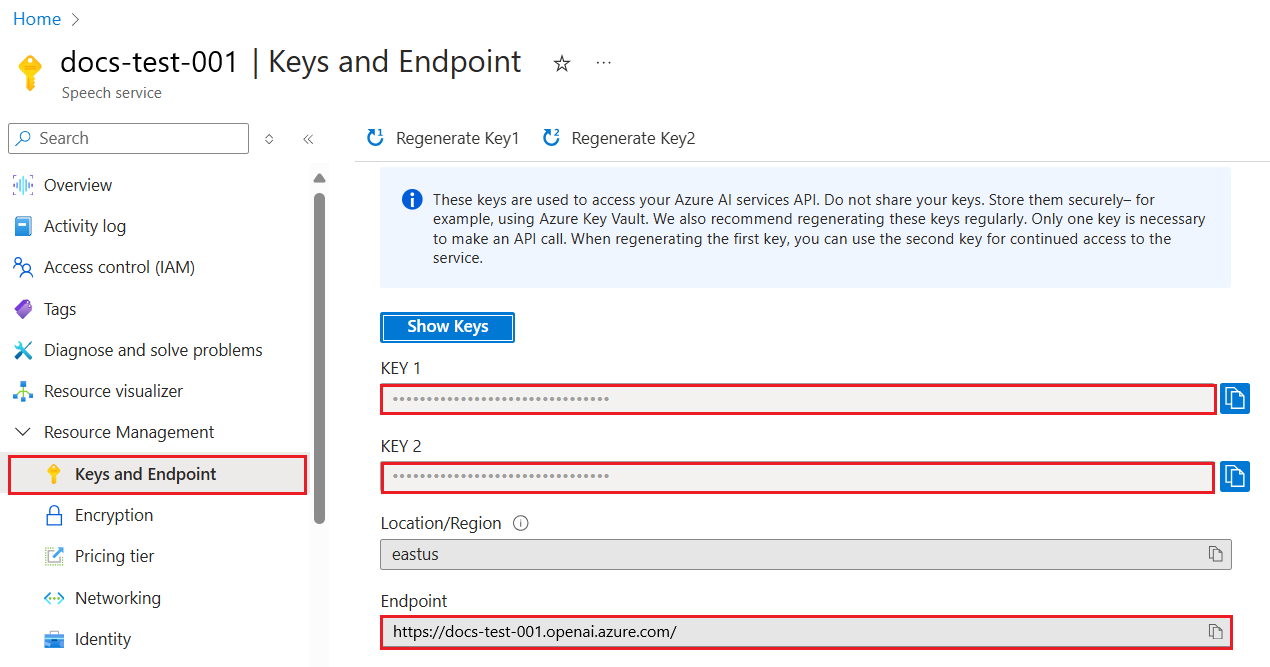
To successfully make a call against Azure OpenAI, you need an endpoint and a key.
| Variable name | Value |
|---|---|
ENDPOINT |
The service endpoint can be found in the Keys & Endpoint section when examining your resource from the Azure portal. Alternatively, you can find the endpoint via the Deployments page in Microsoft Foundry portal. An example endpoint is: https://docs-test-001.openai.azure.com/. |
API-KEY |
This value can be found in the Keys & Endpoint section when examining your resource from the Azure portal. You can use either KEY1 or KEY2. |
Go to your resource in the Azure portal. The Keys & Endpoint section can be found in the Resource Management section. Copy your endpoint and access key as you'll need both for authenticating your API calls. You can use either KEY1 or KEY2. Always having two keys allows you to securely rotate and regenerate keys without causing a service disruption.
Environment variables
Create and assign persistent environment variables for your API key.
Important
Use API keys with caution. Don't include the API key directly in your code, and never post it publicly. If you use an API key, store it securely in Azure Key Vault. For more information about using API keys securely in your apps, see API keys with Azure Key Vault.
For more information about AI services security, see Authenticate requests to Azure AI services.
setx AZURE_OPENAI_API_KEY "REPLACE_WITH_YOUR_KEY_VALUE_HERE"
After setting the environment variables, you might need to close and reopen Jupyter notebooks or whatever IDE you're using in order for the environment variables to be accessible. While we strongly recommend using Jupyter Notebooks, if for some reason you can't you'll need to modify any code that is returning a pandas dataframe by using print(dataframe_name) rather than just calling the dataframe_name directly as is often done at the end of a code block.
Run the following code in your preferred Python IDE:
Import libraries
import os
import re
import requests
import sys
from num2words import num2words
import os
import pandas as pd
import numpy as np
import tiktoken
from openai import OpenAI
Now we need to read our csv file and create a pandas DataFrame. After the initial DataFrame is created, we can view the contents of the table by running df.
df=pd.read_csv(os.path.join(os.getcwd(),'bill_sum_data.csv')) # This assumes that you have placed the bill_sum_data.csv in the same directory you are running Jupyter Notebooks
df
Output:
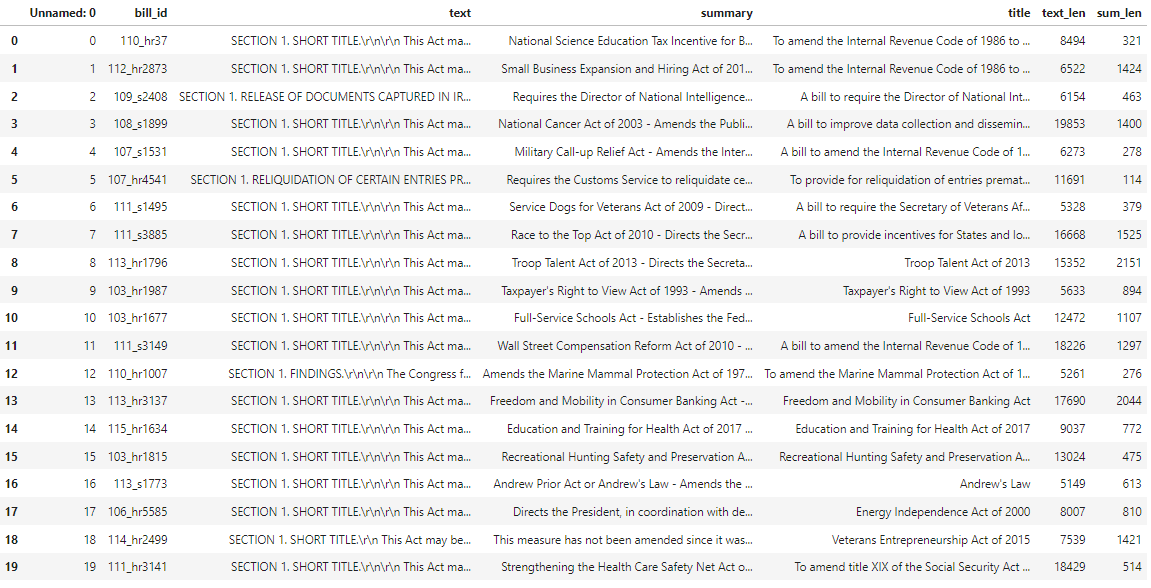
The initial table has more columns than we need we'll create a new smaller DataFrame called df_bills which will contain only the columns for text, summary, and title.
df_bills = df[['text', 'summary', 'title']]
df_bills
Output:
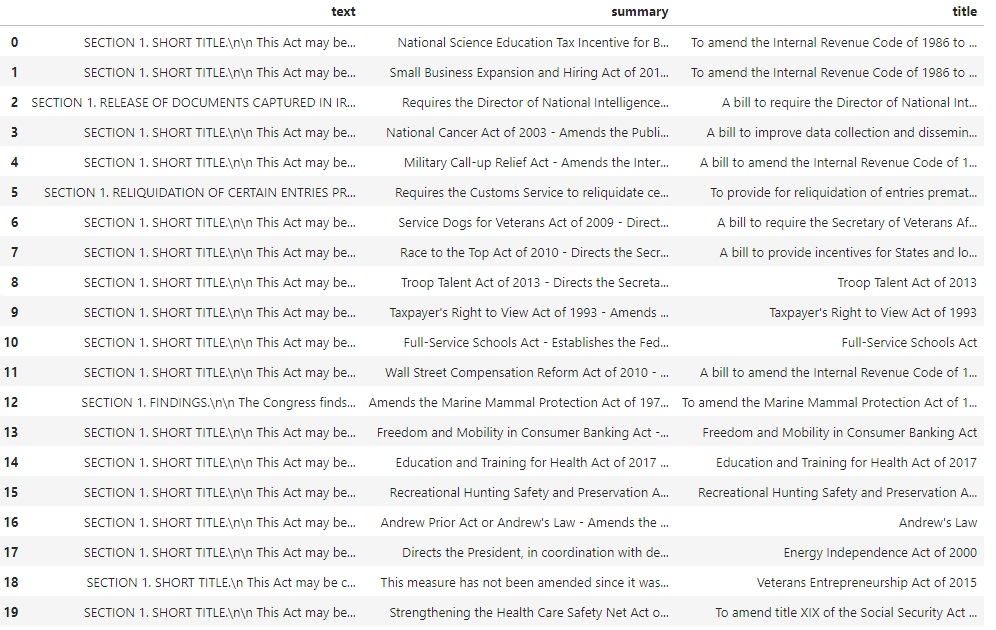
Next we'll perform some light data cleaning by removing redundant whitespace and cleaning up the punctuation to prepare the data for tokenization.
pd.options.mode.chained_assignment = None #https://pandas.pydata.org/pandas-docs/stable/user_guide/indexing.html#evaluation-order-matters

# s is input text
def normalize_text(s, sep_token = " \n "):
    s = re.sub(r'\s+',  ' ', s).strip()
    s = re.sub(r"\. ,","",s)
    # remove all instances of multiple spaces
    s = s.replace("..",".")
    s = s.replace(". .",".")
    s = s.replace("\n", "")
    s = s.strip()

    return s

df_bills['text']= df_bills["text"].apply(lambda x : normalize_text(x))
Now we need to remove any bills that are too long for the token limit (8,192 tokens).
tokenizer = tiktoken.get_encoding("cl100k_base")
df_bills['n_tokens'] = df_bills["text"].apply(lambda x: len(tokenizer.encode(x)))
df_bills = df_bills[df_bills.n_tokens<8192]
len(df_bills)
20
Note
In this case all bills are under the embedding model input token limit, but you can use the technique above to remove entries that would otherwise cause embedding to fail. When faced with content that exceeds the embedding limit, you can also chunk the content into smaller pieces and then embed the chunks one at a time.
We'll once again examine df_bills.
df_bills
Output:
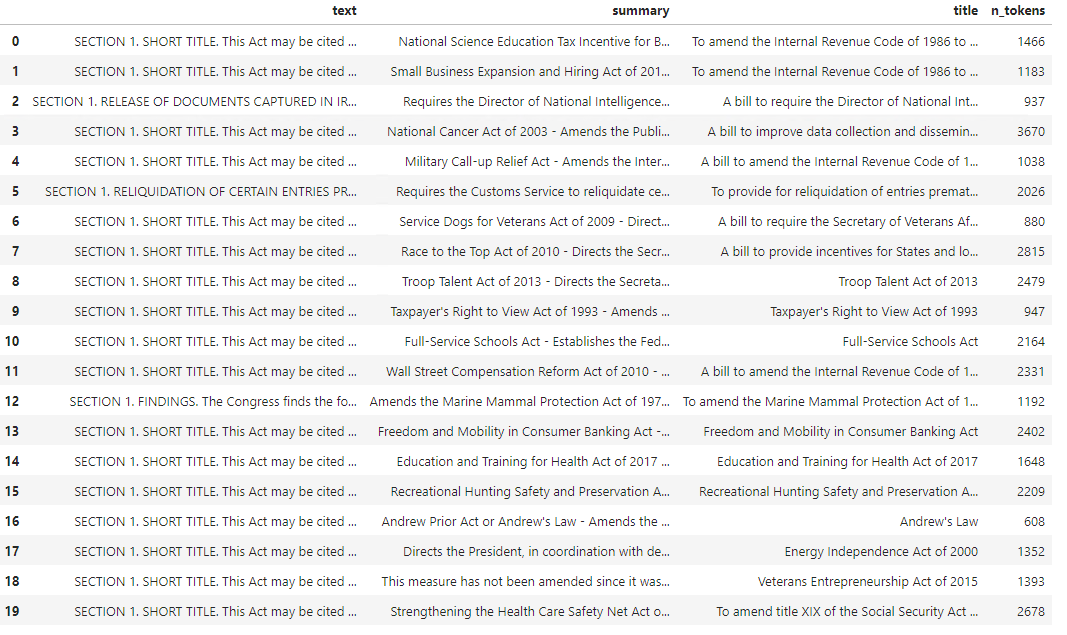
To understand the n_tokens column a little more as well how text ultimately is tokenized, it can be helpful to run the following code:
sample_encode = tokenizer.encode(df_bills.text[0])
decode = tokenizer.decode_tokens_bytes(sample_encode)
decode
For our docs we're intentionally truncating the output, but running this command in your environment will return the full text from index zero tokenized into chunks. You can see that in some cases an entire word is represented with a single token whereas in others parts of words are split across multiple tokens.
[b'SECTION',
 b' ',
 b'1',
 b'.',
 b' SHORT',
 b' TITLE',
 b'.',
 b' This',
 b' Act',
 b' may',
 b' be',
 b' cited',
 b' as',
 b' the',
 b' ``',
 b'National',
 b' Science',
 b' Education',
 b' Tax',
 b' In',
 b'cent',
 b'ive',
 b' for',
 b' Businesses',
 b' Act',
 b' of',
 b' ',
 b'200',
 b'7',
 b"''.",
 b' SEC',
 b'.',
 b' ',
 b'2',
 b'.',
 b' C',
 b'RED',
 b'ITS',
 b' FOR',
 b' CERT',
 b'AIN',
 b' CONTRIBUT',
 b'IONS',
 b' BEN',
 b'EF',
 b'IT',
 b'ING',
 b' SC',
If you then check the length of the decode variable, you'll find it matches the first number in the n_tokens column.
len(decode)
1466
Now that we understand more about how tokenization works we can move on to embedding. It's important to note, that we haven't actually tokenized the documents yet. The n_tokens column is simply a way of making sure none of the data we pass to the model for tokenization and embedding exceeds the input token limit of 8,192. When we pass the documents to the embeddings model, it will break the documents into tokens similar (though not necessarily identical) to the examples above and then convert the tokens to a series of floating point numbers that will be accessible via vector search. These embeddings can be stored locally or in an Azure Database to support Vector Search. As a result, each bill will have its own corresponding embedding vector in the new ada_v2 column on the right side of the DataFrame.
In the example below we're calling the embedding model once per every item that we want to embed. When working with large embedding projects you can alternatively pass the model an array of inputs to embed rather than one input at a time. When you pass the model an array of inputs the max number of input items per call to the embedding endpoint is 2048.
client = OpenAI(
  api_key = os.getenv("AZURE_OPENAI_API_KEY"),
  base_url="https://YOUR-RESOURCE-NAME.openai.azure.com/openai/v1/"
)

def generate_embeddings(text, model="text-embedding-ada-002"): # model = "deployment_name"
    return client.embeddings.create(input = [text], model=model).data[0].embedding

df_bills['ada_v2'] = df_bills["text"].apply(lambda x : generate_embeddings (x, model = 'text-embedding-ada-002')) # model should be set to the deployment name you chose when you deployed the text-embedding-ada-002 (Version 2) model
df_bills
Output:
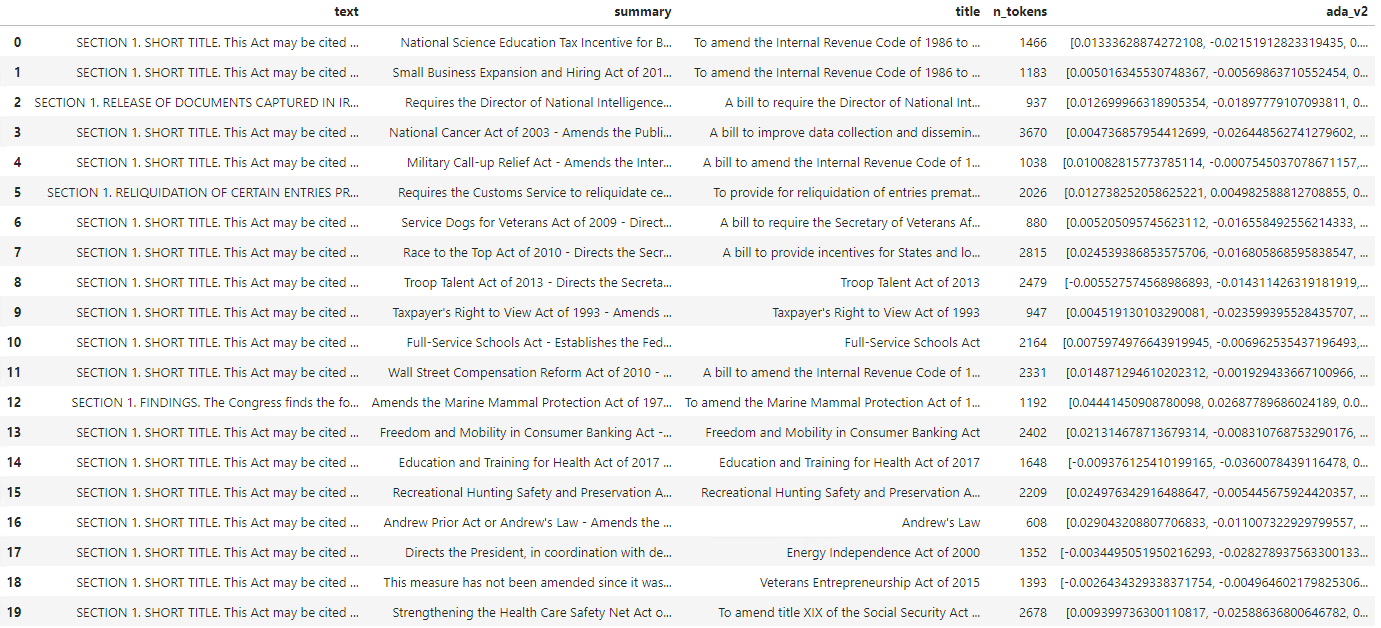
As we run the search code block below, we'll embed the search query "Can I get information on cable company tax revenue?" with the same text-embedding-ada-002 (Version 2) model. Next we'll find the closest bill embedding to the newly embedded text from our query ranked by cosine similarity.
def cosine_similarity(a, b):
    return np.dot(a, b) / (np.linalg.norm(a) * np.linalg.norm(b))

def get_embedding(text, model="text-embedding-ada-002"): # model = "deployment_name"
    return client.embeddings.create(input = [text], model=model).data[0].embedding

def search_docs(df, user_query, top_n=4, to_print=True):
    embedding = get_embedding(
        user_query,
        model="text-embedding-ada-002" # model should be set to the deployment name you chose when you deployed the text-embedding-ada-002 (Version 2) model
    )
    df["similarities"] = df.ada_v2.apply(lambda x: cosine_similarity(x, embedding))

    res = (
        df.sort_values("similarities", ascending=False)
        .head(top_n)
    )
    if to_print:
        display(res)
    return res

res = search_docs(df_bills, "Can I get information on cable company tax revenue?", top_n=4)
Output:

Finally, we'll show the top result from document search based on user query against the entire knowledge base. This returns the top result of the "Taxpayer's Right to View Act of 1993." This document has a cosine similarity score of 0.76 between the query and the document:
res["summary"][9]
"Taxpayer's Right to View Act of 1993 - Amends the Communications Act of 1934 to prohibit a cable operator from assessing separate charges for any video programming of a sporting, theatrical, or other entertainment event if that event is performed at a facility constructed, renovated, or maintained with tax revenues or by an organization that receives public financial support. Authorizes the Federal Communications Commission and local franchising authorities to make determinations concerning the applicability of such prohibition. Sets forth conditions under which a facility is considered to have been constructed, maintained, or renovated with tax revenues. Considers events performed by nonprofit or public organizations that receive tax subsidies to be subject to this Act if the event is sponsored by, or includes the participation of a team that is part of, a tax exempt organization."
Using this approach, you can use embeddings as a search mechanism across documents in a knowledge base. The user can then take the top search result and use it for their downstream task, which prompted their initial query.
Troubleshooting
- 401/403: Verify
AZURE_OPENAI_API_KEYis set and matches your resource key. - 404: Verify
AZURE_OPENAI_EMBEDDINGS_DEPLOYMENTmatches your deployment name. - Invalid URL: Verify
AZURE_OPENAI_ENDPOINTis your resource endpoint, for examplehttps://<resource-name>.openai.azure.com.
Clean up resources
If you created an Azure OpenAI resource solely for completing this tutorial and want to clean up and remove an Azure OpenAI resource, you'll need to delete your deployed models, and then delete the resource or associated resource group if it's dedicated to your test resource. Deleting the resource group also deletes any other resources associated with it.
Next steps
Learn more about Azure OpenAI's models:
- Store your embeddings and perform vector (similarity) search using your choice of Azure service: