Note
Access to this page requires authorization. You can try signing in or changing directories.
Access to this page requires authorization. You can try changing directories.
APPLIES TO: AI Gateway (preview)
Important
AI Gateway is currently in public preview. During public preview, AI Gateway is available in the following regions:
- United States - East US 2
- Europe - Sweden Central
AI Gateway gives your applications a central entry point for AI models, so you can govern access without configuring each application to connect directly to a model provider.
This article walks you through creating an AI Gateway, adding your first model from Microsoft Foundry, and sending a request through the gateway.
Prerequisites
- An Azure subscription with the Contributor role assigned to you at subscription scope or on the resource group where you create the gateway. Creating a new resource group requires subscription-level access.
- The
Microsoft.ApiManagementresource provider registered in your subscription. If it isn't registered, follow Register a resource provider, or ask a subscription administrator to register it. - A Microsoft Foundry account with at least one deployed model that supports Chat Completions and a publicly accessible backend endpoint.
- The Reader and User Access Administrator roles on the Foundry account, or equivalent inherited access, so you can discover deployments and grant the gateway's identity access.
- A terminal with
curlfor the application request.
This example uses a Foundry account named ai-foundry-demo-learn with a gpt-6.1-sol deployment. The gateway uses its system-assigned managed identity to connect to Foundry, and you use a gateway runtime API key to send requests.
Create the gateway
Create a gateway in your subscription to provide a managed entry point for AI traffic.
Open the AI Gateway portal and sign in.
On All gateways, select Create gateway.
Enter a Name and choose your Subscription.
Under Resource group, choose New and enter a resource-group name, or choose Existing and select an existing resource group.
Choose a supported Region displayed in the portal.
Expand Advanced to review managed identity and networking configuration. For this quickstart, leave Enable system-assigned managed identity selected, Public network access set to Enabled, and Networking set to Public routing. For other networking scenarios, see the in-product documentation.
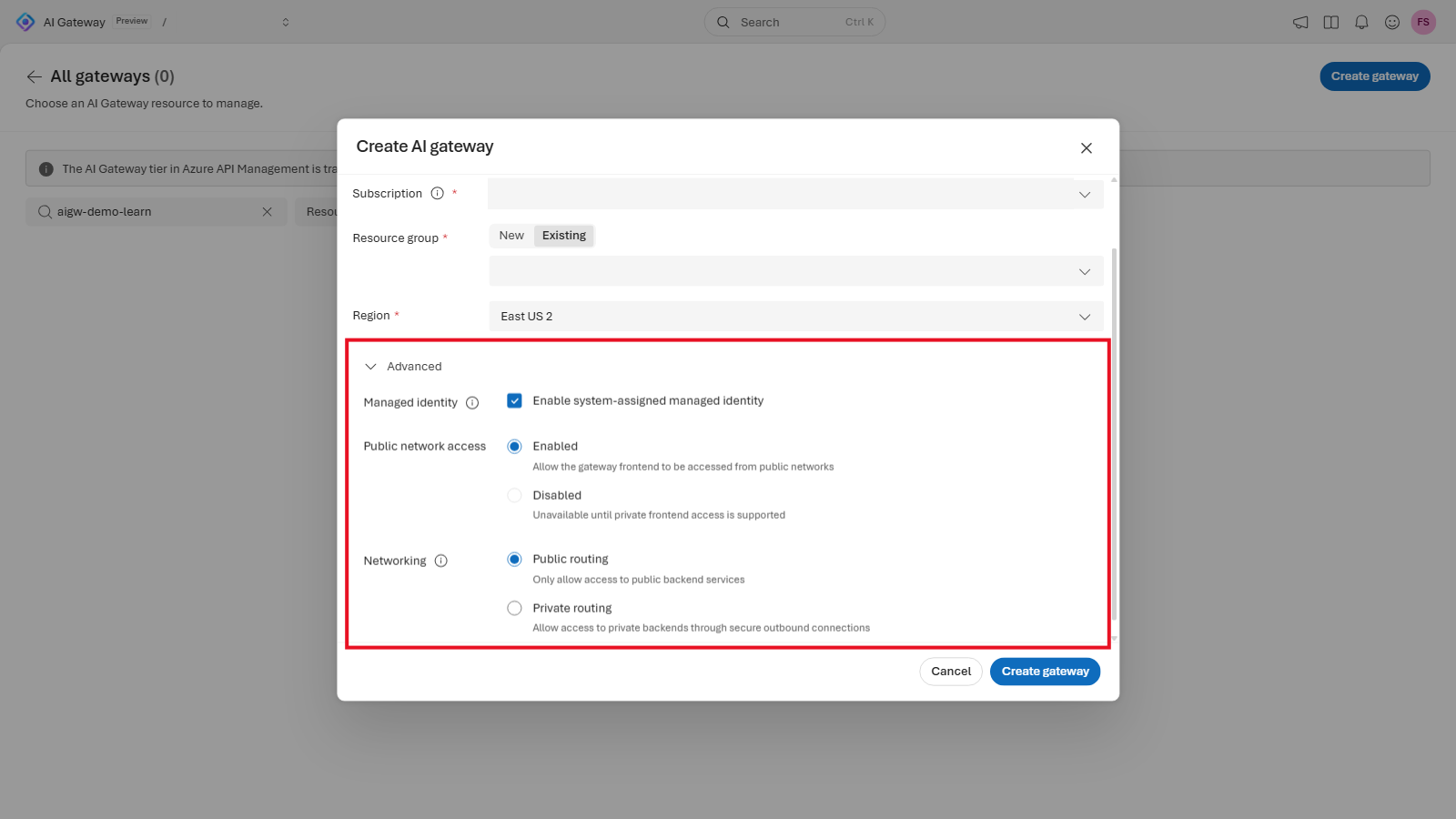
Select Create gateway.
Wait for creation and activation to complete, then select the ready gateway.
Important
Networking settings are read-only after creation. This quickstart uses public backend routing; plan networking before creating gateways for private backends.
Import a model
Add your first model so you can send requests through the gateway. Import registers your existing Foundry deployments without deploying new models. It also creates aliases that your applications use to call the models.
To import the example Foundry models:
Select Models, and then select Add > Models from Microsoft Foundry.
Under Basic info, select the Subscriptions entry that contains your Foundry account.
Under Models, select your Foundry account, such as
ai-foundry-demo-learn. Selection includes the account's supported deployments, not an individual deployment.Set Authentication method to Managed identity, and select System-assigned managed identity under Managed identity. The portal grants the gateway identity Foundry User on the selected account.
Under Aliases, leave Create an alias for each model selected.
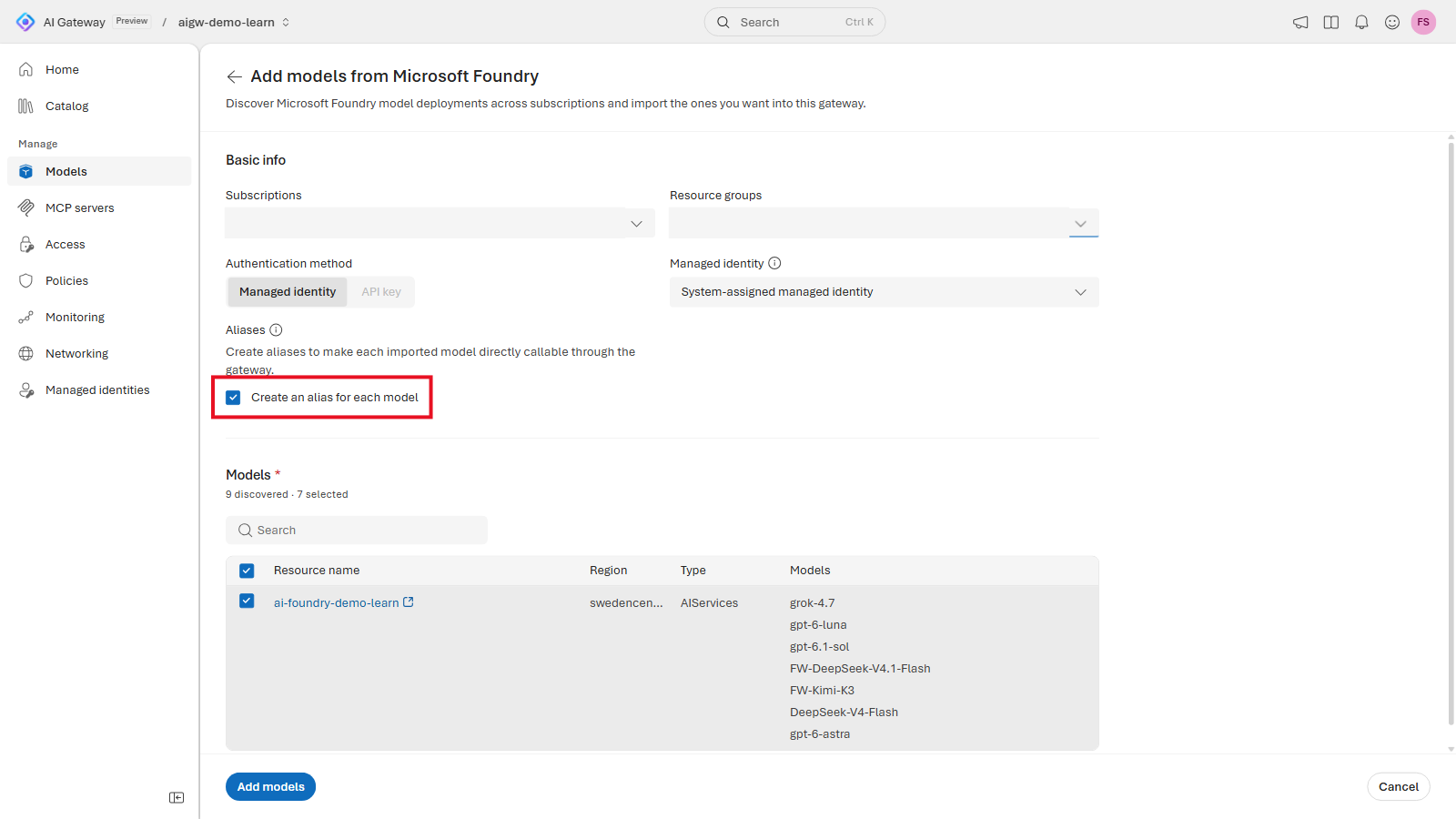
Select Add models and review the import results.
The imported deployments appear under Models > Backend models, with callable aliases such as ai-foundry-demo-learn/gpt-6-1-sol. For authentication options and synchronization, see the in-product documentation.
Create a runtime API key
Create the credential you use for both the playground and the terminal request. This key authenticates you to the gateway. The managed identity authenticates the gateway to Foundry.
To create a runtime API key:
- Select Access > Keys.
- Select Create API key.
- Enter a descriptive name, such as
demo-app, in Key name, then select Create. - In API key created successfully, select Copy & done to copy the API key and close the dialog. Store the value securely for the terminal request.
Warning
A runtime API key grants gateway-wide access, not access only to the model in this quickstart. Store it securely, don't commit it to source control, and delete it when you're finished.
For key retrieval, rotation, and revocation, see the in-product documentation.
Test the model
Send a prompt through the gateway to check your first model response.
To test the imported model:
- On Models, select Backend models, open your chat-capable model, such as
gpt-6.1-sol, and select Aliases. Note its callable name, such asai-foundry-demo-learn/gpt-6-1-sol. - Open Catalog and select that alias.
- Select the Chat completions endpoint.
- Under Authentication, select the key you created, such as
demo-app, under API key. - Enter a short prompt, such as
Give me three uses for an AI gateway, and select Send.
A model response confirms that the gateway credential, callable alias, and backend connection work together for this endpoint.
For more playground options, see the in-product documentation.
Call the model from your terminal
On Models > Backend models, open your model and select Overview. Copy the full Chat completions endpoint. For example, the URL might be https://my-awesome-gateway.eastus2-01.ai.gateway.azure.com/default/models/openai/v1/chat/completions. Use the URL shown for your gateway rather than constructing it from the gateway name.
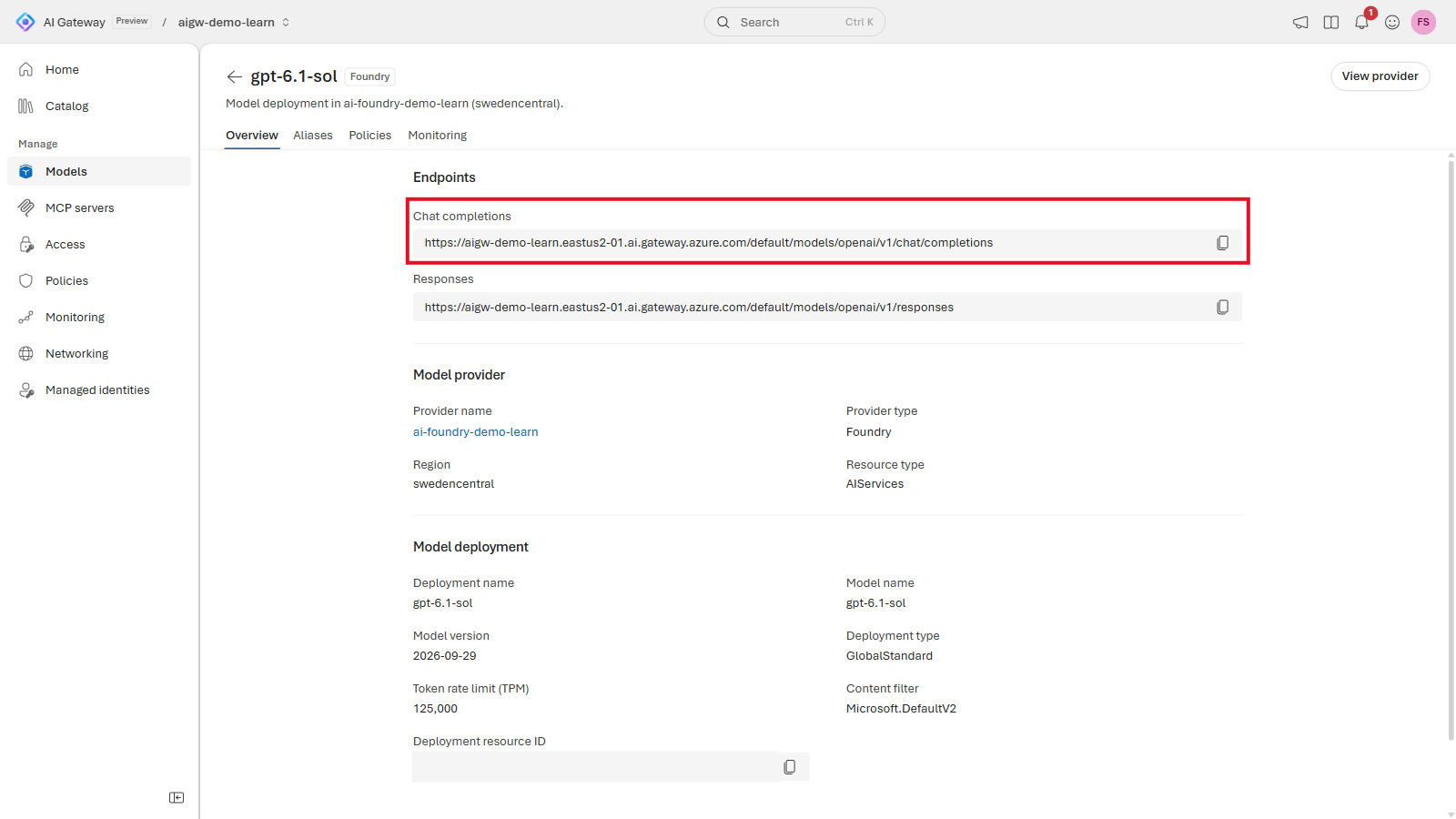
Set the endpoint and the API key in your terminal session. Replace the example URL with your copied endpoint and the key placeholder with the value you stored:
export AI_GATEWAY_CHAT_URL="https://my-awesome-gateway.eastus2-01.ai.gateway.azure.com/default/models/openai/v1/chat/completions"
export AI_GATEWAY_API_KEY="<gateway-runtime-api-key>"
Send a request with the alias you tested. Replace ai-foundry-demo-learn/gpt-6-1-sol with your model's callable name if it differs:
curl --fail-with-body "$AI_GATEWAY_CHAT_URL" \
  -H "Content-Type: application/json" \
  -H "Authorization: Bearer $AI_GATEWAY_API_KEY" \
  -d '{
    "model": "ai-foundry-demo-learn/gpt-6-1-sol",
    "messages": [
      {"role": "user", "content": "Give me three uses for an AI gateway."}
    ]
  }'
The response should contain the model's reply in the Chat Completions response structure. You now called the Foundry model through the gateway rather than connecting your application directly to the Foundry account.
Clean up resources
To remove the resources you created for this quickstart when you no longer need them:
- Delete the runtime API key on Access > Keys.
- Return to All gateways, find the gateway you created, and select Delete. Review and confirm the deletion.
- Review the resource group you created and remove it if it's empty and no longer needed.
Keep the existing Foundry account and deployments. Keep any pre-existing resource group. Delete only a resource group you created for this quickstart.
Next steps
Learn more about the AI Gateway.