Note
Access to this page requires authorization. You can try signing in or changing directories.
Access to this page requires authorization. You can try changing directories.
You might have existing resources for Foundry Tools that you used in the old studios such as Azure OpenAI Studio or Speech Studio. You can pick up where you left off by using your existing resources in the Microsoft Foundry portal.
This article describes how to use new or existing Foundry Tools resources in a Foundry project.
Usage scenarios
Depending on the Foundry Tool and model you want to use, you can use them in Foundry portal via:
- Bring your existing Foundry Tools resources into a project. You can use your existing Foundry Tools resources in a Foundry project by creating a connection to the resource.
- The model catalog. You don't need a project to browse and discover Foundry Models. Some of the Foundry Tools are available for you to try via the model catalog without a project. Some Foundry Tools require a project to use them in the playgrounds.
- The project-level playgrounds.
- Fine-tune models. You can fine-tune a subset of Foundry Tools models in Foundry portal.
- Deploy models. You can deploy base models and fine-tuned models to production. Most Foundry Tools models are already deployed and ready to use.
Connect Foundry Tools after you create a project
You can connect Foundry Tools resources to a Foundry project after you create a project. To use your existing Foundry Tools resources (such as Azure Speech in Foundry Tools) in a Foundry project, you need to create a connection to the resource.
Create a Foundry project. For detailed instructions, see Create a Foundry project.
Go to your Foundry project.
Select Management center from the left pane.
Select Connected resources (under Project) from the left pane.
Select + New connection.
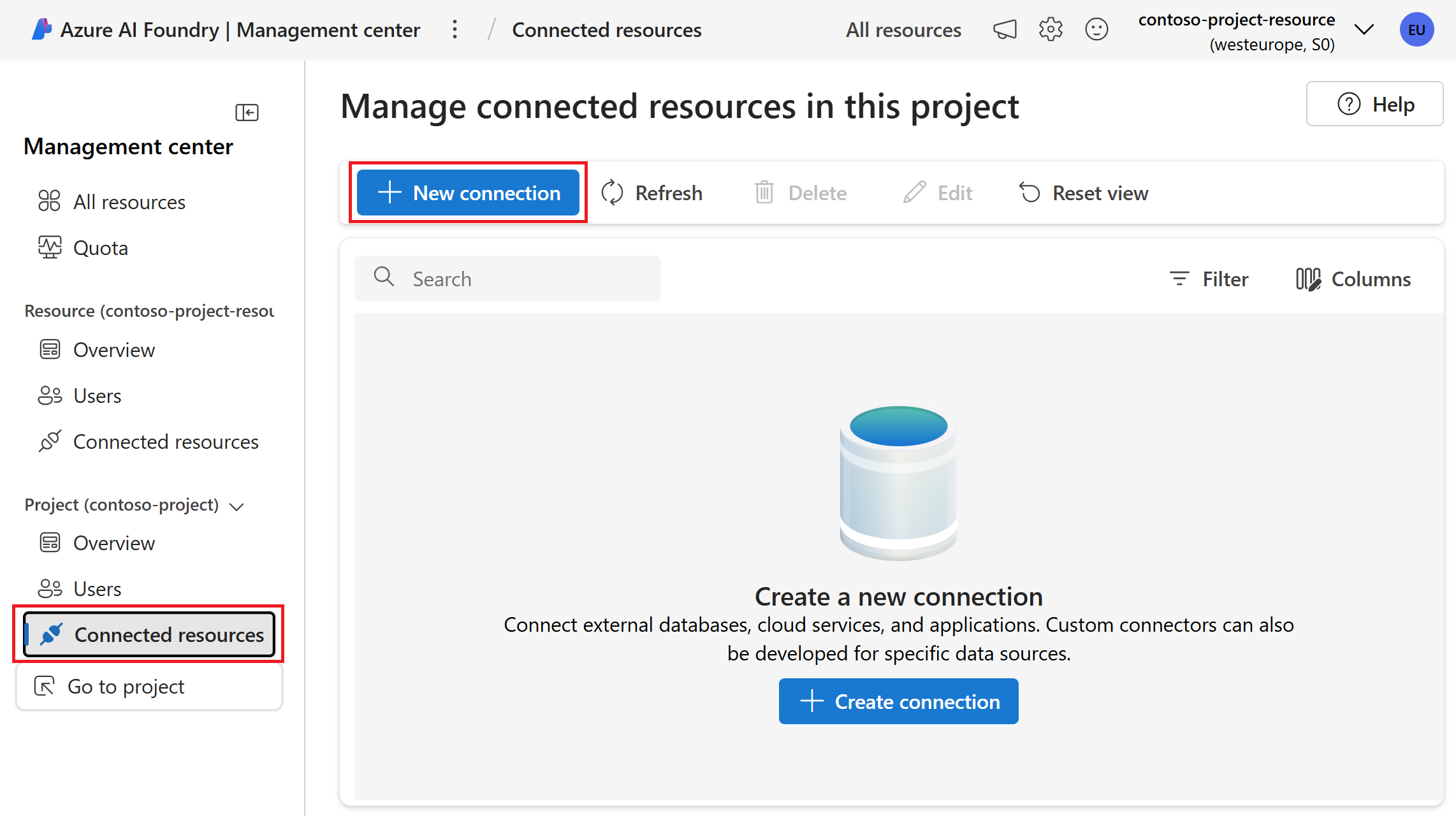
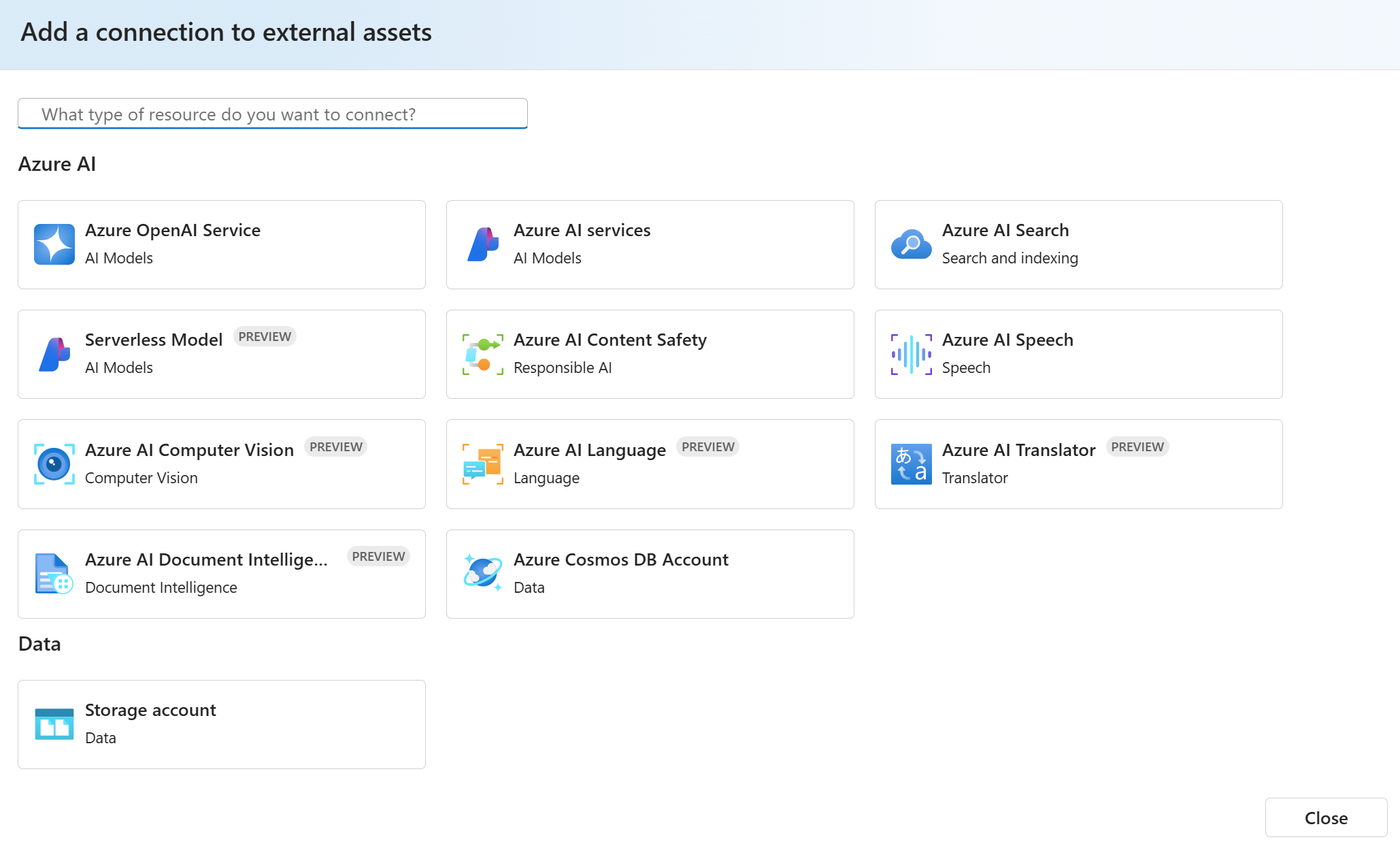
On the Add a connection to external assets page, select the kind of AI service that you want to connect to the project. For example, you can select Foundry Tools (for a connection to multiple services in one resource), Azure OpenAI in Foundry Models, Azure Content Safety, Azure Speech, Azure Language, and other Foundry Tools.
On the next page in the wizard, browse or search to find the resource you want to connect. Then select Add connection.
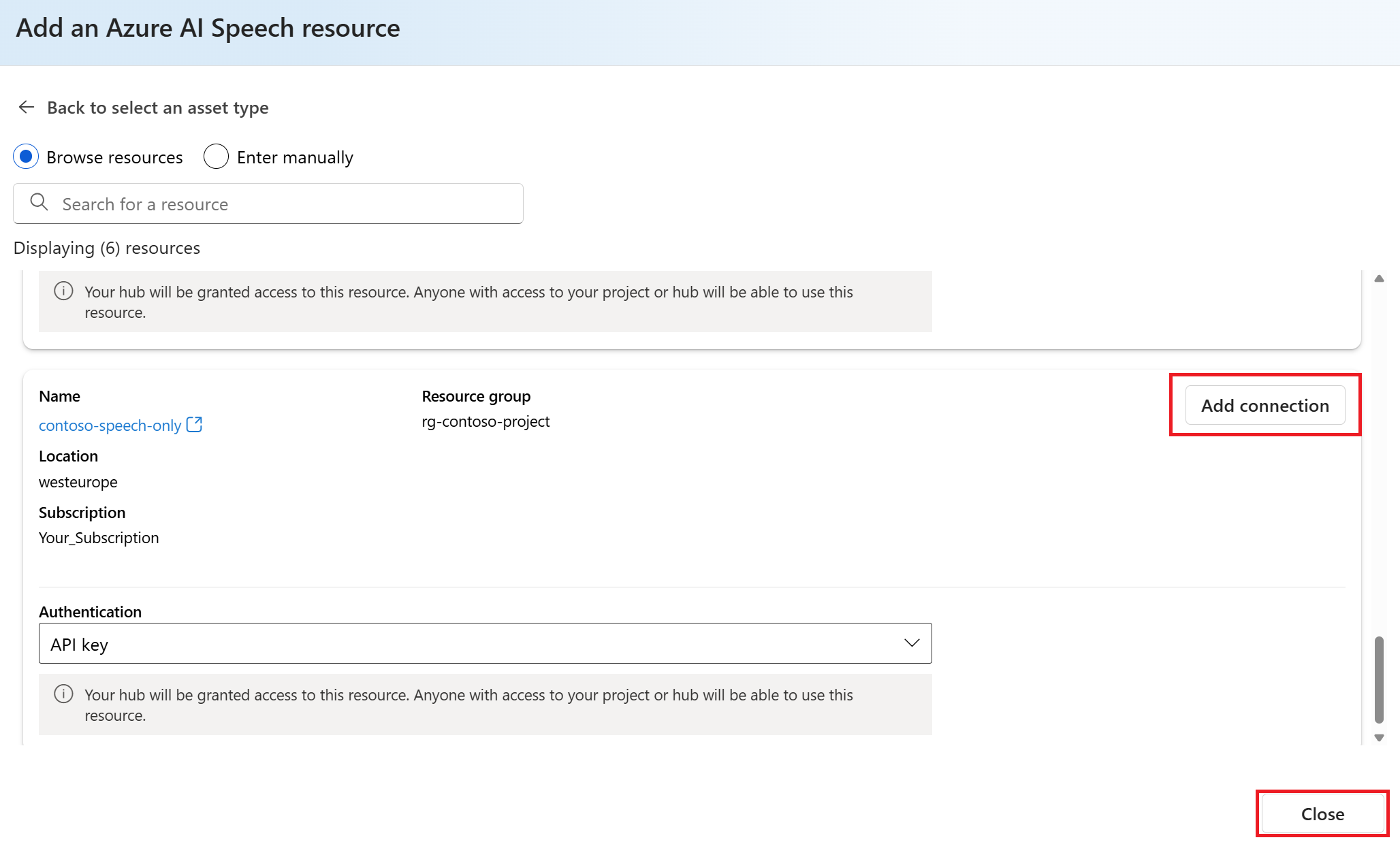
After the resource is connected, select Close to return to the Connected resources page. You should see the new connection listed.
Discover Foundry Models in the model catalog
You can discover Foundry Models in the model catalog without a project. Some Foundry Tools are available for you to try via the model catalog without a project.
Go to the Azure Model catalog page in Foundry portal.
Scroll down the page to see the list of available models. You can also use the search box to find a specific model.
From the Collections dropdown, select Microsoft. Search for Foundry Tools by entering azure-ai in the search box.
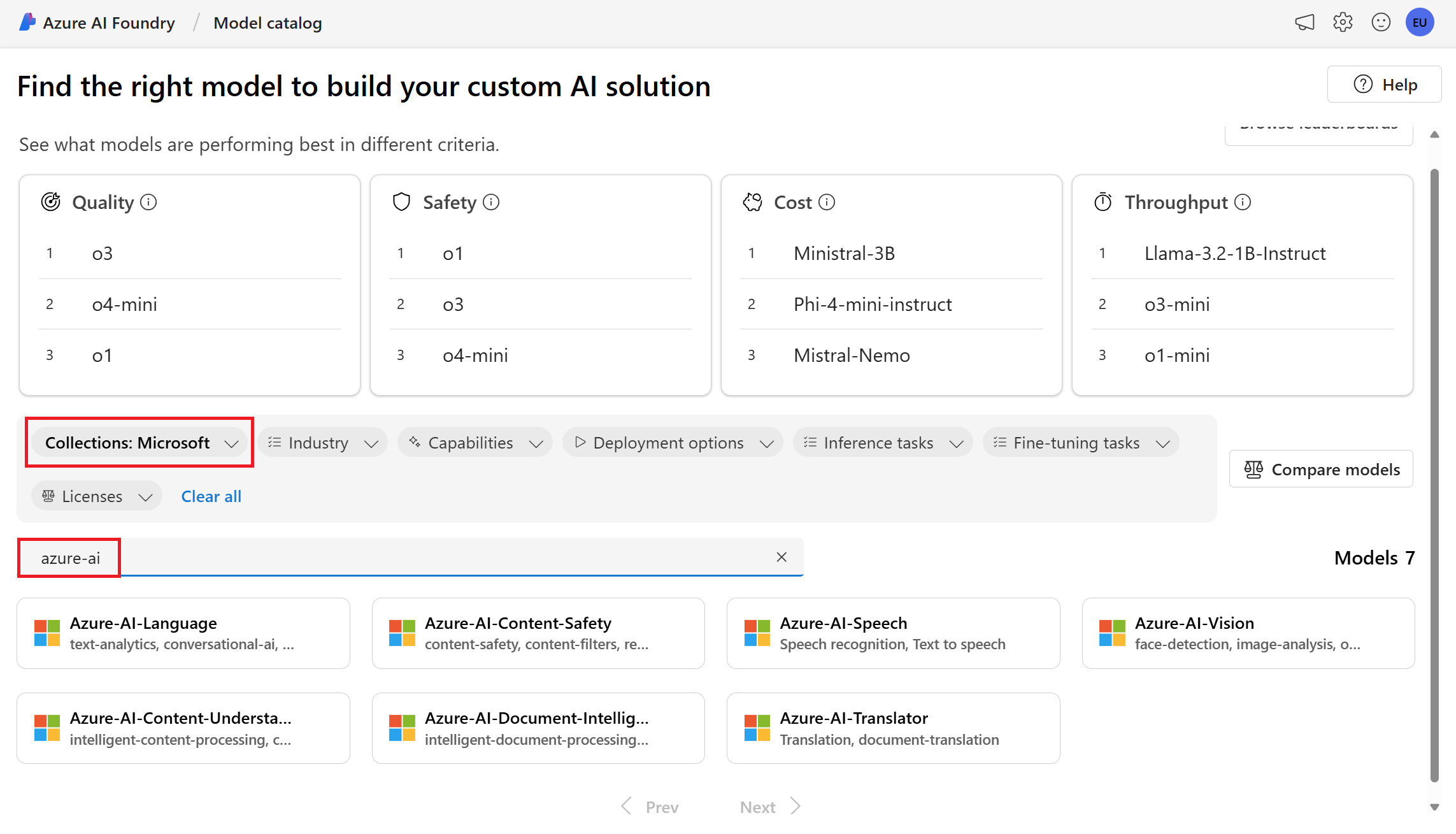
Select a model to view more details about it. You can also try the model if it's available for you to try without a project.
Try Foundry Tools in the project level playgrounds
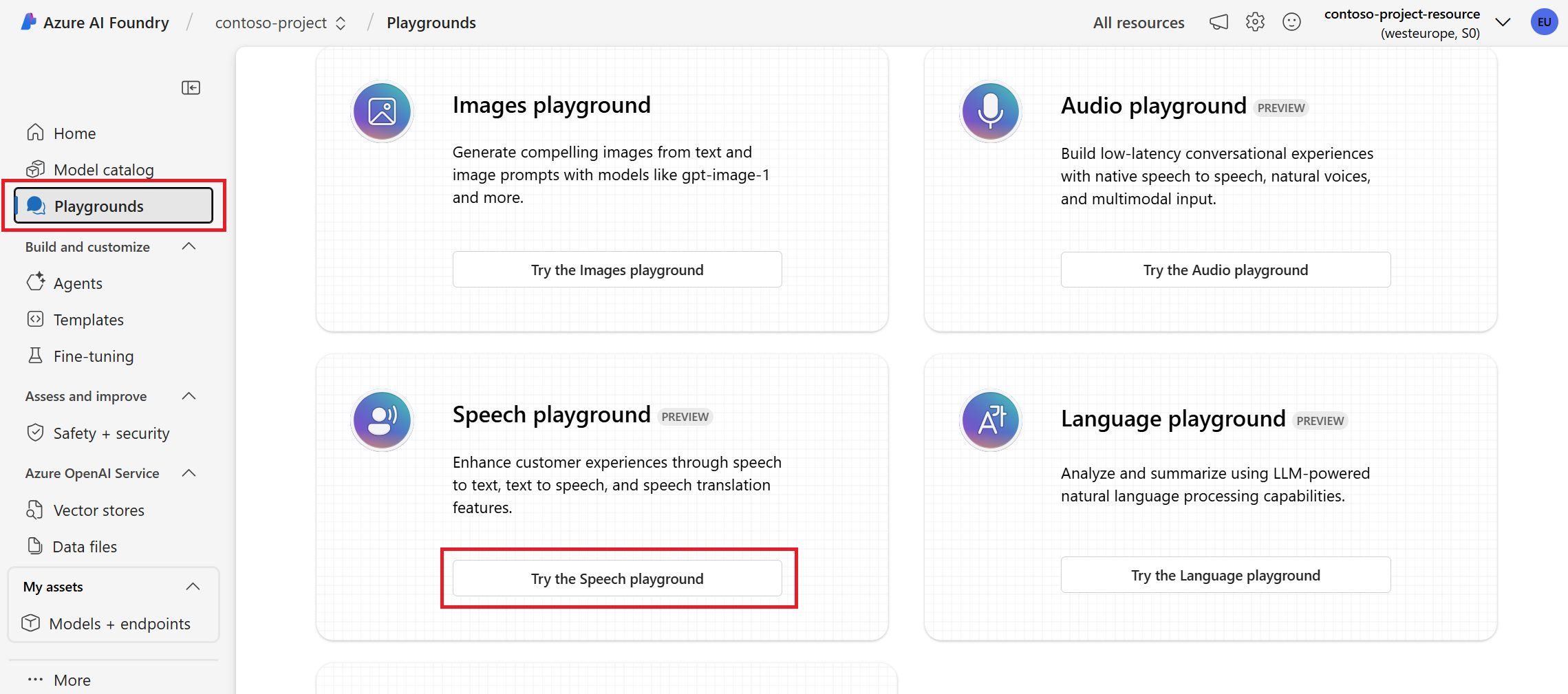
In the project-level playgrounds, you can try Foundry Tools such as Azure Speech and Azure Language.
Go to your Foundry project. If you need to create a project, see Create a Foundry project.
Select Playgrounds from the left pane and then select a playground to use. In this example, select Try the Speech playground.
Fine-tune Foundry Tools
In Foundry portal, you can fine-tune some Foundry Tools. For example, you can fine-tune a model for custom speech.
Go to your Foundry project. If you need to create a project, see Create a Foundry project.
Select Fine-tuning from the left pane.
Select AI Service fine-tuning.
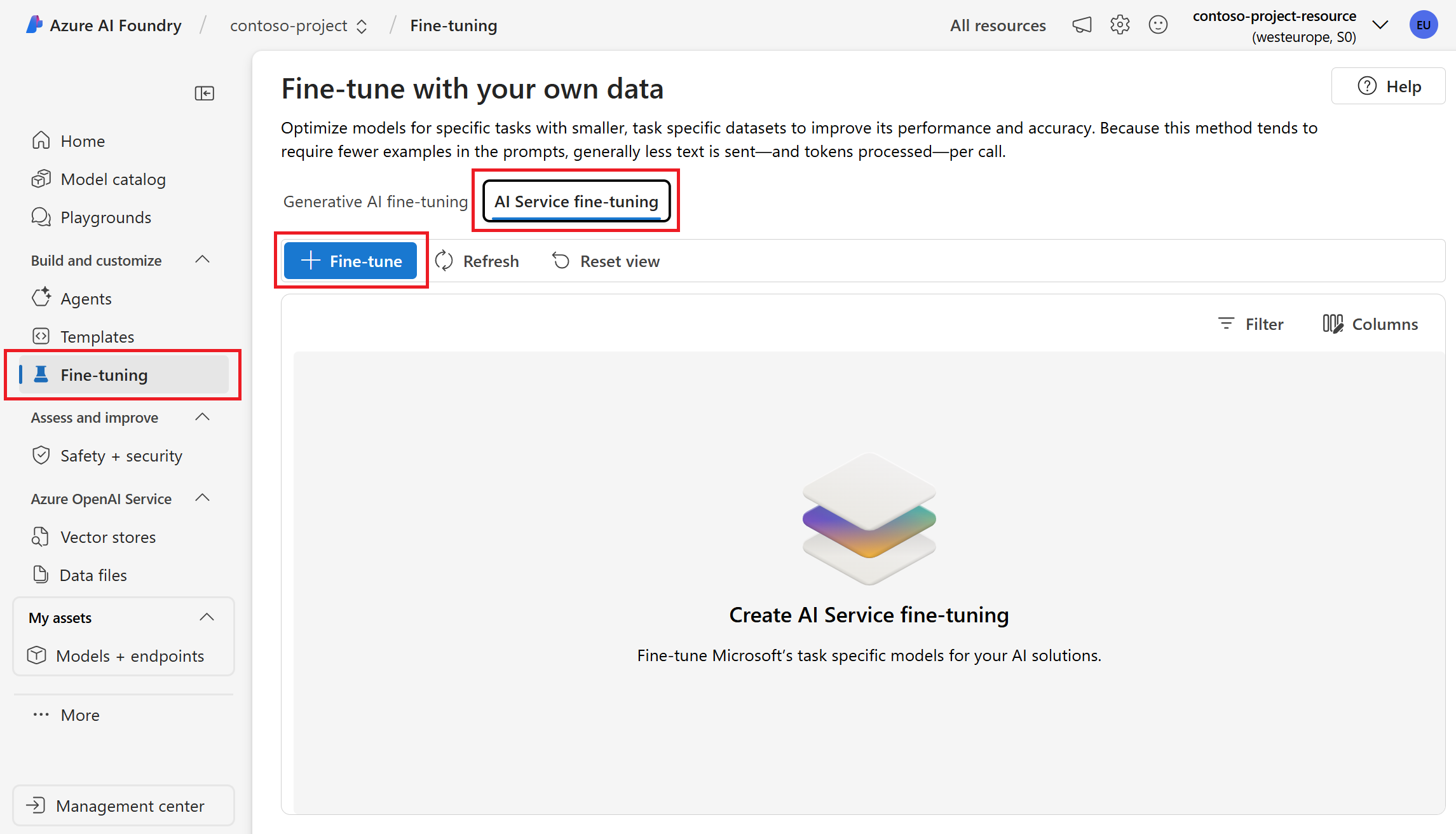
Select + Fine-tune.
Follow the wizard to fine-tune a model for the capabilities that you want.
Deploy models to production
Once you have a project, several Foundry Tools are already deployed and ready to use.
Go to your Foundry project.
Select Models + endpoints (under My assets) from the left pane.
Select the Service endpoints tab to view the list of Foundry Tools models that are already deployed.
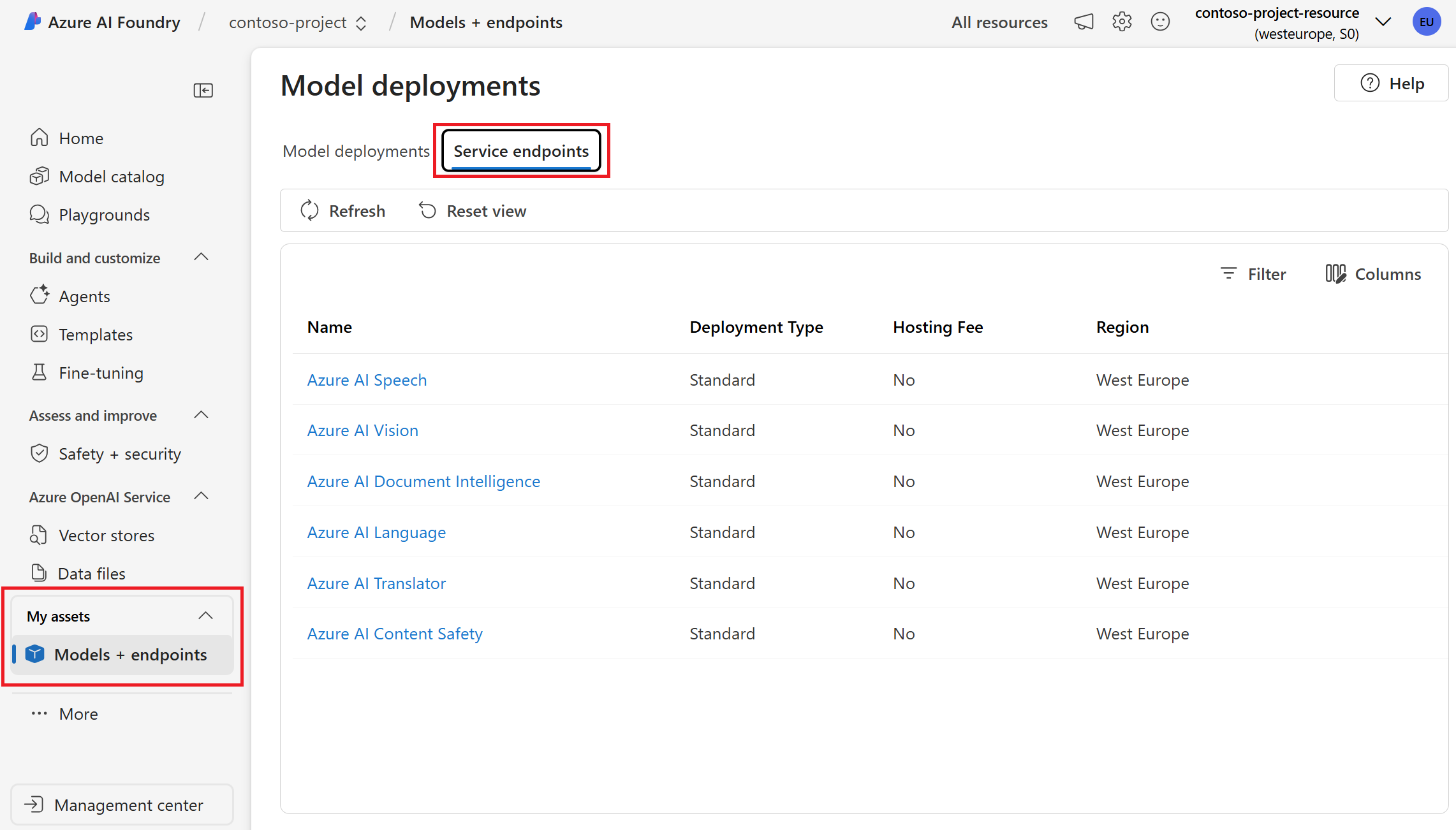
In this example, we see six Foundry Tools deployments (such as Azure Speech and Azure Language) via the default connection. These models were already available for use when you created the project.
You don't deploy Foundry Tools from the Models + endpoints page. Foundry Tools models are already deployed and ready to use.
However, you can deploy fine-tuned Foundry tools. For example, you might want to deploy a custom speech model that you fine-tuned. In this case, you can deploy the model from the corresponding fine-tuning page.