Note
Access to this page requires authorization. You can try signing in or changing directories.
Access to this page requires authorization. You can try changing directories.
Use this article to get started with Orchestration workflow projects using the REST API. Follow these steps to try out an example.
Prerequisites
- Azure subscription - Create one for free.
Create a Language resource from Azure portal
Create a new resource from the Azure portal
Go to the Azure portal to create a new Azure Language in Foundry Tools resource.
Select Continue to create your resource
Create a Language resource with following details.
Instance detail Required value Region One of the supported regions. Name A name for your Language resource. Pricing tier One of the supported pricing tiers.
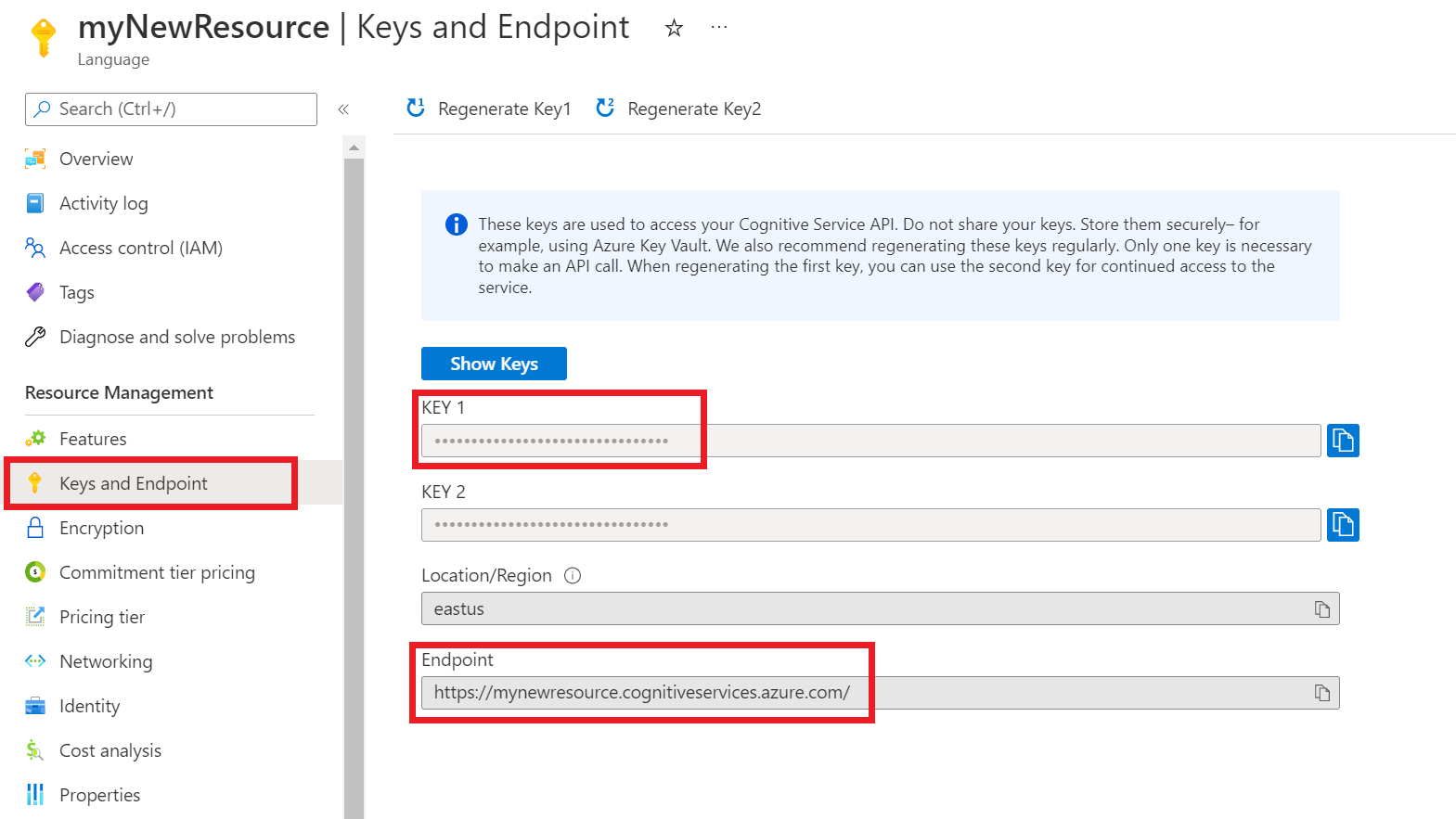
Get your resource keys and endpoint
Go to your resource overview page in the Azure portal.
From the menu on the left side, select Keys and Endpoint. The endpoint and key are used for API requests.
Create an orchestration workflow project
Once you have a Language resource created, create an orchestration workflow project. A project is a work area for building your custom ML models based on your data. Your project can only be accessed by you and others who have access to Azure Language resource being used.
For this quickstart, complete the CLU quickstart to create a CLU project to be used in orchestration workflow.
Submit a PATCH request using the following URL, headers, and JSON body to create a new project.
Request URL
Use the following URL when creating your API request. Replace the placeholder values with your own values.
{ENDPOINT}/language/authoring/analyze-conversations/projects/{PROJECT-NAME}?api-version={API-VERSION}
| Placeholder | Value | Example |
|---|---|---|
{ENDPOINT} |
The endpoint for authenticating your API request. | https://<your-custom-subdomain>.cognitiveservices.azure.com |
{PROJECT-NAME} |
The name for your project. This value is case-sensitive. | myProject |
{API-VERSION} |
The version of the API you're calling. | 2023-04-01 |
Headers
Use the following header to authenticate your request.
| Key | Value |
|---|---|
Ocp-Apim-Subscription-Key |
The key to your resource. Used for authenticating your API requests. |
Body
Use the following sample JSON as your body.
{
  "projectName": "{PROJECT-NAME}",
  "language": "{LANGUAGE-CODE}",
  "projectKind": "Orchestration",
  "description": "Project description"
 }
| Key | Placeholder | Value | Example |
|---|---|---|---|
projectName |
{PROJECT-NAME} |
The name of your project. This value is case-sensitive. | EmailApp |
language |
{LANGUAGE-CODE} |
A string specifying the language code for the utterances used in your project. If your project is a multilingual project, choose the language code for most of the utterances. | en-us |
Build schema
After completing the CLU quickstart, and creating an orchestration project, the next step is to add intents.
Submit a POST request using the following URL, headers, and JSON body to import your project.
Request URL
Use the following URL when creating your API request. Replace the placeholder values with your own values.
{ENDPOINT}/language/authoring/analyze-conversations/projects/{PROJECT-NAME}/:import?api-version={API-VERSION}
| Placeholder | Value | Example |
|---|---|---|
{ENDPOINT} |
The endpoint for authenticating your API request. | https://<your-custom-subdomain>.cognitiveservices.azure.com |
{PROJECT-NAME} |
The name for your project. This value is case-sensitive. | myProject |
{API-VERSION} |
The version of the API you're calling. | 2023-04-01 |
Headers
Use the following header to authenticate your request.
| Key | Value |
|---|---|
Ocp-Apim-Subscription-Key |
The key to your resource. Used for authenticating your API requests. |
Body
Note
Each intent should only be of one type only from (CLU,LUIS and qna)
Use the following sample JSON as your body.
{
  "projectFileVersion": "{API-VERSION}",
  "stringIndexType": "Utf16CodeUnit",
  "metadata": {
    "projectKind": "Orchestration",
    "settings": {
      "confidenceThreshold": 0
    },
    "projectName": "{PROJECT-NAME}",
    "description": "Project description",
    "language": "{LANGUAGE-CODE}"
  },
  "assets": {
    "projectKind": "Orchestration",
    "intents": [
      {
        "category": "string",
        "orchestration": {
          "kind": "luis",
          "luisOrchestration": {
            "appId": "00001111-aaaa-2222-bbbb-3333cccc4444",
            "appVersion": "string",
            "slotName": "string"
          },
          "cluOrchestration": {
            "projectName": "string",
            "deploymentName": "string"
          },
          "qnaOrchestration": {
            "projectName": "string"
          }
        }
      }
    ],
    "utterances": [
      {
        "text": "Trying orchestration",
        "language": "{LANGUAGE-CODE}",
        "intent": "string"
      }
    ]
  }
}
| Key | Placeholder | Value | Example |
|---|---|---|---|
api-version |
{API-VERSION} |
The version of the API you're calling. The version used here must be the same API version in the URL. | 2022-03-01-preview |
projectName |
{PROJECT-NAME} |
The name of your project. This value is case-sensitive. | EmailApp |
language |
{LANGUAGE-CODE} |
A string specifying the language code for the utterances used in your project. If your project is a multilingual project, choose the language code for most of the utterances. | en-us |
Train your model
To train a model, you need to start a training job. The output of a successful training job is your trained model.
Create a POST request using the following URL, headers, and JSON body to submit a training job.
Request URL
Use the following URL when creating your API request. Replace the placeholder values with your own values.
{ENDPOINT}/language/authoring/analyze-conversations/projects/{PROJECT-NAME}/:train?api-version={API-VERSION}
| Placeholder | Value | Example |
|---|---|---|
{ENDPOINT} |
The endpoint for authenticating your API request. | https://<your-custom-subdomain>.cognitiveservices.azure.com |
{PROJECT-NAME} |
The name for your project. This value is case-sensitive. | EmailApp |
{API-VERSION} |
The version of the API you're calling. | 2023-04-01 |
Headers
Use the following header to authenticate your request.
| Key | Value |
|---|---|
Ocp-Apim-Subscription-Key |
The key to your resource. Used for authenticating your API requests. |
Request body
Use the following object in your request. The model will be named MyModel once training is complete.
{
  "modelLabel": "{MODEL-NAME}",
  "trainingMode": "standard",
  "trainingConfigVersion": "{CONFIG-VERSION}",
  "evaluationOptions": {
    "kind": "percentage",
    "testingSplitPercentage": 20,
    "trainingSplitPercentage": 80
  }
}
| Key | Placeholder | Value | Example |
|---|---|---|---|
modelLabel |
{MODEL-NAME} |
Your Model name. | Model1 |
trainingMode |
standard |
Training mode. Only one mode for training is available in orchestration, which is standard. |
standard |
trainingConfigVersion |
{CONFIG-VERSION} |
The training configuration model version. By default, the latest model version is used. | 2022-05-01 |
kind |
percentage |
Split methods. Possible values are percentage or manual. See how to train a model for more information. |
percentage |
trainingSplitPercentage |
80 |
Percentage of your tagged data to be included in the training set. Recommended value is 80. |
80 |
testingSplitPercentage |
20 |
Percentage of your tagged data to be included in the testing set. Recommended value is 20. |
20 |
Note
The trainingSplitPercentage and testingSplitPercentage are only required if Kind is set to percentage and the sum of both percentages should be equal to 100.
Once you send your API request, you receive a 202 response indicating success. In the response headers, extract the operation-location value formatted like this:
{ENDPOINT}/language/authoring/analyze-conversations/projects/{PROJECT-NAME}/train/jobs/{JOB-ID}?api-version={API-VERSION}
You can use this URL to get the training job status.
Get Training Status
Training could take sometime between 10 and 30 minutes. You can use the following request to keep polling the status of the training job until it is successfully completed.
Use the following GET request to get the status of your model's training progress. Replace the placeholder values with your own values.
Request URL
{ENDPOINT}/language/authoring/analyze-conversations/projects/{PROJECT-NAME}/train/jobs/{JOB-ID}?api-version={API-VERSION}
| Placeholder | Value | Example |
|---|---|---|
{YOUR-ENDPOINT} |
The endpoint for authenticating your API request. | https://<your-custom-subdomain>.cognitiveservices.azure.com |
{PROJECT-NAME} |
The name for your project. This value is case-sensitive. | EmailApp |
{JOB-ID} |
The ID for locating your model's training status. It's in the location header value you received when submitted your training job. |
xxxxxxxx-xxxx-xxxx-xxxx-xxxxxxxxxxxxx |
{API-VERSION} |
The version of the API you're calling. | 2023-04-01 |
Headers
Use the following header to authenticate your request.
| Key | Value |
|---|---|
Ocp-Apim-Subscription-Key |
The key to your resource. Used for authenticating your API requests. |
Response Body
Once you send the request, you get the following response. Keep polling this endpoint until the status parameter changes to "succeeded".
{
  "result": {
    "modelLabel": "{MODEL-LABEL}",
    "trainingConfigVersion": "{TRAINING-CONFIG-VERSION}",
    "estimatedEndDateTime": "2022-04-18T15:47:58.8190649Z",
    "trainingStatus": {
      "percentComplete": 3,
      "startDateTime": "2022-04-18T15:45:06.8190649Z",
      "status": "running"
    },
    "evaluationStatus": {
      "percentComplete": 0,
      "status": "notStarted"
    }
  },
  "jobId": "xxxxxx-xxxxx-xxxxxx-xxxxxx",
  "createdDateTime": "2022-04-18T15:44:44Z",
  "lastUpdatedDateTime": "2022-04-18T15:45:48Z",
  "expirationDateTime": "2022-04-25T15:44:44Z",
  "status": "running"
}
| Key | Value | Example |
|---|---|---|
modelLabel |
The model name | Model1 |
trainingConfigVersion |
The training configuration version. By default, the latest version is used. | 2022-05-01 |
startDateTime |
The time training started | 2022-04-14T10:23:04.2598544Z |
status |
The status of the training job | running |
estimatedEndDateTime |
Estimated time for the training job to finish | 2022-04-14T10:29:38.2598544Z |
jobId |
Your training job ID | xxxxx-xxxx-xxxx-xxxx-xxxxxxxxx |
createdDateTime |
Training job creation date and time | 2022-04-14T10:22:42Z |
lastUpdatedDateTime |
Training job last updated date and time | 2022-04-14T10:23:45Z |
expirationDateTime |
Training job expiration date and time | 2022-04-14T10:22:42Z |
Deploy your model
Generally after training a model you would review its evaluation details. In this quickstart, you will just deploy your model, and call the prediction API to query the results.
Submit deployment job
Create a PUT request using the following URL, headers, and JSON body to start deploying an orchestration workflow model.
Request URL
{ENDPOINT}/language/authoring/analyze-conversations/projects/{PROJECT-NAME}/deployments/{DEPLOYMENT-NAME}?api-version={API-VERSION}
| Placeholder | Value | Example |
|---|---|---|
{ENDPOINT} |
The endpoint for authenticating your API request. | https://<your-custom-subdomain>.cognitiveservices.azure.com |
{PROJECT-NAME} |
The name for your project. This value is case-sensitive. | myProject |
{DEPLOYMENT-NAME} |
The name for your deployment. This value is case-sensitive. | staging |
{API-VERSION} |
The version of the API you're calling. | 2023-04-01 |
Headers
Use the following header to authenticate your request.
| Key | Value |
|---|---|
Ocp-Apim-Subscription-Key |
The key to your resource. Used for authenticating your API requests. |
Request Body
{
  "trainedModelLabel": "{MODEL-NAME}",
}
| Key | Placeholder | Value | Example |
|---|---|---|---|
| trainedModelLabel | {MODEL-NAME} |
The model name that is assigned to your deployment. You can only assign successfully trained models. This value is case-sensitive. | myModel |
Once you send your API request, you receive a 202 response indicating success. In the response headers, extract the operation-location value formatted like this:
{ENDPOINT}/language/authoring/analyze-conversations/projects/{PROJECT-NAME}/deployments/{DEPLOYMENT-NAME}/jobs/{JOB-ID}?api-version={API-VERSION}
You can use this URL to get the deployment job status.
Get deployment job status
Use the following GET request to get the status of your deployment job. Replace the placeholder values with your own values.
Request URL
{ENDPOINT}/language/authoring/analyze-conversations/projects/{PROJECT-NAME}/deployments/{DEPLOYMENT-NAME}/jobs/{JOB-ID}?api-version={API-VERSION}
| Placeholder | Value | Example |
|---|---|---|
{ENDPOINT} |
The endpoint for authenticating your API request. | https://<your-custom-subdomain>.cognitiveservices.azure.com |
{PROJECT-NAME} |
The name for your project. This value is case-sensitive. | myProject |
{DEPLOYMENT-NAME} |
The name for your deployment. This value is case-sensitive. | staging |
{JOB-ID} |
The ID for locating your model's training status. It's in the location header value you received from the API in response to your model deployment request. |
xxxxxxxx-xxxx-xxxx-xxxx-xxxxxxxxxxxxx |
{API-VERSION} |
The version of the API you're calling. | 2023-04-01 |
Headers
Use the following header to authenticate your request.
| Key | Value |
|---|---|
Ocp-Apim-Subscription-Key |
The key to your resource. Used for authenticating your API requests. |
Response Body
Once you send the request, you get the following response. Keep polling this endpoint until the status parameter changes to "succeeded".
{
    "jobId":"{JOB-ID}",
    "createdDateTime":"{CREATED-TIME}",
    "lastUpdatedDateTime":"{UPDATED-TIME}",
    "expirationDateTime":"{EXPIRATION-TIME}",
    "status":"running"
}
Query model
After your model is deployed, you can start using it to make predictions through the prediction API.
Once deployment succeeds, you can begin querying your deployed model for predictions.
Create a POST request using the following URL, headers, and JSON body to start testing an orchestration workflow model.
Request URL
{ENDPOINT}/language/:analyze-conversations?api-version={API-VERSION}
| Placeholder | Value | Example |
|---|---|---|
{ENDPOINT} |
The endpoint for authenticating your API request. | https://<your-custom-subdomain>.cognitiveservices.azure.com |
{API-VERSION} |
The version of the API you're calling. | 2023-04-01 |
Headers
Use the following header to authenticate your request.
| Key | Value |
|---|---|
Ocp-Apim-Subscription-Key |
The key to your resource. Used for authenticating your API requests. |
Request Body
{
  "kind": "Conversation",
  "analysisInput": {
    "conversationItem": {
      "text": "Text1",
      "participantId": "1",
      "id": "1"
    }
  },
  "parameters": {
    "projectName": "{PROJECT-NAME}",
    "deploymentName": "{DEPLOYMENT-NAME}",
    "directTarget": "qnaProject",
    "targetProjectParameters": {
      "qnaProject": {
        "targetProjectKind": "QuestionAnswering",
        "callingOptions": {
          "context": {
            "previousUserQuery": "Meet Surface Pro 4",
            "previousQnaId": 4
          },
          "top": 1,
          "question": "App Service overview"
        }
      }
    }
  }
}
Response Body
Once you send the request, you get the following response for the prediction!
{
  "kind": "ConversationResult",
  "result": {
    "query": "App Service overview",
    "prediction": {
      "projectKind": "Orchestration",
      "topIntent": "qnaTargetApp",
      "intents": {
        "qnaTargetApp": {
          "targetProjectKind": "QuestionAnswering",
          "confidenceScore": 1,
          "result": {
            "answers": [
              {
                "questions": [
                  "App Service overview"
                ],
                "answer": "The compute resources you use are determined by the *App Service plan* that you run your apps on.",
                "confidenceScore": 0.7384000000000001,
                "id": 1,
                "source": "https://learn.microsoft.com/azure/app-service/overview",
                "metadata": {},
                "dialog": {
                  "isContextOnly": false,
                  "prompts": []
                }
              }
            ]
          }
        }
      }
    }
  }
}
Clean up resources
When you don't need your project anymore, you can delete your project using the APIs.
Create a DELETE request using the following URL, headers, and JSON body to delete a conversational language understanding project.
Request URL
{ENDPOINT}/language/authoring/analyze-conversations/projects/{PROJECT-NAME}?api-version={API-VERSION}
| Placeholder | Value | Example |
|---|---|---|
{ENDPOINT} |
The endpoint for authenticating your API request. | https://<your-custom-subdomain>.cognitiveservices.azure.com |
{PROJECT-NAME} |
The name for your project. This value is case-sensitive. | myProject |
{API-VERSION} |
The version of the API you're calling. | 2023-04-01 |
Headers
Use the following header to authenticate your request.
| Key | Value |
|---|---|
Ocp-Apim-Subscription-Key |
The key to your resource. Used for authenticating your API requests. |
Once you send your API request, you receive a 202 response indicating success, which means your project is deleted.