Note
Access to this page requires authorization. You can try signing in or changing directories.
Access to this page requires authorization. You can try changing directories.
Use the Azure CLI or the Azure portal to inspect a model deployment, update its replica settings, or delete that deployment without deleting its namespace or AI Manager.
Important
AKS preview features are available on a self-service, opt-in basis. Previews are provided "as is" and "as available," and they're excluded from the service-level agreements and limited warranty. AKS previews are partially covered by customer support on a best-effort basis. As such, these features aren't meant for production use. For more information, see the following support articles:
Before you begin
- An AI Manager with a namespace and model deployment.
- Azure CLI with access to the AI Manager CLI extension for the public preview.
- The Azure AIManager Contributor role at the model deployment, namespace, or AI Manager scope. To list deployments, assign the role at the namespace or a parent scope. At deployment scope, use
showwith the deployment name.
Set variables for your existing resources:
export RESOURCE_GROUP="<resource-group>"
export MANAGER_NAME="<ai-manager-name>"
export NAMESPACE_NAME="<namespace-name>"
export DEPLOYMENT_NAME="<deployment-name>"
Check a model deployment
List the model deployments in a namespace. The table shows each deployment's provisioning state, replica counts as current/desired, model ID, and endpoint. This command requires the role at the namespace scope or a parent scope.
az aimanager namespace modeldeployment list \
  --resource-group "$RESOURCE_GROUP" \
  --aimanager "$MANAGER_NAME" \
  --namespace "$NAMESPACE_NAME" \
  --output table
Show one model deployment, including its endpoint and runtime status, by using its name. This command also works when the role is assigned at the deployment scope.
az aimanager namespace modeldeployment show \
  --resource-group "$RESOURCE_GROUP" \
  --aimanager "$MANAGER_NAME" \
  --namespace "$NAMESPACE_NAME" \
  --name "$DEPLOYMENT_NAME" \
  --output json
Wait until provisioningState is Succeeded. If the state is Failed or Canceled, stop checking. Inspect the full resource from the show command before you retry. For the full list of states, see Provisioning states. For the meanings of runtime status fields, see the AI Manager resource reference.
Change scaling settings
Use the variables that you set in Before you begin.
The az aimanager namespace modeldeployment update command supports either a fixed replica count or an autoscale range. It also exposes a performance mode option.
| Option | Purpose | Notes |
|---|---|---|
--replicas |
Sets a fixed replica count. | Don't combine with --min-replicas or --max-replicas. |
--min-replicas |
Sets the minimum replica count for autoscaling. | Provide together with --max-replicas. |
--max-replicas |
Sets the maximum replica count for autoscaling. | Provide together with --min-replicas. |
--performance-mode |
Sets the performance mode: Balanced, Latency, or Throughput. |
For the meaning of each mode, see the AI Manager resource reference. |
The update command changes scaling and performance mode only. To use a different catalog model or VM size, create a new model deployment.
To set a fixed replica count, run:
az aimanager namespace modeldeployment update \
  --resource-group "$RESOURCE_GROUP" \
  --aimanager "$MANAGER_NAME" \
  --namespace "$NAMESPACE_NAME" \
  --name "$DEPLOYMENT_NAME" \
  --replicas 2
To set an autoscale range, provide both its minimum and maximum:
az aimanager namespace modeldeployment update \
  --resource-group "$RESOURCE_GROUP" \
  --aimanager "$MANAGER_NAME" \
  --namespace "$NAMESPACE_NAME" \
  --name "$DEPLOYMENT_NAME" \
  --min-replicas 1 \
  --max-replicas 3
After the update completes, run az aimanager namespace modeldeployment show again. For manual scaling, desiredReplicas reflects the replica count that you requested; for autoscaling, it reflects the autoscaler’s current target. The currentReplicas field reports the number of ready replicas. For a fixed replica count, confirm that desiredReplicas matches the requested count and that currentReplicas matches desiredReplicas. For autoscaling, check that the configured minimum and maximum replica counts match the requested range.
Delete a model deployment
Use the variables that you set in Before you begin.
Check the resource group, AI Manager, namespace, and model deployment name before you delete the model deployment.
Delete only the model deployment.
az aimanager namespace modeldeployment delete \
  --resource-group "$RESOURCE_GROUP" \
  --aimanager "$MANAGER_NAME" \
  --namespace "$NAMESPACE_NAME" \
  --name "$DEPLOYMENT_NAME" \
  --yes
This command targets the model deployment. It doesn't delete the namespace or AI Manager. To confirm the deletion, run the list command from Check a model deployment, which requires access to list deployments at the namespace or a parent scope. If your access is limited to the model deployment, ask an operator with namespace-level list access to perform this check. While the deletion is in progress, the state can show Deleting. When it finishes, the deployment no longer appears in the output.
Before you begin
- An AI Manager with a namespace and model deployment.
- The Azure AIManager Contributor role at the model deployment, namespace, or AI Manager scope. To learn more about roles and access, visit Grant access to AI Manager.
View model deployments
Go to AI/ML > Deployments to view your model deployments. When a model's provisioning status is Succeeded, you can verify its current endpoint or inference status by selecting Check status, as shown in the following image. For the full list of states, see Provisioning states.

Each deployment's Overview contains more information such as its endpoint, GPU size, associated nodes, and related events.
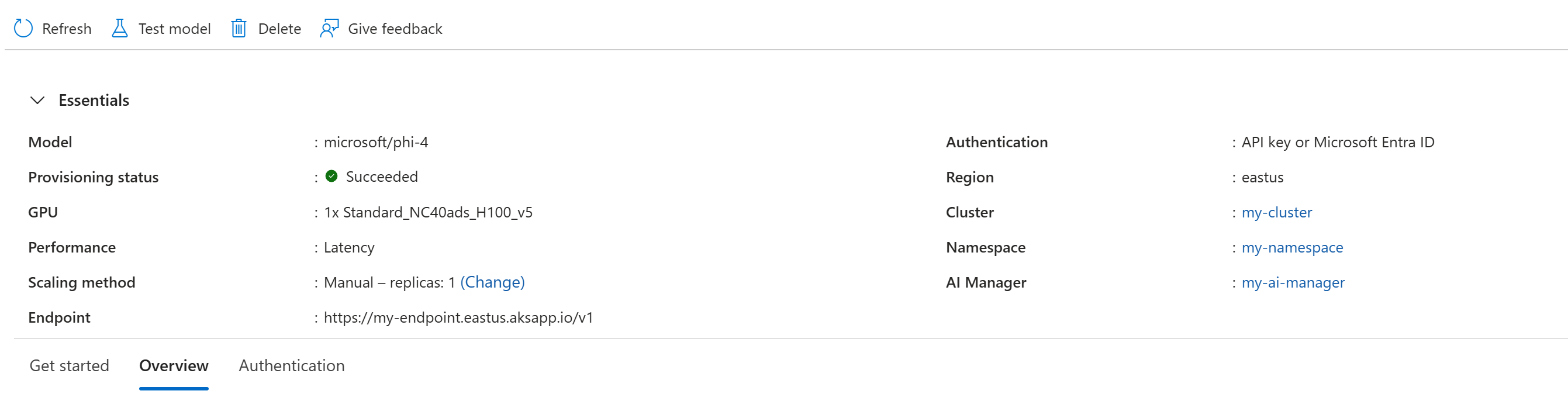
Change settings
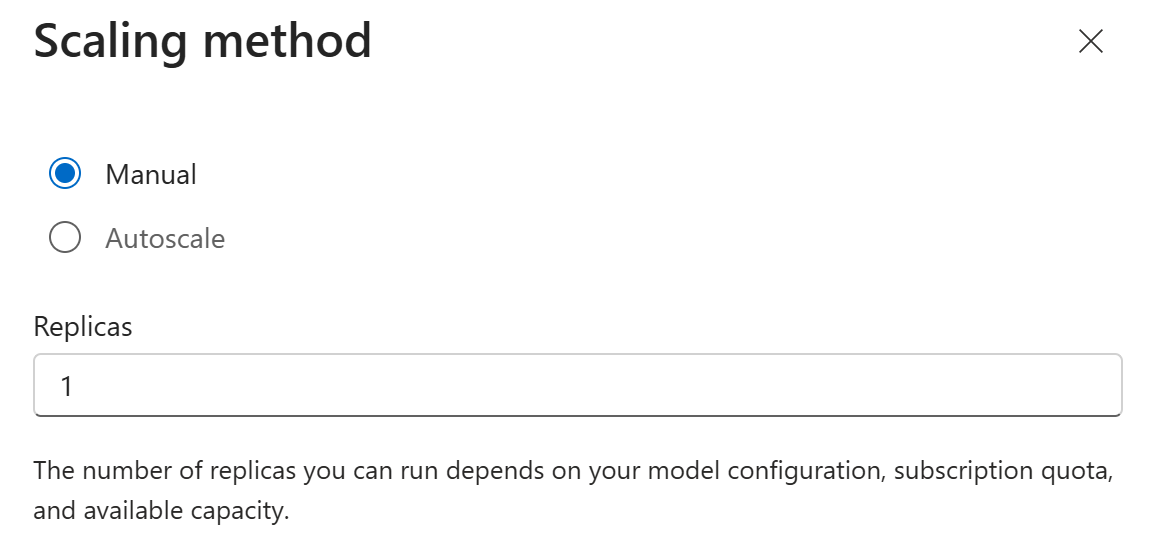
To change scaling settings on a model deployment, go to its Overview and select Change next to Scaling method. Select Manual or Autoscale and set the replica counts.
Delete a model deployment
Go to Overview and select Delete in the toolbar. You need to confirm before the model deployment is deleted.
Note
Deleting a model deployment doesn't delete the underlying namespace or AI Manager. To delete the AI Manager or namespace, go to the resource and delete it there.