Note
Access to this page requires authorization. You can try signing in or changing directories.
Access to this page requires authorization. You can try changing directories.
Extend cluster management workflows with Headlamp plugins in AKS desktop.
AKS desktop is based on the open-source Headlamp project and includes a catalog for discovering and installing Headlamp plugins. You can use plugins for tasks such as GitOps, security, certificate management, autoscaling, and application conversion. Installing a plugin doesn't change the core AKS desktop installation.
The catalog distinguishes plugins that pass Microsoft accessibility and localization checks from Official Headlamp plugins published by the Headlamp project.
Important
The set of plugins in the catalog can change as publishers add, update, deprecate, or remove packages. Use the catalog in your installed version of AKS desktop as the source of truth for current availability.
Prerequisites
- Confirm that your organization allows third-party plugins and external integrations.
- Install or update to AKS desktop v0.10.0 or later.
- Connect AKS desktop to the Kubernetes cluster where you want to use the plugin.
- Review the plugin notes, required cluster components, supported versions, network requirements, and publisher before installation.
- Confirm that your Kubernetes identity has only the permissions required for the plugin workflow. For more information, see Set up permissions and role-based access control (RBAC) in AKS desktop.
Understand plugin categories
| Category | Description | Catalog behavior and considerations |
|---|---|---|
| AKS optimized plugins | Plugins that pass Microsoft accessibility and localization checks. | These plugins appear by default. Review the publisher documentation before installation. |
| Official Headlamp plugins | Plugins published by the Headlamp project. | To view these plugins, turn off the AKS optimized filter. Availability, compatibility, prerequisites, maintenance, and support vary by plugin. |
Note
The AKS optimized label indicates that a plugin has passed Microsoft accessibility and localization checks. It doesn't indicate Microsoft support, a Microsoft security review, or guaranteed availability or compatibility.
Browse the plugin catalog
- Open AKS desktop.
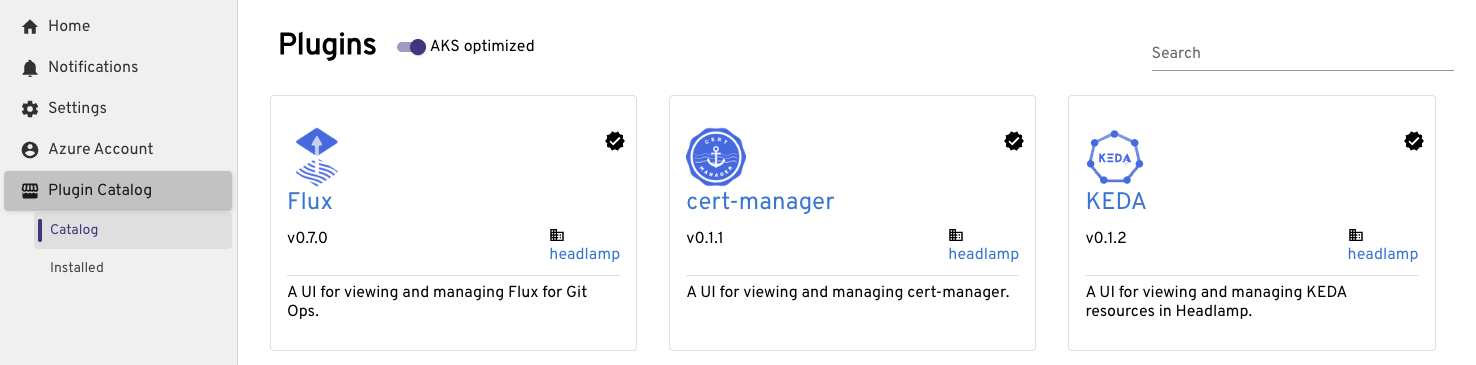
- From Home, select Plugin Catalog.
- Browse the plugins shown by default with AKS optimized turned on, or use search to find a plugin by name or workload.
- Select a plugin to review its description, publisher, available version, prerequisites, permissions, and plugin documentation.
Show official Headlamp plugins
Caution
Enable official Headlamp plugins only after reviewing the plugin repository, release history, publisher, required credentials, and data handling. Plugins run in the Headlamp application context and can act with the permissions available to your connected Kubernetes identity.
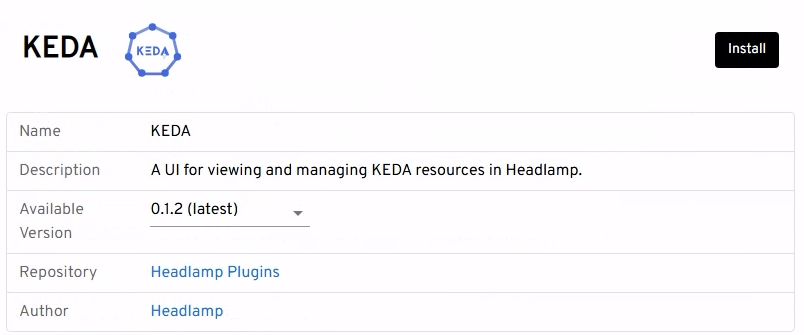
- In Plugin Catalog, turn off AKS optimized.
- Review the notice that these plugins are published by the Headlamp project and aren't included in the AKS optimized set.
- In the confirmation dialog, confirm that you want to show plugins that are not AKS optimized. The catalog refreshes automatically.
Install a plugin
Tip
Install one plugin at a time and verify it against a non-production cluster before rolling it out to additional operators.
In Plugin Catalog, select the plugin that you want to install.
Review the notes and prerequisites. If multiple versions are available, select the version compatible with your environment.
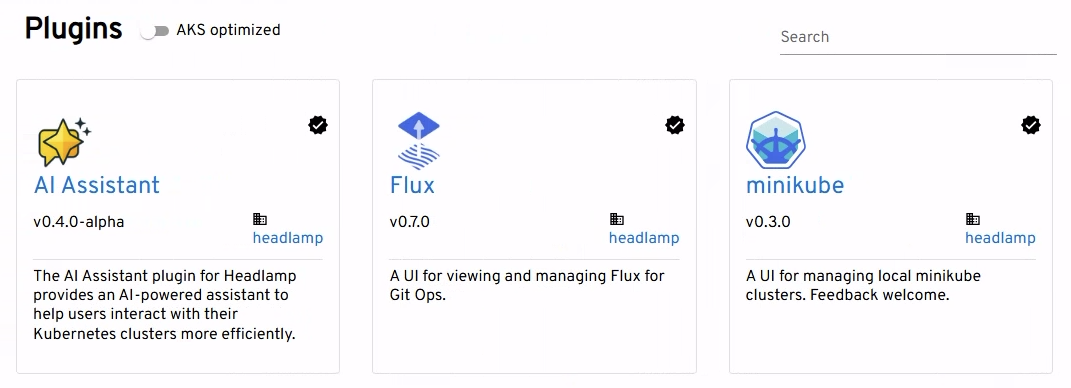
Select Install.
When prompted, select Reload now. If the plugin doesn't appear after reload, close and reopen AKS desktop.
Open the plugin from the navigation menu or from the relevant Kubernetes resource page.
Manage installed plugins
| Task | Action |
|---|---|
| Disable temporarily | Open plugin settings, locate the installed plugin, and turn off the Enable setting. Reload AKS desktop if prompted. |
| Enable again | Open plugin settings, locate the installed plugin, and turn on the Enable setting. Reload AKS desktop if prompted. |
| Update | When the catalog displays Update available, open the plugin details and select Update. Review release notes before updating. |
| Uninstall | Open the installed plugin details and select Uninstall. Reload AKS desktop if prompted. |
| Review version | Open plugin details to compare the installed version with the version currently offered by the catalog. |
Explore common plugin scenarios
Headlamp plugins extend AKS desktop with focused views and workflows while keeping the core application streamlined. Depending on your cluster configuration, plugins can support scenarios such as:
- GitOps with Flux: View synchronization status and manage Flux resources alongside the Kubernetes workloads they control.
- Event-driven autoscaling with KEDA: Inspect
ScaledObjectandScaledJobresources to understand how workloads respond to external events. - Policy management with Kyverno: View Kubernetes policy resources and reports alongside the workloads they govern to help investigate policy violations and enforcement results.
Catalog contents can vary based on your AKS desktop version, platform, release policy, and availability in the official Headlamp plugin catalog. To explore official Headlamp plugins, see the Headlamp plugins repository.
Permissions and security
Headlamp plugins use the active Kubernetes connection in AKS desktop. They operate with the same identity, kubeconfig context, and Kubernetes role-based access control (RBAC) permissions available to the signed-in user. Installing a plugin doesn't grant additional Kubernetes permissions.
Follow these security practices when you use plugins:
- Use least-privilege Kubernetes roles. Avoid cluster-admin for routine plugin workflows.
- Confirm the active cluster and context before running any action that creates, updates, or deletes resources.
- Review whether the plugin sends telemetry, resource data, prompts, logs, or credentials to an external service.
- Treat publisher badges as identity and provenance indicators, not as proof of a security audit.
- Test updates before broad deployment, especially for plugins that create Jobs, ConfigMaps, secrets, role bindings, or custom resources.
- Disable or uninstall a plugin that is no longer required. Removing a plugin might not remove cluster resources that it created.
Plugins that use external services
Some plugins require API keys, service URLs, or external providers. Store credentials according to your organization's security policy. Before using AI Assistant or another external integration, review where data is processed, what cluster information can be transmitted, retention terms, regional requirements, and expected charges.
Compatibility and support
| Area | Guidance |
|---|---|
| AKS desktop application | Use AKS desktop support channels for catalog availability, installation flow, reload behavior, or other issues. |
| Plugin-specific issues | Use the publisher repository linked from the catalog for plugin-specific defects, compatibility questions, and feature requests. |
| Cluster-side component | Use the component publisher's documentation and support process for any operator, controller, or other prerequisite required by the plugin. |
Note
AKS desktop can surface an official Headlamp plugin without guaranteeing compatibility with every AKS version, Kubernetes version, operating system, network configuration, or enterprise policy.
Troubleshoot common issues
Use the following guidance to troubleshoot common plugin issues.
Plugin catalog is unavailable
The installed AKS desktop version might predate the catalog or the feature might not be enabled in the build.
Use the following steps to troubleshoot the issue:
- Verify that your AKS desktop installation meets the prerequisites.
- Restart AKS desktop after updating.
- Check whether organizational policy or network controls block access to catalog metadata and package hosts.
Official Headlamp plugins don't appear
The AKS optimized filter might be on, or other catalog filters might hide the package.
Use the following step to troubleshoot the issue:
- Open Plugin Catalog and turn off AKS optimized.
Installation fails
The package might be unavailable, blocked, incompatible, or unable to download.
Use the following steps to troubleshoot the issue:
- Review the error message and plugin details.
- Confirm network access to Artifact Hub and supported package hosts.
- Try a compatible plugin version if the catalog offers version selection.
- Don't bypass certificate, checksum, or publisher validation warnings.
Plugin installs but doesn't appear
The application might need a reload, or the plugin might disable itself because of compatibility problems.
Use the following steps to troubleshoot the issue:
- Select Reload now, or restart AKS desktop.
- Check installed plugin settings to confirm that the plugin is enabled.
- Verify the required cluster-side component and custom resource definitions.
- Check the publisher documentation for supported Headlamp and Kubernetes versions.
Plugin pages are empty or actions are unavailable
The active cluster might not have the required component, or your Kubernetes identity might lack permission.
Use the following steps to troubleshoot the issue:
- Confirm the active context and namespace.
- Verify that the prerequisite operator or CRDs are installed.
- Ask a cluster administrator to review RBAC without granting broader access than required.
Recommended rollout approach
- Identify the operator workflow and evaluate each available plugin independently.
- Review the publisher, source repository, release notes, prerequisites, data flow, and required RBAC.
- Install and validate the plugin against a non-production cluster.
- Document the approved version, owner, required cluster components, and update process.
- Roll out to additional users through your organization's standard software-governance process.
- Reassess the plugin after updates or changes in publisher ownership, maturity, or permissions.