Note
Access to this page requires authorization. You can try signing in or changing directories.
Access to this page requires authorization. You can try changing directories.
Applies to: ✔️ AKS Automatic
Azure Kubernetes Service (AKS) Automatic provides the easiest managed Kubernetes experience for developers, DevOps engineers, and platform engineers. Ideal for modern and AI applications, AKS Automatic automates AKS cluster setup and operations and embeds best practice configurations. Users of any skill level can benefit from the security, performance, and dependability of AKS Automatic for their applications. AKS Automatic also includes a pod readiness SLA that guarantees 99.9% of qualifying pod readiness operations complete within 5 minutes, guaranteeing reliable, self-healing infrastructure for your applications. This quickstart assumes a basic understanding of Kubernetes concepts. For more information, see Kubernetes core concepts for Azure Kubernetes Service (AKS).
In this quickstart, you learn to:
- Create a virtual network.
- Create a managed identity with permissions over the virtual network.
- Deploy an AKS Automatic cluster in the virtual network.
- Run a sample multi-container application with a group of microservices and web front ends simulating a retail scenario.
If you don't have an Azure account, create a free account.
Prerequisites
- Azure CLI version 2.86.0 or later. To find the version, run
az --versioncommand. If you need to install or upgrade, see Install Azure CLI.
Note
This sample creates the AKS Automatic cluster with the AzureRM provider's azurerm_kubernetes_automatic_cluster resource, which requires AzureRM provider version v4.81 or later. For an equivalent sample that uses the AzAPI provider, see the 101-aks-automatic-custom-network-azapi sample.
- Cluster identity with a
Network Contributorbuilt-in role assignment on the API server subnet. - Cluster identity with a
Network Contributorbuilt-in role assignment on the virtual network to support Node Autoprovisioning. - User identity accessing the cluster with
Azure Kubernetes Service Cluster User RoleandAzure Kubernetes Service RBAC Writer. - A virtual network with a dedicated API server subnet of at least
*/28size that is delegated toMicrosoft.ContainerService/managedClusters.- If there's a Network Security Group (NSG) attached to subnets, ensure that the NSG security rules permit the required types of communication between cluster components. For detailed requirements, see Custom virtual network requirements.
- If there's an Azure Firewall or other outbound restriction method or appliance, ensure the required outbound network rules and FQDNs are allowed.
- AKS Automatic will enable Azure Policy on your AKS cluster, but you should pre-register the
Microsoft.PolicyInsightsresource provider in your subscription for a smoother experience. For more information, see Azure resource providers and types for more information. - Uninstall the AKS-preview extension using
az extension remove -n aks-preview.
Important
Starting on AKS 1.36, new AKS Automatic clusters will by default enable Kubernetes Gateway API via the application routing add-on instead of Managed NGINX ingress with the application routing add-on due to the upstream Ingress NGINX retirement.
Existing Automatic clusters aren't affected but should begin migration to Kubernetes Gateway API via the application routing add-on.
Limitations
The following limitations apply to AKS Automatic clusters:
- AKS Automatic is generally available in the following regions:
australiacentral,australiaeast,australiasoutheast,austriaeast,belgiumcentral,brazilsouth,canadacentral,canadaeast,centralindia,centralus,chilecentral,denmarkeast,eastasia,eastus,eastus2,francecentral,germanywestcentral,indonesiacentral,israelcentral,italynorth,japaneast,japanwest,koreacentral,koreasouth,malaysiawest,mexicocentral,newzealandnorth,northcentralus,northeurope,norwayeast,polandcentral,southafricanorth,southcentralus,southeastasia,southindia,spaincentral,swedencentral,switzerlandnorth,uaenorth,uksouth,ukwest,westcentralus,westeurope,westus,westus2,westus3. - New AKS Automatic clusters by default enable managed system node pools and LocalDNS. You can't create AKS Automatic clusters without managed system node pools in any region.
- AKS Automatic cluster has node resource group lockdown preconfigured, which doesn't allow changes to the
MC_resource group, preventing virtual network links on the default Private DNS zone. For cross‑VNet or custom DNS scenarios, use custom network and private DNS by following Create a private Azure Kubernetes Service (AKS) Automatic cluster in a custom virtual network. - Azure CLI version 2.86.0 or later is required. To find the version, run
az --versioncommand. If you need to install or upgrade, see Install Azure CLI. - The following extensions aren't supported:
- Windows nodes aren't supported.
- Migration from AKS base SKU to automatic SKU isn't supported.
- Migration from an existing AKS Automatic cluster without managed system node pools to AKS Automatic with managed system node pools is supported in preview in regions where managed system node pools are generally available. Migration from AKS Automatic with managed system node pools back to AKS Automatic without managed system node pools isn't supported.
Define variables
Define the following variables that are used in the following steps.
RG_NAME=automatic-rg
VNET_NAME=automatic-vnet
CLUSTER_NAME=automatic
IDENTITY_NAME=automatic-uami
LOCATION=eastus
SUBSCRIPTION_ID=$(az account show --query id -o tsv)
Create a resource group
An Azure resource group is a logical group in which Azure resources are deployed and managed.
Create a resource group using the az group create command.
az group create -n ${RG_NAME} -l ${LOCATION}
The following sample output resembles successful creation of the resource group:
{
  "id": "/subscriptions/<guid>/resourceGroups/automatic-rg",
  "location": "canadacentral",
  "managedBy": null,
  "name": "automatic-rg",
  "properties": {
    "provisioningState": "Succeeded"
  },
  "tags": null
}
Create a virtual network
Create a virtual network using the az network vnet create command. Create an API server subnet, user node subnet, and system node subnet using the az network vnet subnet create command.
When you use a custom virtual network with AKS Automatic, you must create an API server subnet. AKS delegates the subnet to Microsoft.ContainerService/managedClusters on your behalf, which grants the AKS service permissions to inject the API server pods and internal load balancer into that subnet. You can't use the subnet for any other workloads, but you can use it for the API server subnet for multiple AKS clusters located in the same virtual network. The minimum supported API server subnet size to support a single cluster is a /28.
Warning
An AKS cluster reserves at least nine (9) IPs in the subnet address space. Running out of IP addresses might prevent API server scaling and cause an API server outage.
az network vnet create --name ${VNET_NAME} \
--resource-group ${RG_NAME} \
--location ${LOCATION} \
--address-prefixes 172.19.0.0/16

az network vnet subnet create --resource-group ${RG_NAME} \
--vnet-name ${VNET_NAME} \
--name apiServerSubnet \
--delegations Microsoft.ContainerService/managedClusters \
--address-prefixes 172.19.0.0/28

az network vnet subnet create --resource-group ${RG_NAME} \
--vnet-name ${VNET_NAME} \
--name userNodeSubnet \
--address-prefixes 172.19.1.0/24

az network vnet subnet create --resource-group ${RG_NAME} \
--vnet-name ${VNET_NAME} \
--name managedSystemNodeSubnet \
--address-prefixes 172.19.0.64/26
Network security group requirements
If you added Network Security Group (NSG) rules to restrict traffic between different subnets in your custom virtual network, ensure that the NSG security rules permit the required types of communication between cluster components.
For detailed NSG requirements when using custom virtual networks with AKS clusters, see Custom virtual network requirements.
Create a managed identity and give it permissions on the virtual network
Create a managed identity using the az identity create command and retrieve the principal ID. Assign the Network Contributor role on virtual network to the managed identity using the az role assignment create command.
az identity create \
--resource-group ${RG_NAME} \
 --name ${IDENTITY_NAME} \
 --location ${LOCATION}

IDENTITY_PRINCIPAL_ID=$(az identity show --resource-group ${RG_NAME} --name ${IDENTITY_NAME} --query principalId -o tsv)

az role assignment create \
--scope "/subscriptions/${SUBSCRIPTION_ID}/resourceGroups/${RG_NAME}/providers/Microsoft.Network/virtualNetworks/${VNET_NAME}" \
--role "Network Contributor" \
--assignee-object-id "${IDENTITY_PRINCIPAL_ID}" \
--assignee-principal-type ServicePrincipal
Create an AKS Automatic cluster in a custom virtual network
To create an AKS Automatic cluster, use the az aks create command.
az aks create \
--resource-group ${RG_NAME} \
--name ${CLUSTER_NAME} \
--location ${LOCATION} \
--apiserver-subnet-id "/subscriptions/${SUBSCRIPTION_ID}/resourceGroups/${RG_NAME}/providers/Microsoft.Network/virtualNetworks/${VNET_NAME}/subnets/apiServerSubnet" \
--node-subnet-id "/subscriptions/${SUBSCRIPTION_ID}/resourceGroups/${RG_NAME}/providers/Microsoft.Network/virtualNetworks/${VNET_NAME}/subnets/userNodeSubnet" \
--system-node-subnet-id "/subscriptions/${SUBSCRIPTION_ID}/resourceGroups/${RG_NAME}/providers/Microsoft.Network/virtualNetworks/${VNET_NAME}/subnets/managedSystemNodeSubnet"
--assign-identity "/subscriptions/${SUBSCRIPTION_ID}/resourcegroups/${RG_NAME}/providers/Microsoft.ManagedIdentity/userAssignedIdentities/${IDENTITY_NAME}" \
--sku automatic \
--no-ssh-key
After a few minutes, the command completes and returns JSON-formatted information about the cluster.
Connect to the cluster
To manage a Kubernetes cluster, use the Kubernetes command-line client, kubectl. kubectl is already installed if you use Azure Cloud Shell. To install kubectl locally, run the az aks install-cli command. AKS Automatic clusters are configured with Microsoft Entra ID for Kubernetes role-based access control (RBAC).
When you create a cluster using the Azure CLI, your user is assigned built-in roles for Azure Kubernetes Service RBAC Cluster Admin.
Configure kubectl to connect to your Kubernetes cluster using the az aks get-credentials command. This command downloads credentials and configures the Kubernetes CLI to use them.
az aks get-credentials --resource-group ${RG_NAME} --name ${CLUSTER_NAME}
Verify the connection to your cluster using the kubectl get command. This command returns a list of the cluster nodes.
kubectl get nodes
The following sample output shows how you're asked to sign in.
To sign in, use a web browser to open the page https://microsoft.com/devicelogin and enter the code AAAAAAAAA to authenticate.
After you sign in, the following sample output shows the managed system node pools. Make sure the node status is Ready.
NAME                           STATUS   ROLES    AGE   VERSION
aks-hostedpool-16652789-vms1   Ready    <none>   19m   v1.34.7
aks-hostedpool-16652789-vms2   Ready    <none>   19m   v1.34.7
aks-hostedpool-16652789-vms3   Ready    <none>   19m   v1.34.7
aks-system-surge-zq4d2         Ready    <none>   19m   v1.34.7
Create a virtual network
This Bicep file defines a virtual network.
@description('The location of the managed cluster resource.')
param location string = resourceGroup().location

@description('The name of the virtual network.')
param vnetName string = 'aksAutomaticVnet'

@description('The address prefix of the virtual network.')
param addressPrefix string = '172.19.0.0/16'

@description('The name of the API server subnet.')
param apiServerSubnetName string = 'apiServerSubnet'

@description('The subnet prefix of the API server subnet.')
param apiServerSubnetPrefix string = '172.19.0.0/28'

@description('The name of the user node subnet.')
param userNodeSubnetName string = 'userNodeSubnet'

@description('The subnet prefix of the user node subnet.')
param userNodeSubnetPrefix string = '172.19.1.0/24'

@description('The name of the system node subnet.')
param systemNodeSubnetName string = 'systemNodeSubnet'

@description('The subnet prefix of the system node subnet.')
param systemNodeSubnetPrefix string = '172.19.0.64/26'

// Virtual network with an API server subnet, a user node subnet, and a system node subnet
resource virtualNetwork 'Microsoft.Network/virtualNetworks@2023-09-01' = {
    name: vnetName
    location: location
    properties: {
        addressSpace: {
            addressPrefixes: [ addressPrefix ]
        }
        subnets: [
            {
                name: apiServerSubnetName
                properties: {
                    addressPrefix: apiServerSubnetPrefix
                }
            }
            {
                name: userNodeSubnetName
                properties: {
                    addressPrefix: userNodeSubnetPrefix
                }
            }
            {
                name: systemNodeSubnetName
                properties: {
                    addressPrefix: systemNodeSubnetPrefix
                }
            }
        ]
    }
}

output apiServerSubnetId string = resourceId('Microsoft.Network/virtualNetworks/subnets', vnetName, apiServerSubnetName)
output userNodeSubnetId string = resourceId('Microsoft.Network/virtualNetworks/subnets', vnetName, userNodeSubnetName)
output systemNodeSubnetId string = resourceId('Microsoft.Network/virtualNetworks/subnets', vnetName, systemNodeSubnetName)
Save the Bicep file virtualNetwork.bicep to your local computer.
Important
The Bicep file sets the vnetName param to aksAutomaticVnet, the addressPrefix param to 172.19.0.0/16, the apiServerSubnetPrefix param to 172.19.0.0/28, and the apiServerSubnetPrefix param to 172.19.1.0/24. If you want to use different values, make sure to update the strings to your preferred values.
Deploy the Bicep file using the Azure CLI.
az deployment group create --resource-group <resource-group> --template-file virtualNetwork.bicep
All traffic within the virtual network is allowed by default. If you added Network Security Group (NSG) rules to restrict traffic between different subnets in your custom virtual network, ensure that the NSG security rules permit the required types of communication between cluster components.
For detailed NSG requirements when using custom virtual networks with AKS clusters, see Custom virtual network requirements.
Create a managed identity
This Bicep file defines a user assigned managed identity.
param location string = resourceGroup().location
param uamiName string = 'aksAutomaticUAMI'

resource userAssignedManagedIdentity 'Microsoft.ManagedIdentity/userAssignedIdentities@2023-01-31' = {
  name: uamiName
  location: location
}

output uamiId string = userAssignedManagedIdentity.id
output uamiPrincipalId string = userAssignedManagedIdentity.properties.principalId
output uamiClientId string = userAssignedManagedIdentity.properties.clientId
Save the Bicep file uami.bicep to your local computer.
Important
The Bicep file sets the uamiName param to the aksAutomaticUAMI. If you want to use a different identity name, make sure to update the string to your preferred name.
Deploy the Bicep file using the Azure CLI.
az deployment group create --resource-group <resource-group> --template-file uami.bicep
Assign the Network Contributor role over the virtual network
This Bicep file defines role assignments over the virtual network.
@description('The name of the virtual network.')
param vnetName string = 'aksAutomaticVnet'

@description('The principal ID of the user assigned managed identity.')
param uamiPrincipalId string

// Get a reference to the virtual network
resource virtualNetwork 'Microsoft.Network/virtualNetworks@2023-09-01' existing ={
  name: vnetName
}

// Assign the Network Contributor role to the user assigned managed identity on the virtual network
// '4d97b98b-1d4f-4787-a291-c67834d212e7' is the built-in Network Contributor role definition
// See: https://learn.microsoft.com/en-us/azure/role-based-access-control/built-in-roles/networking#network-contributor
resource networkContributorRoleAssignmentToVirtualNetwork 'Microsoft.Authorization/roleAssignments@2022-04-01' = {
  name: guid(uamiPrincipalId, '4d97b98b-1d4f-4787-a291-c67834d212e7', resourceGroup().id, virtualNetwork.name)
  scope: virtualNetwork
  properties: {
      roleDefinitionId: resourceId('Microsoft.Authorization/roleDefinitions', '4d97b98b-1d4f-4787-a291-c67834d212e7')
      principalId: uamiPrincipalId
  }
}
Save the Bicep file roleAssignments.bicep to your local computer.
Important
The Bicep file sets the vnetName param to aksAutomaticVnet. If you used a different virtual network name, make sure to update the string to your preferred virtual network name.
Deploy the Bicep file using the Azure CLI. You need to provide the user assigned identity principal ID.
az deployment group create --resource-group <resource-group> --template-file roleAssignments.bicep \
--parameters uamiPrincipalId=<user assigned identity prinicipal id>
Create an AKS Automatic cluster in a custom virtual network
This Bicep file defines the AKS Automatic cluster.
@description('The name of the managed cluster resource.')
param clusterName string = 'aksAutomaticCluster'

@description('The location of the managed cluster resource.')
param location string = resourceGroup().location

@description('The resource ID of the API server subnet.')
param apiServerSubnetId string

@description('The resource ID of the user node subnet.')
param userNodeSubnetId string

@description('The resource ID of the system node subnet.')
param systemNodeSubnetId string

@description('The resource ID of the user assigned managed identity.')
param uamiId string

/// Create the AKS Automatic cluster using the custom virtual network and user assigned managed identity
resource aks 'Microsoft.ContainerService/managedClusters@2024-03-02-preview' = {
  name: clusterName
  location: location
  sku: {
    name: 'Automatic'
  }
  properties: {
    apiServerAccessProfile: {
      subnetId: apiServerSubnetId
    }
    networkProfile: {
      outboundType: 'loadBalancer'
    }
    hostedSystemProfile: {
      systemNodeSubnetID: systemNodeSubnetId
      nodeSubnetID: userNodeSubnetId
    }
  }
  identity: {
    type: 'UserAssigned'
    userAssignedIdentities: {
      '${uamiId}': {}
    }
  }
}
Save the Bicep file aks.bicep to your local computer.
Important
The Bicep file sets the clusterName param to aksAutomaticCluster. If you want a different cluster name, make sure to update the string to your preferred cluster name.
Deploy the Bicep file using the Azure CLI. You need to provide the API server subnet resource ID, the user node subnet resource ID, the system node subnet resource ID, and user assigned managed identity resource ID.
az deployment group create --resource-group <resource-group> --template-file aks.bicep \
--parameters apiServerSubnetId=<API server subnet resource id> \
--parameters nodeSubnetId=<user node subnet resource id> \
--parameters systemNodeSubnetId=<system node subnet resource id> \
--parameters uamiId=<user assigned identity id>
Connect to the cluster
To manage a Kubernetes cluster, use the Kubernetes command-line client, kubectl. kubectl is already installed if you use Azure Cloud Shell. To install kubectl locally, run the az aks install-cli command. AKS Automatic clusters are configured with Microsoft Entra ID for Kubernetes role-based access control (RBAC).
Important
When you create a cluster using Bicep, you need to assign one of the built-in roles such as Azure Kubernetes Service RBAC Reader, Azure Kubernetes Service RBAC Writer, Azure Kubernetes Service RBAC Admin, or Azure Kubernetes Service RBAC Cluster Admin to your users, scoped to the cluster or a specific namespace, example using az role assignment create --role "Azure Kubernetes Service RBAC Cluster Admin" --scope <AKS cluster resource id> --assignee user@contoso.com. Also make sure your users have the Azure Kubernetes Service Cluster User built-in role to be able to do run az aks get-credentials, and then get the kubeconfig of your AKS cluster using the az aks get-credentials command.
Configure kubectl to connect to your Kubernetes cluster using the az aks get-credentials command. This command downloads credentials and configures the Kubernetes CLI to use them.
az aks get-credentials --resource-group <resource-group> --name <cluster-name>
Verify the connection to your cluster using the kubectl get command. This command returns a list of the cluster nodes.
kubectl get nodes
The following sample output shows how you're asked to sign in.
To sign in, use a web browser to open the page https://microsoft.com/devicelogin and enter the code AAAAAAAAA to authenticate.
After you sign in, the following sample output shows the managed system node pools. Make sure the node status is Ready.
NAME                           STATUS   ROLES    AGE   VERSION
aks-hostedpool-16652789-vms1   Ready    <none>   19m   v1.34.7
aks-hostedpool-16652789-vms2   Ready    <none>   19m   v1.34.7
aks-hostedpool-16652789-vms3   Ready    <none>   19m   v1.34.7
aks-system-surge-zq4d2         Ready    <none>   19m   v1.34.7
Review the Terraform code
Note
The sample code for this article is located in the Azure Terraform GitHub repo. You can view the log file containing the test results from current and previous versions of Terraform.
See more articles and sample code showing how to use Terraform to manage Azure resources.
Create a directory in which to test the sample Terraform code and make it the current directory.
Create a file named
providers.tfand insert the following code:terraform { required_version = ">= 1.0" required_providers { azurerm = { source = "hashicorp/azurerm" version = "~>5.0" } random = { source = "hashicorp/random" version = "~>3.0" } } } provider "azurerm" { features {} }Create a file named
main.tfand insert the following code:# Create a random name for the resource group using random_pet resource "random_pet" "rg_name" { prefix = var.resource_group_name_prefix } # Create a resource group using the generated random name resource "azurerm_resource_group" "rg" { location = var.resource_group_location name = random_pet.rg_name.id } # Create the custom virtual network that hosts the cluster resource "azurerm_virtual_network" "vnet" { name = var.virtual_network_name location = azurerm_resource_group.rg.location resource_group_name = azurerm_resource_group.rg.name address_space = var.virtual_network_address_space } # Create the subnet delegated to AKS for API Server VNet Integration resource "azurerm_subnet" "api_server" { name = "apiServerSubnet" resource_group_name = azurerm_resource_group.rg.name virtual_network_name = azurerm_virtual_network.vnet.name address_prefixes = var.api_server_subnet_address_prefixes delegation { name = "aks-delegation" service_delegation { name = "Microsoft.ContainerService/managedClusters" actions = ["Microsoft.Network/virtualNetworks/subnets/join/action"] } } } # Create the subnet that hosts the user node pools resource "azurerm_subnet" "user_nodes" { name = "userNodeSubnet" resource_group_name = azurerm_resource_group.rg.name virtual_network_name = azurerm_virtual_network.vnet.name address_prefixes = var.user_node_subnet_address_prefixes } # Create the subnet that hosts the managed system node pool resource "azurerm_subnet" "system_nodes" { name = "managedSystemNodeSubnet" resource_group_name = azurerm_resource_group.rg.name virtual_network_name = azurerm_virtual_network.vnet.name address_prefixes = var.system_node_subnet_address_prefixes lifecycle { # AKS adds its own managed cluster delegation to this subnet after the # cluster is created. ignore_changes = [delegation] } } # Create the user-assigned managed identity used by the cluster resource "azurerm_user_assigned_identity" "aks" { name = var.identity_name location = azurerm_resource_group.rg.location resource_group_name = azurerm_resource_group.rg.name } # Grant the cluster identity Network Contributor on the virtual network resource "azurerm_role_assignment" "network_contributor" { scope = azurerm_virtual_network.vnet.id role_definition_name = "Network Contributor" principal_id = azurerm_user_assigned_identity.aks.principal_id principal_type = "ServicePrincipal" } # Create a random name for the AKS Automatic cluster resource "random_pet" "cluster_name" { prefix = var.cluster_name_prefix } # Create the AKS Automatic cluster in the custom virtual network resource "azurerm_kubernetes_automatic_cluster" "aks_automatic" { name = random_pet.cluster_name.id location = azurerm_resource_group.rg.location resource_group_name = azurerm_resource_group.rg.name identity { type = "UserAssigned" identity_ids = [azurerm_user_assigned_identity.aks.id] } api_server_access { subnet_id = azurerm_subnet.api_server.id } hosted_system { node_subnet_id = azurerm_subnet.user_nodes.id system_node_subnet_id = azurerm_subnet.system_nodes.id } depends_on = [azurerm_role_assignment.network_contributor] }Create a file named
variables.tfand insert the following code:variable "resource_group_location" { type = string default = "westus2" description = "Location of the resource group." } variable "resource_group_name_prefix" { type = string default = "rg" description = "Prefix of the resource group name that's combined with a random ID so name is unique in your Azure subscription." } variable "cluster_name_prefix" { type = string default = "aks-automatic" description = "Prefix of the AKS Automatic cluster name that's combined with a random ID so the name is unique in your Azure subscription." } variable "virtual_network_name" { type = string default = "aks-automatic-vnet" description = "Name of the custom virtual network that hosts the cluster." } variable "identity_name" { type = string default = "aks-automatic-identity" description = "Name of the user-assigned managed identity that the cluster uses." } variable "virtual_network_address_space" { type = list(string) default = ["172.19.0.0/16"] description = "Address space of the custom virtual network." } variable "api_server_subnet_address_prefixes" { type = list(string) default = ["172.19.0.0/28"] description = "Address prefixes of the subnet delegated to the cluster API server." } variable "user_node_subnet_address_prefixes" { type = list(string) default = ["172.19.1.0/24"] description = "Address prefixes of the subnet that hosts the user node pools." } variable "system_node_subnet_address_prefixes" { type = list(string) default = ["172.19.0.64/26"] description = "Address prefixes of the subnet that hosts the managed system node pool." }Create a file named
outputs.tfand insert the following code:output "resource_group_name" { value = azurerm_resource_group.rg.name } output "cluster_name" { value = azurerm_kubernetes_automatic_cluster.aks_automatic.name } output "cluster_id" { value = azurerm_kubernetes_automatic_cluster.aks_automatic.id } output "node_resource_group_id" { value = azurerm_kubernetes_automatic_cluster.aks_automatic.node_resource_group_id } output "virtual_network_name" { value = azurerm_virtual_network.vnet.name } output "fully_qualified_domain_name" { value = azurerm_kubernetes_automatic_cluster.aks_automatic.fully_qualified_domain_name }
Initialize Terraform
Run terraform init to initialize the Terraform deployment. This command downloads the Azure providers required to manage your Azure resources.
terraform init -upgrade
Create a Terraform execution plan
Run terraform plan to create an execution plan.
terraform plan -out main.tfplan
Apply a Terraform execution plan
Run terraform apply to apply the execution plan to your cloud infrastructure.
terraform apply main.tfplan
Creating an AKS Automatic cluster takes several minutes to complete.
Verify the cluster
Get the Azure resource group name and cluster name.
resource_group_name=$(terraform output -raw resource_group_name)
cluster_name=$(terraform output -raw cluster_name)
Run az aks show to display the cluster and confirm it uses the
AutomaticSKU and your custom subnets.az aks show --resource-group $resource_group_name --name $cluster_name --query "{name:name, sku:sku, provisioningState:provisioningState, apiServerSubnet:apiServerAccessProfile.subnetId}"
Connect to the cluster
To manage a Kubernetes cluster, use the Kubernetes command-line client, kubectl. You can install kubectl locally using the az aks install-cli command. AKS Automatic clusters are configured with Microsoft Entra ID for Kubernetes role-based access control (RBAC).
Configure kubectl to connect to your Kubernetes cluster using the az aks get-credentials command.
az aks get-credentials --resource-group $resource_group_name --name $cluster_name
Verify the connection to your cluster using the kubectl get command.
kubectl get nodes
Deploy the application
To deploy the application, you use a manifest file to create all the objects required to run the AKS Store application. A Kubernetes manifest file defines a cluster's desired state, such as which container images to run. The manifest includes the following Kubernetes deployments and services:
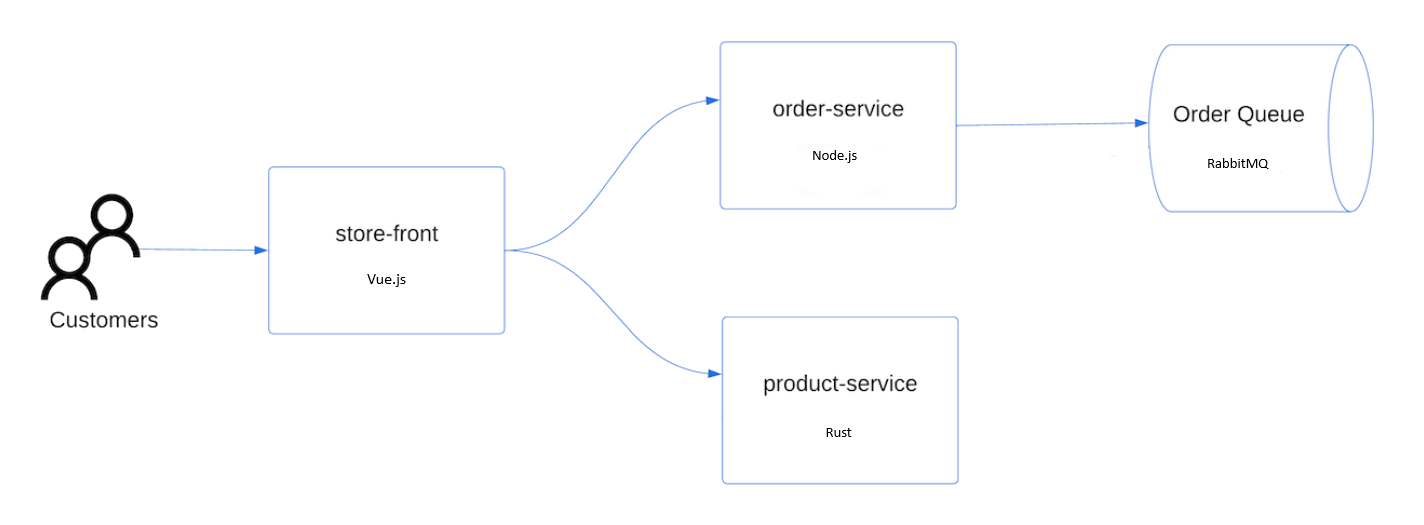
- Store front: Web application for customers to view products and place orders.
- Product service: Shows product information.
- Order service: Places orders.
- Rabbit MQ: Message queue for an order queue.
Note
We don't recommend running stateful containers, such as Rabbit MQ, without persistent storage for production. These containers are used here for simplicity, but we recommend using managed services, such as Azure Cosmos DB or Azure Service Bus.
Create a namespace
aks-store-demoto deploy the Kubernetes resources into.kubectl create ns aks-store-demoDeploy the application using the kubectl apply command into the
aks-store-demonamespace. The YAML file defining the deployment is on GitHub.kubectl apply -n aks-store-demo -f https://raw.githubusercontent.com/Azure-Samples/aks-store-demo/main/aks-store-ingress-quickstart.yamlThe following sample output shows the deployments and services:
statefulset.apps/rabbitmq created
configmap/rabbitmq-enabled-plugins created
service/rabbitmq created
deployment.apps/order-service created
service/order-service created
deployment.apps/product-service created
service/product-service created
deployment.apps/store-front created
service/store-front created
ingress/store-front created
Test the application
When the application runs, a Kubernetes service exposes the application front end to the internet. This process can take a few minutes to complete.
Check the status of the deployed pods using the kubectl get pods command. Make sure all pods are
Runningbefore proceeding. If this is the first workload you deploy, it might take a few minutes for node auto provisioning to create a node pool to run the pods.kubectl get pods -n aks-store-demoCheck for a public IP address for the store-front application. Monitor progress using the kubectl get service command with the
--watchargument.kubectl get ingress store-front -n aks-store-demo --watchThe ADDRESS output for the
store-frontservice initially shows empty:NAME CLASS HOSTS ADDRESS PORTS AGE store-front webapprouting.kubernetes.azure.com * 80 12mOnce the ADDRESS changes from blank to an actual public IP address, use
CTRL-Cto stop thekubectlwatch process.The following sample output shows a valid public IP address assigned to the service:
NAME          CLASS                                HOSTS   ADDRESS        PORTS   AGE
store-front   webapprouting.kubernetes.azure.com   *       4.255.22.196   80      12m
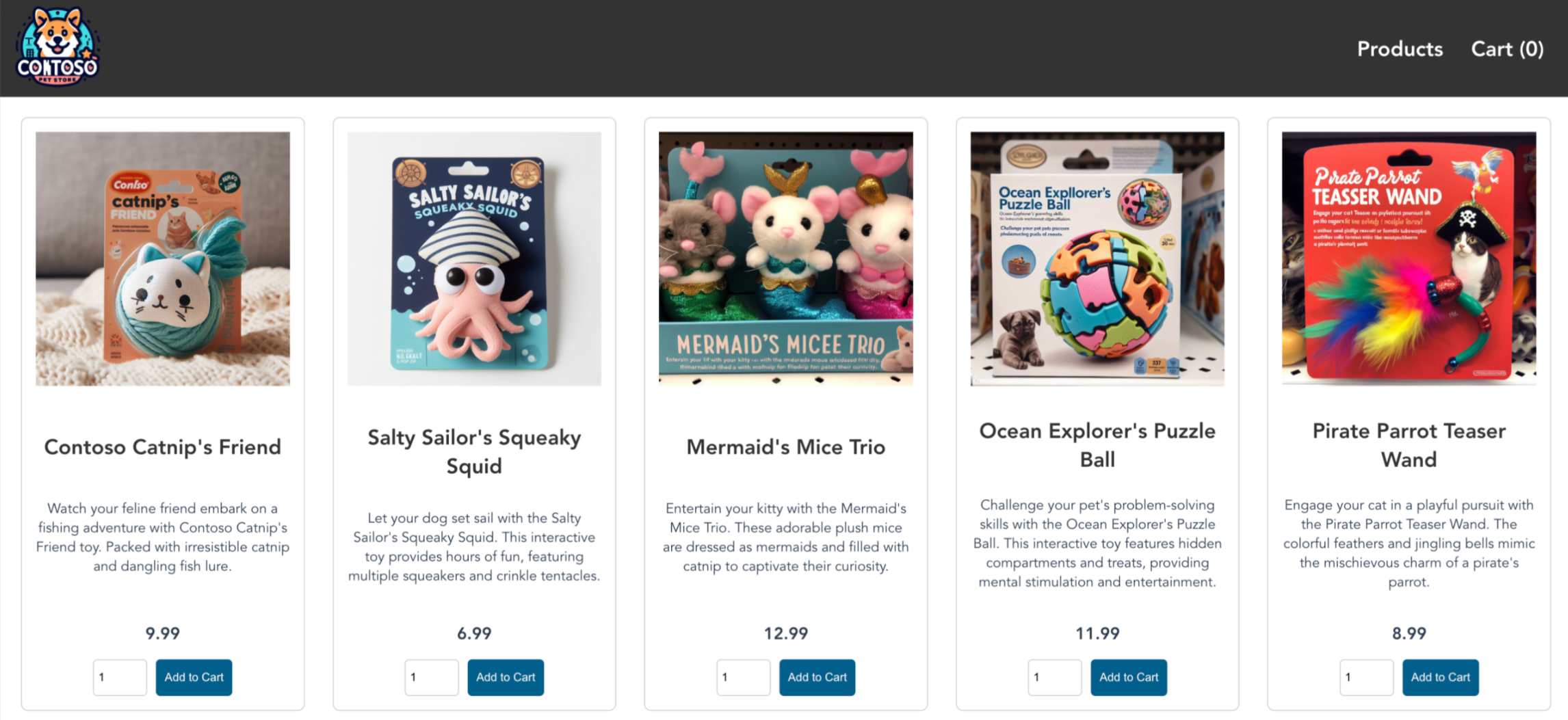
Open a web browser to the external IP address of your ingress to see the Azure Store app in action.
Delete the cluster
If you don't plan on going through the AKS tutorial, clean up unnecessary resources to avoid Azure charges. Run the az group delete command to remove the resource group, container service, and all related resources.
az group delete --name <resource-group> --yes --no-wait
Note
The AKS cluster was created with a user-assigned managed identity. If you don't need that identity anymore, you can manually remove it.
When you no longer need the resources created via Terraform, run terraform plan and specify the destroy flag.
terraform plan -destroy -out main.destroy.tfplan
Run terraform apply to apply the execution plan.
terraform apply main.destroy.tfplan
Next steps
In this quickstart, you deployed a Kubernetes cluster using AKS Automatic inside a custom virtual network and then deployed a simple multi-container application to it. This sample application is for demo purposes only and doesn't represent all the best practices for Kubernetes applications. For guidance on creating full solutions with AKS for production, see AKS solution guidance.
To learn more about AKS Automatic, continue to the introduction.