Note
Access to this page requires authorization. You can try signing in or changing directories.
Access to this page requires authorization. You can try changing directories.
Availability zones help protect your applications and data from datacenter failures. Zones are unique physical locations within an Azure region. Each zone includes one or more datacenters equipped with independent power, cooling, and networking.
Using Azure Kubernetes Service (AKS) with availability zones physically distributes resources across different availability zones within a single region, improving reliability. Deploying nodes in multiple zones doesn't incur extra costs. This article shows you how to configure AKS resources to use availability zones using the Azure CLI or Terraform.
Prerequisites
An active Azure subscription. If you don't have an Azure subscription, create a free account before you begin.
Set your subscription context using the
az account setcommand. For example:az account set --subscription "00000000-0000-0000-0000-000000000000"Azure CLI installed and configured. For installation instructions, see Install the Azure CLI.
kubectl installed. You can install it locally using the
az aks install-clicommand.
- Terraform installed locally. For installation instructions, see Install Terraform.
Limitations and considerations
Keep the following limitations and considerations in mind when using availability zones in AKS:
Review Quotas, virtual machine size restrictions, and region availability in AKS.
Most Azure regions support availability zones. For more information, see the List of Azure regions.
Not all VM SKUs are accepted by AKS when you create node pools in a specified location. Node pool creation fails if the selected VM SKU doesn't support the requested availability zones in that region. Check availability by using
az aks list-vm-skus.az aks list-vm-skus \ --location eastus \ --size Standard_D8ps_v5 \ --all \ --output tableYou can't change the number of availability zones after you create a node pool. To change the number of availability zones, you must create a new node pool with the desired number of zones and migrate your workloads to the new node pool.
AKS cluster components
The following diagram shows the various components of an AKS cluster, including AKS components hosted by Microsoft and AKS components in your Azure subscription:
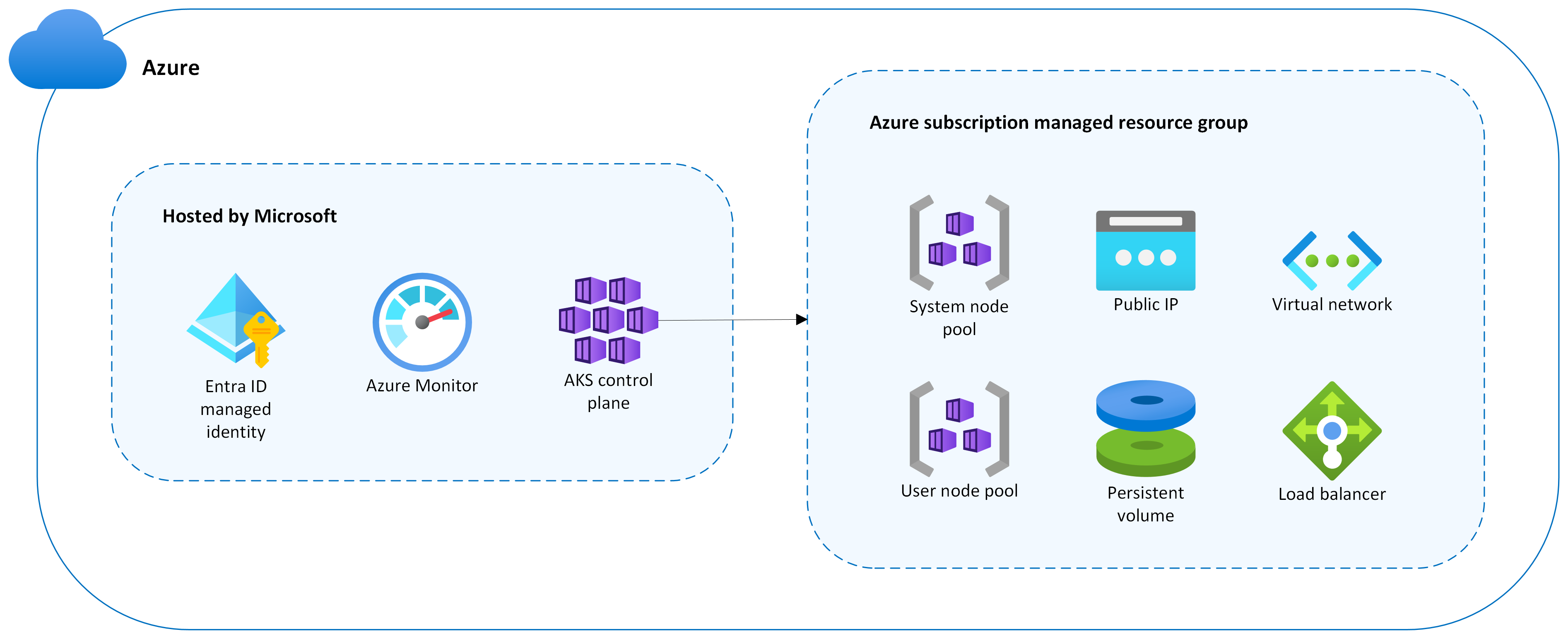
AKS control plane
Microsoft hosts the AKS control plane, the Kubernetes API server, and services such as scheduler and etcd as managed services. Microsoft replicates the control plane in multiple zones.
Other resources of your cluster deploy in a managed resource group in your Azure subscription. By default, this resource group is prefixed with MC_ (for managed cluster) and contains the resources described in the following sections.
Node pools
Node pools are created as virtual machine scale sets in your Azure subscription.
When you create an AKS cluster, it requires one system node pool. This node pool is created automatically and hosts critical system pods such as CoreDNS and metrics-server. You can add more user node pools to your AKS cluster to host your applications.
You can deploy node pools in three ways: zone-spanning, zone-aligned, or regional (not using availability zones).
Tip
Instead of manually picking zones, you can let AKS pick them for you by using automatic zone placement (--zones auto) when you create a node pool or update an existing node pool. For details, see Automatic zone placement for node pools in AKS (Preview).
The following diagram shows the distribution of nodes across availability zones in each of the three models:
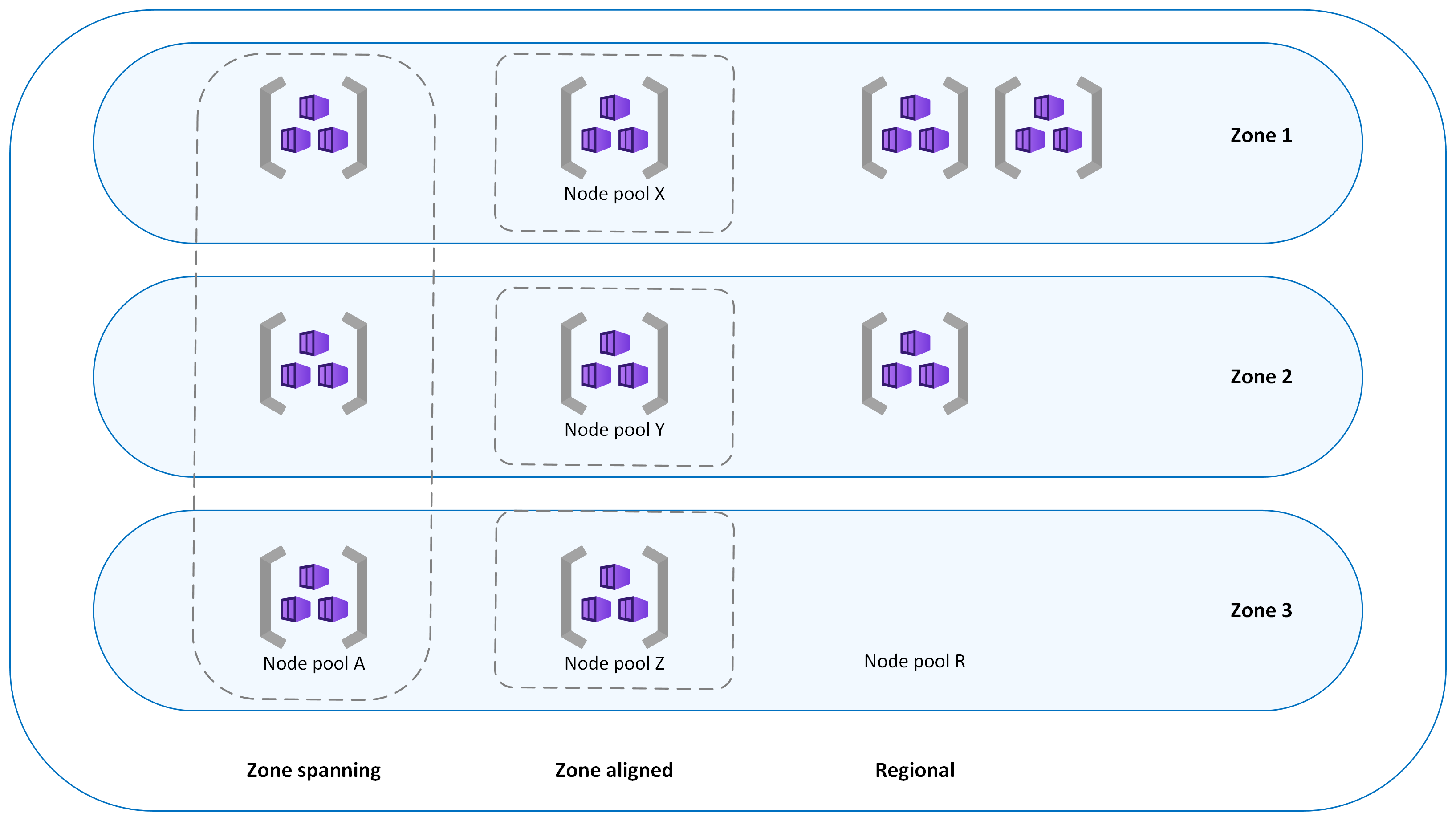
The system node pool zones are configured when you create a cluster or node pool.
Zone-spanning node pools
In zone-spanning node pools, nodes are spread across all selected zones. AKS automatically balances the number of nodes between zones. If a zone outage occurs, nodes within the affected zone might be impacted, but nodes in other availability zones remain unaffected.
Zone-aligned node pools
Note
If a single workload is deployed across node pools, we recommend setting --balance-similar-node-groups to true to maintain a balanced distribution of nodes across zones for your workloads during scale-up operations.
In this configuration, each node is aligned (pinned) to a specific zone. You can use this configuration when you need lower latency between nodes, more granular control over scaling operations, or when you're using the cluster autoscaler.
Regional node pools
Regional mode is used when you don't set a zone assignment in the deployment template (for example, "zones"=[] or "zones"=null).
In this configuration, the node pool creates regional (not zone-pinned) instances and implicitly places instances throughout the region. There's no guarantee that instances are balanced or spread across zones, or that instances are in the same availability zone. In the rare case of a full zone outage, any or all instances within the node pool might be affected.
Deployments
Azure Kubernetes Service (AKS) uses pods, storage and volumes, and load balancers across zones to maintain high availability for your applications.
Pods
Kubernetes is aware of Azure availability zones and can balance pods across nodes in different zones. In the event a zone becomes unavailable, Kubernetes moves pods away from affected nodes automatically.
As documented in the Kubernetes reference Well-Known Labels, Annotations, and Taints, Kubernetes uses the topology.kubernetes.io/zone label to automatically distribute pods in a replication controller or service across the various available zones available.
The maxSkew parameter describes the degree to which pods might be unevenly distributed. Assuming three zones and three replicas, setting this value to 1 ensures that each zone has at least one pod running. For example:
apiVersion: apps/v1
kind: Deployment
metadata:
  name: my-deployment
spec:
  selector:
    matchLabels:
      app: my-app
  template:
    metadata:
      labels:
        app: my-app
    spec:
      topologySpreadConstraints:
      - maxSkew: 1
        topologyKey: topology.kubernetes.io/zone
        whenUnsatisfiable: DoNotSchedule
        labelSelector:
          matchLabels:
            app: my-app
      containers:
      - name: my-container
        image: my-image
Storage and volumes
By default, Kubernetes versions 1.29 and later use Azure Managed Disks by using zone-redundant storage for Persistent Volume Claims (PVCs). These disks are replicated between zones to enhance the resilience of your applications.
The following example shows a PVC that uses Azure Standard SSD in zone-redundant storage:
apiVersion: v1
kind: PersistentVolumeClaim
metadata:
    name: azure-managed-disk
spec:
  accessModes:
  - ReadWriteOnce
  storageClassName: managed-csi
  #storageClassName: managed-csi-premium
  resources:
    requests:
      storage: 5Gi
For zone-aligned deployments, you can create a new storage class with the skuname parameter set to LRS (locally redundant storage). You can then use the new storage class in your PVC.
Although locally redundant storage disks are less expensive, they aren't zone-redundant, and attaching a disk to a node in a different zone isn't supported.
The following example shows a locally redundant storage Standard SSD storage class:
kind: StorageClass
metadata:
  name: azuredisk-csi-standard-lrs
provisioner: disk.csi.azure.com
parameters:
  skuname: StandardSSD_LRS
  #skuname: PremiumV2_LRS
Load balancers
Important
Starting on September 30, 2025, Azure Kubernetes Service (AKS) no longer supports Basic Load Balancer. To avoid any potential service disruptions, we recommend using Standard Load Balancer for new deployments and upgrading any existing deployments to the Standard Load Balancer. For more information on this retirement, see the Retirement GitHub issue and the Azure Updates retirement announcement. To stay informed on announcements and updates, follow the AKS release notes.
Kubernetes deploys Azure Standard Load Balancer by default, which balances inbound traffic across all zones in a region. If a node becomes unavailable, the load balancer reroutes traffic to healthy nodes.
The following example shows a service that uses Azure Load Balancer:
apiVersion: v1
kind: Service
metadata:
  name: example
spec:
  type: LoadBalancer
  selector:
    app: myapp
  ports:
    - port: 80
      targetPort: 8080
Create node pools with Azure CLI
Use Azure CLI to create an AKS cluster and zone-spanning node pools with availability zones and zone-aligned node pools with availability zones.
Create zone-spanning node pools
You can specify zones using the --zones parameter when creating an AKS cluster using the az aks create command or node pool using the az aks nodepool add command. For example:
# Create an AKS cluster with a zone-spanning system node pool in all three availability zones with one node in each availability zone
az aks create \
  --resource-group example-rg \
  --name example-cluster \
  --node-count 3 \
  --zones 1 2 3

# Add one new zone-spanning user node pool with two nodes in each availability zone
az aks nodepool add \
  --resource-group example-rg \
  --cluster-name example-cluster \
  --name userpoola  \
  --node-count 6 \
  --zones 1 2 3
Create zone-aligned node pools
The following commands create three node pools for a region with three availability zones using the az aks nodepool add command with the --zones parameter to specify the zone for each node pool:
# Add three new zone-aligned user node pools with two nodes in each
az aks nodepool add \
  --resource-group example-rg \
  --cluster-name example-cluster \
  --name userpoolx  \
  --node-count 2 \
  --zones 1

az aks nodepool add \
  --resource-group example-rg \
  --cluster-name example-cluster \
  --name userpooly  \
  --node-count 2 \
  --zones 2

az aks nodepool add \
  --resource-group example-rg \
  --cluster-name example-cluster \
  --name userpoolz  \
  --node-count 2 \
  --zones 3
Create the Terraform configuration file
Terraform configuration files define the infrastructure that Terraform creates and manages.
Create a file named
main.tfand add the following code to define the Terraform version and specify the Azure provider:terraform { required_version = ">= 1.0" required_providers { azurerm = { source = "hashicorp/azurerm" version = "~> 4.0" } } } provider "azurerm" { features {} }Add the following code to
main.tfto create an Azure resource group. Feel free to change the name and location of the resource group as needed.resource "azurerm_resource_group" "example" { name = "aks-rg" location = "East US" }
Create an AKS cluster with a zone-spanning system node pool
Add the following code to main.tf to create an AKS cluster with a zone-spanning system node pool in all three availability zones with one node in each availability zone:
resource "azurerm_kubernetes_cluster" "example" {
  name                = "aks-zones"
  location            = azurerm_resource_group.example.location
  resource_group_name = azurerm_resource_group.example.name
  dns_prefix          = "akszones"
  default_node_pool {
    name       = "system"
    node_count = 1
    vm_size    = "Standard_DS2_v2"
    zones      = ["1", "2", "3"]
  }
  identity {
    type = "SystemAssigned"
  }
}
Add zone-spanning user node pools to an AKS cluster
Add the following code to main.tf to create a new zone-spanning user node pool with two nodes in each availability zone:
resource "azurerm_kubernetes_cluster_node_pool" "zonespan" {
  name                  = "userpool"
  kubernetes_cluster_id = azurerm_kubernetes_cluster.example.id
  vm_size               = "Standard_DS2_v2"
  node_count            = 2
  zones                 = ["1", "2", "3"]
}
Add zone-aligned user node pools to an AKS cluster
Add the following code to main.tf to create three new zone-aligned user node pools with two nodes in each availability zone:
resource "azurerm_kubernetes_cluster_node_pool" "zone1" {
  name                  = "userpool1"
  kubernetes_cluster_id = azurerm_kubernetes_cluster.example.id
  vm_size               = "Standard_DS2_v2"
  node_count            = 1
  zones                 = ["1"]
}
resource "azurerm_kubernetes_cluster_node_pool" "zone2" {
  name                  = "userpool2"
  kubernetes_cluster_id = azurerm_kubernetes_cluster.example.id
  vm_size               = "Standard_DS2_v2"
  node_count            = 1
  zones                 = ["2"]
}
resource "azurerm_kubernetes_cluster_node_pool" "zone3" {
  name                  = "userpool3"
  kubernetes_cluster_id = azurerm_kubernetes_cluster.example.id
  vm_size               = "Standard_DS2_v2"
  node_count            = 1
  zones                 = ["3"]
}
Initialize Terraform
Initialize Terraform in the directory containing your main.tf file using the terraform init command. This command downloads the Azure provider required to manage Azure resources with Terraform.
terraform init
Create a Terraform execution plan
Create a Terraform execution plan using the terraform plan command. This command shows you the resources that Terraform will create or modify in your Azure subscription.
terraform plan
Apply the Terraform configuration
After reviewing and confirming the execution plan, apply the Terraform configuration using the terraform apply command. This command creates or modifies the resources defined in your main.tf file in your Azure subscription.
terraform apply
Verify availability zone configuration
After creating your AKS cluster and node pools, you can verify that your nodes are distributed across availability zones using the az aks show command with the --query parameter to filter the output. For example:
az aks show \
 --name example-cluster \
 --resource-group example-rg \
 --query agentPoolProfiles[].availabilityZones \
 --output tsv
Validate node locations
Validate the distribution of nodes across availability zones using the following kubectl get nodes command:
kubectl get nodes -o custom-columns='NAME:metadata.name, REGION:metadata.labels.topology\.kubernetes\.io/region, ZONE:metadata.labels.topology\.kubernetes\.io/zone'
Example output:
NAME                                REGION   ZONE
aks-nodepool1-12345678-vmss000000   eastus   eastus-1
aks-nodepool1-12345678-vmss000001   eastus   eastus-2
aks-nodepool1-12345678-vmss000002   eastus   eastus-3
List running pods and nodes
Check which pods and nodes are running using the kubectl describe command. For example:
kubectl describe pod | grep -e "^Name:" -e "^Node:"
Related content
To learn more about reliability in AKS, see the following articles: