Note
Access to this page requires authorization. You can try signing in or changing directories.
Access to this page requires authorization. You can try changing directories.
Get started with Azure Container Linux (ACL) for AKS by deploying an AKS cluster using an Azure Resource Manager (ARM) template.
In this quickstart, you learn how to:
- Create an AKS cluster using ACL for AKS.
- Deploy the cluster using an ARM template.
- Run a sample multi-container application with a group of microservices and web front ends simulating a retail scenario.
Note
To get started with quickly provisioning an AKS cluster, this article includes steps to deploy a cluster with default settings for evaluation purposes only. Before deploying a production-ready cluster, we recommend that you familiarize yourself with our baseline reference architecture to consider how it aligns with your business requirements.
Important
If you're using Azure Container Linux (ACL) on AKS, make sure you review the following considerations and limitations:
- ACL is generally available starting AKS v1.34.
- ACL requires Trusted Launch with Secure Boot and vTPM. Non-Trusted Launch variants aren't available.
- ACL on Arm64 requires Cobalt-based (v6) SKUs to enable Trusted Launch compatibility.
NodeImageandNoneare the only supported operating system (OS) upgrade channels.UnmanagedandSecurityPatchare incompatible with ACL due to the immutable/usrdirectory.- Artifact Streaming isn't supported.
- Pod Sandboxing isn't supported.
- Confidential Virtual Machines (CVMs) aren't supported.
- Generation 1 VMs aren't supported.
- FIPS-enabled nodes aren't supported.
Prerequisites
- This article assumes a basic understanding of Kubernetes concepts. For more information, see Kubernetes core concepts for Azure Kubernetes Service (AKS).
- If you don't have an Azure account, create a free account before you begin.
- Make sure that the identity you use to create your cluster has the appropriate minimum permissions. For more details on access and identity for AKS, see Access and identity options for Azure Kubernetes Service (AKS).
- To deploy an ARM template, you need write access on the resources you're deploying and access to all operations on the
Microsoft.Resources/deploymentsresource type. For example, to deploy a virtual machine, you needMicrosoft.Compute/virtualMachines/writeandMicrosoft.Resources/deployments/*permissions. For a list of roles and permissions, see Azure built-in roles.
After you deploy the cluster from the template, you can use either Azure CLI or Azure PowerShell to connect to the cluster and deploy the sample application.
Register the required resource providers
You might need to register the required resource providers, such as Microsoft.ContainerService in your Azure subscription.
Check registration status
Check the registration status using the az provider show command.
az provider show --namespace Microsoft.ContainerService --query registrationState
Register the resource provider
If necessary, register the Microsoft.ContainerService resource provider using the az provider register command.
az provider register --namespace Microsoft.ContainerService
Create an SSH key pair
To create an AKS cluster using an ARM template, you provide an SSH public key. If you need this resource, follow the steps in this section. Otherwise, skip to the Review the template section.
To access AKS nodes, you connect using an SSH key pair (public and private), which you generate using the ssh-keygen command. By default, these files are created in the ~/.ssh directory. Running the ssh-keygen command overwrites any SSH key pair with the same name already existing in the given location. For more information about creating SSH keys, see Create and manage SSH keys for authentication in Azure.
Navigate to https://shell.azure.com to open Cloud Shell in your browser.
Create a resource group using the
az group createcommand. The following example creates a resource group named myResourceGroup in the East US region:az group create \ --name myResourceGroup \ --location eastusCreate an SSH key pair using the
az sshkey createcommand or thessh-keygencommand.az sshkey create --name mySSHKey --resource-group myResourceGroupOr create an SSH key pair using
ssh-keygen:ssh-keygen -t rsa -b 4096To deploy the template, you must provide the public key from the SSH pair. Retrieve the public key using the
az sshkey showcommand.az sshkey show --name mySSHKey --resource-group myResourceGroup --query publicKey
Review the template
The following deployment uses an ARM template from Azure Quickstart Templates:
{
  "$schema": "https://schema.management.azure.com/schemas/2019-04-01/deploymentTemplate.json#",
  "contentVersion": "1.0.0.0",
  "metadata": {
    "_generator": {
      "name": "bicep",
      "version": "0.26.170.59819",
      "templateHash": "14823542069333410776"
    }
  },
  "parameters": {
    "clusterName": {
      "type": "string",
      "defaultValue": "aks101cluster",
      "metadata": {
        "description": "The name of the Managed Cluster resource."
      }
    },
    "location": {
      "type": "string",
      "defaultValue": "[resourceGroup().location]",
      "metadata": {
        "description": "The location of the Managed Cluster resource."
      }
    },
    "dnsPrefix": {
      "type": "string",
      "metadata": {
        "description": "Optional DNS prefix to use with hosted Kubernetes API server FQDN."
      }
    },
    "osDiskSizeGB": {
      "type": "int",
      "defaultValue": 0,
      "minValue": 0,
      "maxValue": 1023,
      "metadata": {
        "description": "Disk size (in GB) to provision for each of the agent pool nodes. This value ranges from 0 to 1023. Specifying 0 will apply the default disk size for that agentVMSize."
      }
    },
    "agentCount": {
      "type": "int",
      "defaultValue": 3,
      "minValue": 1,
      "maxValue": 50,
      "metadata": {
        "description": "The number of nodes for the cluster."
      }
    },
    "agentVMSize": {
      "type": "string",
      "defaultValue": "standard_d2s_v3",
      "metadata": {
        "description": "The size of the Virtual Machine."
      }
    },
    "linuxAdminUsername": {
      "type": "string",
      "metadata": {
        "description": "User name for the Linux Virtual Machines."
      }
    },
    "sshRSAPublicKey": {
      "type": "string",
      "metadata": {
        "description": "Configure all linux machines with the SSH RSA public key string. Your key should include three parts, for example 'ssh-rsa AAAAB...snip...UcyupgH azureuser@linuxvm'"
      }
    }
  },
  "resources": [
    {
      "type": "Microsoft.ContainerService/managedClusters",
      "apiVersion": "2026-03-01",
      "name": "[parameters('clusterName')]",
      "location": "[parameters('location')]",
      "identity": {
        "type": "SystemAssigned"
      },
      "properties": {
        "dnsPrefix": "[parameters('dnsPrefix')]",
        "agentPoolProfiles": [
          {
            "name": "agentpool",
            "osDiskSizeGB": "[parameters('osDiskSizeGB')]",
            "count": "[parameters('agentCount')]",
            "vmSize": "[parameters('agentVMSize')]",
            "osType": "Linux",
            "osSKU": "AzureContainerLinux",
            "mode": "System"
          }
        ],
        "linuxProfile": {
          "adminUsername": "[parameters('linuxAdminUsername')]",
          "ssh": {
            "publicKeys": [
              {
                "keyData": "[parameters('sshRSAPublicKey')]"
              }
            ]
          }
        }
      }
    }
  ],
  "outputs": {
    "controlPlaneFQDN": {
      "type": "string",
      "value": "[reference(resourceId('Microsoft.ContainerService/managedClusters', parameters('clusterName')), '2026-03-01').fqdn]"
    }
  }
}
The resource type defined in the ARM template is Microsoft.ContainerService/managedClusters.
For more AKS samples, see the AKS quickstart templates site.
Deploy the template
Select Deploy to Azure to sign in and open a template.
Configure the template parameters in the Custom deployment page. For this quickstart, leave the default values for the OS Disk Size GB, Agent Count, Agent VM Size, and OS Type. Provide your own values for the following parameters:
- Subscription: Select an Azure subscription.
- Resource group: Select Create new. Enter a unique name for the resource group, such as myResourceGroup, then select OK.
- OS SKU: Specify AzureContainerLinux. If you don't update the OS SKU, the default is
Ubuntu. - Location: Select a location, such as East US.
- Cluster name: Enter a unique name for the AKS cluster, such as myAKSCluster.
- DNS prefix: Enter a unique DNS prefix for your cluster, such as myakscluster.
- Linux Admin Username: Enter a username to connect using SSH, such as azureuser.
- SSH public key source: Select Use existing public key.
- Key pair name: Copy and paste the public part of your SSH key pair (by default, the contents of ~/.ssh/id_rsa.pub).
Select Review + Create > Create.
It takes a few minutes to create the AKS cluster. Wait for the cluster to be successfully deployed before you move on to the next step.
Connect to the cluster
To manage a Kubernetes cluster, use the Kubernetes command-line client, kubectl. If you use Azure Cloud Shell, kubectl is already installed.
To install and run kubectl locally, use the az aks install-cli command.
Configure
kubectlto connect to your Kubernetes cluster using theaz aks get-credentialscommand. This command downloads credentials and configures the Kubernetes CLI to use them.az aks get-credentials \ --resource-group myResourceGroup \ --name myAKSClusterVerify the connection to your cluster using the
kubectl getcommand. This command returns a list of the cluster nodes.kubectl get nodesThe following example output shows the three nodes created in the previous steps. Make sure the node status is Ready:
NAME                                STATUS   ROLES   AGE   VERSION
aks-agentpool-12345678-vmss000000   Ready    <none>   5m53s   v1.32.7
aks-agentpool-12345678-vmss000001   Ready    <none>   6m31s   v1.32.7
aks-agentpool-12345678-vmss000002   Ready    <none>   6m35s   v1.32.7
Deploy the application
To deploy the application, you use a manifest file to create all the objects required to run the AKS Store application. A Kubernetes manifest file defines a cluster's desired state, such as which container images to run. The manifest includes the following Kubernetes deployments and services:
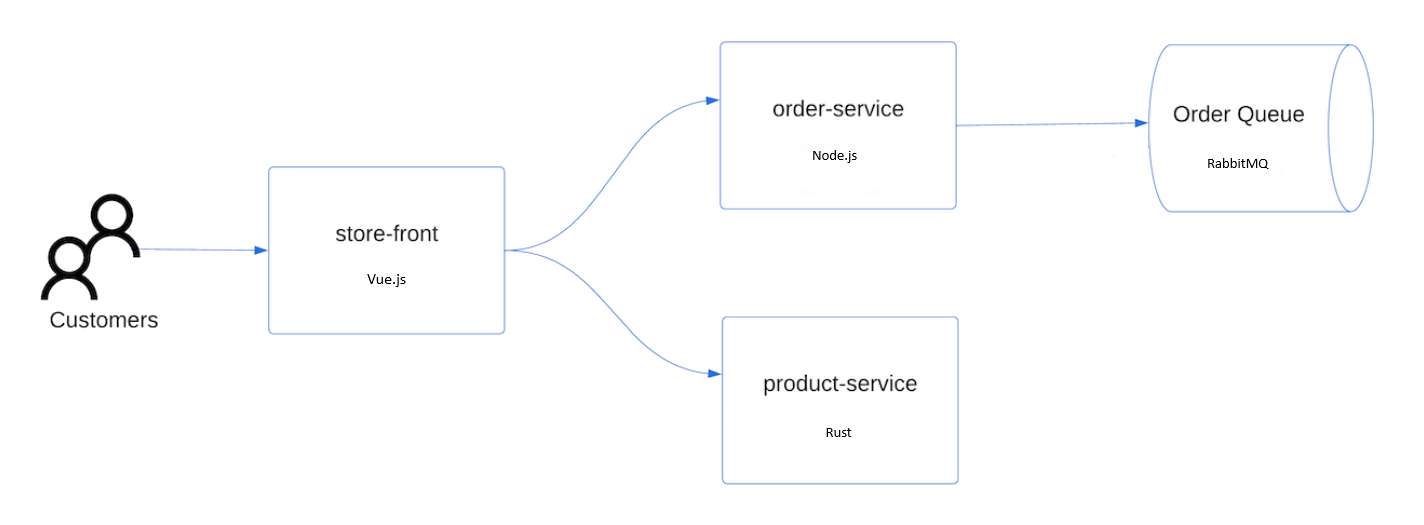
- Store front: Web application for customers to view products and place orders.
- Product service: Shows product information.
- Order service: Places orders.
- Rabbit MQ: Message queue for an order queue.
Note
We don't recommend running stateful containers, such as Rabbit MQ, without persistent storage for production. These are used here for simplicity, but we recommend using managed services, such as Azure Cosmos DB or Azure Service Bus.
Create a file named
aks-store-quickstart.yamland copy in the following manifest:apiVersion: apps/v1 kind: Deployment metadata: name: rabbitmq spec: replicas: 1 selector: matchLabels: app: rabbitmq template: metadata: labels: app: rabbitmq spec: nodeSelector: "kubernetes.io/os": linux containers: - name: rabbitmq image: mcr.microsoft.com/mirror/docker/library/rabbitmq:3.10-management-alpine ports: - containerPort: 5672 name: rabbitmq-amqp - containerPort: 15672 name: rabbitmq-http env: - name: RABBITMQ_DEFAULT_USER value: "username" - name: RABBITMQ_DEFAULT_PASS value: "password" resources: requests: cpu: 10m memory: 128Mi limits: cpu: 250m memory: 256Mi volumeMounts: - name: rabbitmq-enabled-plugins mountPath: /etc/rabbitmq/enabled_plugins subPath: enabled_plugins volumes: - name: rabbitmq-enabled-plugins configMap: name: rabbitmq-enabled-plugins items: - key: rabbitmq_enabled_plugins path: enabled_plugins --- apiVersion: v1 data: rabbitmq_enabled_plugins: | [rabbitmq_management,rabbitmq_prometheus,rabbitmq_amqp1_0]. kind: ConfigMap metadata: name: rabbitmq-enabled-plugins --- apiVersion: v1 kind: Service metadata: name: rabbitmq spec: selector: app: rabbitmq ports: - name: rabbitmq-amqp port: 5672 targetPort: 5672 - name: rabbitmq-http port: 15672 targetPort: 15672 type: ClusterIP --- apiVersion: apps/v1 kind: Deployment metadata: name: order-service spec: replicas: 1 selector: matchLabels: app: order-service template: metadata: labels: app: order-service spec: nodeSelector: "kubernetes.io/os": linux containers: - name: order-service image: ghcr.io/azure-samples/aks-store-demo/order-service:latest ports: - containerPort: 3000 env: - name: ORDER_QUEUE_HOSTNAME value: "rabbitmq" - name: ORDER_QUEUE_PORT value: "5672" - name: ORDER_QUEUE_USERNAME value: "username" - name: ORDER_QUEUE_PASSWORD value: "password" - name: ORDER_QUEUE_NAME value: "orders" - name: FASTIFY_ADDRESS value: "0.0.0.0" resources: requests: cpu: 1m memory: 50Mi limits: cpu: 75m memory: 128Mi initContainers: - name: wait-for-rabbitmq image: busybox command: ['sh', '-c', 'until nc -zv rabbitmq 5672; do echo waiting for rabbitmq; sleep 2; done;'] resources: requests: cpu: 1m memory: 50Mi limits: cpu: 75m memory: 128Mi --- apiVersion: v1 kind: Service metadata: name: order-service spec: type: ClusterIP ports: - name: http port: 3000 targetPort: 3000 selector: app: order-service --- apiVersion: apps/v1 kind: Deployment metadata: name: product-service spec: replicas: 1 selector: matchLabels: app: product-service template: metadata: labels: app: product-service spec: nodeSelector: "kubernetes.io/os": linux containers: - name: product-service image: ghcr.io/azure-samples/aks-store-demo/product-service:latest ports: - containerPort: 3002 resources: requests: cpu: 1m memory: 1Mi limits: cpu: 1m memory: 7Mi --- apiVersion: v1 kind: Service metadata: name: product-service spec: type: ClusterIP ports: - name: http port: 3002 targetPort: 3002 selector: app: product-service --- apiVersion: apps/v1 kind: Deployment metadata: name: store-front spec: replicas: 1 selector: matchLabels: app: store-front template: metadata: labels: app: store-front spec: nodeSelector: "kubernetes.io/os": linux containers: - name: store-front image: ghcr.io/azure-samples/aks-store-demo/store-front:latest ports: - containerPort: 8080 name: store-front env: - name: VUE_APP_ORDER_SERVICE_URL value: "http://order-service:3000/" - name: VUE_APP_PRODUCT_SERVICE_URL value: "http://product-service:3002/" resources: requests: cpu: 1m memory: 200Mi limits: cpu: 1000m memory: 512Mi --- apiVersion: v1 kind: Service metadata: name: store-front spec: ports: - port: 80 targetPort: 8080 selector: app: store-front type: LoadBalancerFor a breakdown of YAML manifest files, see Deployments and YAML manifests.
If you create and save the YAML file locally, then you can upload the manifest file to your default directory in CloudShell by selecting the Upload/Download files button and selecting the file from your local file system.
Deploy the application using the
kubectl applycommand and specify the name of your YAML manifest.kubectl apply -f aks-store-quickstart.yamlThe following example output shows the deployments and services:
deployment.apps/rabbitmq created
service/rabbitmq created
deployment.apps/order-service created
service/order-service created
deployment.apps/product-service created
service/product-service created
deployment.apps/store-front created
service/store-front created
Test the application
Check the status of the deployed pods using the
kubectl get podscommand. Make all pods areRunningbefore proceeding.kubectl get podsCheck for a public IP address for the store-front application. Monitor progress using the
kubectl get servicecommand with the--watchargument.kubectl get service store-front --watchThe EXTERNAL-IP output for the
store-frontservice initially shows as pending:NAME TYPE CLUSTER-IP EXTERNAL-IP PORT(S) AGE store-front LoadBalancer 10.0.100.10 <pending> 80:30025/TCP 4h4mOnce the EXTERNAL-IP address changes from pending to an actual public IP address, use
CTRL-Cto stop thekubectlwatch process.The following example output shows a valid public IP address assigned to the service:
NAME          TYPE           CLUSTER-IP    EXTERNAL-IP    PORT(S)        AGE
store-front   LoadBalancer   10.0.100.10   20.62.159.19   80:30025/TCP   4h5m
Open a web browser to the external IP address of your service to see the Azure Store app in action:


Delete the cluster
If you don't plan on going through the AKS tutorial, clean up unnecessary resources to avoid Azure charges.
Remove the resource group, container service, and all related resources using the az group delete command.
az group delete --name myResourceGroup --yes --no-wait
Note
The AKS cluster was created with a system-assigned managed identity, which is the default identity option used in this quickstart. The platform manages this identity, so you don't need to manually remove it.
Related content
In this quickstart, you deployed an AKS cluster with ACL for AKS using an ARM template. To learn more about ACL for AKS, see Azure Container Linux (ACL) for Azure Kubernetes Service (AKS).