Note
Access to this page requires authorization. You can try signing in or changing directories.
Access to this page requires authorization. You can try changing directories.
This article describes how to integrate a Git repository with Azure API Center to automatically synchronize API assets such as skills, agents, and MCP servers into your API inventory. By connecting a Git repository, you can keep your API center inventory up to date without manually registering or updating each asset.
When you integrate a Git repository:
- Your API center creates an environment that represents the repository as a source of assets.
- API Center regularly synchronizes asset information from the repository to your API center inventory.
Prerequisites
An API center. If you don't have an API center yet, see the quickstart to Create an API center.
A Git repository containing the assets you want to synchronize.
For non-public repositories, a personal access token (PAT) to access the repository. The PAT must have appropriate permissions to read the repository content. To create a PAT for GitHub, see Create a fine-grained personal access token.
An Azure key vault to store the PAT, if one is used for access. If you need to create a key vault, see Quickstart: Create a key vault using the Azure portal. To add or manage secrets in the key vault, you need at least the Key Vault Secrets Officer role or equivalent permissions.
For Azure CLI:
Use the Bash environment in Azure Cloud Shell. For more information, see Get started with Azure Cloud Shell.

If you prefer to run CLI reference commands locally, install the Azure CLI. If you're running on Windows or macOS, consider running Azure CLI in a Docker container. For more information, see How to run the Azure CLI in a Docker container.
If you're using a local installation, sign in to the Azure CLI by using the az login command. To finish the authentication process, follow the steps displayed in your terminal. For other sign-in options, see Authenticate to Azure using Azure CLI.
When you're prompted, install the Azure CLI extension on first use. For more information about extensions, see Use and manage extensions with the Azure CLI.
Run az version to find the version and dependent libraries that are installed. To upgrade to the latest version, run az upgrade.
Note
You can run Azure CLI command examples in this article in PowerShell or a bash shell. Where needed because of different variable syntax, separate command examples are provided for the two shells.
Store PAT in Azure Key Vault
If your Git repository is private, manually upload and securely store a PAT to Azure Key Vault that grants access to the repository. When you integrate the Git repository with your API center, configure the integration to use this secret.
For more information, see Quickstart: Set and retrieve a secret from Azure Key Vault using the Azure portal.
If you don't need to configure a PAT, proceed to Integrate a Git repository.
Configure a managed identity for your API center
Your API center uses a managed identity to authenticate to Azure Key Vault and retrieve the PAT needed to access the Git repository. The following procedures describe how to manually configure a managed identity for your API center and assign it the necessary permissions to access the Key Vault.
If you don't configure the managed identity, API Center can configure it for you automatically when you integrate the Git repository.
For this scenario, your API center uses a managed identity to access Azure resources. Depending on your needs, enable either a system-assigned or one or more user-assigned managed identities.
The following examples show how to enable a system-assigned managed identity by using the Azure portal or the Azure CLI. At a high level, configuration steps are similar for a user-assigned managed identity.
- In the portal, go to your API center.
- In the sidebar menu, under Security, select Managed identities.
- Select System assigned, and set the status to On.
- Select Save.
Assign the managed identity the Key Vault Secrets User role
To allow import of the assets, assign your API center's managed identity the Key Vault Secrets User role in your Azure key vault. You can use the portal or the Azure CLI.
- In the portal, go to your key vault.
- In the sidebar menu, select Access control (IAM).
- Select + Add role assignment.
- On the Add role assignment page, set the values as follows:
- On the Role tab, select Key Vault Secrets User.
- On the Members tab, in Assign access to - Select Managed identity > + Select members.
- On the Select managed identities page, select the system-assigned managed identity of your API center that you added in the previous section. Click Select.
- Select Review + assign.
Integrate a Git repository
To integrate a Git repository:
In the Azure portal, go to your API center.
In the sidebar menu, select Platforms > Integrations.
Select + New integration and choose From Git repository.
On Integrate your Git repository, enter the following information:
Field Description Configure Git repository source Repository URL Enter the URL to the Git repository containing asset files. Optionally, specify the branch and subfolder (for example, https://github.com/<org>/<repo>/tree/main/skills).Git provider Select the provider (for example, GitHub). Asset type configuration API Center configures a default skill asset type with file pattern **/skill.md.
Select + Add asset type to add one or more asset types to sync.Personal access token (PAT) If you have a PAT stored in Azure Key Vault, click Select to browse to the Key Vault secret.
Optionally, select Automatically configure managed identity and assign permissions if you didn't manually configure a managed identity to access the key vault secret.Integration details Accept the generated link identifier or provide a custom ID for the integration link. Environment details Environment title Enter a friendly name for the repository environment (for example, Git repository). Identification Enter an environment resource name (for example, git-repository). Environment type Select the environment type (for example, Production). Description Optionally add a description for the environment. Asset details Lifecycle Select the lifecycle stage for assets synced from the repository (for example, Design). 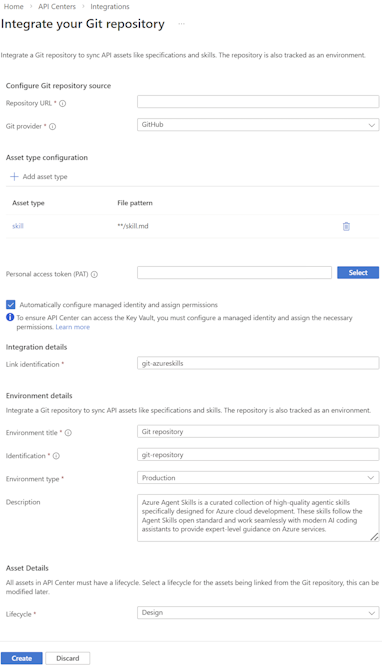
Select Create.
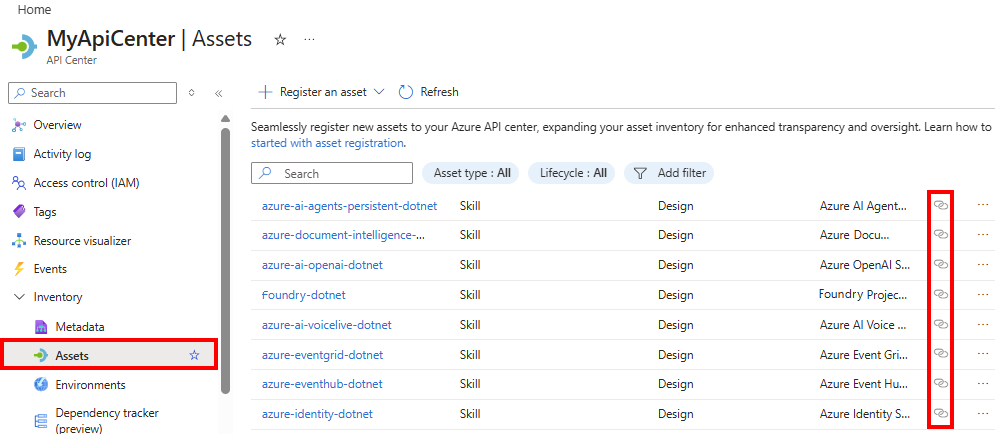
The portal adds the environment to your API center. The portal adds the assets from the repository to the API center inventory on the Inventory > Assets page. You can identify linked assets by the link icon in the list.