Note
Access to this page requires authorization. You can try signing in or changing directories.
Access to this page requires authorization. You can try changing directories.
APPLIES TO: Developer | Basic | Standard | Premium
Azure API Management allows you to install CA certificates on the machine inside the trusted root and intermediate certificate stores. You should use this functionality if your services require a custom CA certificate.
This article shows how to manage CA certificates of an API Management instance in the Azure portal. For example, if you use self-signed client certificates, you can upload custom trusted root certificates to API Management.
CA certificates uploaded to API Management can be used for certificate validation only by the managed API Management gateway. If you use the self-hosted gateway, you can learn how to create a custom CA for self-hosted gateway later in this article.
Note
Currently, this feature isn't available in workspaces.
Important
Changes to your API Management service's infrastructure (such as configuring custom domains, adding CA certificates, scaling, virtual network configuration, availability zone changes, and region additions) can take 15 minutes or longer to complete, depending on the service tier and the size of the deployment. Expect longer times for an instance with a greater number of scale units or multi-region configuration. Rolling changes to API Management are executed carefully to preserve capacity and availability.
While the service is updating, other service infrastructure changes can't be made. However, you can configure APIs, products, policies, and user settings. The service will not experience gateway downtime, and API Management will continue to service API requests without interruption (except in the Developer tier).
Note
We recommend that you use the Azure Az PowerShell module to interact with Azure. To get started, see Install Azure PowerShell. To learn how to migrate to the Az PowerShell module, see Migrate Azure PowerShell from AzureRM to Az.
Upload a CA certificate
Complete the following steps to upload a new CA certificate. If you haven't created an API Management instance yet, see Create an API Management service instance.
Go to your Azure API Management instance in the Azure portal.
In the left menu, under Security, select Certificates. On the Certificates page, select CA certificates > + Add.
In the Upload CA certificate window, select the file icon and browse for the certificate .cer file. In the Store box, select a certificate store. Only the public key is needed, so the password is optional.
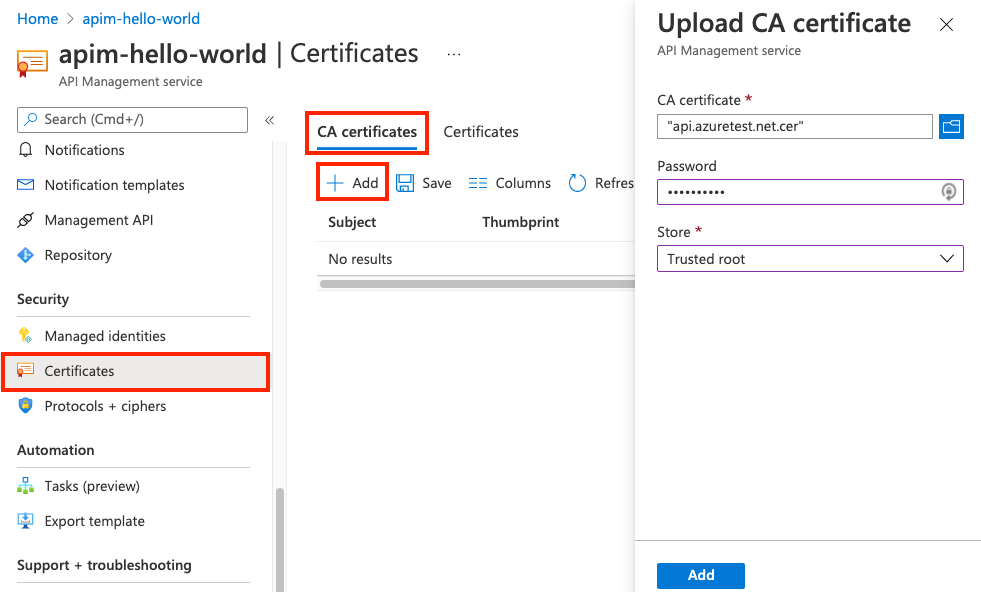
Select the Add button at the bottom of the window, and then select Save. This operation might take a few minutes.
Note
You can also upload a CA certificate by using the New-AzApiManagementSystemCertificate PowerShell command.
Delete a CA certificate
Select the certificate, and then select Delete in the ... menu.
Create custom CA for a self-hosted gateway
If you use a self-hosted gateway, validation of server and client certificates via CA root certificates uploaded to API Management service isn't supported. To establish trust, configure a specific client certificate so that it's trusted by the gateway as a custom certificate authority.
Use the Gateway Certificate Authority REST APIs to create and manage custom CAs for a self-hosted gateway. To create a custom CA:
- Add a certificate .pfx file to your API Management instance.
- Use the Gateway Certificate Authority - Create Or Update REST API to associate the certificate with the self-managed gateway.
Limits
API Management currently enforces a limit of 10 CA certificates per instance.