Note
Access to this page requires authorization. You can try signing in or changing directories.
Access to this page requires authorization. You can try changing directories.
APPLIES TO: Developer | Basic | Basic v2 | Standard | Standard v2 | Premium | Premium v2
This article explains how to set up unit tests and end-to-end tests for your self-hosted portal.
Create unit tests
A unit test is an approach to validate small pieces of functionality. A unit test operates in isolation from other parts of the application.
Example scenario
In this scenario, you're testing a password input control. It only accepts passwords containing at least:
- One letter
- One number
- One special character
The test to validate these requirements looks like this:
const passwordInput = new PasswordInput();

passwordInput.value = "";
expect(passwordInput.isValid).to.equal(false);

passwordInput.value = "password";
expect(passwordInput.isValid).to.equal(false);

passwordInput.value = "p@ssw0rd";
expect(passwordInput.isValid).to.equal(true);
Project structure
It's common to keep a unit test next to the component that it validates.
component.ts
component.spec.ts
Mock HTTP requests
There are cases when you expect a component to make HTTP requests. The component should react properly to different kind of responses. To simulate specific HTTP responses, use MockHttpClient. It implements the HttpClient interface used by many other components of the project.
const httpClient = new MockHttpClient();

httpClient.mock()
    .get("/users/jane")
    .reply(200, {
        firstName: "Jane",
        lastName: "Doe"
    });
Create end-to-end tests
An end-to-end test runs a particular user scenario taking exact steps that you expect the user to carry out. In a web application like the Azure API Management developer portal, the user scrolls through the content and selects options to achieve certain results.
To replicate user navigation, you can use browser manipulation helper libraries like Puppeteer. It lets you simulate user actions and automate assumed scenarios. Puppeteer also automatically takes screenshots of pages or components at any stage of the test. Compare them later with previous results to catch deviations and potential regressions.
Example scenario
In this scenario, you need to validate a user sign-in flow. This scenario would require the following steps:
- Open browser and navigate to the sign-in page.
- Enter the email address.
- Enter the password.
- Select Sign-in.
- Verify that user got redirected to Home page.
- Verify that the page includes the Profile menu item. It's one of the possible indicators that you successfully signed in.
To run the test automatically, create a script with exactly the same steps:
// 1. Open browser and navigate to the sign-in page.
const page = await browser.newPage();
await page.goto("https://contoso.com/signin");

// 2. Enter email.
await this.page.type("#email", "john.doe@contoso.com");

// 3. Enter password.
await this.page.type("#password", "p@s$w0rd");

// 4. Click Sign-in.
await this.page.click("#signin");

// 5. Verify that user got redirected to Home page.
expect(page.url()).to.equal("https://contoso.com");

// 6. Verify that the page includes the Profile menu item.
const profileMenuItem = await this.page.$("#profile");
expect(profileMenuItem).not.equals(null);
Note
Strings such as #email, #password, and #signin are CSS-like selectors that identify HTML elements on the page. For more information, see Selectors Level 3 W3C specification.
UI component maps
User flows often go through the same pages or components. A good example is the main website menu that's present on every page.
Create a UI component map to avoid configuring and updating the same selectors for every test. For example, you could replace steps 2 through 6 in the preceding example with just two lines:
const signInWidget = new SigninBasicWidget(page);
await signInWidget.signInWithBasic({ email: "...", password: "..." });
Test configuration
Certain scenarios require pre-created data or configuration. For example, you might need to automate user sign-in with social media accounts. It's hard to create that data quickly or easily.
For this purpose, you could add a special configuration file to your test scenario. The test scripts can pick up required data from the file. Depending on the build and test pipeline, the tests can pull the secrets from a named secure store.
Here's an example of a validate.config.json that would be stored in the src folder of your project.
{
    "environment": "validation",
    "urls": {
        "home": "https://contoso.com",
        "signin": "https://contoso.com/signin",
        "signup": "https://contoso.com/signup/"
    },
    "signin": {
        "firstName": "John",
        "lastName": "Doe",
        "credentials": {
            "basic": {
                "email": "johndoe@contoso.com",
                "password": "< password >"
            },
            "aadB2C": {
                "email": "johndoe@contoso.com",
                "password": "< password >"
            }
        }
    },
    "signup": {
        "firstName": "John",
        "lastName": "Doe",
        "credentials": {
            "basic": {
                "email": "johndoe@contoso.com",
                "password": "< password >"
            }
        }
    }
}
Headless vs normal tests
Modern browsers, such as Chrome or Microsoft Edge, allow you to run automation in both headless mode and normal mode. The browser operates without a graphical user interface in headless mode. It still carries out the same page and Document Object Model (DOM) manipulations. The browser UI usually isn't needed in delivery pipelines. In that case, running tests in headless mode is a great option.
When you develop a test script, it's useful to see what exactly is happening in the browser. That's a good time to use normal mode.
To switch between the modes, change the option headless option in the constants.ts file. It's in the tests folder in your project:
export const LaunchOptions = {
    headless: false
};
Another useful option is slowMo. It pauses the execution of the test between each action:
export const LaunchOptions = {
    slowMo: 200 // milliseconds
};
Run tests
There are two built-in ways to run tests in this project:
npm command
npm run test
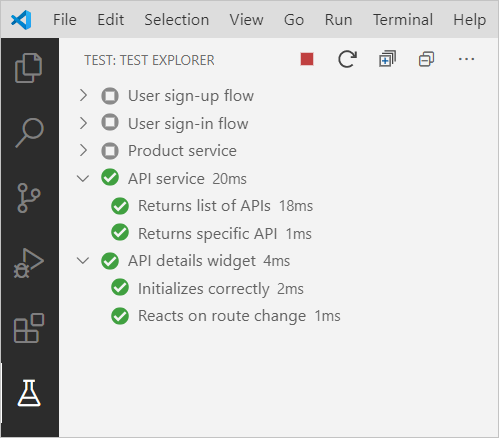
Test Explorer
Use a Test Explorer extension for VS Code. For example, Mocha Test Explorer has a convenient UI and an option to run tests automatically on every change of the source code:
Related content
Learn more about the developer portal: