Note
Access to this page requires authorization. You can try signing in or changing directories.
Access to this page requires authorization. You can try changing directories.
When an AI agent uses the Playwright Workspaces remote MCP server, it drives a cloud browser that you don't watch in real time. Session recording gives you a full record of what happened in that browser. Playwright Workspaces saves the artifacts of each browser session to an Azure storage account that you own, and you replay them on the Browser activity log page of your workspace in the Azure portal.
With session recording, you can step through every action that the agent took, see the page before and after each action, and inspect the console messages, network requests, and errors that the browser produced.
When to use session recording
Session recording helps in these scenarios:
- Debug failed or unexpected agent runs. When an agent reports an error, stops partway through a task, or returns the wrong result, replay the session to find the exact step where it went wrong, such as a selector that didn't match, a page that didn't finish loading, or a dialog that blocked the next action.
- Verify what the agent did. Confirm that the agent completed a task as you intended, for example that it entered the right values into a form or submitted the right records, before you rely on the outcome.
- Audit and review agent activity. Keep a reviewable record of the actions that an agent performed on business applications, so that your team can review agent behavior for governance or compliance.
- Investigate issues with private or authenticated applications. See how the browser behaved when it reached privately hosted applications, sign-in pages, or sites that use single sign-on, including network failures and redirects.
- Improve prompts and agent instructions. Compare recordings of successful and unsuccessful runs to understand how the agent interprets a page, and refine your prompts or instructions.
- Share evidence with your team. Give developers, testers, or support engineers a recording that shows the problem, instead of a written description of it.
Artifacts in a session recording
Each recorded session includes the following artifacts:
| Artifact | Description |
|---|---|
| Session details | A summary of the session: session name and ID, who created it, status, start and end times, billable time, source type (for example, Mcp or Browser automation tool), source ID, and browser type. |
| Session playback (trace) | A Playwright trace of the session that you replay in the Azure portal or in Trace Viewer. It includes a timeline of the session with page snapshots, so that you can move to any point in the session. |
| Actions | The list of browser actions that the agent performed, such as navigations, clicks, typing, and script evaluations, with the duration of each action. For each action, you can view the page Before and After the action. |
| Screenshots and videos | Visual captures of the pages that the browser displayed during the session. |
| Console | Messages that the pages wrote to the browser console, including warnings and errors. |
| Network | The network requests that the browser made, with their URLs, status codes, and timing. |
| Errors | Errors that occurred during the session, such as failed actions and page errors. |
| Logs | Detailed logs for each action, including the call parameters, locators, and the steps that Playwright performed. |
| Metadata and attachments | Session metadata, such as browser and viewport details, and any files that are attached to the session. |
Prerequisites
Before you begin, ensure you have the following items:
- An Azure account with an active subscription. If you don't have an Azure subscription, create a free account.
- The Owner, Contributor, or one of the classic administrator roles on your Azure account.
- To let the Azure portal assign storage permissions to the managed identity for you, a role that can assign roles on the storage account, such as Owner, User Access Administrator, or Role Based Access Control Administrator. If you don't have one of these roles, ask someone who does to assign the permissions for you.
- An MCP client that's connected to the Playwright Workspaces remote MCP server, such as GitHub Copilot app, Visual Studio Code with GitHub Copilot, or GitHub Copilot CLI. To set one up, see Quickstart: Automate browser tasks with the remote MCP server.
Turn on observability and configure storage
Session recordings are stored in an Azure storage account that's linked to your workspace. Playwright Workspaces uses a managed identity to write artifacts to that storage account. To set up this configuration, turn on observability, select a storage account, and choose the managed identity. You can create a new workspace or update an existing one.
Sign in to the Azure portal by using the credentials for your Azure subscription.
From the portal home page, search for and select Azure App Testing.
On the Azure App Testing hub, under Playwright Workspaces, select Create.
On the Basics tab of the Create a Playwright workspace page, enter the following information:
Field Description Subscription Select the Azure subscription that you want to use for this Playwright workspace. Resource group Select an existing resource group. Or select Create new, and then enter a unique name for the new resource group. Name Enter a unique name for your workspace. The name can contain only alphanumeric characters and hyphens, and must be 3 to 24 characters long. Location Select a geographic location for your workspace. Select the Capabilities tab, and then enter the following information:
Field Description Observability Turn on to capture reports, traces, and session recordings. Storage account Select an existing storage account, or select Create new to create one. Playwright Workspaces stores your session recordings and other artifacts in this storage account. Identity type Select the managed identity that Playwright Workspaces uses to access the storage account: System-assigned or User-assigned. If you select User-assigned, choose the user-assigned managed identity. Identity permissions Select Assign permissions to the managed identities on my behalf to have the Azure portal assign the Storage Blob Data Contributor role on the storage account to the managed identity. Select this option only if you have permission to assign roles on the storage account. Otherwise, clear it and assign the role manually. 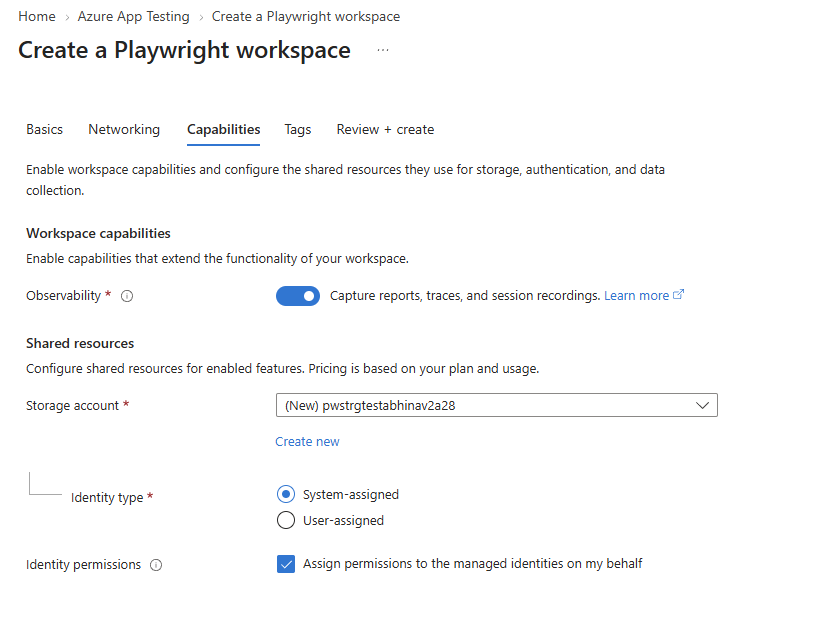
Optionally, add tags on the Tags tab. Tags are name/value pairs that you use to categorize resources and view consolidated billing by applying the same tag to multiple resources and resource groups.
Select Review + create. Review your settings, and then select Create.
It takes a few minutes to create the workspace. Wait until the portal shows Your deployment is complete before you continue.
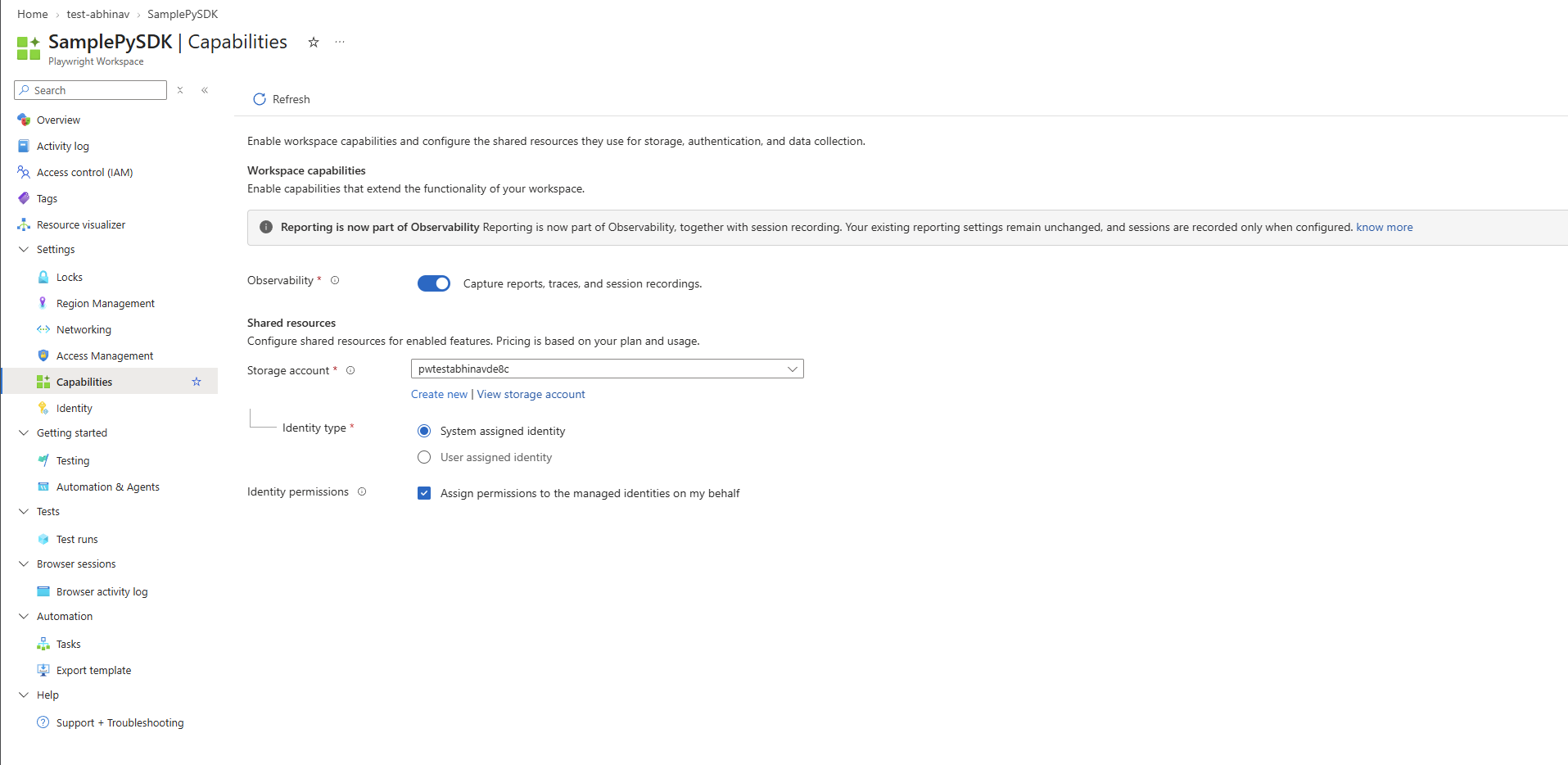
Note
All workspace features that need a storage account, such as session recording, reporting, and browser profiles, use the same storage account and managed identity that you configure on the Capabilities page.
Note
Playwright Workspaces observability stores your session recordings and other artifacts in Azure Storage. Storage costs depend on your storage account's data-retention settings.
Note
To save artifacts, the storage account must allow network access through its public endpoint. Storage accounts that allow access only through private endpoints aren't currently supported for storing artifacts.
Assign storage permissions to the managed identity
If you cleared Assign permissions to the managed identities on my behalf, or if you don't have permission to assign roles on the storage account, assign the role manually. If you don't have the required permission, ask someone with the Owner, User Access Administrator, or Role Based Access Control Administrator role on the storage account to complete these steps.
In the Azure portal, go to the storage account that's linked to your workspace.
Select Access control (IAM) > Add > Add role assignment.
On the Role tab, search for and select Storage Blob Data Contributor, and then select Next.
On the Members tab, for Assign access to, select Managed identity.
Select Select members, and then select the managed identity that you chose for the workspace:
- For a system-assigned identity, select Playwright Workspace as the managed identity type, and then select your workspace.
- For a user-assigned identity, select User-assigned managed identity, and then select the identity.
Select Select, and then select Review + assign.
Tip
Role assignments can take a few minutes to take effect. If recordings don't appear right away, wait a few minutes and run the session again.
Turn on session recording in your MCP client
The remote MCP server records a browser session only when your MCP client asks for it. To turn on recording, add the following HTTP header to the remote MCP server configuration in your MCP client:
| Header | Value |
|---|---|
x-ms-enable-sessionartifacts |
Enabled |
Every browser session that the client creates through this MCP server connection is recorded. Sessions from clients that don't send the header aren't recorded. Keep your existing URL and authentication settings when you add the header.
In GitHub Copilot app, select Customize in the sidebar, and then select the Installed tab.
Under MCP Servers, find the Playwright Workspaces server, for example
playwright-cloud-browsers-<workspace-name>, open its More options menu, and select Edit configuration.Under Headers, select Add header, and then enter the following values:
- Name:
x-ms-enable-sessionartifacts - Value:
Enabled
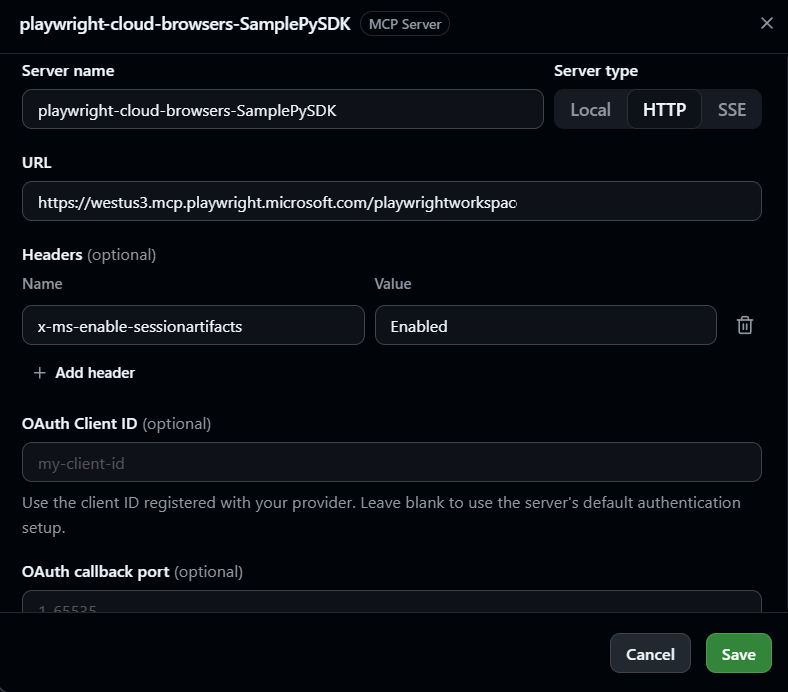
- Name:
Select Save.
Tip
If your server entry already has other Playwright Workspaces headers, such as x-ms-browser-profile-id or x-ms-secret-store-id, add x-ms-enable-sessionartifacts to the same set of headers.
Run a browser session with your agent
Ask your agent to do a browser task. For example, enter the following prompt:
Open https://playwright.dev, open the Docs page, and tell me the title of the page.
The agent opens a cloud browser in your workspace, completes the task, and closes the session. Because your MCP client sends the x-ms-enable-sessionartifacts header, the session's artifacts are saved to the linked storage account.
Caution
Session recordings capture what the browser shows, including screenshots of each page, page content, and network traffic. If your agent works with sensitive data, limit who can read the linked storage account, and set a data-retention policy that meets your organization's requirements.
View session recordings in the Azure portal
To view recordings in the Azure portal, you need read access to the linked storage account, and the storage account must allow Trace Viewer to load the trace files.
Assign a storage role to people who view recordings
In the Azure portal, go to the storage account that's linked to your workspace.
Select Access control (IAM) > Add > Add role assignment.
On the Role tab, search for and select Storage Blob Data Reader, and then select Next.
On the Members tab, select and add everyone who needs to view session recordings.
Select Review + assign.
Allow Trace Viewer to read from the storage account
In the Azure portal, go to the linked storage account.
Select Settings > Resource sharing (CORS).
On the Blob service tab, add a record with the following values:
Field Value Allowed origins https://trace.playwright.devAllowed methods GET,OPTIONSMax age A value between 0and2147483647.Select Save.
Review a recorded session
In the Azure portal, go to your Playwright workspace.
Select Browser sessions > Browser activity log.
The Browser activity log lists the browser sessions in your workspace. Each session shows the session name, session ID, creator, source type, start time, source ID, billable time, browser type, and status. To find a session, filter the list by Time range, Source Type, Status, or source ID. Your MCP client creates sessions with the source type Mcp.
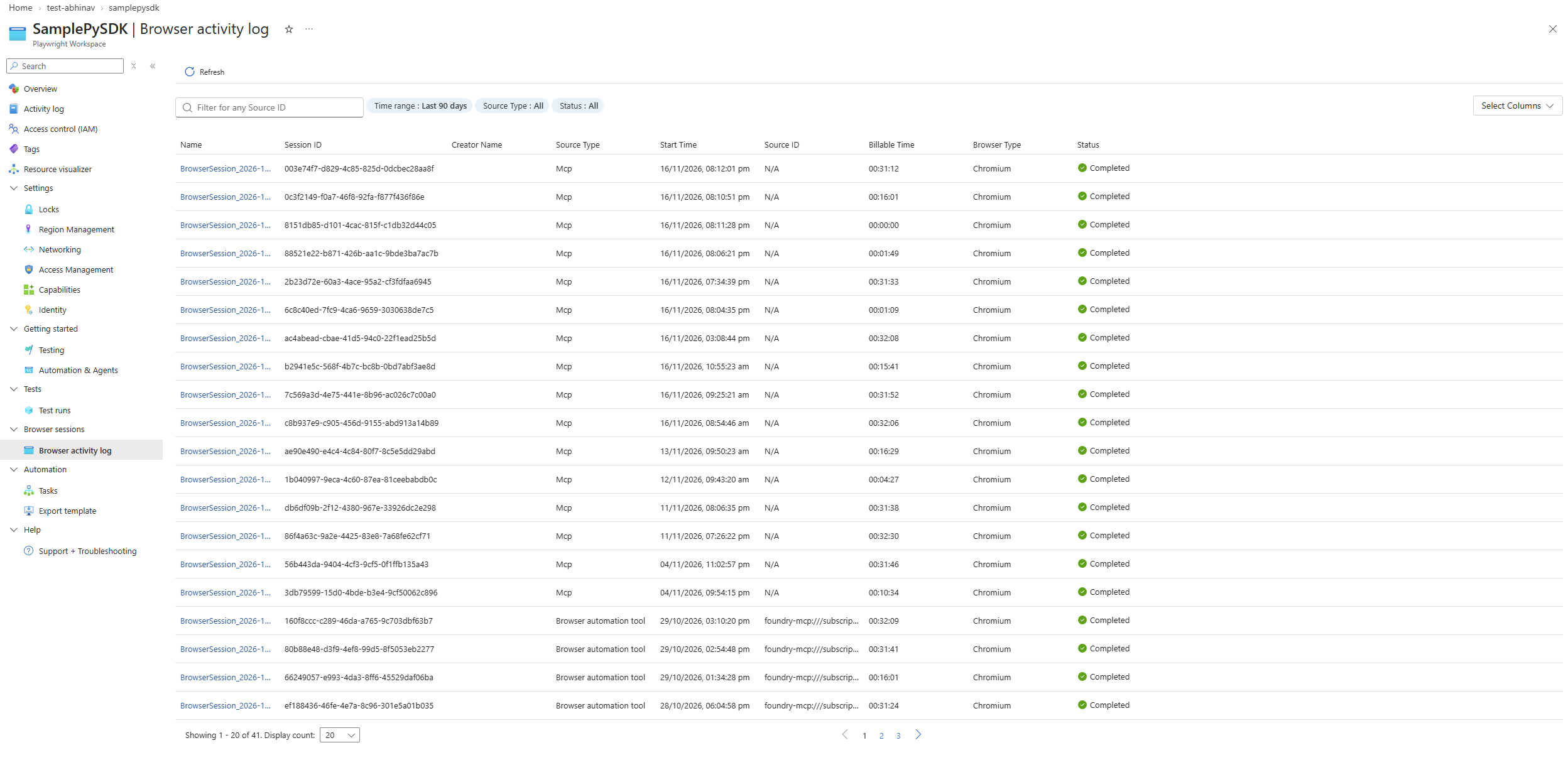
Select the name of the session that your agent ran.
The session page shows the Session details and the Session playback. In the playback, you can:
- Move along the timeline to see the page at any point in the session.
- Select an action in the Actions list to see the page Before and After the action.
- Use the Locator, Call, Log, Errors, Console, Network, Source, and Attachments tabs to inspect the details of each action.
- Open the session in Trace Viewer for deeper analysis.
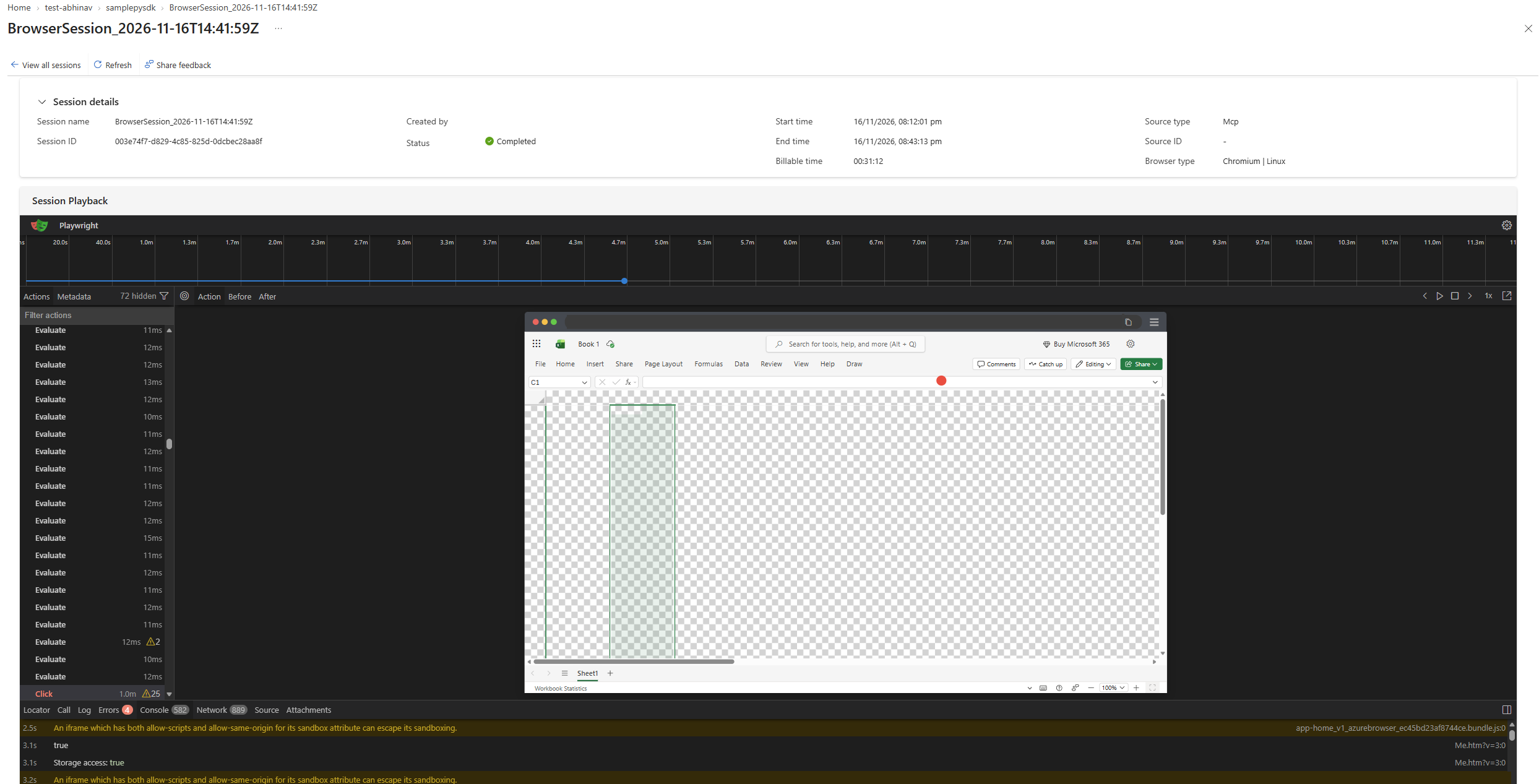
To go back to the list, select View all sessions.
Stop recording sessions
To stop recording new sessions, remove the x-ms-enable-sessionartifacts header from your MCP client configuration. Existing recordings stay in your storage account until you delete them, or until your storage account's data-retention settings remove them.
Data residency
All session recordings and other artifacts are stored in the Azure storage account that you link to your workspace. You own and control this storage account, including its region, access, network settings, and data retention.
Playwright Workspaces stores only the metadata that it needs to list and manage your sessions, such as the session name and ID, creator, status, start and end times, billable time, source type, and browser type. Playwright Workspaces doesn't store any client-side data from your browser sessions, such as page content, screenshots, videos, traces, console messages, or network traffic.