Note
Access to this page requires authorization. You can try signing in or changing directories.
Access to this page requires authorization. You can try changing directories.
Important
The Playwright Workspaces private website feature is in preview. Preview features don't have a service-level agreement and aren't recommended for production workloads. Features, limits, and availability can change.
Many applications are hosted inside private networks and aren't accessible over the public internet. The private website feature in Playwright Workspaces enables you to run Playwright tests and browser automation tasks against applications hosted in private networks without exposing them publicly.
You can use private website access to:
- Test development, staging, and pre-production environments protected by network restrictions.
- Integrate privately hosted applications into continuous integration and continuous delivery (CI/CD) pipelines.
- Validate end-to-end user journeys across private business systems.
- Automate repetitive workflows in internally hosted web applications.
- Access internal business applications and line-of-business tools.
- Interact with employee portals and intranet-based experiences.
- Automate administrative and operational web interfaces available only within private networks.
- Maintain existing security boundaries and network controls while enabling browser-based testing and automation.
This article provides step-by-step instructions for setting up a Playwright Workspace to run end-to-end tests and browser automation on privately hosted applications using Playwright Workspaces.
Prerequisites
- An Azure account with an active subscription.
- Your Azure account needs the Owner, Contributor, or one of the classic administrator roles.
- The Entra application with client ID:
847bd4c1-7486-4241-a783-f9bda69241c1and nameCloudNativeTestingDP needs thesubnet/joinpermission (Network contributor or any role withsubnet/joinpermission) on the Azure subscription that hosts the virtual network (orsubnet/joinpermission on the virtual network). - A virtual network and subnet resource in the same region where you want to deploy your Playwright Workspace resource.
- The subnet needs to be delegated to
Microsoft.App/environmentsand should have a minimum of/27(32 addresses) IP range.
Create a Playwright Workspace
To get started with the Playwright Workspaces private website feature, create a Playwright workspace with private access enabled.
- Sign in to the Azure portal by using the credentials for your Azure subscription.
- From the portal Home page, search for and select Azure App Testing.
- On the Azure App Testing hub, select Create under Playwright Workspaces.
- On Create a Playwright workspace resource, enter the following information in the
Basicstab:
| Field | Description |
|---|---|
| Subscription | Select the Azure subscription that you want to use for this Playwright workspace. |
| Resource group | Select an existing resource group. Or select Create new and then enter a unique name for the new resource group. |
| Name | Enter a unique name for your workspace. The name can only consist of alphanumeric characters and hyphens and have a length between 3 and 24 characters. |
| Location | Select a geographic location for your workspace. This location also determines where the session artifacts are stored. |
| Reporting | Toggle is set to be Enabled by default to enable users to save and view their test run reports from Playwright Workspace. If you want to turn off reporting, toggle the setting to Disabled. |
| Storage account | Toggle is set to Enabled by default to enable users to save and view their test run reports from Playwright Workspace. If you want to turn off reporting, toggle the setting to Disabled. |
- On the Networking tab, select
Configure traffic modeasPrivate. - Select the
Virtual networkwhere your application is hosted and the delegatedSubnet.
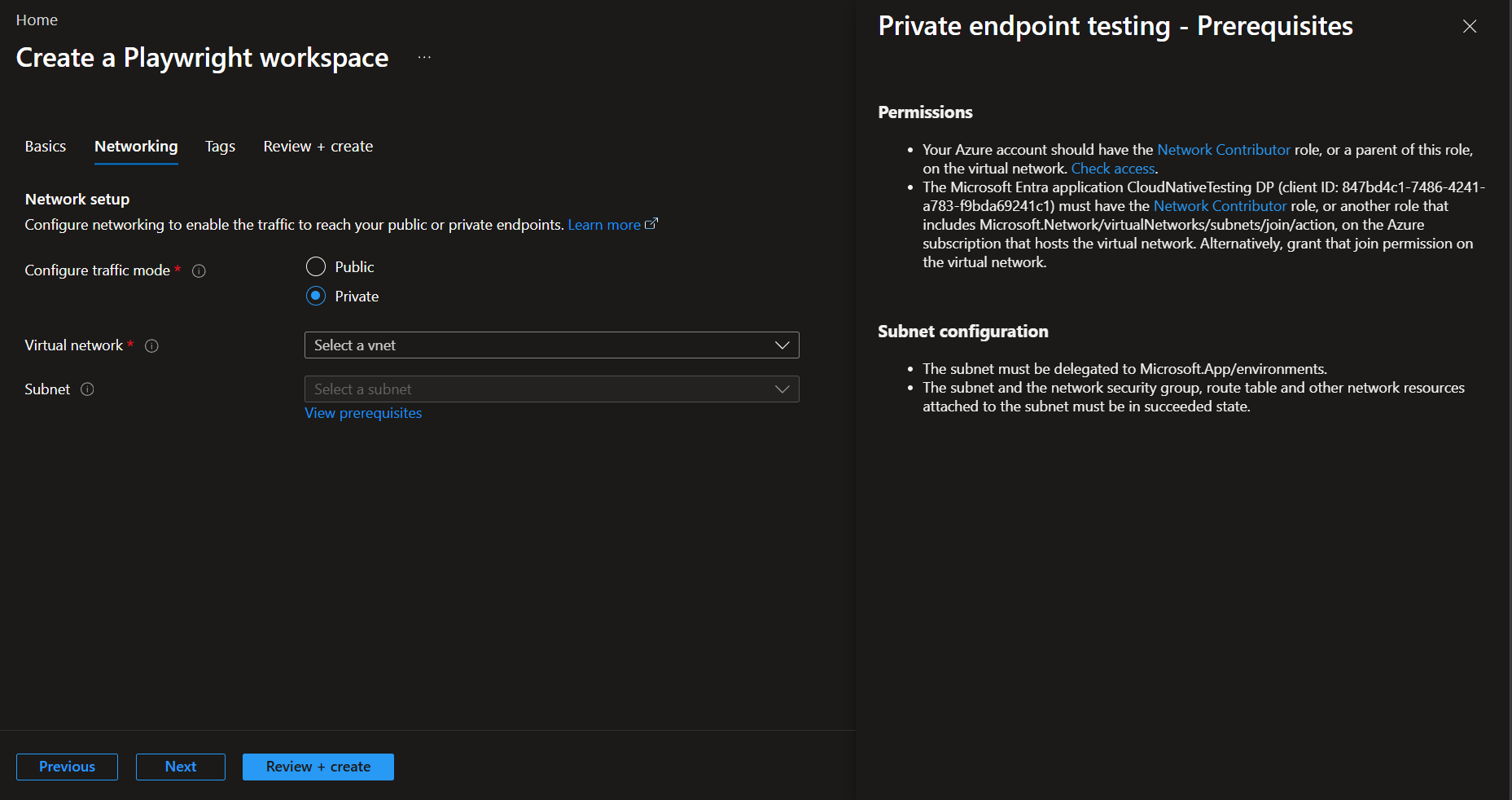
- After you finish configuring the resource, select Review + Create.
- Review the settings you provide, and then select Create. It takes a few minutes to create the workspace. Wait for the portal page to display Your deployment is complete before moving on.
Use Playwright Workspaces to access privately hosted applications
Depending on your use case, try any of the following quickstarts:
Run end-to-end tests at scale
To set up and run your Playwright tests using Playwright Workspaces, see Quickstart: Run Playwright tests at scale.
Set up continuous end-to-end testing
To add your Playwright tests to a continuous integration (CI) workflow, such as GitHub Actions, Azure Pipelines, or other CI platforms, see Quickstart: Continuous end-to-end testing.
Perform advanced diagnostics on Playwright test results
To use the reporting feature in Playwright Workspaces, see Quickstart: Perform advanced diagnostics.
Run browser automation tasks
To use the remote MCP to run browser automation tasks using an AI agent, see Quickstart: Automate browser tasks with the Playwright Workspaces remote MCP server.
Known limitations
- Virtual network and Playwright workspace resources need to be in the same subscription.
- Virtual network resource should be in the same Azure region as the Playwright workspace.
- Playwright workspaces that use the private website feature can't have regional affinity.
- Once you configure a Playwright workspace by using a subnet, you can't change the subnet.