Note
Access to this page requires authorization. You can try signing in or changing directories.
Access to this page requires authorization. You can try changing directories.
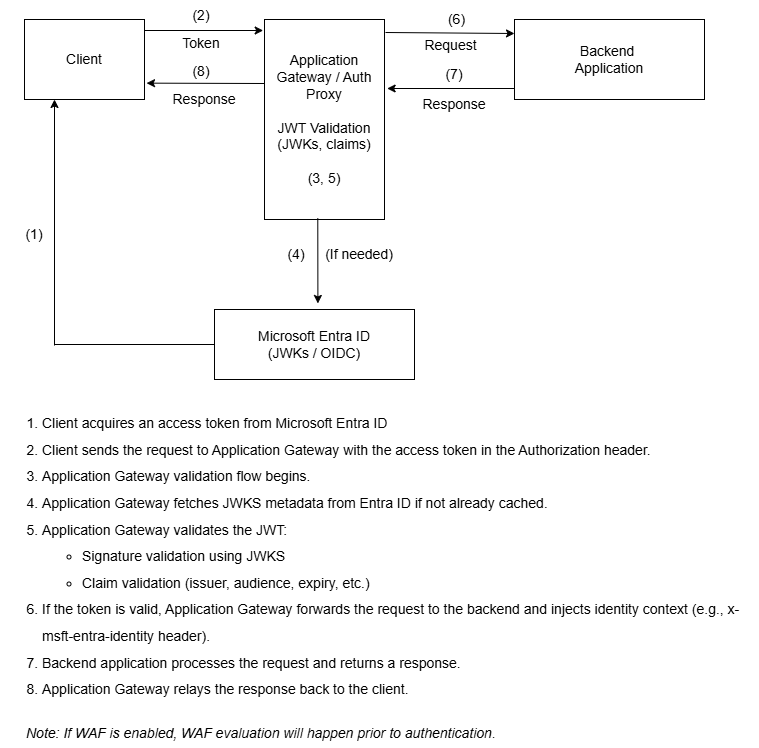
Azure Application Gateway validates JSON Web Tokens (JWTs) issued by Microsoft Entra ID (formerly Azure Active Directory) in incoming HTTPS requests. This capability provides first-hop authentication enforcement for web APIs or any protected resource without requiring custom code in your backend applications.
This capability verifies the integrity and authenticity of tokens in incoming requests. It then determines whether to allow or deny access before forwarding traffic to backend services. Upon successful validation, the gateway injects the x-msft-entra-identity header into the request and forwards it to the backend. Downstream applications can then securely consume verified identity information.
By performing token validation at the edge, Application Gateway simplifies application architecture and strengthens overall security posture. JWT validation is stateless. That is, each request must present a valid token for access to be granted.
Application Gateway doesn't maintain any session or cookie-based state. This approach helps ensure consistent validation across requests and alignment with Zero Trust principles.
Important
JWT validation in Azure Application Gateway is currently in preview. This preview version is provided without a service-level agreement, and we don't recommend it for production workloads. Certain features might not be supported or might have constrained capabilities. For more information, see Supplemental Terms of Use for Microsoft Azure Previews.
Key capabilities
- Token validation: Validates JWT signature, issuer, tenant, audience, and lifetime. Tokens must be issued by Microsoft Entra ID.
- Identity propagation: Injects the
x-msft-entra-identityheader withtenantId:oidto the backend. - Flexible actions: Configures
Deny(return 401 status) orAllow(forward without identity header) for invalid tokens. - Multitenant support: Supports common organizations and consumers' tenant configurations.
- HTTPS only: Requires HTTPS listeners. HTTP isn't supported.
Prerequisites
Application Gateway requirements:
- Standard_v2 or WAF_v2 SKU. The Basic SKU isn't supported.
- HTTPS listener, along with configuration of a TLS/SSL certificate.
- Azure Resource Manager API version 2025-03-01 or later.
Network requirements:
- Outbound connectivity from the Application Gateway subnet to
login.microsoftonline.comover TCP port 443.
- Outbound connectivity from the Application Gateway subnet to
Microsoft Entra ID requirements:
- Registration of your web API in Microsoft Entra ID.
- A call to Microsoft Entra ID to request access to a service. Microsoft Entra ID responds with an access token.
Configuration of JWT validation in Application Gateway.
Register an application in Microsoft Entra ID
In the Azure portal, go to App registrations.
Select New registration.
For Name, enter MyWebAPI.
For Supported account types, select Accounts in this organizational directory only (Microsoft only - Single tenant).
Note
Supported account types are:
- Single tenant (this directory only)
- Multitenant (any Microsoft Entra ID directory)
- Accounts in any Microsoft Entra ID directory and personal Microsoft accounts
For Redirect URI (optional), you can leave the boxes blank. This setting isn't required for API scenarios.
Select Register.
Note down the values for Application (client) ID and Directory (tenant) ID.
(Optional) Configure an application ID URI:
- Go to Expose an API > Set Application ID URI.
- Use the default
api://<ClientID>or a custom URI (for example,https://api.contoso.com).
(Optional) Define API scopes:
- Go to Expose an API > Add a scope.
This capability is for future authorization features. It's not required for the preview.
Configure JWT validation in Application Gateway
Open the preview configuration portal.
Open your Application Gateway instance, go to Settings on the left menu, and then select JWT validation configurations > Add JWT validation configuration.
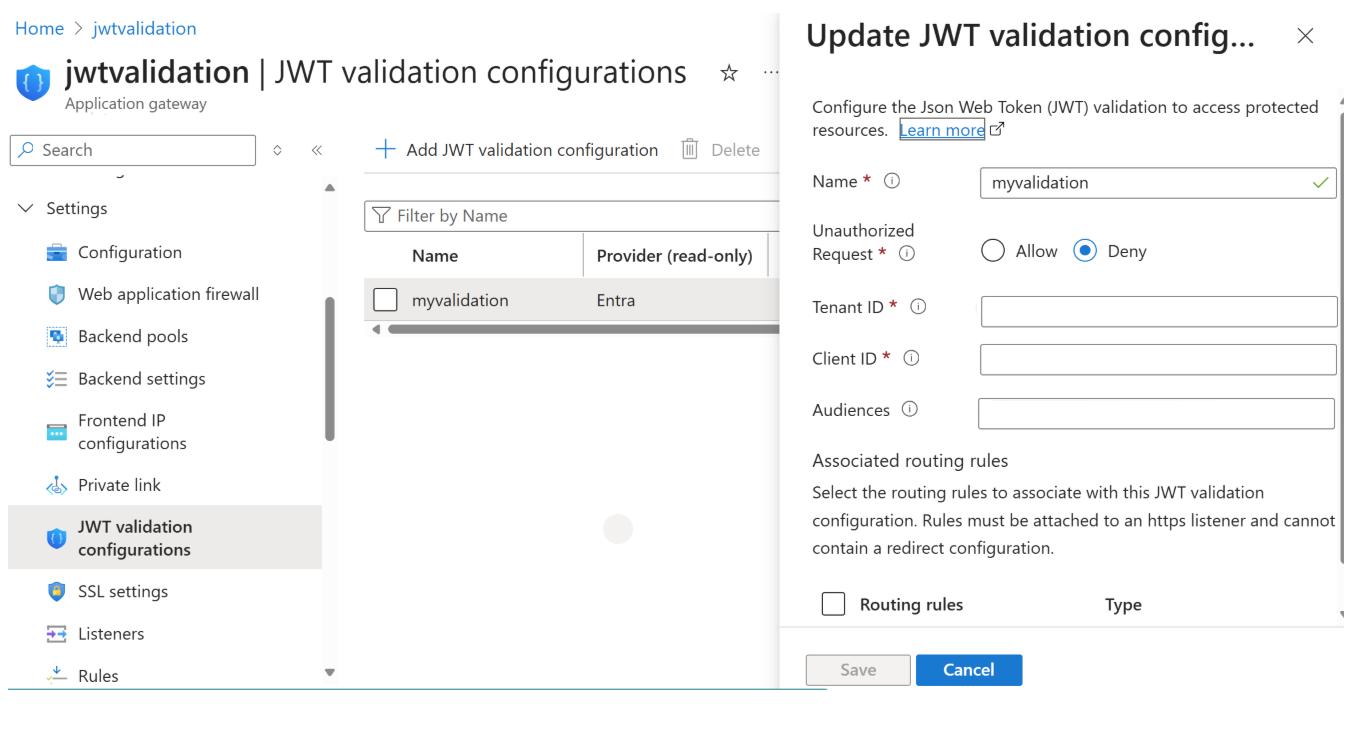
Provide the following details:
Setting Example Description Name jwt-policy-1Friendly name for the validation configuration Unauthorized Request DenyOption to reject requests with missing or invalid JWTs Tenant ID <your-tenant-id>Valid GUID or one of common,organizations, orconsumersClient ID <your-client-id>GUID of the app registered in Microsoft Entra Audiences <api://<client-id>(Optional) Additional valid audience claim values (maximum 5) Associate the configuration with a routing rule as described in the following section, if you need a new routing rule.
Create a routing rule (if necessary)
Go to Application Gateway > Rules > Add Routing rule.
Enter or select the following items:
- Listener: Use the protocol
HTTPS, an assigned certificate, or an Azure Key Vault secret. - Backend target: Select or create a backend pool.
- Backend settings: Use an appropriate HTTP/HTTPS port.
- Rule name: Enter a name such as
jwt-route-rule.
- Listener: Use the protocol
Link this rule to your JWT validation configuration.
Your JWT validation configuration is now attached to a secure HTTPS listener and routing rule.
Send a JWT access token with every request to the secure application
To securely access an application that Application Gateway helps protect, the client must first obtain a JWT access token from the Microsoft Entra ID token endpoint. The client then includes this token in the authorization header (for example, Authorization: Bearer TOKEN) on every request that it sends to Application Gateway.
Application Gateway validates the token before forwarding the request to the backend application. This validation ensures that only authenticated and authorized traffic reaches the secure application.
For more information, see Access tokens in the Microsoft identity platform.
Expected outcomes of requests
| Scenario | HTTP status | Identity header | Notes |
|---|---|---|---|
Valid token, action=Allow |
200 | Present | Token validated, identity forwarded |
Invalid token, action=Deny |
401 | Absent | Gateway blocks request |
Missing token, action=Deny |
401 | Absent | No authorization header |
Missing oid claim, action=Deny |
403 | Absent | Critical claim missing |
Backend verification
Check the x-msft-entra-identity header to confirm authentication.
Troubleshooting 401 and 403 responses
If requests return a status of 401 or 403, verify:
- Configuration
- Tenant ID or issuer (
iss) matches your Microsoft Entra tenant. - Audience (
aud) matches the configured client ID or audience list.
- Tenant ID or issuer (
- Token integrity
- Token isn't expired (
exp) andnbfisn't in the future.
- Token isn't expired (
- Request formatting
Authorization: Bearer <access_token>header is present and intact.
- Gateway policy placement
- JWT validation is attached to the correct listener and routing rule.
- Still failing?
- Acquire a new token for the correct audience.
- Check Application Gateway access logs for a detailed failure reason.
Related content
To learn more about JWT validation and related identity features in Azure: