Note
Access to this page requires authorization. You can try signing in or changing directories.
Access to this page requires authorization. You can try changing directories.
Azure Policy
This article describes how to manage virtual machine (VM) compliance without disrupting DevOps practices. Use Azure VM Image Builder and Azure Compute Gallery to minimize risk from system images. The solution consists of the gold image publishing process and the VM compliance tracking process.
Architecture
Download a Visio file of this architecture.
Data flow
The following sections describe the two processes in this solution.
Golden image publishing
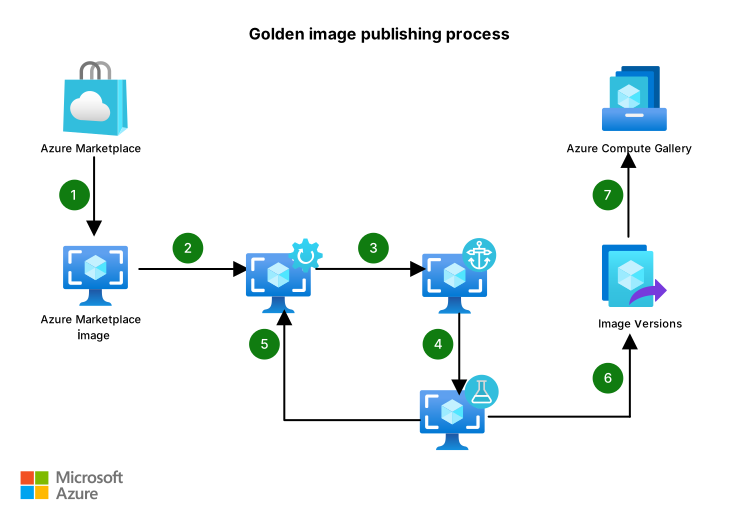
The following data flow corresponds to the previous diagram:
Each month, the golden image publishing process captures a base image from Microsoft Marketplace. A golden image is the published version of a Marketplace image.
VM Image Builder customizes the image.
The image tattooing process tracks image version information like the source and publish date.
Automated tests validate the image.
If the image fails any tests, it returns to the customization step for repairs.
The process publishes the finalized image.
Compute Gallery makes the image available to DevOps teams.
VM compliance tracking
Download a Visio file of this architecture.
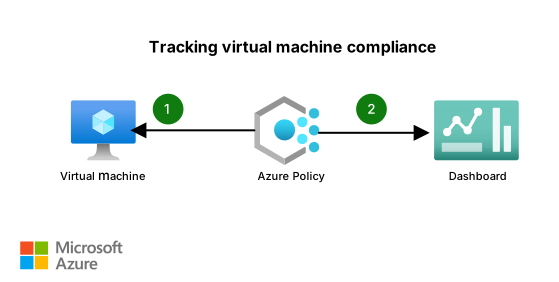
The following data flow corresponds to the previous diagram:
The VM compliance tracking process uses Azure Policy to assign policy definitions to VMs and evaluate the VMs for compliance.
Azure Policy publishes compliance data for the VMs and other Azure resources to the Azure Policy dashboard.
Components
VM Image Builder is a managed service for customizing system images. It builds images that DevOps teams use. In this architecture, VM Image Builder captures monthly base images from Marketplace, applies hardening changes, and installs agents. The image build in this process is the golden image.
Compute Gallery is an Azure service for storing and organizing custom VM images. It centralizes image management and controls access for internal teams and any external tenants that you authorize. In this architecture, Compute Gallery stores the golden images that DevOps teams must use. Azure Policy enforces that DevOps teams provision VMs only from images in this gallery.
Azure Policy is an Azure governance service that provides policy definitions. You can use these definitions to enforce your organization's standards and assess compliance at scale. The Azure Policy dashboard displays results from Azure Policy evaluations and keeps you informed about the compliance status of your resources. In this architecture, Azure Policy assigns policy definitions to VMs, evaluates them for compliance, publishes results to the Azure Policy dashboard, and restricts DevOps teams to using only Compute Gallery images.
The Azure machine configuration feature of Azure Policy provides a way to dynamically audit or assign configurations to machines through code. The configurations generally include environment or OS settings. In this architecture, Azure machine configuration audits the configuration settings that image customization establishes and marks VMs as noncompliant in the Azure Policy dashboard when configuration drift occurs.
Alternatives
You can use a non-Microsoft tool to manage compliance. You usually need to install an agent on the target VM and might need to pay a licensing fee.
You can use custom script extensions to install software on VMs or configure VMs after deployment. Each VM or virtual machine scale set supports only one custom script extension.
Scenario details
Compliance regulations, security standards, and acceptable risk levels vary across organizations and regions.
Differing standards can be harder to follow in dynamically scaling cloud environments than in on-premises systems. When teams use DevOps practices, they often place fewer restrictions on who can create Azure resources like VMs. This flexibility complicates compliance efforts.
Azure Policy and role-based access control (RBAC) assignments can help enterprises enforce standards on Azure resources. But for VMs, these controls apply only to the control plane or the route to the VM. The system images that run on the VM pose a security threat. Some companies prevent developers from accessing VMs, which reduces agility and makes it difficult to follow DevOps practices.
This solution uses VM Image Builder, Compute Gallery, and Azure Policy to manage VM compliance on Azure. It tracks compliance, minimizes risk from system images that run on VMs, and supports DevOps practices.
Potential use cases
Use this solution if your organization uses VMs and you need to:
Supply golden images to DevOps teams.
Test and validate images before you make them available to DevOps teams.
Track which image each DevOps team uses.
Enforce company standards without a loss of productivity.
Ensure that DevOps teams use the latest image versions.
Manage the compliance of pet servers, which are maintenance intensive, and cattle servers, which are easily replaceable.
Approach
The following sections provide a detailed description of the solution's approach.
Identify pets and cattle
DevOps teams use a pets and cattle analogy to define service models. To track a VM's compliance, first determine whether it's a pet or a cattle server:
Pet servers require significant attention and aren't easy to replace. Recovering a pet server takes considerable time and financial resources. For example, a server that runs SAP might be a pet. Beyond the software on the server, other considerations can determine the service model. Production servers in real-time and near real-time systems can also be pets when you have a low failure tolerance.
Cattle servers are part of an identical group and easy to replace. For example, VMs that run in a virtual machine scale set are cattle. Test environment servers are another example of cattle when they meet the following conditions:
- You use an automated procedure to create the servers from scratch.
- After you run the tests, you decommission the servers.
An environment might contain only pet servers or only cattle servers. In contrast, a set of VMs in an environment could be pets. A different set of VMs in that same environment could be cattle.
Compliance considerations differ for pet and cattle environments:
Pet compliance can be more challenging to track than cattle compliance. Usually, only DevOps teams can track and maintain the compliance of pet environments and servers. This solution increases the visibility of each pet's status so that everyone in the organization can track compliance.
For cattle environments, refresh the VMs and rebuild them from scratch regularly to maintain compliance. You can align this refresh cycle with your DevOps team's regular release cadence.
Restrict images
Don't allow DevOps teams to use Marketplace VM images. Only allow VM images that Compute Gallery publishes. This restriction is critical for VM compliance. You can use a custom policy in Azure Policy to enforce this restriction. For a sample, see Allow image publishers.
As part of this solution, VM Image Builder should use a Marketplace image. It's crucial that you use the latest available image in Marketplace. Apply your customizations on top of that image. Marketplace images refresh often and include preset configurations that make your images secure by default.
Customize images
A golden image is a customized version of a Marketplace image that you publish to Compute Gallery for DevOps teams to use. Customization activities are unique to each enterprise. Common activities include:
OS hardening
Deployment of custom agents for non-Microsoft software
Installation of enterprise certificate authority (CA) root certificates
You can use VM Image Builder to customize images by adjusting OS settings and running custom scripts and commands. VM Image Builder supports Windows and Linux images. For more information, see Azure Policy regulatory compliance controls for Azure Virtual Machines.
Important
Azure virtual networks default to private subnets that lack outbound connectivity. If your VM Image Builder builds require outbound internet access, like to download updates, you must explicitly configure outbound access on the subnets that you specify.
Strengthen images by using Trusted Launch
Beyond application-level customizations, golden images should establish a hardware-rooted chain of trust from boot to runtime. Trusted Launch provides this foundation for Generation 2 VMs. Configure golden images with these Trusted Launch capabilities:
Secure Boot: Ensures that only signed and trusted OS loaders, kernels, and drivers run during startup. This approach protects against bootkits and rootkits.
Virtual Trusted Platform Module (vTPM): Emulates a hardware Trusted Platform Module (TPM) inside the VM and provides secure storage for encryption keys, certificates, and boot measurements. vTPM supports scenarios like BitLocker disk encryption and cryptographic guest attestation.
Boot Integrity Monitoring: Measures the entire boot chain and surfaces telemetry to Microsoft Defender for Cloud.
Note
Not all VM sizes and OS images support Trusted Launch. Verify compatibility during the image validation step.
Track image tattoos
Image tattooing is the process of tracking all image versioning information that a VM uses. This information is invaluable during troubleshooting and can include:
The original source of the image, like the name and version of the publisher.
The OS version string for an in-place upgrade.
The version of your custom image.
Your publish date.
The amount and type of information that you track depends on your organization's compliance level.
For image tattooing on Windows VMs, set up a custom registry. Add all required information to this registry path as key-value pairs. On Linux VMs, input image tattooing data into environment variables or a file. Place the file in the /etc/ folder where it doesn't conflict with developer work or applications. To use Azure Policy to track or report on the tattooing data, store each piece of data as a unique key-value pair. For more information, see Find a Marketplace image version.
Generate a software bill of materials for golden images
Image tattooing records metadata about the image, like its source, version, and publish date. A software bill of materials (SBOM) complements tattooing by recording what's inside the image, like OS packages, agents, libraries, and patches. This inventory supports vulnerability response, compliance audits, and supply chain transparency.
An SBOM for golden images helps in the following ways:
Faster common vulnerabilities and exposures (CVE) response: When a critical vulnerability is disclosed, an SBOM identifies which golden image versions contain the affected component.
Regulatory compliance: Regulatory laws and standards often require SBOMs for software artifacts. VM images are part of that software supply chain.
Audit traceability: When you pair image tattoos with SBOMs, auditors get a complete picture of which image a VM runs and exactly what software components the image contained at build time.
Generate the SBOM during the image build
Add SBOM generation as a step in the VM Image Builder pipeline immediately after customization and before validation.
Use the open-source Microsoft SBOM tool to generate SBOMs in SPDX format. The tool enumerates installed OS packages, agents, and dependencies. Run the tool on the customized image as a VM Image Builder customization step or as a post-customization script in your pipeline. Cryptographically sign the generated SBOM to ensure its integrity.
Store the SBOM alongside the image. Upload the SBOM to an Azure Storage account or an artifact store linked to the Compute Gallery image version. Use a consistent naming convention that maps each SBOM file to its image definition, version, and build date. Keep the SBOM available for at least as long as the image version is in use.
Validate golden images by using automated tests
Generally, you should refresh golden images monthly to remain current with the latest updates and changes in Marketplace images. Use a recurrent testing procedure for this purpose. As part of the image creation process, use an Azure pipeline or other automated workflow for testing. Set up the pipeline to deploy a new VM to run tests before the beginning of each month. The tests should confirm prepared images before you publish them for consumption. Automate tests by using a test automation solution or running commands or batches on the VM.
Common test scenarios include:
Validate the VM boot time.
Confirm image customizations, like OS configuration settings or agent deployments.
A failed test should interrupt the process. Repeat the test after you address the root cause of the problem. If the tests run smoothly, automating the testing process reduces the effort that goes into maintaining an evergreen state.
Publish golden images
Publish final images in Compute Gallery as managed images that DevOps teams can use. Mark earlier images as aged. If you haven't set an end-of-life date for an image version in Compute Gallery, consider discontinuing the oldest image based on your company's policies.
Note
The soft delete feature (preview) in Compute Gallery provides a 7-day recovery window for accidentally deleted images. Consider enabling soft delete on your gallery to protect against unintended image loss.
For more information about limits that apply when you use Compute Gallery, see Store and share images in Compute Gallery.
Publishing the latest images across different regions is a good practice. You can use Compute Gallery to manage the life cycle and replication of your images across different Azure regions.
Refresh golden images
When an application uses an image, the underlying OS image can be difficult to update with recent compliance changes. Strict business requirements can complicate the process of refreshing the underlying VM. Refreshing is also complex for business-critical VMs.
Cattle servers are dispensable, so you can coordinate with DevOps teams to refresh them in a planned maintenance window as a regular activity.
Pet servers are more challenging to refresh. Discontinuing an image can put applications at risk. In scale-out scenarios, Azure can't find the respective images, which results in failures.
Consider these guidelines when you refresh pet servers:
For best practices, see the Reliability pillar overview in the Azure Well-Architected Framework.
To simplify the process, see the principles in the following articles:
Tag each pet server as a pet. Configure a policy in Azure Policy to account for this tag during refreshes.
Note
VM Image Builder supports automatic image creation when your build pipeline meets certain criteria. Set up a trigger in VM Image Builder to automatically refresh images monthly. For more information, see Enable automatic image creation by using VM Image Builder triggers.
Emergency patching for critical vulnerabilities
The monthly golden image refresh cadence suits routine updates, but critical security vulnerabilities and CVEs require action before the next scheduled cycle. Establish an out-of-band (OOB) emergency patching process that runs independently of the monthly cadence and triggers on demand. Subscribe to Azure Service Health and Microsoft Security Response Center notifications for CVE alerts that affect your base images.
When a critical CVE affects a published golden image, act immediately to prevent provisioning new VMs with the vulnerable version. Start by marking the affected image version as excluded from the image version that Azure selects when users or automation request the latest version. In Compute Gallery, set the excludeFromLatest property to true on every affected image version. After this change, automation and users that request the latest available version no longer receive the vulnerable version. Use the Azure Policy assignment description to link to a runbook or internal wiki that lists the CVE, the affected image versions, and the required remediation actions.
Trigger an OOB image build
Use the same VM Image Builder pipeline that produces the monthly golden image, but trigger it on demand:
Apply the security patch. Add the critical fix to the image customization step as an OS update, a configuration change, or a script that remediates the specific vulnerability.
Run the automated test suite. Don't skip validation. The same tests that run during the monthly cycle should run for emergency builds.
Publish the patched image. Publish the new image version to Compute Gallery and replicate it to all required regions. The affected version is excluded from the latest version selection, so the patched version automatically becomes the version that new deployments use.
Update the image tattoo. Record the OOB nature of the update in the image tattoo and include the CVE identifier, the patch date, and a flag that distinguishes it from a scheduled monthly release. This data supports compliance audits.
Important
OOB patching complements the monthly cadence but doesn't replace it. Continue the regular monthly refresh to capture cumulative updates, and use your emergency process strictly for vulnerabilities that require immediate action.
Improve visibility
Generally, you should use Azure Policy to manage control-plane compliance activity. You can also use Azure Policy to do the following tasks:
Track VM compliance.
Install Azure agents. Use the Azure Monitor agent for monitoring.
Capture diagnostic logs.
Improve the visibility of VM compliance.
Use Azure machine configuration to audit configuration changes that you make during image customization. When drift occurs, the Azure Policy dashboard lists the affected VM as noncompliant. Azure Policy can use image tattooing information to track when you use outdated images or operating systems.
Audit pet servers for each application. You can improve the visibility of these servers by using Azure policies that have the audit effect. Adjust the audit process according to your company's acceptable level of risk and internal risk management processes.
Each DevOps team can track its applications' compliance levels in the Azure Policy dashboard and take appropriate corrective actions. When you assign these policies to a management group or a subscription, include a URL to company-wide documentation about the policy in the assignment description. Your documentation should list the steps that DevOps teams should follow to make their VMs compliant.
IT risk managers and security officers can also use the Azure Policy dashboard to manage company risks according to their company's acceptable level of risk.
Azure machine configuration with remediation options automatically applies corrective actions. But frequent queries or modifications to a VM that you use for a business-critical application can affect performance. Plan remediation actions carefully for production workloads. Assign a DevOps team ownership of application compliance in all environments. Use this approach for pet servers and environments, which are typically long-term Azure components.
Best practices for golden image hygiene
A well-structured image build process prevents common mistakes that lead to security incidents, configuration drift, and operational friction. Follow these guidelines when you customize and maintain golden images:
Never bake secrets into images. Don't embed API keys, connection strings, passwords, certificates' private keys, or tokens in the image. When you embed secrets in an image, you expose them to every VM that uses the image and to anyone that has read access to Compute Gallery. Instead, retrieve secrets at runtime from Azure Key Vault by using a managed identity.
Prefer external configuration over hardcoded values. Externalize settings that might change between environments or before the next image build, like endpoints, feature flags, regional settings, or log levels. Reserve image customization for settings that are static and universal across all deployments.
Minimize the software footprint. Only install components that every consumer of the image needs. Deploy extra tooling that's specific to a single use case or workload after provisioning by using extensions or configuration management. A smaller footprint reduces the attack surface and the number of components that require patching.
Exclude application code and deployment artifacts from the image. Golden images should provide a secure, compliant OS foundation. Deploy application code separately through continuous integration and continuous delivery (CI/CD) pipelines. This separation keeps the image life cycle and the application life cycle independent.
Use deterministic, repeatable build scripts. Pin package versions in your customization scripts. Avoid commands like
apt-get upgradeoryum updatethat can produce different images on different build days.
Considerations
These considerations implement the pillars of the Azure Well-Architected Framework, which is a set of guiding tenets that you can use to improve the quality of a workload. For more information, see Well-Architected Framework.
Reliability
Reliability helps ensure that your application can meet the commitments that you make to your customers. For more information, see Design review checklist for Reliability.
This solution uses managed components that are automatically resilient at a regional level. For more information, see Design resilient applications for Azure.
You can configure the number of replicas of each image that Compute Gallery stores. A higher number of replicas reduces the risk of throttling when you provision multiple VMs simultaneously. For more information, see Scaling for Compute Gallery.
Cost Optimization
Cost Optimization focuses on ways to reduce unnecessary expenses and improve operational efficiencies. For more information, see Design review checklist for Cost Optimization.
If you use only Microsoft services, you can avoid the added cost of non-Microsoft tools like Ansible or Terraform. However, Azure charges can still apply for storage, egress, image building, replication, and hybrid resources. Other potential charges involve these components:
Azure Policy and Azure machine configuration are free of charge for Azure resources. If your company uses a hybrid approach, Azure Arc resources add extra charges.
VM Image Builder uses a single compute instance type with 1 vCPU and 3.5 GB of RAM. Charges might apply for data storage and transfer.
Compute Gallery incurs charges only for replica storage and the network egress associated with image replication.
Contributors
Microsoft maintains this article. The following contributors wrote this article.
Principal author:
- Yunus Emre Alpozen | Program Architect
To see nonpublic LinkedIn profiles, sign in to LinkedIn.
Next steps
- Azure landing zone
- Introduction to cloud infrastructure
- VM Image Builder
- Compute Gallery
- Azure Policy and the policy dashboard
- Azure machine configuration