Note
Access to this page requires authorization. You can try signing in or changing directories.
Access to this page requires authorization. You can try changing directories.
Important
Setting up push notifications requires careful setup. The poll model for configuration refresh provides a simpler setup and should be used in most cases unless there is a specific need for push notifications. To learn more about how to use the poll model, visit the dynamic configuration tutorial for .NET.
The Azure App Configuration .NET client library provides support for updating configuration settings on demand without requiring an application to restart. You can configure an application to detect changes in App Configuration by using one or both of the following two approaches:
A poll model: This approach is the default behavior. It uses polling to detect changes in the configuration. After the refresh interval of a setting elapses, the next call to
TryRefreshAsyncorRefreshAsyncsends a request to the server. The request checks for changes in the configuration. If needed, it also pulls the updated configuration.A push model: This approach uses App Configuration events to detect changes in the configuration. With this approach, you configure App Configuration to send key-value change events to Azure Event Grid. The application uses these events to optimize the total number of requests needed to keep the configuration updated. The application can subscribe to these events directly from Event Grid or through a supported event handler. Examples of event handlers include a webhook, Azure Functions, or an Azure Service Bus topic.
In this tutorial, you:
- Set up a subscription for sending configuration change events from App Configuration to a Service Bus topic.
- Set up your .NET app to update its configuration in response to changes in App Configuration.
- Consume the latest configuration in your application.
Prerequisites
- The .NET app that you update when you complete the steps in Tutorial: Use dynamic configuration in a .NET app. This tutorial shows you how to use push refresh to implement dynamic configuration updates in your code. It builds on the tutorial for using dynamic configuration in a .NET app.
- The
Microsoft.Extensions.Configuration.AzureAppConfigurationNuGet package version 5.0.0 or later. - The
Azure.Messaging.ServiceBusNuGet package. - A code editor such as Visual Studio Code, which is available for the Windows, macOS, and Linux platforms.
Set up a Service Bus topic and subscription
This tutorial uses the Service Bus integration for Event Grid to streamline the detection of configuration changes. If you don't want your application to continuously poll App Configuration for changes, you can use this integration. The Service Bus SDK provides an API that you can use to register a message handler. You can use that handler to update your configuration when changes are detected in App Configuration.
Create a Service Bus namespace, topic, and subscription by following the steps in the Use the Azure portal to create a Service Bus topic and subscriptions to the topic quickstart.
Use the following commands to set up environment variables. The application code uses these variables to register an event handler for configuration changes.
setx ServiceBusConnectionString "<Service-Bus-namespace-connection-string>"
setx ServiceBusTopic "<Service-Bus-topic-name>"
setx ServiceBusSubscription "<Service-Bus-subscription-name>"
After you run these commands, close and reopen Command Prompt so that the changes take effect.
Set up an event subscription
Sign in to the Azure portal, and then go to the App Configuration store from the tutorial listed in Prerequisites.
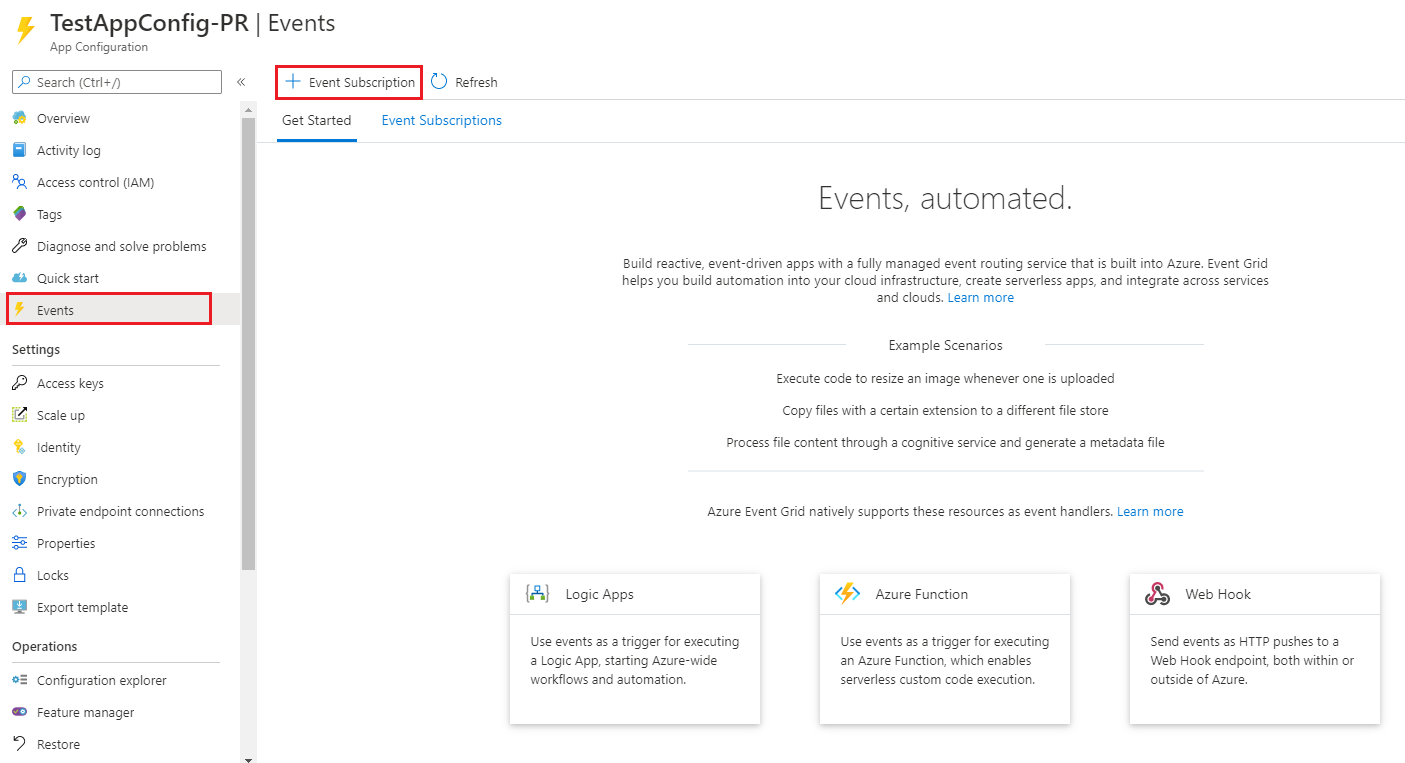
Select Events, and then select Event Subscription.
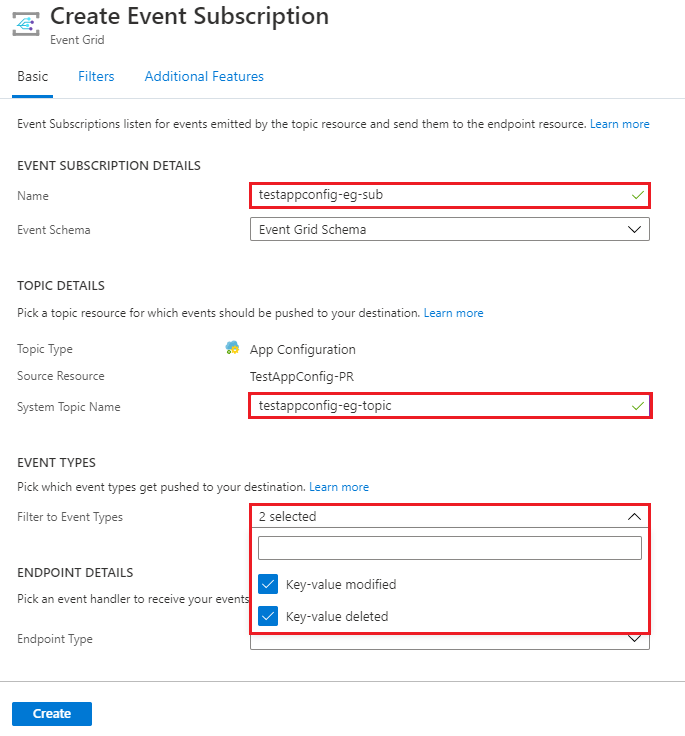
In the Create Event Subscription dialog, enter the following information:
- Under Event Subscription Details, enter a name for the event subscription.
- Under Topic Details, enter a name for the system topic.
- Under Event Types, select Key-value modified and Key-value deleted.
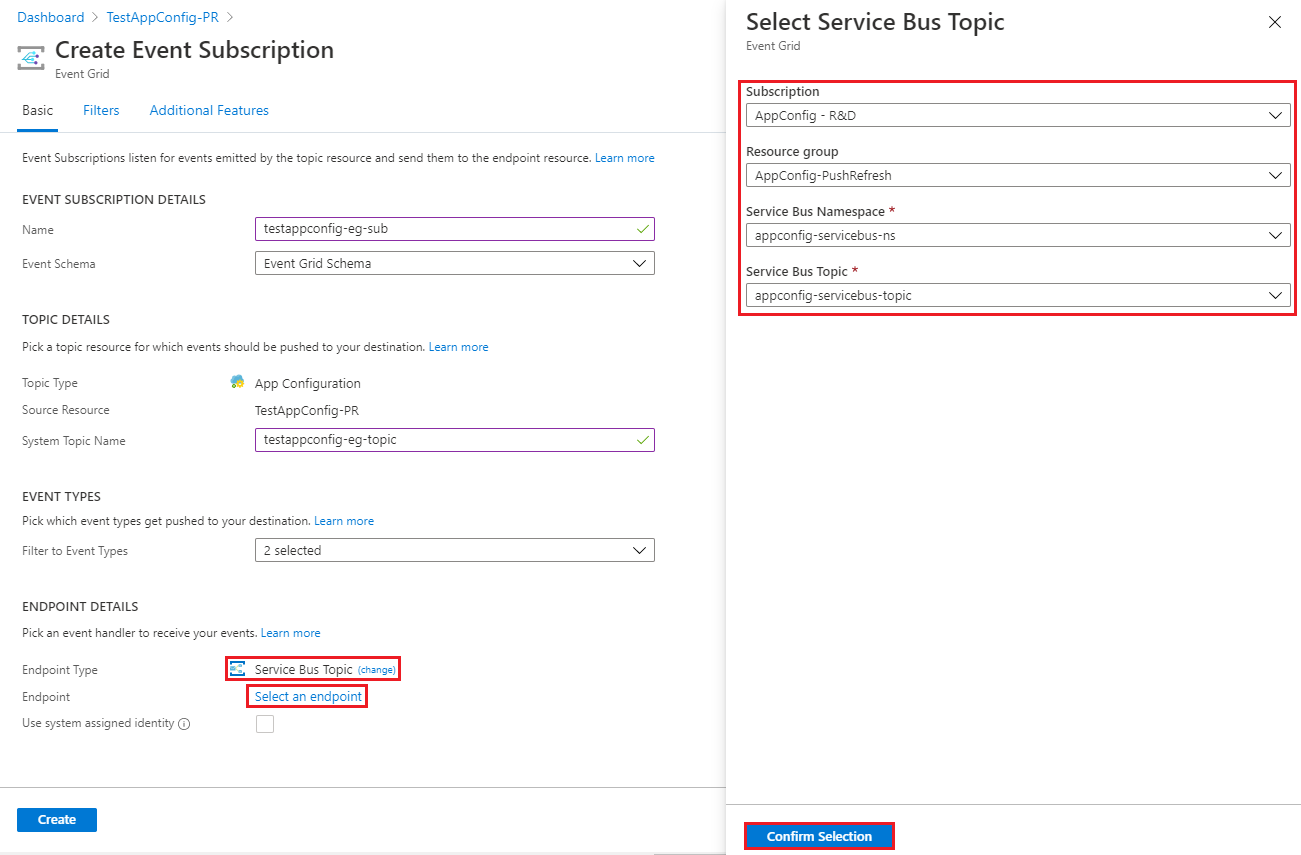
Under Endpoint Details, make the following selections:
- For Endpoint Type, select Service Bus Topic.
- Next to Endpoint, select Configure an endpoint.

In the Select Service Bus Topic dialog, select the subscription and resource group of the Service Bus namespace that you set up in the previous section. Also select the namespace and the topic that you set up, and then select Confirm Selection.
To create the event subscription, select Create.
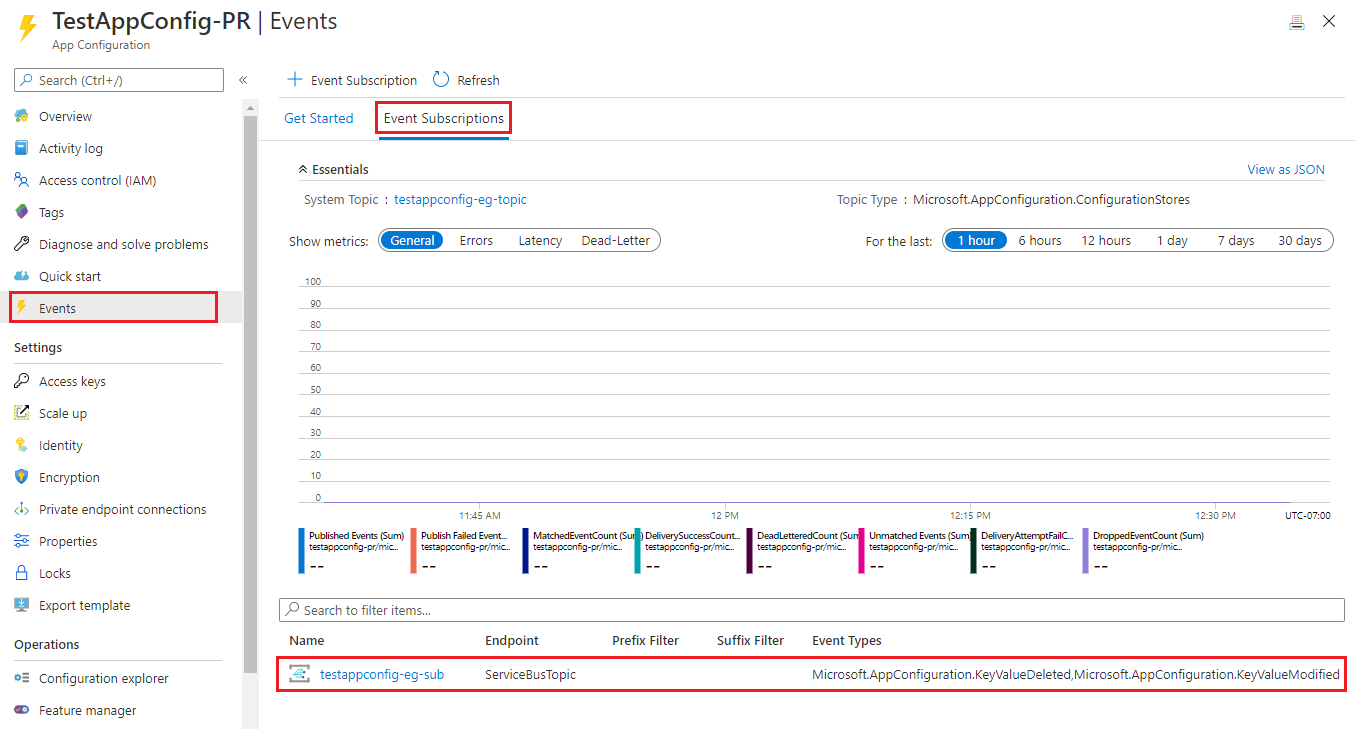
On the Events page, go to the Event Subscriptions tab and verify that the subscription exists.

Note
When you subscribe to configuration changes, you can use one or more filters to reduce the number of events sent to your application. You can configure these filters as Event Grid subscription filters or Service Bus subscription filters. For example, you can use a subscription filter to subscribe only to events for changes in a key that starts with a specific string.
Register an event handler to reload data from App Configuration
Go to the folder that contains the .NET app project that you used in the tutorial listed in Prerequisites. Open Program.cs and replace the existing code with the following code:
using Azure.Messaging.EventGrid;
using Azure.Messaging.ServiceBus;
using Microsoft.Extensions.Configuration;
using Microsoft.Extensions.Configuration.AzureAppConfiguration;
using Microsoft.Extensions.Configuration.AzureAppConfiguration.Extensions;
using System;
using System.Threading.Tasks;

namespace TestConsole
{
    class Program
    {
        private const string AppConfigurationConnectionStringEnvVarName = "AppConfigurationConnectionString";
        // An App Configuration connection string uses the following format:
        // Endpoint=https://{store-name}.azconfig.io;Id={id};Secret={secret}

        private const string ServiceBusConnectionStringEnvVarName = "ServiceBusConnectionString";
        // A Service Bus connection string uses the following format:
        // Endpoint=sb://{Service-Bus-name}.servicebus.windows.net/;SharedAccessKeyName={key-name};SharedAccessKey={key}

        private const string ServiceBusTopicEnvVarName = "ServiceBusTopic";
        private const string ServiceBusSubscriptionEnvVarName = "ServiceBusSubscription";

        private static IConfigurationRefresher _refresher = null;

        static async Task Main(string[] args)
        {
            string appConfigurationConnectionString = Environment.GetEnvironmentVariable(AppConfigurationConnectionStringEnvVarName);

            IConfiguration configuration = new ConfigurationBuilder()
                .AddAzureAppConfiguration(options =>
                {
                    options.Connect(appConfigurationConnectionString);
                    // Load the key-value that has the key "TestApp:Settings:Message" and no label.
                    options.Select("TestApp:Settings:Message");
                    // Reload the configuration when any selected key-values change.
                    options.ConfigureRefresh(refresh =>
                        refresh
                            .RegisterAll()
                            // Important: Reduce the polling frequency.
                            .SetRefreshInterval(TimeSpan.FromDays(1))
                    );

                    _refresher = options.GetRefresher();
                }).Build();

            await RegisterRefreshEventHandler();
            var message = configuration["TestApp:Settings:Message"];
            Console.WriteLine($"Initial value: {configuration["TestApp:Settings:Message"]}");

            while (true)
            {
                await _refresher.TryRefreshAsync();

                if (configuration["TestApp:Settings:Message"] != message)
                {
                    Console.WriteLine($"New value: {configuration["TestApp:Settings:Message"]}");
                    message = configuration["TestApp:Settings:Message"];
                }

                await Task.Delay(TimeSpan.FromSeconds(1));
            }
        }

        private static async Task RegisterRefreshEventHandler()
        {
            string serviceBusConnectionString = Environment.GetEnvironmentVariable(ServiceBusConnectionStringEnvVarName);
            string serviceBusTopic = Environment.GetEnvironmentVariable(ServiceBusTopicEnvVarName);
            string serviceBusSubscription = Environment.GetEnvironmentVariable(ServiceBusSubscriptionEnvVarName);
            ServiceBusClient serviceBusClient = new ServiceBusClient(serviceBusConnectionString);
            ServiceBusProcessor serviceBusProcessor = serviceBusClient.CreateProcessor(serviceBusTopic, serviceBusSubscription);

            serviceBusProcessor.ProcessMessageAsync += (processMessageEventArgs) =>
            {
                // Build an EventGridEvent instance from the notification message.
                EventGridEvent eventGridEvent = EventGridEvent.Parse(BinaryData.FromBytes(processMessageEventArgs.Message.Body));

                // Create a PushNotification instance from the Event Grid event.
                eventGridEvent.TryCreatePushNotification(out PushNotification pushNotification);

                // Prompt a configuration refresh based on the push notification.
                _refresher.ProcessPushNotification(pushNotification);

                return Task.CompletedTask;
            };

            serviceBusProcessor.ProcessErrorAsync += (exceptionargs) =>
            {
                Console.WriteLine($"{exceptionargs.Exception}");
                return Task.CompletedTask;
            };

            await serviceBusProcessor.StartProcessingAsync();
        }
    }
}
In this code, the call to ConfigureRefresh specifies that all selected key-values should be monitored for changes. In this case, the only key that's selected for monitoring is TestApp:Settings:Message.
The parameter in the SetRefreshInterval call specifies that no request to App Configuration is made before a day passes since the last check. However, the ProcessPushNotification method resets the refresh interval to a short, random delay. This reset causes future calls to RefreshAsync or TryRefreshAsync to revalidate the cached values against App Configuration and update them if needed. As a result, when ProcessPushNotification is called, your application sends requests to App Configuration within a few seconds. The end result is that your application loads new configuration values shortly after changes occur in the App Configuration store. There's no need to constantly poll for updates.
If your application misses a change notification, it still gets informed about the update within a day, because it checks for configuration changes daily.
The short, random delay that's used for the refresh interval is helpful if many instances of your application or microservices use the push model to connect to the same App Configuration store. Without this delay, all instances of your application might send requests to your App Configuration store simultaneously, as soon as they receive a change notification. This behavior can cause App Configuration to throttle your store. By default, the refresh interval delay is set to a random number between 0 and a maximum of 30 seconds. You can change the maximum value by using the optional parameter maxDelay of the ProcessPushNotification method.
The ProcessPushNotification method takes in a PushNotification object that contains information about the change in App Configuration that triggered the push notification. Having this information helps ensure all configuration changes up to the triggering event are loaded in the subsequent configuration refresh. The SetDirty method can be used to mark the cached value of a key-value as dirty. But the SetDirty method doesn't guarantee that the change that triggers a push notification is loaded in an immediate configuration refresh. We recommend that you use the ProcessPushNotification method instead of the SetDirty method for the push model.
Build and run the app locally
Set up an environment variable named
AppConfigurationConnectionString. Set its value to the access key of your App Configuration store.setx AppConfigurationConnectionString "<App-Configuration-store-connection-string>"After you run this command, close and reopen Command Prompt so that the change takes effect.
Run the following command to build the console app:
dotnet buildAfter the build successfully finishes, run the following command to run the app locally:
dotnet run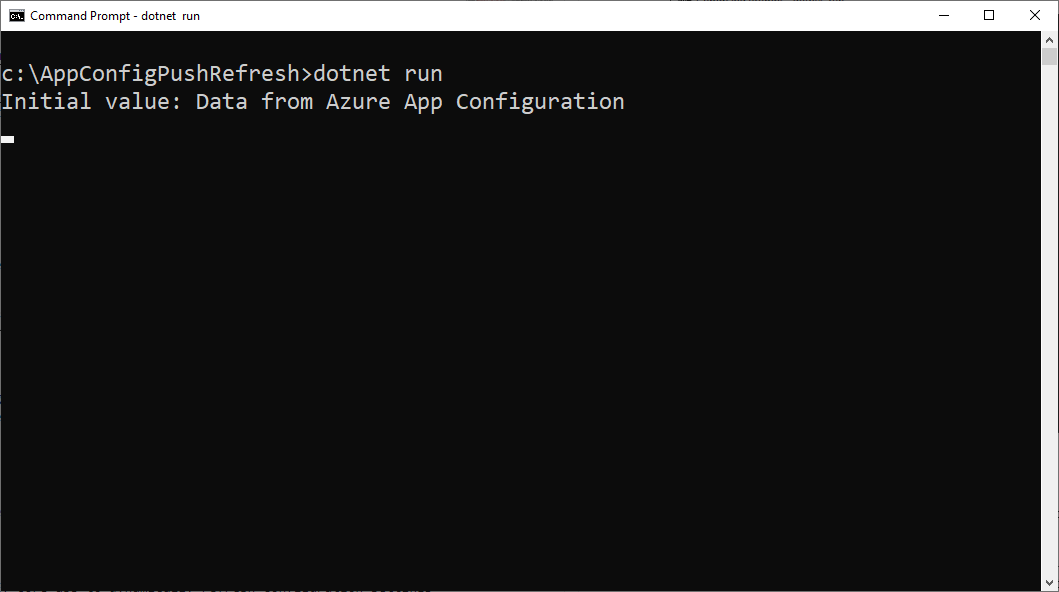
Sign in to the Azure portal, and then go to the App Configuration store from the tutorial listed in Prerequisites.
Select Configuration explorer, and then update the value of the following key:
Key New value TestApp:Settings:Message Data from Azure App Configuration - Updated Wait a few moments for the event to be processed. The updated configuration then appears in the app output.
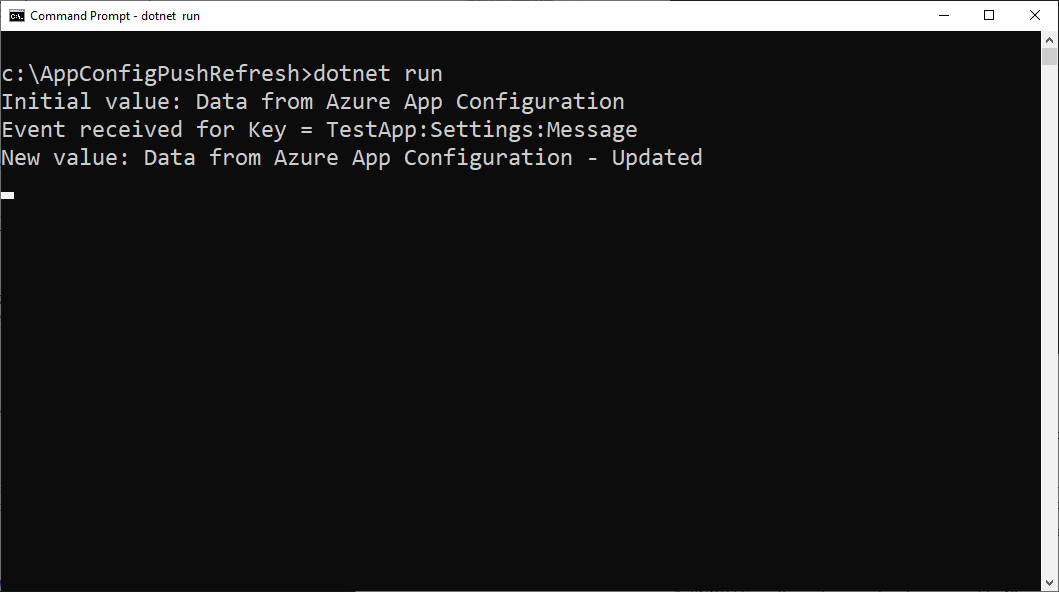
Clean up resources
If you don't want to continue using the resources created in this article, delete the resource group you created here to avoid charges.
Important
Deleting a resource group is irreversible. The resource group and all the resources in it are permanently deleted. Ensure that you don't accidentally delete the wrong resource group or resources. If you created the resources for this article inside a resource group that contains other resources you want to keep, delete each resource individually from its respective pane instead of deleting the resource group.
- Sign in to the Azure portal, and select Resource groups.
- In the Filter by name box, enter the name of your resource group.
- In the result list, select the resource group name to see an overview.
- Select Delete resource group.
- You're asked to confirm the deletion of the resource group. Enter the name of your resource group to confirm, and select Delete.
After a few moments, the resource group and all its resources are deleted.
Next step
In this tutorial, you enabled your .NET app to dynamically refresh configuration settings from App Configuration. To find out how to use an Azure managed identity to streamline the access to App Configuration, continue to the next tutorial.