Note
Access to this page requires authorization. You can try signing in or changing directories.
Access to this page requires authorization. You can try changing directories.
Agentic Retrieval uses High-Trust Server-to-Server (S2S) authentication to connect to SharePoint Server on-premises. Instead of storing a username and password, the extension signs a JSON Web Token (JWT) with a certificate private key, and SharePoint validates it by using the registered public key.
If you need to ingest SharePoint content in restricted or disconnected environments, this approach helps you avoid stored credentials and external token dependencies while keeping authentication available.
This article explains the authentication architecture, trust components, and configuration model so that you can plan a secure SharePoint connection for your environment.
This article applies if you run Agentic Retrieval on Azure Kubernetes Service (AKS) or Azure Local (Arc-enabled Kubernetes) and connect to SharePoint Server Subscription Edition (on-premises).
Important
Agentic Retrieval in Foundry Local is currently in PREVIEW. See the Supplemental Terms of Use for Microsoft Azure Previews for legal terms that apply to Azure features that are in beta, preview, or otherwise not yet released into general availability.
What you set up versus what the extension handles
The following table shows the one-time setup tasks you complete and the certificate and token tasks the extension handles automatically.
| Your responsibility (one-time setup) | Extension handles automatically |
|---|---|
| Create a certificate (Personal Information Exchange (PFX)) and a public certificate file (.cer) | Syncs the certificate from Key Vault into the cluster by using the Container Storage Interface (CSI) driver |
| Upload the PFX to Azure Key Vault | Signs JWT tokens with the certificate private key at runtime |
| Register certificate trust on SharePoint Server | Caches tokens (12 hours), handles expiration, and retries on transient errors |
| Register the app principal and grant permissions on SharePoint | Mounts the certificate into ingestion pods securely |
| Create a managed identity and federate it with the cluster | Discovers the SharePoint realm automatically (if not provided) |
| Create a user profile and obtain the Windows Security Identifier (SID) | |
| Provide configuration values during deployment of the extension or when you add a data source in the developer portal |
Architecture
The SharePoint server-to-server ingestion architecture for Agentic Retrieval uses certificate-based trust to authenticate requests without stored credentials or an external token service. Azure Key Vault stores the PFX certificate and password, the CSI Secrets Store Driver syncs them into Kubernetes, and the ingestion pod signs JWTs locally. SharePoint Server validates the token by using the trusted public key and then returns documents.
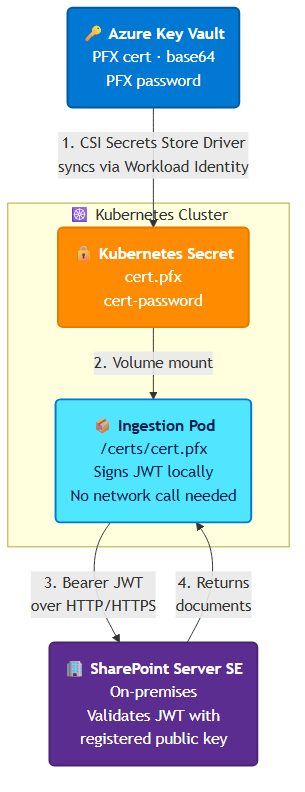
Key design points
This server-to-server ingestion architecture uses certificate-based trust to provide secure, resilient SharePoint authentication in connected and disconnected environments without storing user credentials.
- No stored passwords: Authentication uses a certificate-signed JWT.
- No AD FS or ACS required: The pod creates the token locally.
- Compatible with disconnected or air-gapped environments: After the certificate syncs to the cluster, no Azure connectivity is needed for authentication.
- Data-source-level isolation: Different SharePoint sites can use different identities.
- Token caching: JWTs are valid for 12 hours and refresh automatically.
Prerequisites summary
Before you deploy Agentic Retrieval with SharePoint enabled, make sure you have:
- A working AKS or Arc-enabled Kubernetes cluster.
- Access to Azure Key Vault.
- A working SharePoint Server Subscription Edition environment.
- Required certificate, identity, and trust configuration completed.
- Network connectivity from cluster pods to SharePoint and Azure Key Vault.
For full setup steps and step-by-step validation, see Set up SharePoint server-to-server authentication for Agentic Retrieval.
SharePoint configuration fields
When you install Agentic Retrieval in the Azure portal, the Data Source Connection / Authentication section includes the following SharePoint fields.
Certificate delivery and Key Vault access fields
These fields configure how the certificate is delivered from Azure Key Vault to the cluster. Changing these fields requires a Helm upgrade and a pod restart after installation.
| Portal field | Helm key | Type | Default | Description |
|---|---|---|---|---|
| Enable SharePoint Ingestion | sharepoint.sharepointIngestionEnabled |
Toggle | false |
Enables all SharePoint resources (CSI SecretProviderClass, ServiceAccount, certificate mounts). |
| Key Vault Name | sharepoint.s2s.keyvaultName |
Text | (empty) | Name of your Azure Key Vault containing the PFX certificate and password. |
| KV Cert Secret Name | sharepoint.s2s.kvCertSecretName |
Text | edgerag-sp-s2s-cert |
Name of the secret in Key Vault that holds the PFX certificate (base64-encoded). |
| KV Cert Password Secret Name | sharepoint.s2s.kvCertPasswordSecretName |
Text | sp-cert-password |
Name of the secret in Key Vault that holds the PFX password. |
| Workload Identity Client ID | sharepoint.s2s.workloadIdentityClientId |
Globally unique identifier (GUID) | (empty) | Client ID of the user-assigned managed identity that has get access to the Key Vault secrets. |
| Key Vault Tenant ID | sharepoint.s2s.kvTenantId |
Globally unique identifier (GUID) | (auto from session) | Microsoft Entra tenant ID where the managed identity and Key Vault reside. This value is usually your subscription tenant, which is the same tenant that you're signed in to in the Azure portal. It's usually auto-populated and rarely needs to change. Falls back to auth.tenantId if not specified. |
Data source identity fields
Set these fields during installation, or later for each data source in the developer portal. The extension stores them in a ConfigMap. You can update them without reinstalling by using az k8s-extension update.
If you manage multiple SharePoint sites with different identities, leave the server-to-server identity fields empty at install time and configure them for each data source in the developer portal.
| Portal field | Helm key | Type | Default | Description |
|---|---|---|---|---|
| Client ID | sharepoint.s2s.clientId |
GUID | (empty) | The app Client ID you choose when registering the app principal in SharePoint. |
| Issuer ID | sharepoint.s2s.issuerId |
GUID | (empty) | The Issuer ID you choose when registering the trusted security token issuer. |
| Default SID | sharepoint.s2s.defaultSid |
String | (empty) | Windows SID of the service account (for example, S-1-5-21-...-1001). |
| Realm | sharepoint.s2s.realm |
GUID | (empty, auto-discovered) | SharePoint authentication realm. If left blank, the extension discovers it automatically from the SharePoint server. |
Configuration precedence
Configuration values are applied in this order:
- If you enter server-to-server identity values during installation, those values become cluster defaults.
- When you add or edit a SharePoint data source, values for that data source override the cluster defaults.
- If you leave a data source field blank, the installation default applies.
This approach lets you use one shared identity by default while using different identities for specific SharePoint sites.
Frequently asked questions
Does the extension need internet access to authenticate to SharePoint? No. The pod signs the JWT locally by using the certificate private key. The extension doesn't contact an external token service. The only Azure connectivity needed is the initial certificate sync from Key Vault (via the CSI driver).
What SharePoint versions are supported? SharePoint Server Subscription Edition (SE). Earlier versions might work, but they aren't tested.
Can I use the same certificate for multiple SharePoint sites? Yes. Register the trust on each SharePoint server, and register the app principal on each site collection. The certificate is cluster-wide.
What if I don't know my SharePoint realm?
Leave the realm field blank. The extension automatically discovers it by sending an unauthenticated request to your SharePoint server and parsing the WWW-Authenticate response header.
Can I change the server-to-server identity (Client ID, Issuer ID, SID) without reinstalling?
Yes. The extension stores these values in a ConfigMap. You can update them by using az k8s-extension update. The install-time values (Key Vault name, managed identity) require a Helm upgrade.
What permissions does the app principal need?
FullControl at the SiteCollection scope. This permission level allows the extension to enumerate and download documents. Read-only access isn't sufficient because SharePoint APIs require elevated permissions for document library enumeration.
What is the Windows SID and why is it needed?
The Windows SID (Security Identifier, format S-1-5-21-...) identifies the service account in the JWT nameid claim. SharePoint uses it to resolve user identity and apply permissions. Using DOMAIN\username causes HTTP 401 errors.
How does the certificate get into the pod?
The CSI Secrets Store Driver syncs the PFX and password from Azure Key Vault into a Kubernetes secret. The pod mounts this secret as a volume at /certs/cert.pfx and receives the password as the SHAREPOINT_CERT_PASSWORD environment variable. The pod never communicates with Key Vault directly.
What happens if Key Vault becomes unreachable after initial setup? The Kubernetes secret persists in the cluster. Existing and new pods continue to work by using the cached secret. The certificate doesn't rotate until Key Vault is reachable again, but authentication continues uninterrupted.