Note
Access to this page requires authorization. You can try signing in or changing directories.
Access to this page requires authorization. You can try changing directories.
The Azure Connected Machine agent is updated regularly with bug fixes, stability improvements, and new functionality. Automatic agent upgrade helps keep Azure Arc-enabled servers up to date without requiring you to manually deploy each new agent version.
When you enable automatic agent upgrade, Microsoft automatically manages updates to the Azure Connected Machine agent. Machines are scheduled to upgrade to the latest agent version. Upgrades roll out in batches across regions and initiate during off-peak hours to help maintain stability and minimize disruption. If an upgrade doesn't complete successfully, the agent periodically retries the upgrade until it succeeds.
Installing or upgrading the Azure Connected Machine agent doesn't require a server restart. This feature is currently available only on Azure public cloud.
Prerequisites
Before enabling automatic agent upgrade, ensure your machines meet the following requirements:
- All Arc-enabled servers: Azure Connected Machine agent version 1.67 or later is required.
- Windows: Set the PowerShell execution policy to RemoteSigned. Automatic agent upgrade isn't supported when the execution policy is set to Restricted.
- Linux: Ensure the cron service is installed and running. This service is required to schedule and perform automatic agent upgrades.
Important
If enabled on an agent version earlier than 1.67, use one of the other methods to upgrade the agent to a compatible version. Automatic Agent Upgrade can then manage all future upgrades.
Enable automatic agent upgrade
You can enable automatic agent upgrade when connecting a new machine to Azure Arc or enable it later for an existing Arc-enabled server.
To enable automatic agent upgrade when connecting the machine, include the --enable-automatic-upgrade parameter with azcmagent connect.
azcmagent connect \
--subscription-id "<SUBSCRIPTION_ID>" \
--resource-group "<RESOURCE_GROUP>" \
--location "<LOCATION>" \
--enable-automatic-upgrade
Alternatively, enable automatic agent upgrade during the machine onboarding process in the Azure portal by following these steps:
- In the Azure portal, search for and select Azure Arc.
- In the service menu, expand Infrastructure, and then select Machines.
- Select Onboard/Create, and then select Onboard existing machines.
- On the Basics tab, enter the required details for your server.
- Under Automatic agent upgrade, select Automatically keep the Azure Connected Machine agent up to date.
- Complete the remaining onboarding steps, then download and run the generated script on your server.
Enable automatic upgrade on an existing server
For an existing Arc-enabled server, enable automatic agent upgrade by setting the enableAutomaticUpgrade property to true. You can configure this property in multiple ways.
In the Azure portal, go to your Arc-enabled server.
Select Properties.
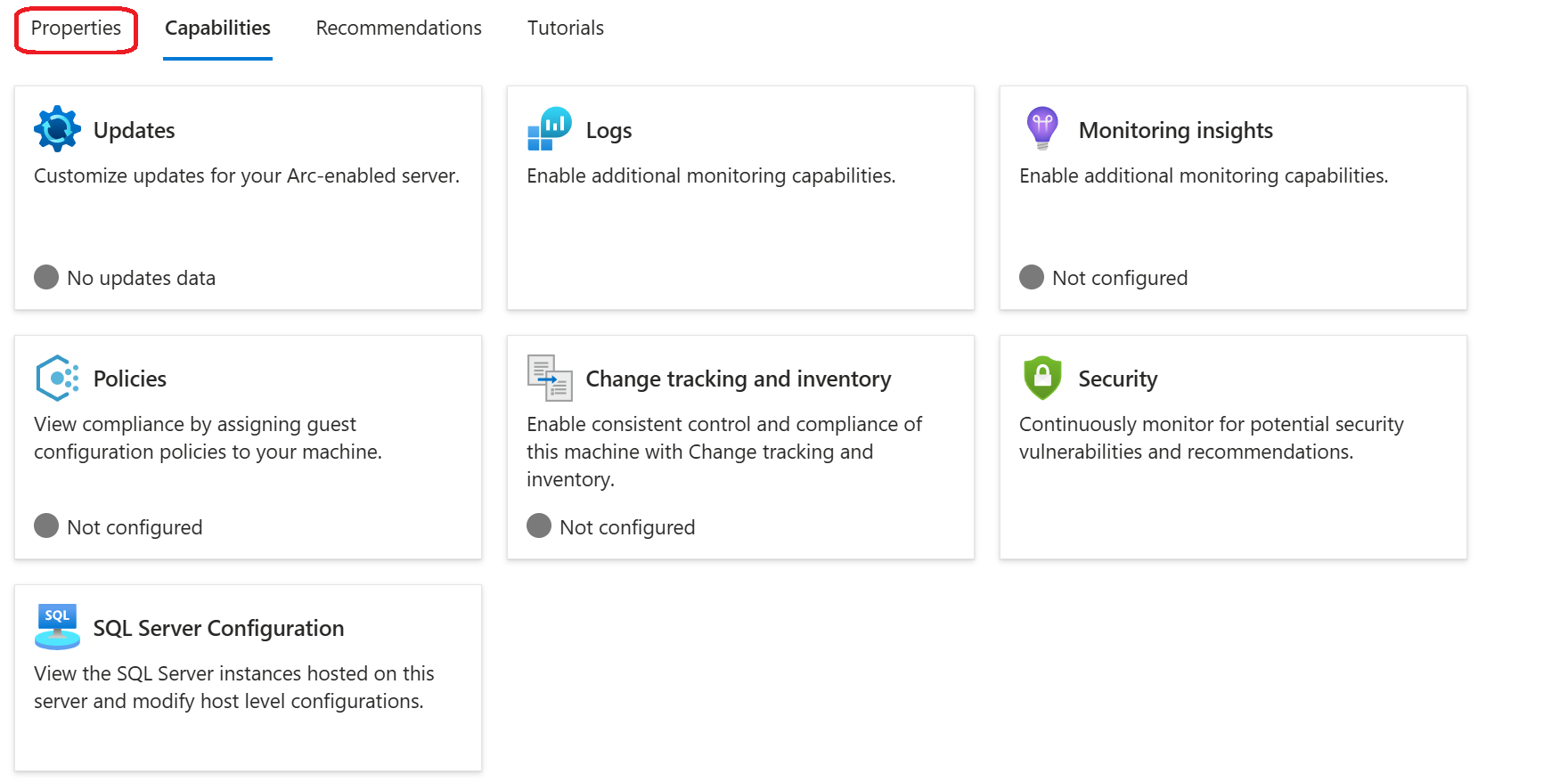
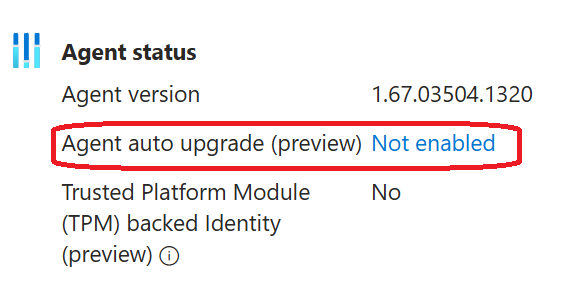
Under Agent status, select the current Agent auto upgrade status, such as Not enabled.
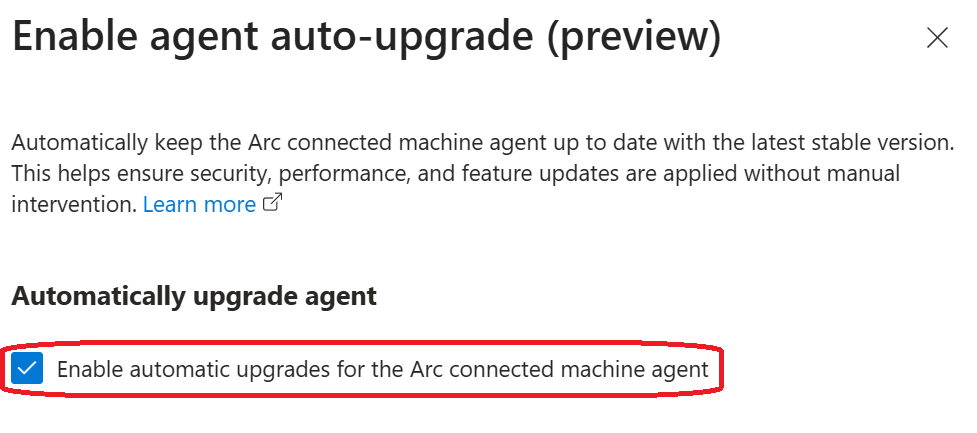
Select Enable automatic upgrades for the Arc connected machine agent, and then select Enable.
Verify automatic agent upgrade status
After you enable automatic agent upgrade, verify the current setting on the Arc-enabled server resource.
In the Azure portal, navigate to your Arc-enabled server.
Select Properties.
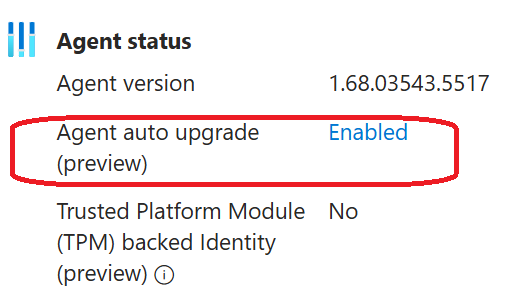
Under Agent status, check the current Agent auto upgrade status. In this example, the status is Enabled.
Disable automatic agent upgrade
To opt out of automatic agent upgrade for an existing Azure Arc-enabled server, set the enableAutomaticUpgrade property to false.
Note
If Azure Policy is assigned to enable automatic upgrades at the machine's scope, update or remove the assignment before disabling the setting. Otherwise, the policy can enable automatic upgrades again.
Block automatic agent upgrades locally
As an alternative to disabling the enableAutomaticUpgrade property on the Azure resource, you can block automatic agent upgrades locally on an individual machine. This option is useful when you want the Azure resource setting to remain enabled but don't want automatic upgrades to run on a specific machine. The automaticupgrade.blocklocally setting takes precedence over the enableAutomaticUpgrade property. When the local setting is true, automatic upgrades are blocked even if enableAutomaticUpgrade is set to true.
azcmagent config set automaticupgrade.blocklocally true
To verify the local block setting, run:
azcmagent config get automaticupgrade.blocklocally
To use automatic agent upgrades on the machine again, ensure that the local property is set to false:
azcmagent config set automaticupgrade.blocklocally false
To modify these settings at scale, it is recommended to use Run Command.