Note
Access to this page requires authorization. You can try signing in or changing directories.
Access to this page requires authorization. You can try changing directories.
Trusted Platform Module (TPM)-backed identity provides extra protection for the managed identity credentials that Azure Arc-enabled servers use.
By default, the Azure Connected Machine agent stores the machine's managed identity credential material on the local disk, protected by operating system access controls. When you use TPM-backed identity, the agent uses the machine's physical TPM or virtual TPM (vTPM) as a hardware-backed root of trust. The TPM secures the managed identity credentials against exfiltration, including by privileged users.
In this article, you learn how to:
- Check whether a machine is ready to use TPM-backed Identity.
- Enable TPM or vTPM when required.
- Connect one or more machines to Azure Arc by using TPM-backed identity.
- Verify that TPM-backed identity is enabled.
- Recover an existing TPM-backed connection.
Supported scenarios
TPM-backed identity supports connecting one or more new machines to Azure Arc and securing their managed identity credentials by using the machine's TPM or vTPM.
Migrating an existing Arc-enabled server from file-based credential storage to TPM-backed credential storage while retaining the same system-assigned managed identity isn't currently supported.
Prerequisites
Before you begin, ensure that:
- The machine has a TPM or vTPM that implements TPM 2.0, is enabled and operational, and has the storage and endorsement hierarchies enabled. Validate this condition by using the
azcmagent checkcommand described in the next section. - Azure Connected Machine agent version 1.69 or later is installed.
- You have administrator or root permissions on the machine.
Check TPM readiness
Before connecting the machine, run the following command from an elevated terminal:
azcmagent check tpm
The command reads the machine's TPM state and determines whether the TPM is ready for Azure Arc onboarding. It doesn't change the machine's TPM configuration.
A TPM is considered ready when it is:
- Present.
- Operational.
- Using TPM specification version 2.0.
- Configured with the storage hierarchy enabled.
- Configured with the endorsement hierarchy enabled.
The command also returns the TPM manufacturer and Endorsement Key certificate information. An Endorsement Key certificate isn't required for onboarding.
If the command returns Ready, continue to connect the machine using TPM-backed identity. If it returns Not Ready, enable or configure the TPM before continuing.
Enable TPM or vTPM
The process of enabling TPM depends on where the machine is running. After completing the applicable procedure, restart the machine and run azcmagent check tpm again.
- Windows and Linux physical machines
- Hyper-V virtual machines
- Google Cloud virtual machines
- AWS virtual machines
- VMware virtual machines
Enable TPM 2.0 in the machine's UEFI or BIOS configuration. The available settings and their names vary by hardware manufacturer.
Connect the machine using TPM-backed identity
Use the --identity-key-store flag during onboarding to configure how the machine stores its managed identity credentials. The flag supports two values for TPM:
tpm: Onboards the machine only by using TPM-backed identity. If a compatible TPM or vTPM isn't enabled and ready, onboarding fails.auto: Checks the machine for TPM readiness first, and if available, onboards with TPM. Otherwise, continues onboarding by using the file-based method.
--identity-key-store "tpm"
The examples in this section use --identity-key-store tpm to require TPM-backed identity.
If onboarding fails with a TPM-related error, see Azure Connected Machine agent error codes for troubleshooting steps.
azcmagent CLI
Run the following command from an elevated terminal. Replace the placeholder values with your Azure subscription, resource group, tenant, and region:
azcmagent connect \
  --subscription-id "<subscription-id>" \
  --resource-group "<resource-group>" \
  --tenant-id "<tenant-id>" \
  --location "<region>" \
  --identity-key-store "tpm"
Azure portal
You can enable TPM-backed identity when you generate an onboarding script in the Azure portal.
In the Azure portal, search for and select Azure Arc.
In the service menu, expand Infrastructure, and then select Machines.
Select Onboard/Create, and then select Onboard existing machines.
On the Basics tab, select your subscription, resource group, region, and operating system.
Under TPM-backed Identity, select the checkbox labeled Onboard with a Trusted Platform Module (TPM) for additional security.
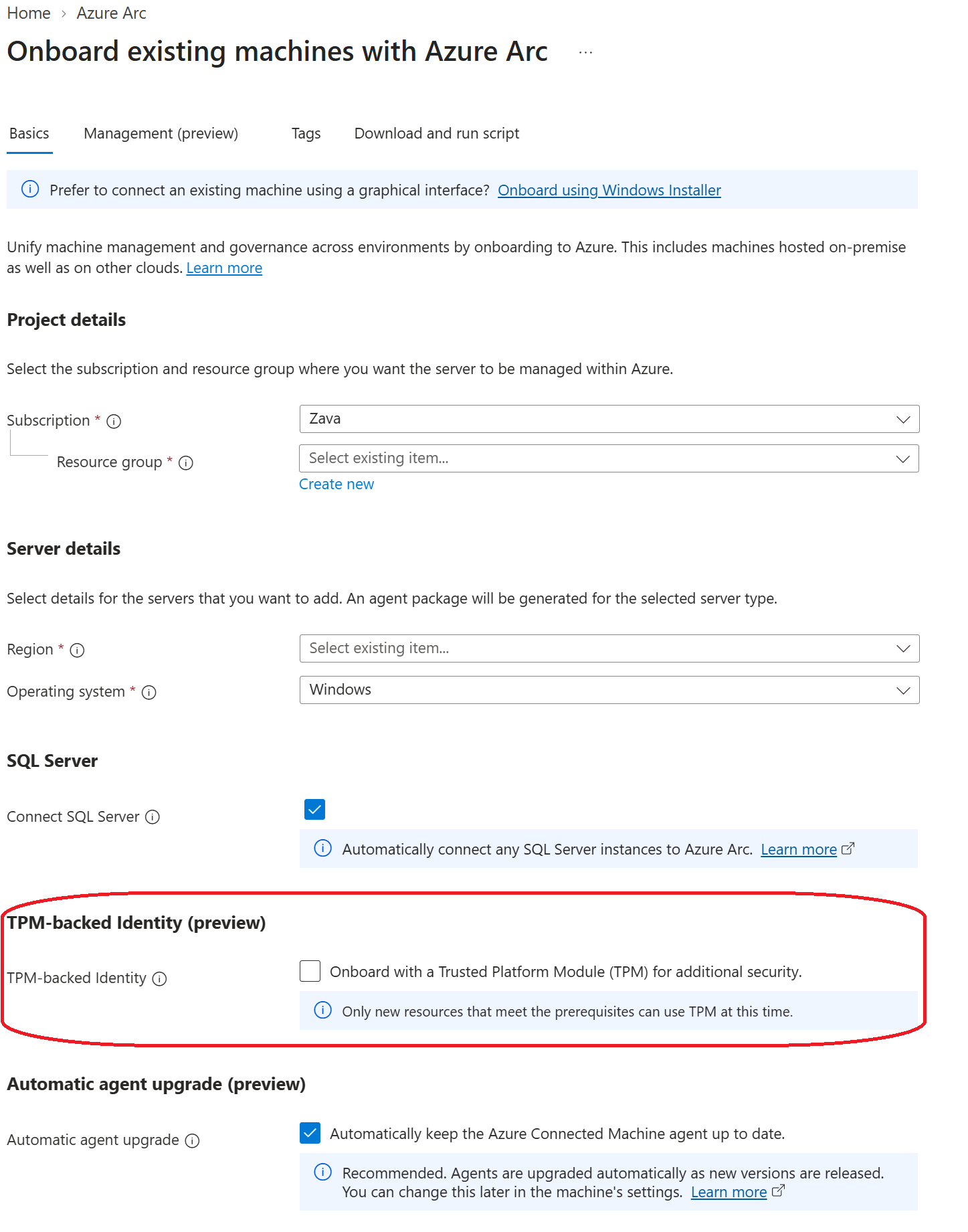
Complete the remaining onboarding settings, and then download and run the generated script on the machine. For detailed instructions, see Connect hybrid machines to Azure from the Azure portal.
Note
To connect machines by using TPM-backed identity, you can also use any of the at-scale onboarding methods.
Verify TPM-backed identity
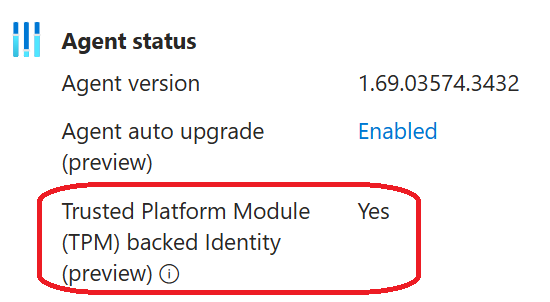
After the connection finishes, confirm that the Arc-enabled server resource is connected. Then verify that TPM-backed identity is enabled by using one of the following methods.
In the Azure portal, go to your Arc-enabled server.
Select Properties.
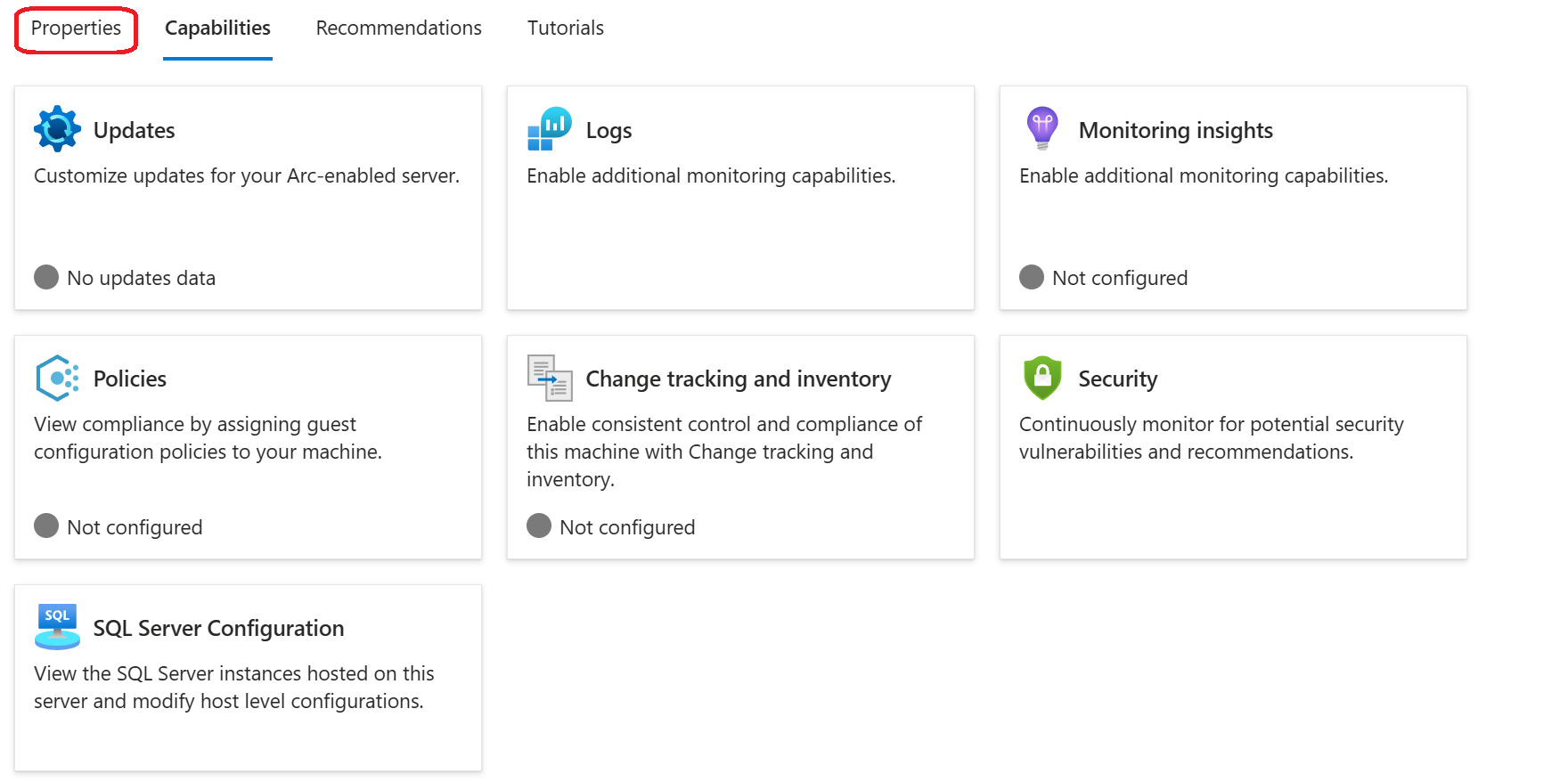
Under Agent status, confirm that Trusted Platform Module (TPM) backed Identity is Yes.
Recover an existing TPM-backed connection
Starting with agent version 1.70, azcmagent reconnect (preview) reattests the server's TPM credentials and rebuilds its local managed identity credentials without changing Azure identities or their role assignments.