Note
Access to this page requires authorization. You can try signing in or changing directories.
Access to this page requires authorization. You can try changing directories.
Note
Azure Monitor SCOM Managed Instance is no longer in support and is planned to be deprecated by 30 September 2026. This content will no longer be updated. We recommend Azure Monitor or System Center Operations Manager as an alternative solution, based on your requirements.
This article describes how to register the Azure Monitor SCOM Managed Instance resource provider.
Note
To learn about the SCOM Managed Instance architecture, see Azure Monitor SCOM Managed Instance.
Register the SCOM Managed Instance resource provider
To register the SCOM Managed Instance resource provider, follow these steps:
Sign in to the Azure portal and select Subscriptions.
Select the subscription where you want to deploy SCOM Managed Instance.
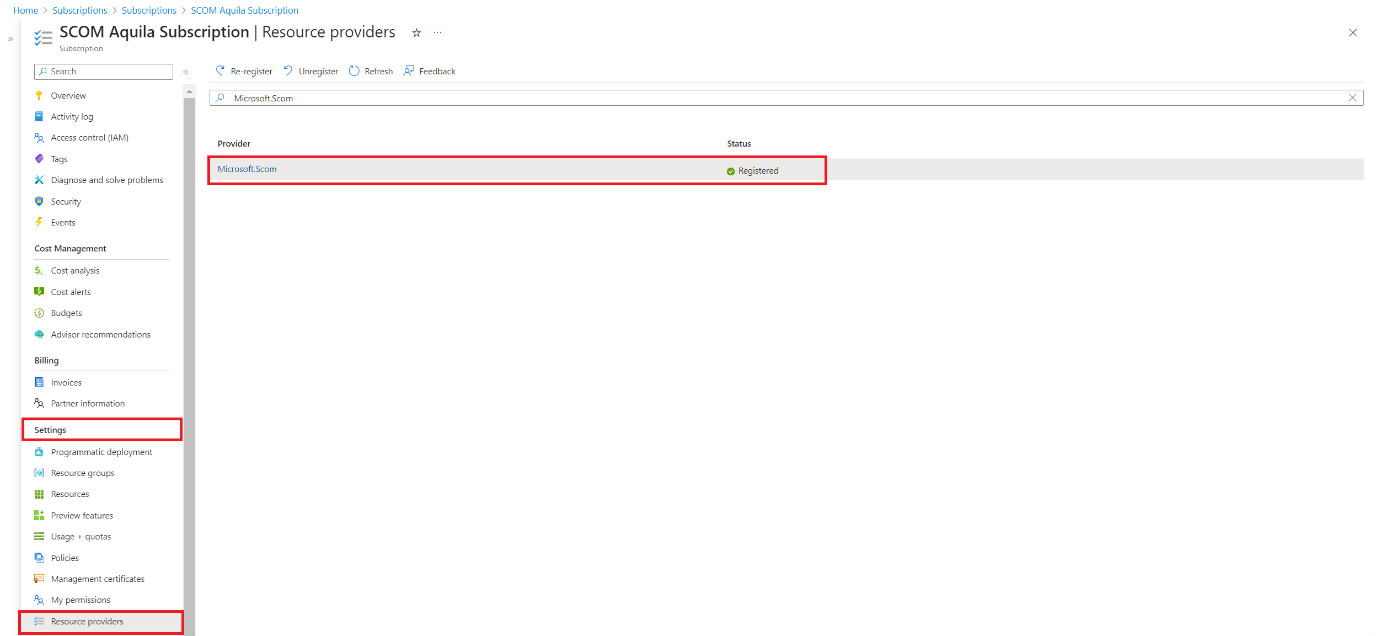
On the Subscription page, under Settings, select Resource providers and search for Microsoft.Scom. If the Microsoft.Scom provider isn't registered, select the provider, and then select Register.
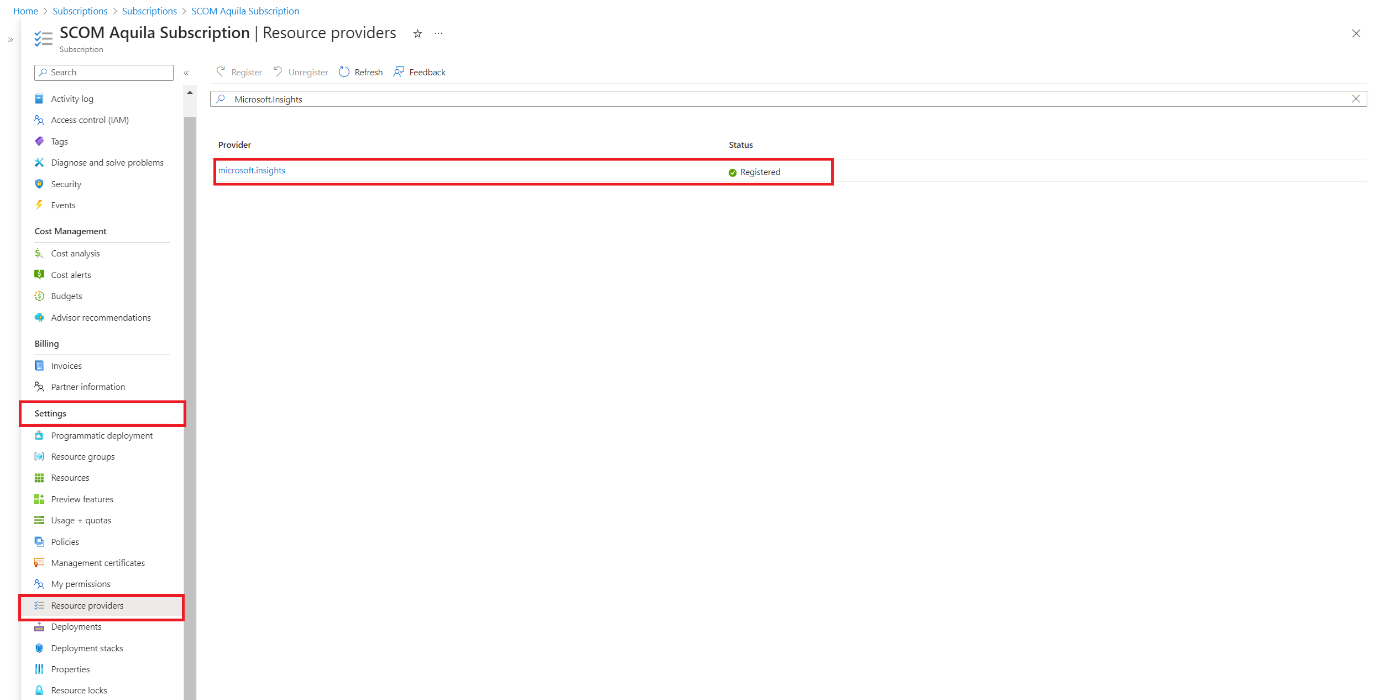
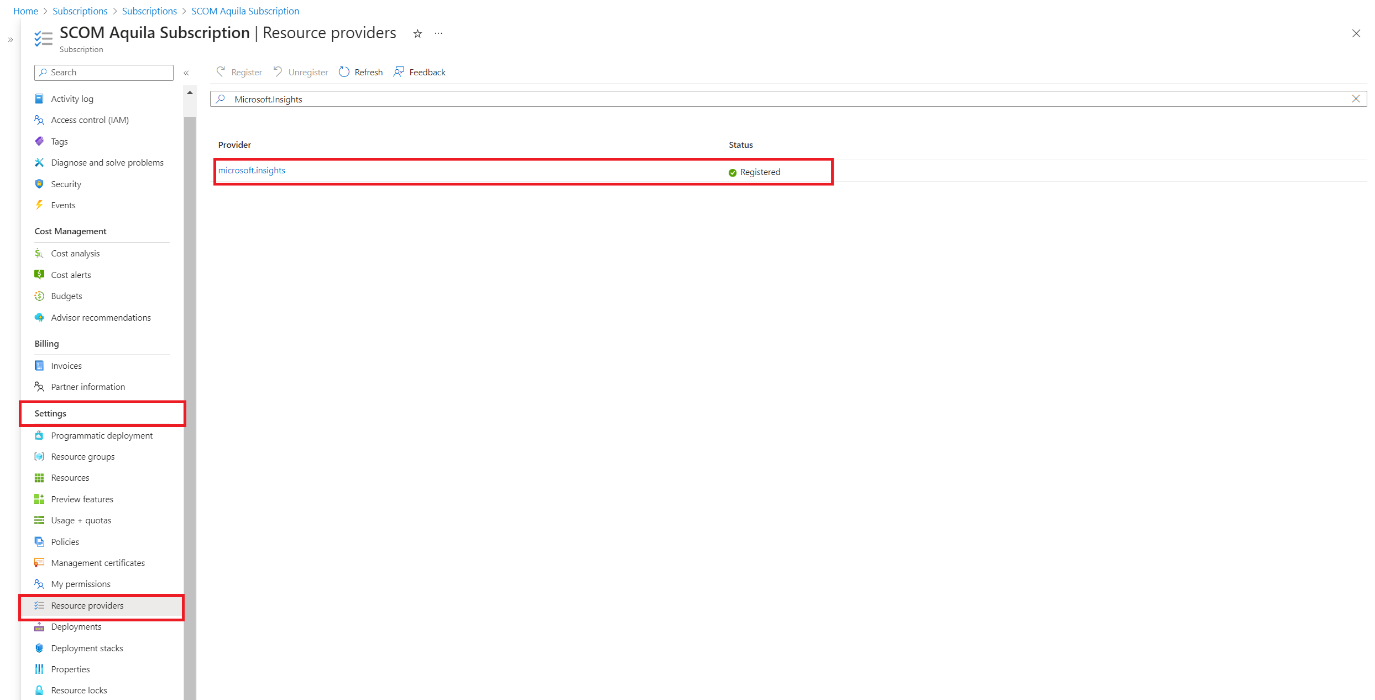
On the Subscription page, under Settings, select Resource providers and search for microsoft.insights. If the microsoft.insights provider isn't registered, select the provider, and then select Register.
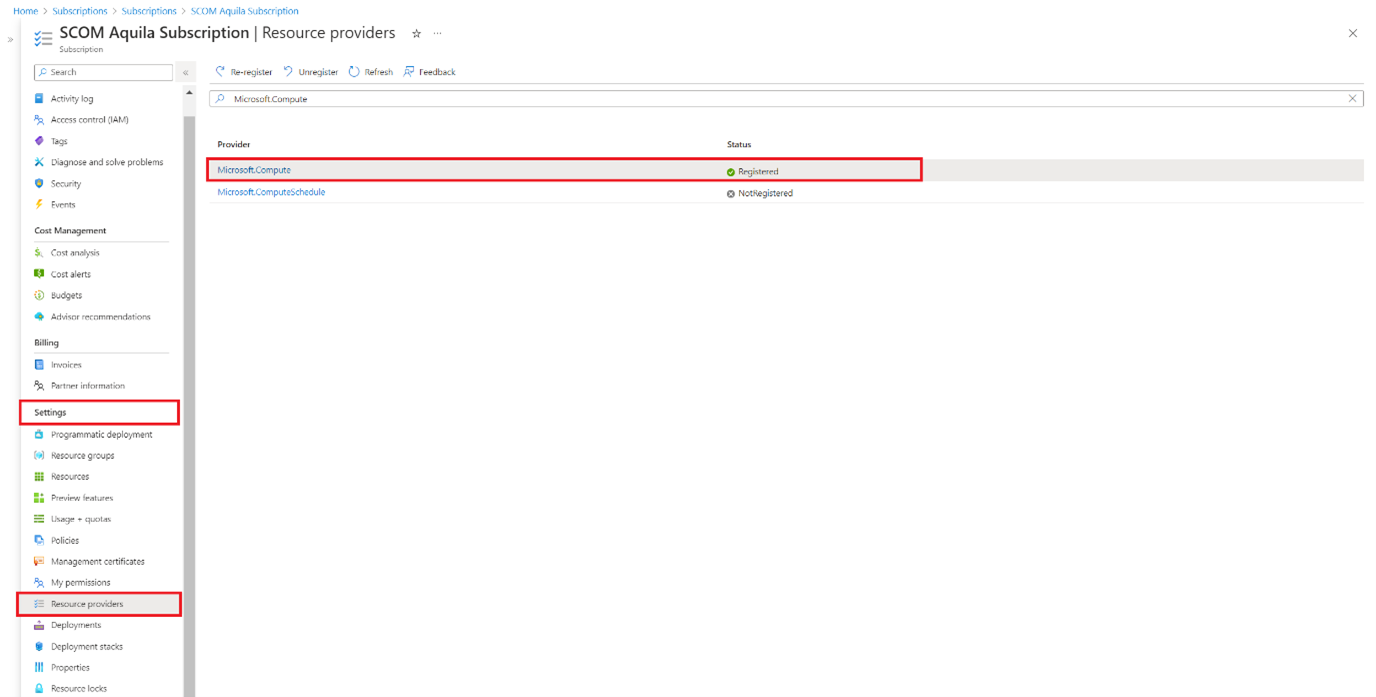
On the Subscription page, under Settings, select Resource providers and search for Microsoft.Compute. If the Microsoft.Compute provider isn't registered, select the provider, and then select Register.